 NeoBit Daily
Introduction: Making Sense of 2026 Software Updates
Software and operating system updates arrive constantly in 2026, bringing security patches, feature enhancements, and performance improvements. For everyday users, the challenge lies in understanding lengthy release notes filled with technical terms. This guide breaks down how to read patch notes effectively, helping you manage personal devices with confidence and avoid unnecessary risks. Release notes have become more detailed than ever due to rapid advancements in AI integration, privacy regulations, and cross-device synchronization. By mastering quick scanning techniques, you can focus on relevant details like security fixes that protect your data or new tools that enhance productivity without needing a computer science background.
Many users feel overwhelmed by the volume of information in these documents, but a structured approach turns them into valuable resources. Understanding what has changed allows you to anticipate how an update might affect your daily routines, from improved battery management to new accessibility options. This article provides in-depth strategies tailored for non-technical audiences seeking to stay informed about their Windows, macOS, Android, and iOS devices throughout 2026.
Why Release Notes Matter for Non-Technical Users
Updates often include critical security enhancements that address vulnerabilities discovered in previous versions. Ignoring them can leave devices exposed to threats such as malware or data breaches. Feature changes, meanwhile, might alter how apps function, affecting daily workflows like photo editing or video calls. Understanding these notes empowers better decisions about when and how to update, especially when balancing convenience with security needs.
In 2026, major platforms emphasize user privacy and AI-driven features. Release notes highlight these shifts, allowing users to prepare for interface changes or new permissions requests that could impact app functionality. Regular review also helps track compatibility with existing hardware and apps, preventing surprises like unsupported older peripherals after an update. Beyond immediate benefits, consistently reading notes builds long-term awareness of evolving technology trends that influence everything from smart home integration to mobile productivity tools.
Step-by-Step Methods to Scan Release Notes Quickly
Developing an efficient scanning routine saves time while ensuring you catch important details. Follow these expanded steps for best results:
- Begin with the summary or highlights section at the top, which lists major changes in plain language. This gives an immediate overview of whether the update focuses on security, performance, or new capabilities.
- Use your browser's find tool to search for keywords such as "security," "bug fix," "new feature," "compatibility," or "known issues." This narrows focus instantly to user-relevant areas.
- Skip overly technical sections aimed at developers, including API changes, code optimizations, or backend infrastructure details, unless you are actively troubleshooting a specific problem.
- Review the end of the document for known issues, rollback instructions, or temporary workarounds. These sections often include user-friendly advice on what to expect during installation.
- Note any required actions, such as device restarts, data backups, or granting new app permissions, and schedule updates during convenient times to minimize disruption.
- Cross-reference with official support forums or community discussions if a note mentions changes that seem unclear, but always prioritize vendor-provided information first.
Practicing this method on several updates builds speed and reduces overwhelm. Many 2026 notes now incorporate visual icons, color-coded sections, or expandable accordions for easier navigation across desktop and mobile platforms.
Spotting User-Facing Changes in Security and Features
Security updates typically appear first and use phrases like "patched vulnerability," "enhanced encryption," or "improved threat detection." These directly impact device safety and should be installed promptly after verifying compatibility. Feature updates describe additions such as refined multitasking gestures, advanced voice assistants, or enhanced camera processing, often accompanied by simple before-and-after descriptions.
Pay special attention to mentions of user impact, including changes to battery life, storage requirements, or notification behaviors. Compatibility warnings appear in dedicated sections listing supported models or minimum system versions required. For example, a note might explain how a new privacy control lets you limit background data sharing without affecting core app performance. By focusing on these elements, users can quickly determine if an update aligns with their needs or requires additional preparation like freeing up storage space.
Real-World Examples from Major OS Releases in 2026
Consider recent Windows updates that introduced refined privacy dashboards with step-by-step toggles for data sharing. The notes explained how to adjust settings in under two minutes while highlighting new AI-assisted file organization tools. macOS releases often detail seamless continuity features between Mac, iPhone, and iPad, providing clear setup wizards and troubleshooting tips for non-experts encountering sync issues. Mobile platforms like Android and iOS highlight camera enhancements, such as improved low-light performance, and security protocols using simple icons to flag changes that affect everyday photography or messaging apps.
These examples demonstrate how notes have evolved to include embedded user guides alongside traditional technical lists, making them far more accessible than in previous years. Another illustration comes from a major Android release that outlined battery optimization improvements with specific percentage gains reported from internal testing, helping users understand potential daily benefits.
Comparisons of Windows, macOS, and Mobile Update Formats
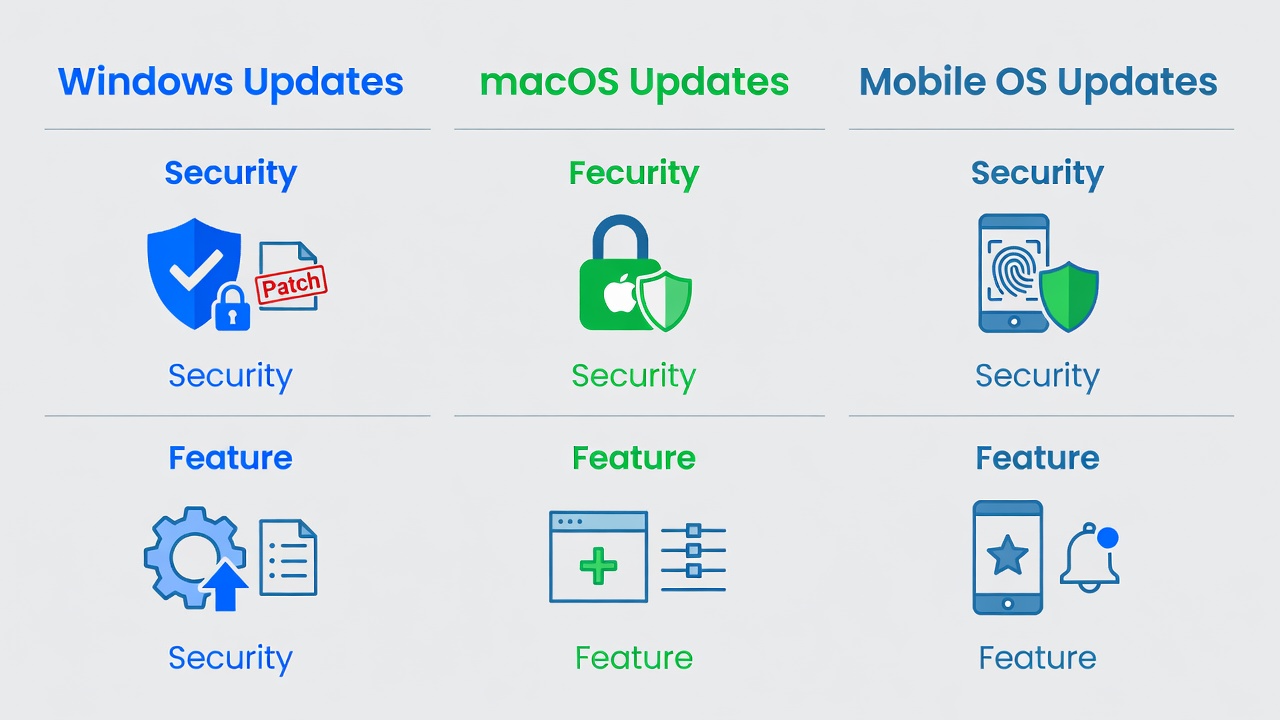
Windows release notes tend to be the most detailed, offering separate tabs or sections for security bulletins, feature rollouts, and known issues. They frequently link directly to comprehensive support pages for deeper dives into individual changes. macOS notes remain concise, emphasizing visual redesigns and ecosystem integration improvements across Apple devices with helpful screenshots. Mobile updates, especially on iOS and Android, favor bullet-point formats and app-specific breakdowns, often paired with in-device notification summaries that preview key highlights before installation.
Choosing the right reading approach depends on your device ecosystem. Cross-platform users benefit from comparing notes side-by-side to plan update schedules that minimize workflow disruption. Windows users might allocate more time for review due to lengthier documents, while macOS and mobile users can often rely on shorter, more visual presentations. This comparison helps tailor habits to individual preferences and device types.
Common Mistakes to Avoid When Reading Notes
- Skipping the entire document and updating blindly, which can lead to unexpected compatibility problems with older peripherals or third-party software.
- Misinterpreting technical terms without consulting vendor glossaries or support articles provided alongside the notes.
- Ignoring rollback options or uninstall instructions mentioned near the bottom, leaving users unprepared if issues arise post-update.
- Failing to back up important data before installing major version updates that could alter file structures or app behaviors.
- Overlooking version-specific warnings that apply only to certain device models or regions, resulting in unnecessary concern or delayed installations.
Preparing for Updates: Practical Advice and Best Practices
Before applying any update, create a full backup using built-in tools or cloud services. Test updates on a secondary device if possible to observe real-world effects. Schedule installations during low-activity periods, such as overnight, to allow time for restarts and background processes. Monitor battery levels and ensure a stable internet connection to prevent incomplete downloads that could cause further complications.
Frequently Asked Questions
Do I need to read every release note?
No. Focus primarily on security and compatibility sections for routine monthly updates. Reserve full reviews for major annual version changes that introduce significant interface or functionality shifts.
What if an update breaks an app I rely on?
Check the known issues section first for reported problems and official workarounds. Most vendors provide fixes or timelines within days, and temporary solutions like running the app in compatibility mode are often suggested.
How do I stay updated without constant manual checking?
Enable automatic updates for security patches while reviewing feature notes monthly via official support sites such as Microsoft or Apple. Many platforms also send email summaries upon request.
Are there differences in how mobile versus desktop notes are written?
Yes. Mobile notes are typically shorter and more visual, while desktop notes provide greater technical depth. Both formats now include user-focused summaries to bridge the gap for everyday readers.
Conclusion: Taking Control of Your Device Updates
Decoding 2026 release notes does not require technical expertise. With structured scanning habits and attention to security and compatibility details, everyday users can maintain secure, up-to-date devices across all major platforms. Apply these tips consistently to make informed choices that enhance both safety and usability while staying ahead of evolving software landscapes.

No comments yet. Be the first!