 NeoBit Daily
Introduction to Zapier Automation in 2026
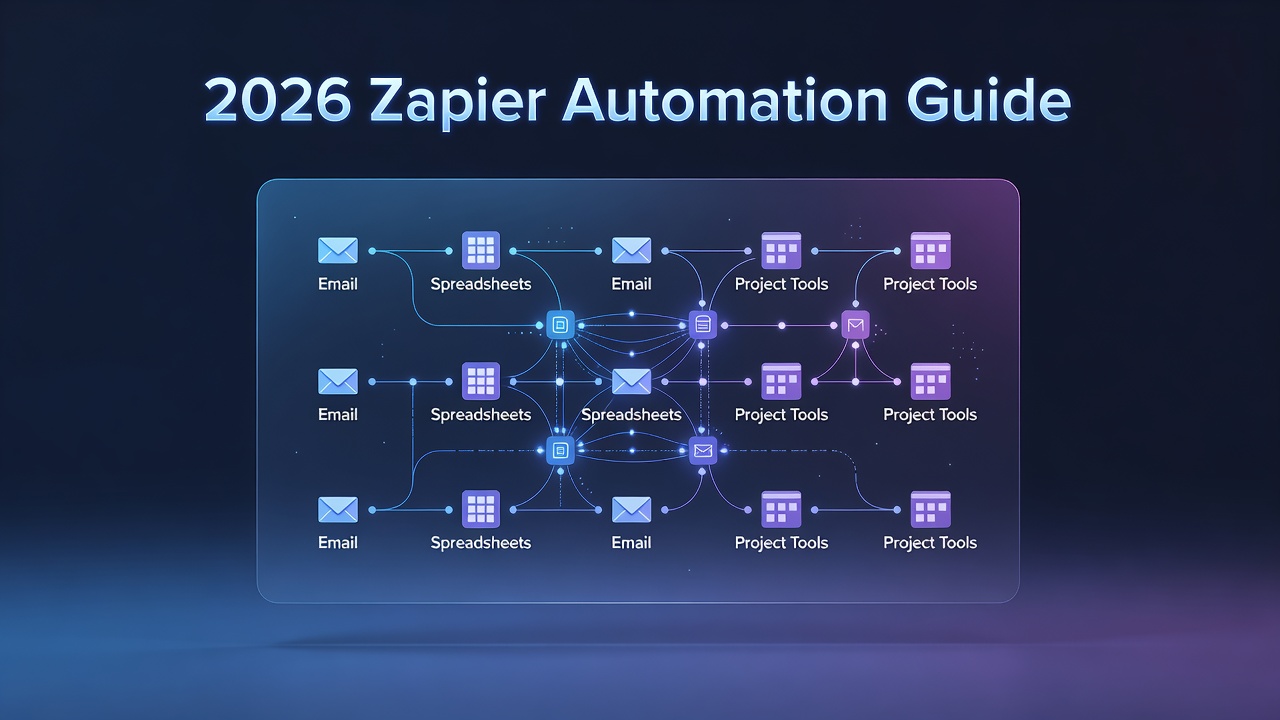
Zapier remains the leading no-code platform for connecting apps and automating workflows. In 2026, it empowers users to eliminate repetitive tasks across email, spreadsheets, project management tools, and more. This guide covers everything from initial setup to advanced AI integrations, helping freelancers and teams boost productivity without writing code. Automation has become essential for modern professionals who juggle multiple tools daily, and Zapier bridges these gaps seamlessly by acting as a central hub for data flow and task triggers.
Whether you're new to automation or looking to optimize existing workflows, Zapier’s intuitive interface makes cross-app connections simple. Popular use cases include syncing data between Gmail and Google Sheets or triggering project updates in tools like Trello or Asana. By the end of this guide, you will have actionable knowledge to build reliable automations that save hours each week.
Getting Started with Zapier Setup
Begin by creating a free account at the official Zapier website. The platform guides you through connecting your first apps using secure OAuth authentication. Verify your email and explore the dashboard to discover recommended Zaps based on your connected services. Take time to customize your profile settings, including time zones and notification preferences, so automations align with your schedule.
Next, install the Zapier browser extension for quick triggers from any webpage. This setup typically takes under five minutes and supports hundreds of apps out of the box. Explore the Zapier App Directory to preview available integrations before committing to connections. Users often start by linking core productivity apps such as Gmail, Slack, and Google Sheets to see immediate value.
Building Your First Single-Step Zap
A basic Zap consists of a trigger and an action. For example, create a Zap that saves new Gmail attachments to Google Drive:
- Choose Gmail as the trigger app and select “New Attachment.”
- Connect your Gmail account and test the trigger to pull sample data.
- Select Google Drive as the action app and choose “Upload File.”
- Map the attachment field from the trigger to the action.
- Test and activate the Zap.
This single-step process runs automatically whenever a new email arrives with an attachment. Beginners should always test thoroughly with real sample data to confirm field mappings work correctly. Additional single-step examples include creating calendar events from email confirmations or posting new blog comments to a Slack channel for review.
Creating Multi-Step Zaps for Complex Workflows
Multi-step Zaps add filters, formatters, and multiple actions. Suppose you want to log new leads from a form into a spreadsheet and notify your team via Slack:
- Start with a Typeform trigger for new submissions.
- Add a Formatter step to clean and format the data.
- Use a Filter to process only qualified leads.
- Send data to Google Sheets, then post a message in Slack.
Zapier supports up to dozens of steps in premium plans, allowing sophisticated automations like conditional branching and delays. You can also incorporate paths to create if-then logic, such as routing high-value leads differently from standard inquiries. Real examples include automatically generating invoices in QuickBooks after a project milestone is marked complete in Asana, followed by an email confirmation to the client.
Incorporating AI-Powered Actions in 2026
Zapier’s AI features, powered by integrations with models like GPT, enable intelligent actions such as summarizing emails or generating task descriptions. Add an AI step to your Zap to analyze customer feedback and categorize it automatically before storing results in a database. These tools can also draft responses, extract key information from documents, or even predict next actions based on historical patterns.
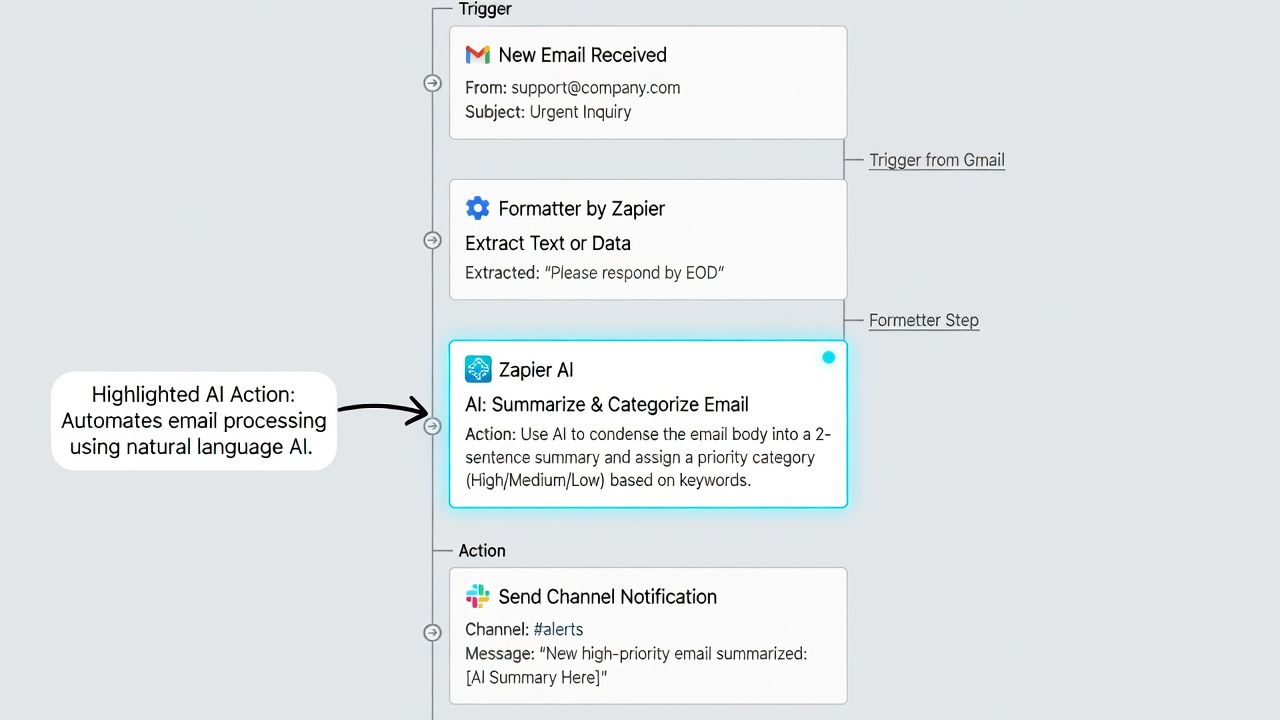
These capabilities reduce manual review and make workflows smarter without custom development. Experiment with AI by starting with simple prompts in the Zap editor, then refine them based on output quality. Many users combine AI with existing triggers to create dynamic content like personalized follow-up emails generated from spreadsheet entries.
Popular Integrations with Email, Spreadsheets, and Project Tools
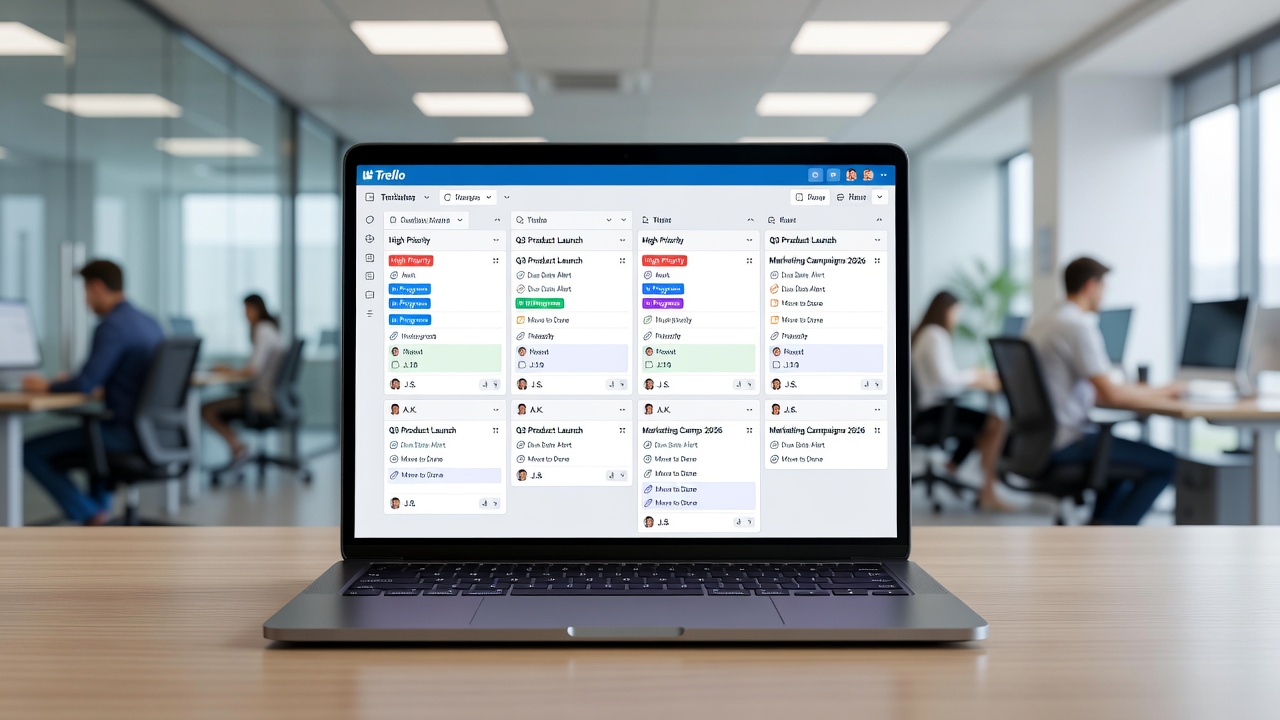
Zapier excels at connecting everyday tools. Email automations with Gmail or Outlook handle notifications and archiving. Spreadsheet integrations with Google Sheets or Excel keep data synchronized across teams. Project management tools like Asana, Trello, and Monday.com benefit from automatic task creation and status updates. For deeper developer insights, explore resources at MDN Web Docs on API concepts that power these connections.
Other strong integrations include CRM platforms such as HubSpot and Salesforce for lead management, as well as marketing tools like Mailchimp for automated campaigns. Combining these allows end-to-end processes, for instance, capturing a webinar signup, adding the contact to a CRM, and scheduling a follow-up task in your project tool all in one flow.
Error Troubleshooting and Optimization Techniques
Common issues include authentication failures or rate limits. Check Zap history for detailed logs and reauthorize apps when tokens expire. Use Zapier’s built-in error handling with retry steps or fallback actions. Set up email alerts for critical failures so you can intervene quickly rather than discovering broken automations days later.
Optimize by adding filters to reduce unnecessary runs, combining similar Zaps, and monitoring usage dashboards. Regular audits keep automations efficient and cost-effective. Advanced techniques include using webhooks for custom app connections and implementing data deduplication steps to avoid duplicate records. Users should also review task usage monthly to identify Zaps that consume excessive runs and refactor them for efficiency.
Free vs Premium Plan Comparison
The free tier supports basic single-step Zaps with limited tasks per month. Premium plans unlock multi-step workflows, AI features, priority support, and higher task volumes, making them ideal for growing teams and complex automations. Evaluate your monthly task count and number of required steps before upgrading to ensure the chosen plan matches your actual usage patterns.
Real-World Case Studies
A freelancer automated client onboarding by connecting a CRM to email and invoicing tools, saving hours weekly. A marketing team uses Zapier to route form submissions into project boards and analytics dashboards, improving campaign response times significantly. In another example, a remote development team automated bug report routing from GitHub issues directly into their Slack channels with AI-generated summaries, reducing response time from hours to minutes.
FAQ: Common Beginner Questions
Is Zapier secure for business data?
Yes, Zapier uses bank-level encryption and complies with major standards. Always review app permissions during setup.
Can I automate without any coding knowledge?
Absolutely. The visual builder handles everything through point-and-click interfaces and pre-built templates.
How many apps does Zapier support?
Over 7,000 apps are currently integrated, with new ones added regularly.
What happens if a Zap fails?
Zapier logs the error and can retry automatically or send notifications so you can fix issues promptly.
Can Zaps run on a schedule?
Yes, you can configure time-based triggers in addition to event-based ones for greater control over when automations execute.
Conclusion
Zapier in 2026 offers powerful, accessible automation that transforms how individuals and teams work. Start small with single-step Zaps, expand to multi-step processes, and leverage AI for even greater efficiency. With the right setup and optimizations, you can achieve seamless cross-app workflows that save time and reduce errors.

No comments yet. Be the first!