 NeoBit Daily
Introduction to Trello in 2026
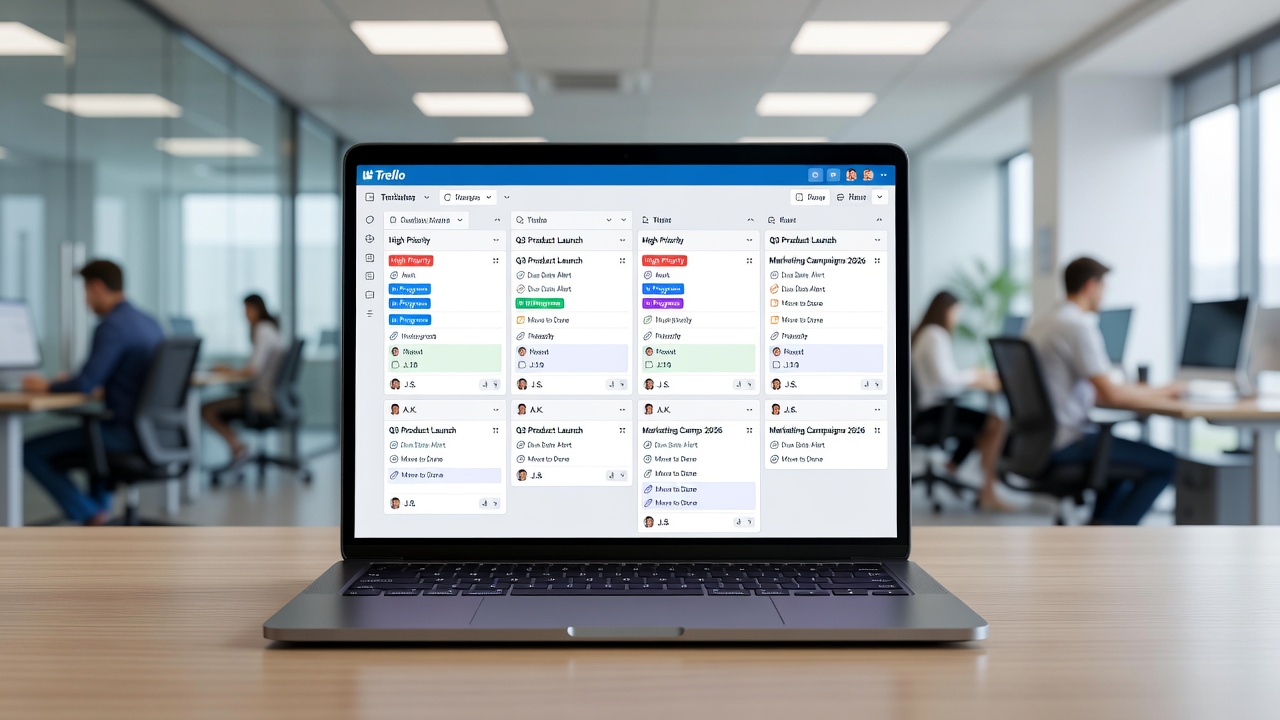
Trello remains a leading visual project management tool for teams seeking intuitive workflows. In 2026, enhancements to its Butler automation engine and deeper integrations make it even more powerful for streamlining project tracking. This comprehensive guide walks you through building effective boards from scratch, leveraging core features, and implementing advanced automations to boost productivity across departments.
Whether you are managing marketing campaigns, software development sprints, or cross-functional operations, Trello’s card-based system offers clarity at a glance. Teams report significant time savings through rule-based automations that handle repetitive tasks automatically. The platform’s flexibility allows both small startups and large enterprises to customize workflows without steep learning curves, making it ideal for distributed teams working across time zones.
Setting Up Your First Trello Board from Scratch
Begin by creating a new board on the Trello homepage. Name it according to your project, such as “Q3 Marketing Campaign 2026,” and choose a background that aligns with your team’s branding for quick visual recognition. Customize board visibility settings early to ensure only authorized members can access sensitive project data.
Invite team members immediately using their email addresses or workspace groups. Set permissions to “Team” level for collaborative editing while maintaining oversight with board admins. Consider creating multiple boards for different departments and linking them via card attachments for cross-team visibility. Add a board description that outlines goals, key milestones, and contact points for new collaborators.
Organizing with Lists and Cards
Lists represent stages in your workflow. Start with standard lists like To Do, In Progress, Review, and Done. Add custom lists such as Backlog or Blocked for complex projects. Drag and drop cards between lists to reflect real-time progress and use list limits to prevent overload in any single stage.
Each card can hold detailed descriptions, due dates, checklists, attachments, and comments. For example, a marketing team might attach campaign briefs directly to cards and assign due dates tied to launch milestones. Cards also support custom fields for tracking metrics like budget estimates or client approval status, giving teams deeper context without leaving the board view.
Effective Use of Labels and Power-Ups
Labels provide color-coded categorization. Create labels like “High Priority,” “Client Review,” or “Design Phase” to filter views quickly. Consistent labeling across teams prevents confusion and speeds up reporting. Use label colors strategically—red for urgent items, green for completed phases—to create an at-a-glance status system that new team members can understand immediately.
Power-Ups extend board capabilities. Enable the Calendar Power-Up to visualize deadlines or the Voting Power-Up for team decision-making on feature priorities. In 2026, several updated Power-Ups offer improved analytics dashboards that track card movement velocity and bottleneck identification. Activate the Map Power-Up for location-based projects or the Time Tracking Power-Up to log hours directly on cards.
Butler Automation Rules Introduced in 2026
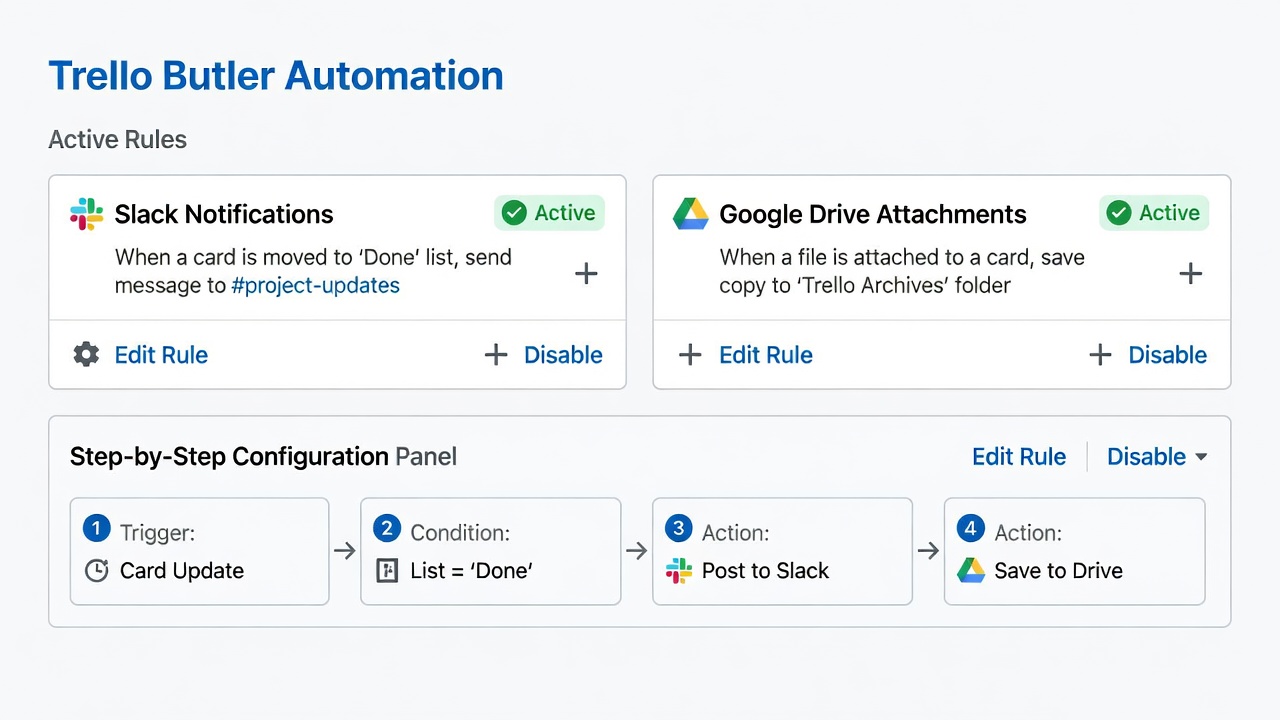
Butler, Trello’s built-in automation tool, received major updates in 2026, allowing more sophisticated if-then rules without coding. Common rules include moving cards when due dates pass or adding labels based on checklist completion. These automations now support conditional logic based on multiple triggers, such as combining due date proximity with specific label presence.
To create a rule, access Butler from the board menu and select “Create Rule.” For instance, set a rule that posts a Slack message whenever a card moves to the “Review” list. Another rule can automatically archive completed cards after 30 days or assign team members based on card labels. Advanced users can build multi-step automations that chain several actions together for end-to-end process handling.
Step-by-Step Example: Automating Status Updates
- Open Butler and choose “When a card is moved to a list.”
- Select your target list, such as “Done.”
- Add the action “Post a message to Slack channel #project-updates.”
- Include dynamic variables like card name and assignee for richer notifications.
- Save and test the rule on a sample card before activating it board-wide.
These automations reduce manual updates and keep everyone aligned without constant meetings, freeing teams to focus on creative and strategic work instead of status chasing.
Integrations with Slack and Google Drive
Connecting Trello to Slack enables real-time notifications. Cards can trigger channel messages or even create new Slack threads for discussion. This integration eliminates context-switching between tools and supports threaded conversations that stay linked back to the original Trello card for full audit trails.
Google Drive integration, available via the Attachment Power-Up, lets you link or embed Drive files directly into cards. Teams can co-edit documents without leaving Trello, with changes reflected instantly. For deeper connectivity, explore Google Drive sharing permissions synced with Trello member access. Set up folder structures in Drive that mirror Trello list names to maintain organization across both platforms.
Real-Team Examples and Workflow Gains
A software team at a mid-sized startup uses Trello to track feature development. They combine labels for priority with Butler rules that assign cards to specific developers based on skill tags. Productivity increased as manual handoffs dropped significantly, allowing developers to spend more time coding rather than updating spreadsheets.
Marketing agencies benefit from calendar views and Drive attachments for asset reviews, cutting approval cycles by days. One agency implemented a content pipeline board where Butler automatically moves approved drafts to the publishing queue and notifies the social media team via Slack. Operations teams in logistics companies use Trello boards with map Power-Ups to visualize shipment statuses and trigger alerts when deliveries fall behind schedule.
Trello vs Asana: Key Comparisons
While both tools support project tracking, Trello excels in visual simplicity and quick setup. Asana offers more robust timeline views and workload management for larger enterprises. Choose Trello when your team values flexibility and low learning curves; opt for Asana if detailed reporting and Gantt charts are priorities. Many teams use Trello for high-level overviews and link to Asana for granular task tracking, creating a hybrid system that leverages the strengths of both platforms.
Best Practices and Common Mistakes to Avoid
Keep boards focused by limiting the number of active lists and archiving inactive cards regularly. Train team members on consistent labeling and card naming conventions to maintain clarity. Avoid over-automating early; start with simple rules and expand based on observed pain points. Common mistakes include cluttered boards with too many Power-Ups enabled simultaneously and neglecting to review automation logs for errors that could silently disrupt workflows.
FAQ: Addressing Common Workflow Bottlenecks
How do I handle overdue cards?
Use Butler rules to automatically label or notify assignees when due dates approach or pass, and consider adding a dedicated “Overdue” list for visibility.
Can multiple teams share one board?
Yes, but create separate workspaces or use board permissions to control visibility and avoid clutter from unrelated projects.
What if automations fail?
Check rule triggers in Butler’s activity log and ensure connected apps like Slack maintain valid authentication tokens.
How can I scale Trello for very large teams?
Use workspace-level templates and Power-Up restrictions to maintain performance while providing standardized starting points for new projects.
Advanced Checklist Templates You Can Copy
Copy these templates into new cards for consistent processes:
- Content Creation Checklist: Research topic, outline draft, write first version, internal review, client feedback, final edits, schedule publish, promote across channels.
- Software Bug Tracking: Reproduce issue, log details, assign developer, test fix, update documentation, close ticket, notify stakeholders.
- Event Planning: Book venue, confirm speakers, design materials, promote event, manage registrations, post-event follow-up, collect feedback surveys.
- Product Launch Checklist: Finalize feature list, complete QA testing, prepare marketing assets, coordinate press release, monitor launch metrics, gather user feedback.
Customize these lists with due dates and assignees to match your specific needs. Save frequently used checklists as board templates for future projects and share them across your workspace.
Conclusion
Trello in 2026 empowers teams with visual clarity and intelligent automations that drive real productivity gains. By mastering board setup, Power-Ups, Butler rules, and key integrations, your team can focus on high-value work instead of administrative overhead. Start building today and iterate based on your workflow data to continuously refine processes.

No comments yet. Be the first!