 NeoBit Daily

Introduction to Slack in 2026
Slack continues to dominate as the premier platform for modern team collaboration and productivity in 2026. This comprehensive guide delivers practical, in-depth instructions for workspace setup, strategic channel organization, seamless integrations with tools like Google Workspace, and powerful no-code workflow automations. You will also discover effective notification management, advanced search and threading techniques, plus a detailed comparison with Microsoft Teams. Real-world examples from marketing, support, and engineering teams illustrate how these features drive efficiency. Whether you are a beginner setting up your first workspace or a power user scaling automations across departments, the step-by-step guidance here addresses common challenges and helps you maximize Slack's capabilities for daily operations.
Setting Up Your Slack Workspace
Creating or refining a Slack workspace forms the foundation of effective collaboration. Start at the official Slack website and follow these detailed numbered steps: 1. Select or create your team domain with a clear, memorable name that reflects your organization. 2. Invite initial members by entering email addresses or generating shareable links while setting appropriate permission levels. 3. Configure core settings including time zones, two-factor authentication requirements, and data retention policies. 4. Customize the workspace icon and description for easy recognition. A real-world example involves a 50-person marketing agency that completed initial setup in under two hours and immediately used channels to replace scattered email threads, resulting in faster campaign approvals. Additional tips include auditing member access quarterly and establishing a welcome channel with pinned onboarding resources to reduce confusion for new hires.
Strategic Channel Organization
Well-organized channels prevent information overload and keep conversations focused. Create public channels for company-wide topics such as #announcements and #general, while reserving private channels for sensitive projects like #exec-strategy or client-specific discussions. Adopt consistent naming conventions such as #team-department-project to make navigation intuitive. Maintain an active list of best practices: limit each team to 10-15 core channels, archive inactive ones every quarter, pin critical messages at the top of each channel, and use sections to group related channels logically. For instance, an engineering team at a SaaS company organized channels into sections labeled "Core Projects," "Cross-Functional," and "Social," which helped new developers locate discussions quickly and reduced duplicate messages by 35 percent within the first month.
- Use topic and description fields in every channel to clarify purpose
- Enable channel reminders for recurring meetings or deadlines
- Review channel membership monthly to maintain relevance
Integrations with Google Workspace
Connecting Slack to Google Workspace unlocks seamless file sharing and calendar synchronization. Begin by visiting the Google Workspace homepage to confirm your account permissions, then navigate to the Slack App Directory. Search for and install the official Google Drive, Calendar, and Docs integrations. Authorize access by signing in with your Google credentials, after which you can share Drive files directly in channels, create events from Slack messages, and preview documents without leaving the app. A support team example shows how linking these tools allowed agents to attach relevant spreadsheets to customer threads instantly, cutting response times significantly. For further details on Slack's integration capabilities, explore resources at Slack's official site.
Building No-Code Workflow Automations
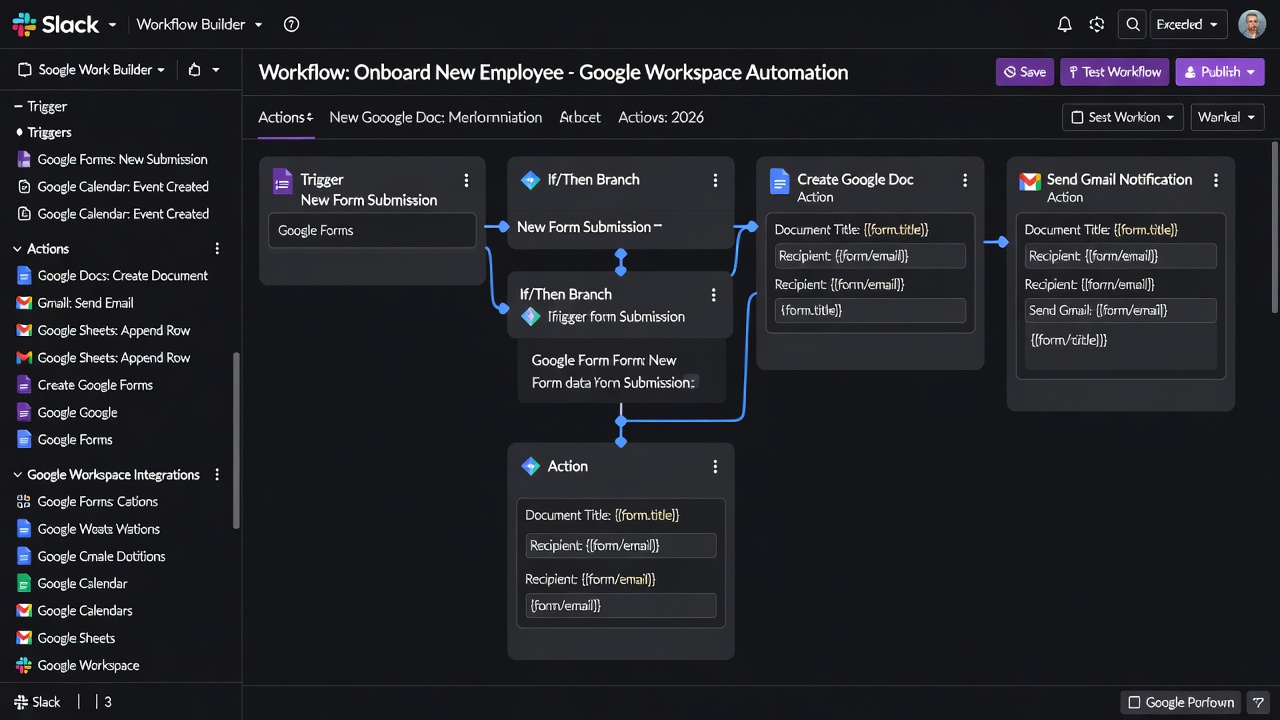
Slack's Workflow Builder empowers teams to create sophisticated automations without writing code. Start with simple triggers such as a new member joining a channel or a reaction added to a message. Build multi-step workflows that send welcome messages, assign tasks via forms, or update external databases. Consider these practical examples: an HR team automated new-hire onboarding by triggering a welcome message, collecting equipment preferences through a form, and posting a summary to the manager's private channel; an engineering group set up a bug-report workflow that posts details to a dedicated channel, creates a follow-up reminder, and syncs data to Google Sheets. Numbered instructions for any workflow include: 1. Open Workflow Builder from the workspace menu. 2. Choose a trigger event. 3. Add sequential steps such as sending messages, collecting data, or calling external apps. 4. Test the workflow in a private channel before activating it organization-wide. Teams across industries report reclaiming several hours per week through these repeatable processes.
Notification Management Strategies
Effective notification settings keep users informed without causing constant interruptions. Customize alerts at the channel level to receive mentions only in high-priority channels while muting others. Implement Do Not Disturb schedules aligned with working hours and use keyword notifications for terms like project names or client identifiers. Advanced users combine these with thread subscriptions so replies appear in a consolidated inbox view. A product development team reduced notification volume by 60 percent by applying these layered strategies, allowing focused deep work while ensuring urgent issues still surfaced promptly.
Advanced Search and Thread Techniques
Slack's search functionality becomes highly effective when operators are applied correctly. Use queries such as from:@username in:#channel after:2026-06-01 to locate specific conversations quickly. Threading keeps related replies organized beneath the original message, preventing main channels from becoming cluttered. In practice, a customer support team improved resolution rates by consistently threading follow-up questions and solutions, creating searchable knowledge bases that new agents could reference immediately.
Slack vs Microsoft Teams Comparison
Choosing between Slack and Microsoft Teams depends on your existing tech stack and collaboration needs. The following table highlights key differences:
| Feature | Slack | Microsoft Teams |
|---|---|---|
| Integrations | Broad ecosystem with thousands of apps | Deep integration with Microsoft 365 suite |
| Automation | Intuitive no-code Workflow Builder | Relies on Power Automate for complex flows |
| Search | Advanced operators and filters | Strong contextual and file search |
| Channel Structure | Flexible public and private options | Teams and channels with Office integration |
Many organizations run both tools in parallel during transition periods to evaluate fit. For official details on Microsoft 365 collaboration features, refer to Microsoft's homepage.
Conclusion
Applying the workspace setup, channel strategies, integrations, and automations outlined in this 2026 Slack guide will significantly enhance team productivity and communication clarity. Begin with foundational organization, then layer on workflows and search techniques to scale effectively across your organization.
FAQ
How do I scale channels for large teams without creating chaos? Implement sections, granular permissions, and regular audits to keep the structure manageable.
What should I do if an integration stops working? Re-authorize the connection through the app settings and verify that both Slack and the third-party service have up-to-date permissions.
Is Workflow Builder suitable for complete beginners? Yes, the visual drag-and-drop interface requires no coding experience and includes templates to accelerate setup.
How can power users optimize search across multiple workspaces? Combine operators with saved searches and external tools that aggregate results from connected Slack instances.

No comments yet. Be the first!