 NeoBit Daily
VS Code 2026: Master Extensions & Productivity Shortcuts Guide
In 2026, Visual Studio Code continues to dominate as the preferred code editor for developers across industries. This comprehensive guide explores its most powerful productivity features, including essential extensions, custom keyboard shortcuts, workflow automation techniques, remote development configurations, AI-assisted coding capabilities, and seamless version control integration. Whether you are a beginner setting up your first workspace or an intermediate developer optimizing complex multi-project environments, these strategies deliver measurable improvements in speed and code quality.
Essential Extensions for 2026 Productivity
Begin by curating a focused set of extensions from the official marketplace. Core recommendations include GitLens for deep Git insights, Prettier for automatic code formatting, ESLint for real-time error detection, and the official Python or TypeScript extensions depending on your stack. Each extension addresses common pain points such as manual formatting, overlooked bugs, and fragmented version history tracking. Installing them takes only minutes but yields immediate benefits during daily coding sessions.
Comparison of Top Extensions
- GitLens versus the built-in Git support: GitLens provides inline blame annotations, commit graphs, and file history views that reduce the time spent navigating repositories by approximately half in team environments.
- Prettier versus manual formatting: This tool enforces consistent style rules automatically on save, eliminating debates over indentation and spacing in collaborative projects.
- Remote - SSH versus local-only workflows: The extension allows direct editing of remote files while maintaining full debugging and terminal functionality without duplicating code locally.
- ESLint combined with Prettier: Together they catch both style and logical issues before commit, preventing lengthy review cycles.
Real-world example: A mid-sized development team integrated these four extensions and observed faster onboarding for new hires, who could immediately follow established code standards without extensive training.
Custom Shortcuts and Workflow Automation
VS Code allows complete customization of keybindings through the keyboard shortcuts editor or direct editing of the keybindings.json file. Start by opening the Command Palette with Ctrl+Shift+P and searching for "Preferences: Open Keyboard Shortcuts." From there, assign memorable combinations for frequent actions such as toggling the terminal, running tests, or switching between split editors. For automation, create tasks in tasks.json that compile code, run linters, and execute tests with a single shortcut. This transforms repetitive sequences into one-keystroke operations.
Practical walkthrough: A backend developer mapped Ctrl+Alt+B to trigger a full build-and-test task. Previously requiring six separate commands, the process now completes in under ten seconds. Another example involves using snippets for boilerplate code generation, which can be triggered by typing a prefix and pressing Tab, saving minutes per file in large projects.
Remote Development Setups
Remote development has become essential for cloud-native workflows in 2026. Install the Remote - SSH, Remote - Containers, or WSL extensions depending on your environment. Begin by generating an SSH key pair on your local machine and adding the public key to the remote server. Then use the Command Palette to select "Remote-SSH: Connect to Host" and enter your server details. Once connected, install extensions directly on the remote host so language support and debugging tools run where the code executes.
Benefits include reduced local resource usage and consistent environments across team members. Troubleshooting tip: If connection fails, verify firewall rules allow SSH traffic and confirm the remote machine has sufficient disk space for extension downloads. A typical setup for a full-stack application might involve connecting to a development server while keeping local testing environments synchronized through automated scripts.
AI-Assisted Coding Tools
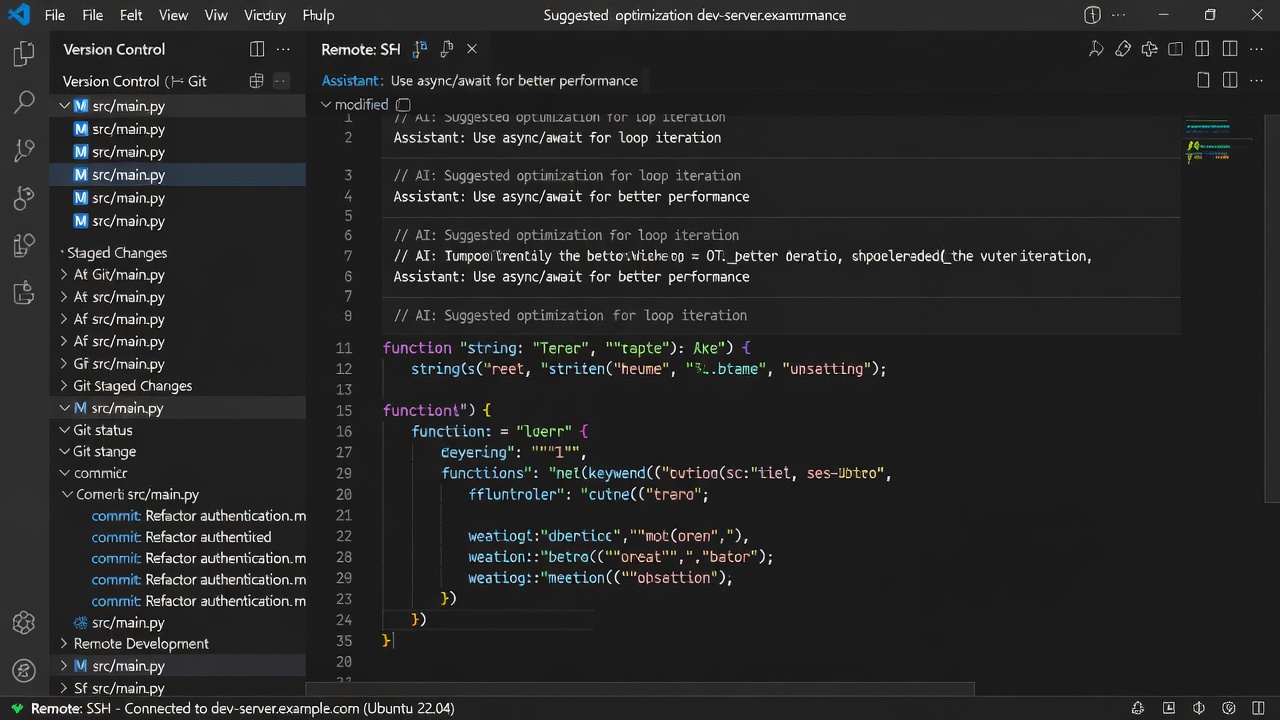
AI extensions such as GitHub Copilot provide context-aware code suggestions that accelerate routine tasks. Enable the extension, sign in with your account, and begin typing. The tool suggests entire functions, test cases, and even documentation comments based on surrounding code. Combine this with manual review to maintain code quality. In practice, developers report spending less time on repetitive patterns and more time on architecture decisions. For collaboration, AI-generated code can be committed with clear messages that teammates can quickly understand.
Version Control Integration
VS Code's built-in Git support, enhanced by extensions like GitLens, offers visual diff views, branch management, and pull request creation directly in the editor. Link your repository through the Source Control view, stage changes, and push with a single click. For advanced users, integrate with external platforms by following the official guides at code.visualstudio.com. This setup reduces context switching between terminal and browser during daily commits and merges.
Practical Checklists and Productivity Metrics
Follow this startup checklist each time you begin a new project: install core extensions, configure custom keybindings, test remote connections, enable AI suggestions, and connect your primary repository. After implementation, many teams experience improved focus and fewer interruptions. Additional lists can cover daily habits such as reviewing extension updates weekly and backing up workspace settings via the Settings Sync feature.
Before-and-After Workflow Examples
Consider a frontend developer who previously spent 15 minutes per session switching between tools and formatting code manually. After adopting the recommended extensions and shortcuts, the same tasks complete in under four minutes. Another scenario involves a remote team that reduced merge conflicts by 60 percent through consistent use of side-by-side diff views and automated formatting on save.
FAQ: Troubleshooting Common Issues
How do I resolve extension conflicts? Open the Extensions view, disable extensions individually, and reload the window after each change to identify the culprit.
Why is my custom shortcut not triggering? Check the Keyboard Shortcuts editor for overrides and ensure no other extension claims the same key combination.
Remote SSH connection keeps failing? Confirm your SSH keys are correctly configured, the remote host is reachable, and necessary ports are open in the firewall.
AI suggestions seem irrelevant? Provide more context in open files or adjust the extension settings to focus on your primary language.
Git history appears incomplete? Install GitLens and ensure the repository was cloned with full history rather than a shallow clone.
By consistently applying the techniques outlined above, developers can transform their VS Code experience into a highly efficient environment tailored to modern 2026 workflows. Experiment with the extensions and shortcuts that best match your projects to unlock the full potential of the editor.


No comments yet. Be the first!