 NeoBit Daily

Introduction to Sketch 2026 for Mobile UI Design
Sketch 2026 remains a leading vector-based design tool favored by UI designers for its intuitive interface and robust features tailored to mobile app creation. This comprehensive tutorial guides complete beginners through installing the software, setting up a workspace, and crafting a fully functional mobile onboarding flow mockup. Whether you are transitioning from paper sketches or another tool, the 2026 version introduces refined collaboration options and enhanced symbol management that streamline the design process. The software excels at producing clean, scalable interfaces that translate seamlessly from concept to development handoff, making it ideal for solo designers or small teams focused on iOS and Android projects.
By the end of this guide, you will have a working sample project ready for export and handoff to developers. We will also compare Sketch to alternatives and highlight common pitfalls to avoid. Practical examples throughout will help you apply concepts immediately, including keyboard shortcuts, layer organization strategies, and real-world mobile design considerations such as safe areas and touch targets.
Installing Sketch 2026 and Initial Workspace Setup
Begin by downloading the latest version directly from the official site at Sketch's homepage. The installation process on macOS is straightforward: run the installer, accept the license, and launch the application. System requirements include macOS Ventura or later, 8 GB of RAM minimum, and sufficient disk space for document libraries. Upon first launch, create a new document and familiarize yourself with the default workspace, which includes the toolbar, inspector panel, and layers list. Customize preferences under Sketch > Settings to enable features like automatic updates and cloud sync for your projects.
Workspace setup involves arranging panels for optimal workflow. Drag the inspector to the right side if needed and enable rulers via View > Rulers. For mobile design, configure artboard presets in the preferences panel to include common device sizes like iPhone 16 Pro at 402 x 874 pixels or Pixel 9 at 411 x 891 pixels. This ensures your designs align with real device specifications from the start. Experiment with dark mode workspace themes to reduce eye strain during long sessions.
Creating Artboards and Mastering Core Tools
Artboards serve as individual screens in your mobile app prototype. Select the Artboard tool (A) and draw multiple frames for your flow. Name them logically, such as "Welcome Screen," "Sign Up," and "Dashboard." Duplicate artboards using Command + D to maintain consistency while iterating on variations. Core tools include the Shape tool for buttons and icons, the Text tool for labels, and the Pen tool for custom vectors. Practice combining shapes using Boolean operations in the inspector to create complex UI elements quickly, such as combining a rectangle and oval to form a custom toggle switch.
Additional techniques involve using the Transform tool for precise resizing and the Rotate tool for angled elements like progress arcs. Always set fill and border properties in the inspector with hex codes matching your brand palette. For responsive considerations, group elements and use constraints to adapt layouts across different artboard sizes.
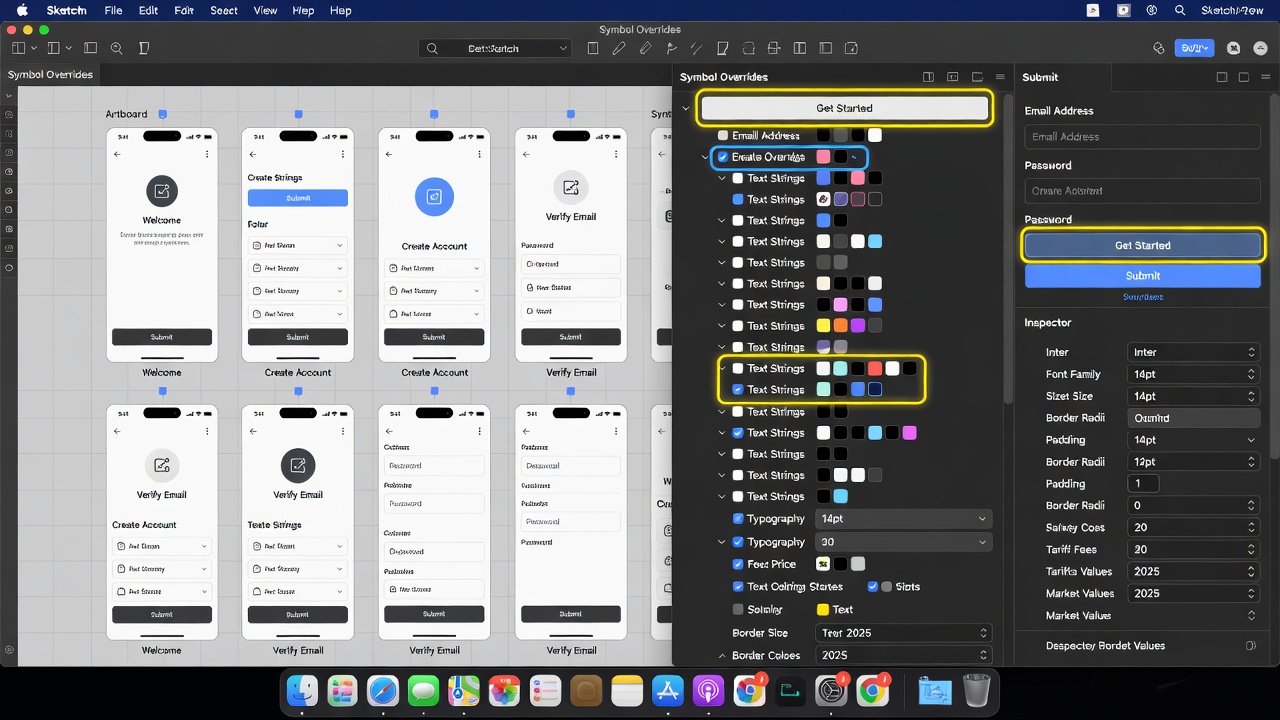
Building Symbols and Using Overrides for Efficiency
Symbols are reusable components that maintain consistency across screens. Create a button symbol by selecting your styled rectangle and text, then clicking Create Symbol in the toolbar. Once defined, drag instances onto artboards and use overrides in the inspector to change text, colors, or icons without affecting the master. In Sketch 2026, overrides support nested symbols, allowing you to swap entire icon sets with a single click. This is essential for maintaining design systems where primary, secondary, and tertiary buttons share base styles but differ in hierarchy.
Organize symbols into libraries by saving them as separate .sketch files and linking them across projects. This enables team-wide updates when the master library changes. Practice creating a text field symbol with placeholder overrides and state variations for focused, error, and disabled modes to speed up form design.
Designing a Sample Onboarding Flow Mockup
Now apply these skills to a three-screen onboarding experience. Start with a welcome artboard featuring a hero illustration and call-to-action button. Use the oval tool to create a circular avatar placeholder and apply a gradient fill for visual interest. Link to the sign-up screen using the Prototype tab, setting transitions to slide left for a natural feel and easing duration to 300ms.
On the sign-up screen, incorporate form fields created as symbols with text overrides for placeholders. Add a progress indicator at the top using stacked rectangles with rounded corners and percentage labels. Include social login buttons as additional symbols for quick access. The final screen can preview the app dashboard with sample data cards, using the rectangle tool for card containers and text layers for dynamic content like user names or metrics.
Test interactions by entering preview mode to simulate user flow. Adjust hotspot areas to ensure tappable regions meet minimum 44x44 pixel touch targets. Add micro-interactions such as button scale animations on press for a polished prototype feel.
Exporting Assets and Preparing for Development
Once your mockup is complete, export assets by selecting layers and choosing Export in the inspector. Set appropriate scales (1x, 2x, 3x) for retina displays. Sketch 2026 supports exporting directly to PDF or PNG with automatic slicing based on layer names. Follow naming conventions like "button-primary@2x.png" to help developers identify variants easily.
For developer handoff, generate specs using the built-in measure tool or integrate with tools like Zeplin. Always organize layers into clear folders before export to prevent confusion. Consider exporting SVG versions for scalable icons that remain crisp at any size.
Integrating Plugins for Workflow Efficiency
Extend Sketch's capabilities with plugins available through the official plugin directory. Popular choices include Automate for batch renaming and Content Generator for placeholder text and images. Install via Sketch > Plugins > Manage Plugins and search for community favorites that support mobile prototyping, such as those adding auto-layout capabilities or icon libraries. These additions can reduce repetitive tasks significantly based on typical designer workflows reported in 2026.
Comparing Sketch to Similar Tools
While Sketch excels in macOS-native performance and symbol power, alternatives like Figma offer superior real-time collaboration. Adobe XD provides tighter integration with other Creative Cloud apps. Evaluate based on your team's needs: choose Sketch for solo or small-team mobile projects where speed and precision matter most. Consider factors such as offline access, plugin ecosystems, and export flexibility when making your decision.
Common Pitfalls to Avoid
- Overusing nested symbols, which can slow down performance on complex documents; limit nesting to two levels maximum.
- Ignoring device-specific safe areas, leading to elements hidden by notches or home indicators; always reference device frames in your artboards.
- Forgetting to update symbol masters after major style changes, causing inconsistencies across screens.
- Skipping version control; always duplicate documents before major iterations and use file naming like "ProjectName_v03.sketch."
Downloadable Template and Next Steps
A starter template with pre-built onboarding screens and symbol libraries is available upon request through the Sketch community forums. Use it as a foundation and customize colors to match your brand guidelines. Next, explore advanced topics such as shared style libraries and automated testing of prototypes with real devices.
Frequently Asked Questions
How do I troubleshoot missing plugins in Sketch 2026?
Restart the app after installation and verify the plugin appears under Manage Plugins. Check compatibility notes on the plugin's GitHub page if issues persist, and ensure your Sketch version matches the plugin requirements.
Can I import designs from Figma into Sketch?
Yes, use third-party converters or manually recreate key components. Direct import is not natively supported but community scripts can assist with vector and text transfer.
What are the best practices for mobile accessibility in Sketch?
Apply sufficient contrast ratios, label all interactive elements, and simulate voice-over order using the layers list. Reference Apple's Human Interface Guidelines for detailed recommendations on touch targets and color contrast.
How can I optimize file size for large mobile projects?
Regularly purge unused symbols and images, compress embedded assets, and break complex files into multiple linked documents to maintain performance.
Conclusion
Mastering Sketch 2026 empowers beginners to produce professional mobile UI designs efficiently. By following the steps above—from setup to plugin integration—you gain practical skills that translate directly to real-world projects. Continue experimenting with your onboarding flow and explore advanced features like shared libraries in future tutorials.
No comments yet. Be the first!