 NeoBit Daily
Signal 2026 Guide: Master Secure Messaging & Privacy Features
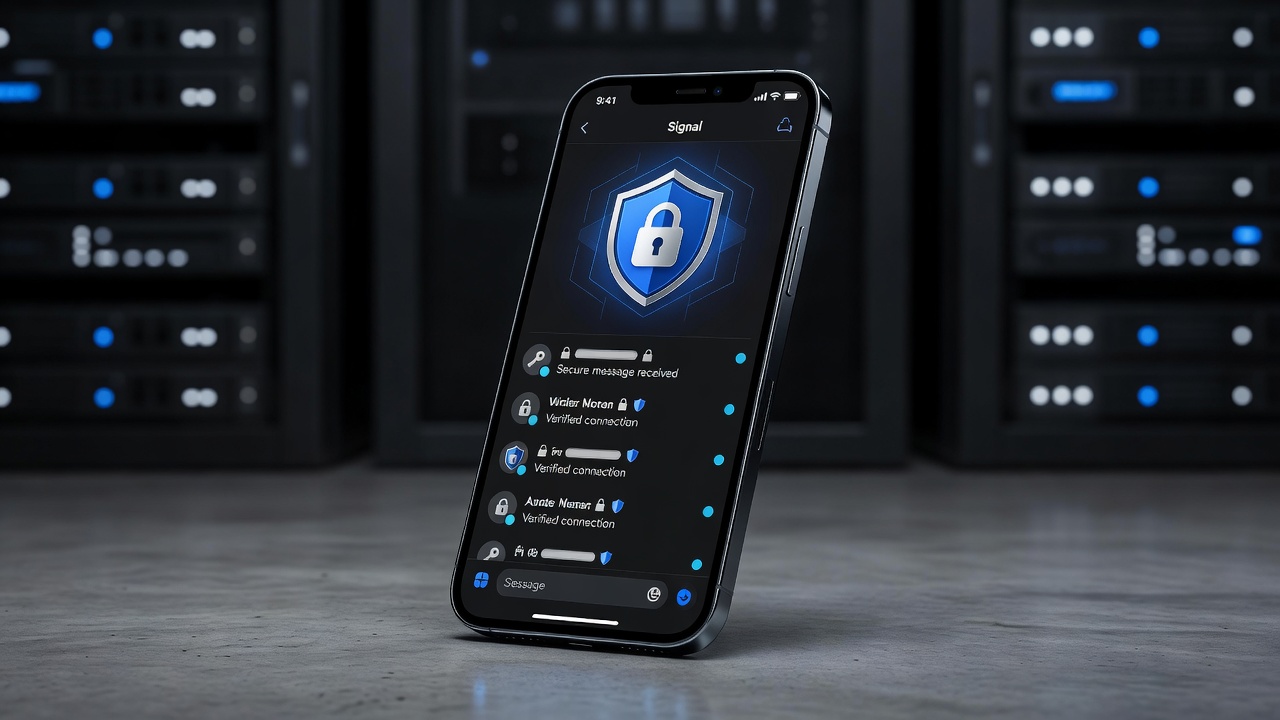
In 2026, privacy-conscious users continue turning to Signal as the gold-standard app for secure communication. Whether you're new to encrypted messaging or upgrading from less private alternatives, this comprehensive guide walks you through every essential feature with step-by-step instructions, real-world examples, and practical tips. Signal stands out because it uses the open-source Signal Protocol, which has been independently audited and adopted by other platforms for its robust security model. This guide targets beginners searching for private messaging alternatives while providing enough depth for intermediate users looking to optimize their setup.
Getting Started with Signal in 2026
Download Signal from the official app store on your device. After installation, register with your phone number. Signal verifies ownership via SMS or voice call. Enable a PIN for added account security during setup. This PIN protects your profile and settings even if you switch devices. For users in regions with unreliable SMS, the voice verification option provides a reliable alternative. Once registered, customize your profile by adding a photo and about section that only appears to approved contacts. Take time to review permissions such as contacts access and notifications to ensure the app functions smoothly without unnecessary data exposure. A practical first step is to send a test message to yourself to confirm encryption is active.
Core Features: Encrypted Calls and Disappearing Messages
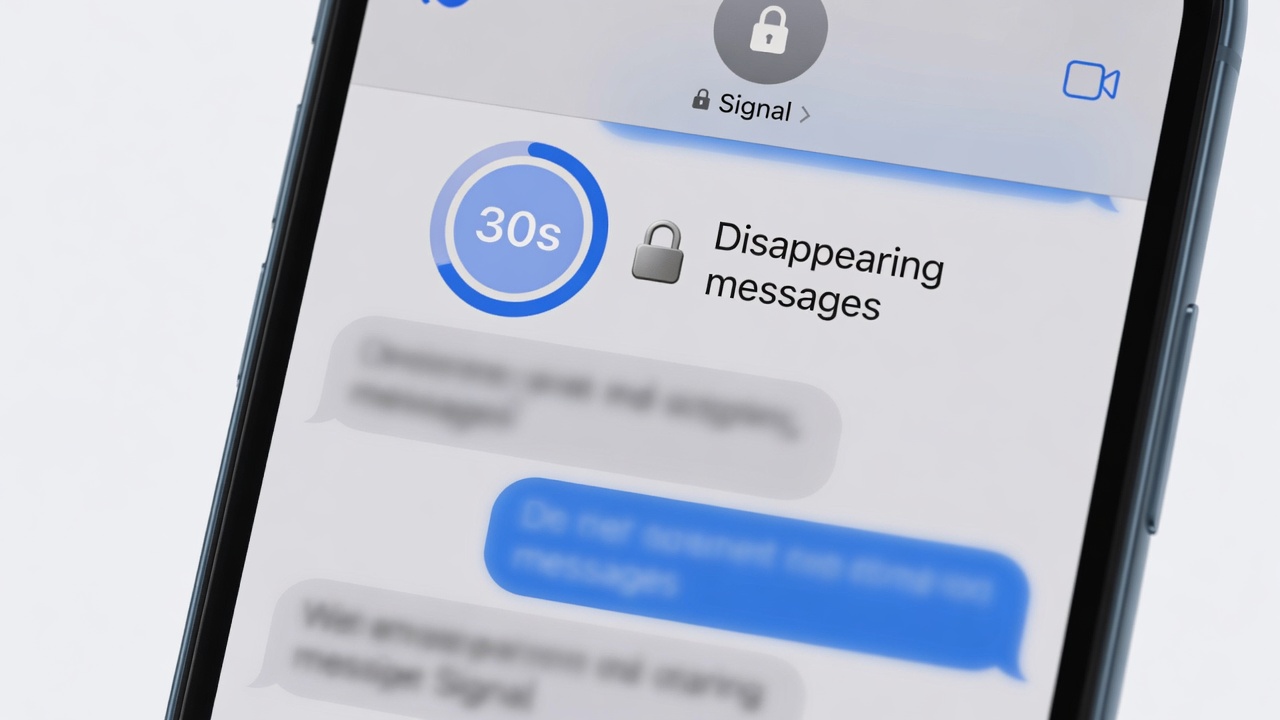
Signal's end-to-end encryption protects voice and video calls by default. To start a call, open a chat and tap the phone or camera icon. Calls use the same Signal Protocol as messages, ensuring no third party can intercept them. Real-world example: journalists often rely on Signal calls when discussing sensitive sources because the protocol prevents metadata leaks that could reveal call duration or participants. Disappearing messages add another layer. In any chat, tap the timer icon and choose durations from 5 seconds to 4 weeks. Once set, messages vanish automatically after the timer expires on both devices. This feature works seamlessly in one-on-one and group conversations. For added control, you can set different timers per chat and override them manually if needed. Users report that combining disappearing messages with view-once media prevents accidental retention of sensitive images or documents.
Advanced Privacy Tools
Screen security prevents screenshots of chats. Go to Settings > Privacy > Screen security to toggle it on. This blocks attempts to capture conversations on both Android and iOS, though it does not prevent external camera photos. Usernames let you chat without sharing your phone number. Create a unique username in Settings > Profile and share it safely with contacts. Usernames can be changed or removed at any time, providing flexibility for users who want temporary aliases. Additional tools include registration lock, which requires your PIN for new device registrations, and incognito keyboard mode to prevent third-party keyboards from learning your typing patterns. Enable these in the privacy menu for maximum protection. Another useful option is the ability to hide your profile photo from non-contacts, reducing unwanted connection requests.
Group Management and Media Sharing Best Practices
Creating a group is straightforward: tap the new group icon, add members, and set a name. Admins can control who adds members and manage disappearing messages for the entire group. Groups support up to 1,000 members, making them suitable for large communities while maintaining end-to-end encryption. For media, always verify recipient identity before sending sensitive files. Use the view-once option for photos and videos that should not be saved. Best practices include compressing large files before sending to avoid bandwidth issues and using the built-in gallery selector rather than external apps. Common mistakes to avoid include adding unknown numbers to groups without consent and forgetting to set an admin when creating large groups. Real-world example: a family uses a Signal group for sharing vacation photos with a 30-day disappearing timer to keep memories private after the event.
- Verify safety numbers regularly with contacts by scanning QR codes in person.
- Enable read receipts only when necessary for privacy, as they can reveal your activity patterns.
- Archive inactive groups to reduce notification clutter and keep your chat list organized.
- Use admin controls to remove disruptive members without deleting the entire group.
Cross-Device Syncing
Signal supports seamless syncing across phones, tablets, and desktops. Link a desktop device via QR code in the app. All messages and calls sync in real time while maintaining end-to-end encryption. Example: a user switches from phone to laptop mid-conversation without losing context or security. For multiple devices, link up to five desktops or tablets at once. Always unlink old devices when replacing hardware to prevent lingering access. Syncing works over Wi-Fi or mobile data, but users should enable the "Use less data" option in low-bandwidth environments. Troubleshooting tip: if messages fail to sync, restart the app and check that all devices are on the latest version.
Signal vs Other Apps: Comparison Table
| Feature | Signal | Telegram | |
|---|---|---|---|
| Default Encryption | Yes | Yes | No (secret chats only) |
| Disappearing Messages | Yes, flexible timers | Yes | Yes, limited |
| Username Support | Yes | No | Yes |
| Open Source | Yes | No | Partial |
| Screen Security | Yes | No | No |
The table highlights why Signal remains preferred for users prioritizing verifiable security over convenience features found in competitors.
Common Mistakes to Avoid
Many new users skip verifying safety numbers, leaving room for potential man-in-the-middle attacks. Another frequent error is relying solely on cloud backups without enabling end-to-end encrypted backups, which can expose message history. Always double-check app permissions after updates and review linked devices monthly.
FAQ: Common Troubleshooting
How do I recover my account if I lose my phone?
Use your registered phone number on a new device. Your PIN and cloud backups (if enabled) restore chats. Without a PIN, re-registration may be delayed for security reasons.
Why can't I send messages to a contact?
Ensure the contact has Signal installed and your number is saved correctly. Check internet connectivity and app permissions. If issues persist, ask the contact to reinstall or verify their safety number with you.
Is Signal free to use?
Yes, Signal remains completely free with no ads or paid tiers as of 2026.
How do I report a bug or suggest a feature?
Use the in-app feedback form or visit the official community channels for developer interaction.
Conclusion
Mastering Signal empowers you with professional-grade privacy tools. Start with basic setup, explore advanced features gradually, and always verify contacts. For official resources, visit Signal's website and learn more about digital privacy at Electronic Frontier Foundation. Stay secure in 2026 and beyond.

No comments yet. Be the first!