 NeoBit Daily

Introduction to ClickUp in 2026
ClickUp has evolved into a powerful platform for teams seeking advanced project management solutions. This guide covers everything from initial setup to building sophisticated custom workflows that drive productivity. Whether you are managing a small team or a large enterprise, understanding these features helps streamline operations effectively. Users searching for app tutorials on advanced tools will find practical instructions here, including comparisons to basic features and real-world examples. In 2026, ClickUp emphasizes flexibility, allowing teams to adapt workflows dynamically while integrating emerging technologies like AI for smarter task management.
The platform supports various industries, from software development to marketing and operations. By leveraging its robust customization options, teams can reduce manual work and focus on high-value activities. This comprehensive tutorial walks through each stage with actionable steps.
Core Setup Process
Begin by creating a workspace on the ClickUp official site. Invite team members via email and set permissions based on roles. Configure spaces for different departments to organize projects logically. This foundational step ensures all subsequent customizations align with team needs. Next, establish folders and lists within each space to categorize ongoing work. For instance, a product development team might create separate spaces for engineering, design, and QA testing. Assign custom fields such as priority levels, due dates, and assignees early to maintain consistency across projects. Test the initial setup with a pilot group before rolling it out company-wide. This approach minimizes disruptions and allows for quick adjustments based on user feedback.
Creating Custom Workflows
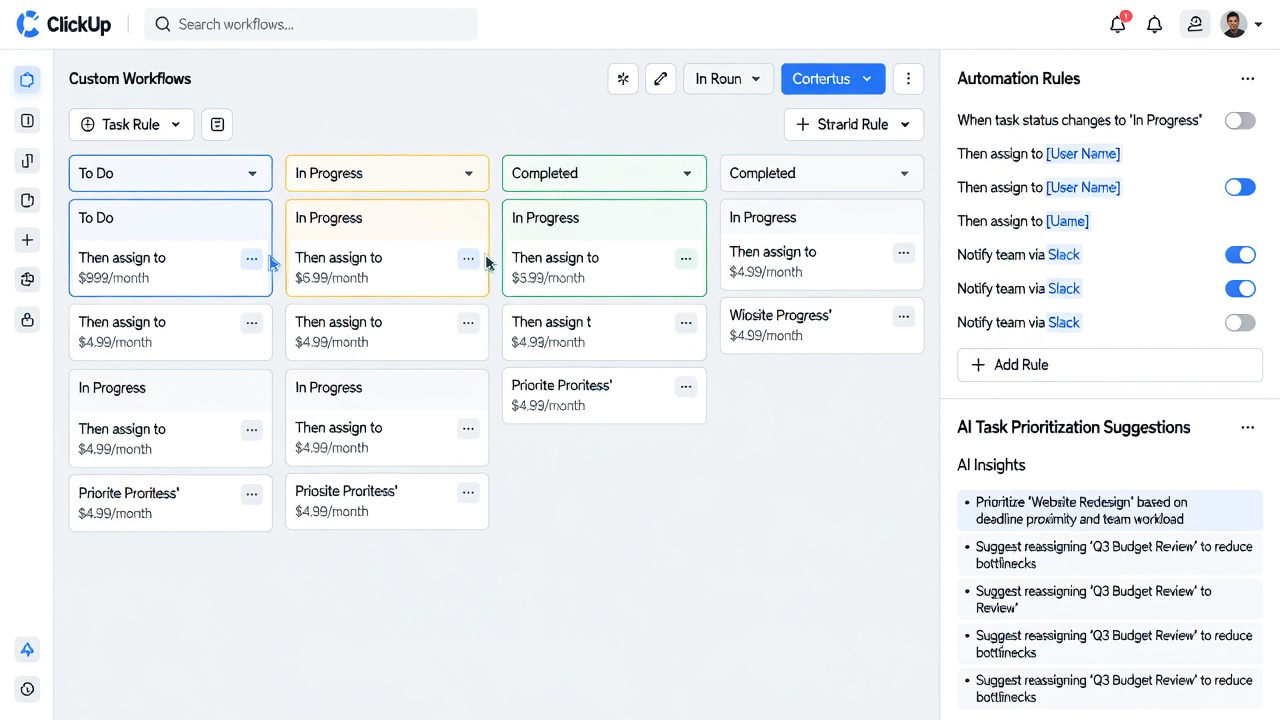
Custom workflows allow teams to define unique task statuses and transitions. Navigate to the workflow builder, add statuses like "In Review" or "Approved," and set rules for automation. For example, a marketing team can create a workflow where content moves automatically from draft to published upon approval. Start by identifying pain points in your current process, such as delays in handoffs between departments. Map out desired statuses and the conditions that trigger changes. Practical examples include sales pipelines that trigger notifications when deals reach certain stages, improving collaboration across departments. In one case, a remote software team used custom workflows to track bug fixes from reporting through resolution, cutting resolution time by streamlining approvals. Compare this to basic features, where only default statuses like To Do, In Progress, and Done are available, limiting flexibility for complex projects.
Advanced users can incorporate conditional logic, such as requiring specific custom fields to be completed before advancing a task. This level of detail ensures accountability and reduces errors in fast-paced environments.
Automation Rules and AI Integrations
Automation rules eliminate repetitive tasks. Set triggers such as due date changes to assign tasks or update priorities. In 2026, AI integrations enhance this by suggesting task prioritization based on deadlines and workload. Compare this to basic features, where manual updates are required, highlighting efficiency gains. For deeper implementation, combine automations with AI to analyze historical data and predict bottlenecks. A practical example involves an operations team automating weekly reports that pull from multiple lists and highlight overdue items using AI insights. This integration reduces the time spent on status meetings and allows managers to intervene proactively. Always review automation logs regularly to refine rules and prevent unintended loops that could stall progress.
Mobile App Tips
The ClickUp mobile app extends productivity beyond the desktop. Enable offline mode for on-the-go access, allowing edits to sync once connectivity returns. Use voice-to-text for quick task creation during commutes or meetings. Customize push notifications to avoid overload by selecting only high-priority alerts. Additional tips include leveraging the app's camera feature to attach photos directly to tasks for visual documentation. Teams in field-based roles, such as construction or event planning, benefit from scanning QR codes linked to specific tasks. Regular app updates in 2026 have improved performance, making it essential to keep the software current for optimal experience.
- Enable offline mode for on-the-go access.
- Use voice-to-text for quick task creation.
- Customize push notifications to avoid overload.
- Attach images and files directly from your device camera.
- Sync tasks across multiple devices for seamless transitions.
Time Tracking and Reporting Dashboards
Time tracking integrates seamlessly with tasks, providing accurate logs for billing or analysis. Reporting dashboards visualize progress with charts and metrics. Teams can export data for further review, supporting data-driven decisions. Customize dashboards to display key performance indicators relevant to your goals, such as velocity charts for agile teams or burndown graphs for project timelines. Time tracking features allow tagging hours to specific clients or projects, facilitating accurate invoicing and resource allocation. In practice, a consulting firm used these dashboards to identify underutilized team members and reassign workloads accordingly, boosting overall output. Regular review of these reports helps maintain alignment with broader business objectives.
Practical Examples for Team Collaboration
Consider a cross-functional product launch scenario. Marketing creates initial tasks in a shared list, while development uses custom workflows to move items through code review stages. AI prioritization surfaces urgent items, and time tracking captures effort for post-launch analysis. This setup fosters transparency and reduces email back-and-forth. Another example is a customer support team routing tickets through escalation workflows that automatically notify specialists based on issue complexity.
Common Mistakes to Avoid
Overcomplicating workflows early on can lead to confusion. Start simple and iterate based on feedback. Ensure all team members receive training to maximize adoption. Avoid neglecting mobile users, as inconsistent experiences can hinder remote collaboration. Finally, monitor automation overuse to prevent system fatigue.
Conclusion
Implementing these ClickUp features transforms how teams collaborate. Experiment with the tools to discover optimizations tailored to your workflow and revisit the setup periodically as team needs evolve.
FAQ
How do I resolve workflow setup issues?
Check permission settings and test rules in a sandbox space before full deployment. Review error logs within the automation panel for specific guidance.
What productivity hacks work best?
Combine AI prioritization with time tracking for focused work sessions and regular dashboard reviews. Integrate with external tools where possible to centralize communication.
Can ClickUp handle large enterprise teams?
Yes, through scalable workspaces and advanced permission controls that support thousands of users without performance degradation.
How does AI task prioritization compare to manual methods?
AI analyzes multiple variables simultaneously, offering suggestions that often outperform manual sorting in speed and accuracy for complex projects.

No comments yet. Be the first!