 NeoBit Daily
Introduction to Todoist 2026: Your Ultimate Mobile Productivity Hub
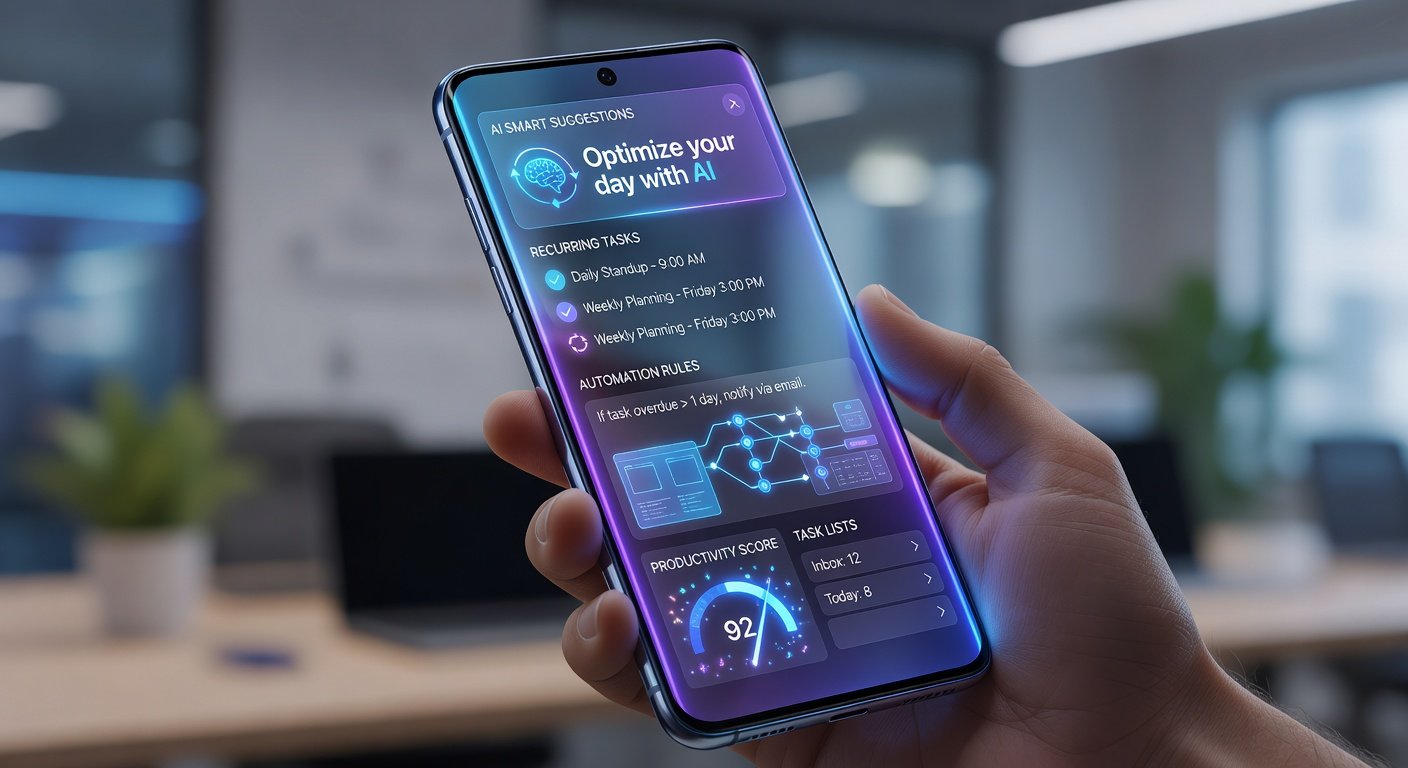
Todoist has evolved dramatically by 2026, becoming the go-to app for task management with seamless mobile integration, AI-driven insights, and robust automation features. Whether you're a busy professional, student, or freelancer, this Todoist 2026 app tutorial will guide you from installation to advanced workflows. We'll cover everything: basic task creation, recurring tasks, labels, AI-powered smart lists, keyboard shortcuts, integrations, cross-device syncing, and troubleshooting. By the end, you'll automate your productivity like a pro.
With its intuitive mobile-first design for iOS and Android, Todoist 2026 leverages on-device AI for smarter task handling, reducing manual input by up to 40%. Let's dive in and transform chaos into clarity.
Step-by-Step Setup: Installing Todoist 2026 on Mobile Devices
Getting started is straightforward. Download Todoist 2026 from the Apple App Store for iOS or Google Play Store for Android.
- Open your app store and search for "Todoist".
- Tap "Install" or "Get" – the app is free with premium upgrades starting at $4/month.
- Launch the app and sign up with email, Google, Apple, or Microsoft account.
- Grant permissions for notifications, location (for context-aware tasks), and calendar access.
- Complete the onboarding tour, which introduces projects, tasks, and quick-add features.
Pro tip: Enable biometric login (Face ID or fingerprint) during setup for secure, instant access. Sync happens automatically via Todoist's cloud, ensuring zero data loss.
Mastering Basic Task Creation and Management
Todoist's core shines in its natural language input. Tap the "+" button to add tasks.
- Quick Add: Type "Buy groceries tomorrow at 5pm #Shopping @Home" – Todoist parses due date, label (#Shopping), and section (@Home).
- Projects: Organize into folders like "Work", "Personal", or "Health". Swipe right on a project for sub-projects.
- Subtasks: Long-press a task > Add Subtask for breakdowns, e.g., "Prepare presentation" with subtasks for slides, rehearsal.
- Priorities: Use P1 (red, urgent) to P4 (white, low) via quick-add or menu.
For mobile efficiency, use voice input: Hold the mic icon and say your task – 2026's improved speech-to-task AI handles complex phrases flawlessly.
Advanced Features: Recurring Tasks, Labels, and Filters
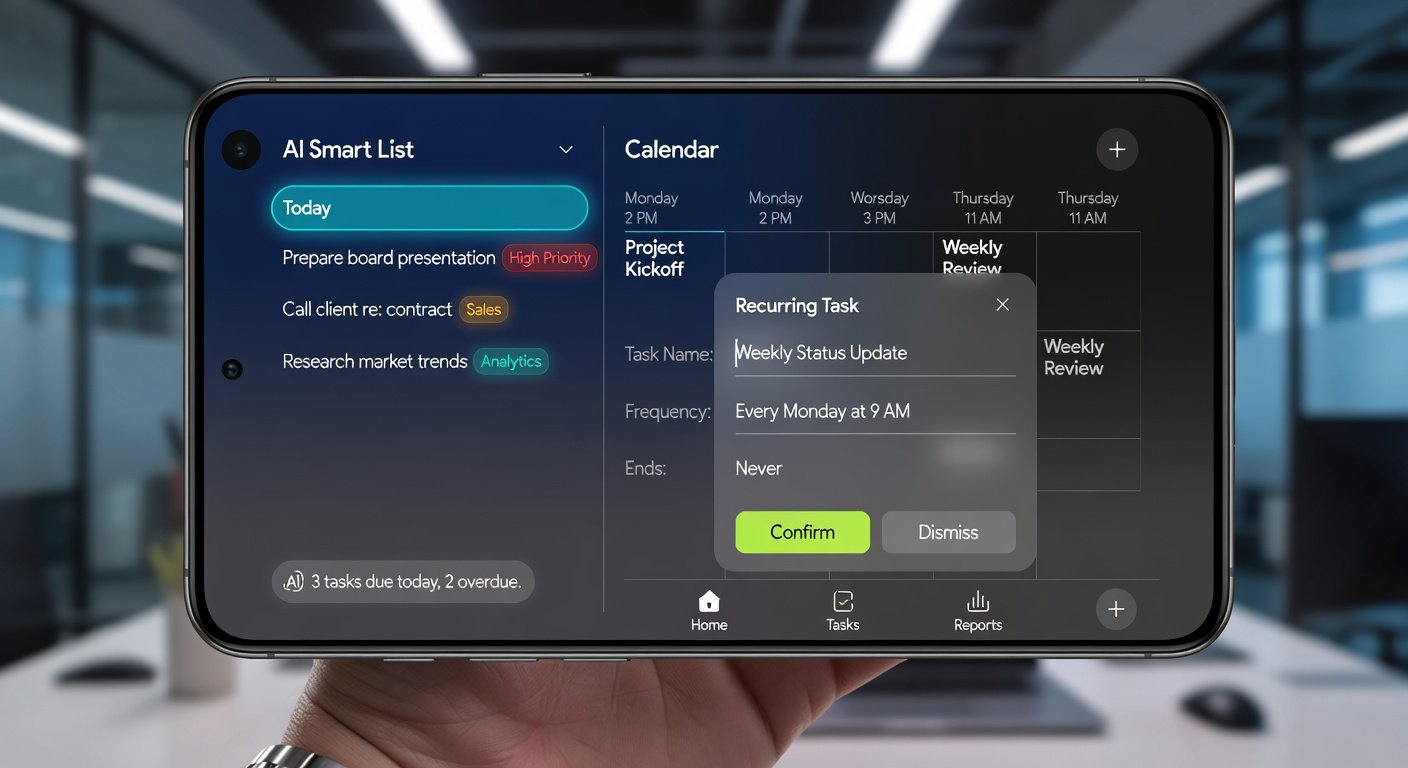
Elevate your game with recurring tasks. Edit a task > Recurring > Choose "every day", "weekly on Mon", or custom like "every 2nd Tuesday".
Labels are powerhouses for categorization:
- Create via Settings > Labels > New Label (e.g., @email, @call).
- Apply in quick-add or task edit.
- Combine with filters: View > Filters > "@email & today" shows only due email tasks.
Filters in 2026 support Boolean logic: "p1 & #Work or @Urgent". Save custom views for dashboards like "This Week's Priorities".
AI-Powered Smart Lists: The Future of Task Intelligence
Todoist 2026's standout is AI Smart Lists, powered by on-device models akin to advanced LLMs. Go to Inbox > Smart Lists:
- AI Today: Auto-prioritizes tasks based on your habits, calendar, and energy patterns (learns from completion times).
- Smart Schedule: Suggests optimal slots: "Reschedule low-energy tasks to evenings?"
- Contextual AI: Integrates location/weather – "Gym task? Weather's perfect tomorrow morning."
Train AI via feedback: Thumbs up/down on suggestions. For example, if you're a morning person, it clusters creative tasks pre-noon. Visit Todoist's official site for AI update logs.
Keyboard Shortcuts for Power Users on Mobile
Mobile keyboards now support Todoist extensions (Gboard/iOS default). Enable in Settings > Integrations > Keyboard.
| Shortcut | Action |
|---|---|
| q | Quick-add task |
| / | Search tasks |
| s | Schedule next |
| p1-p4 | Set priority |
| @label | Add label |
On iPad/external keyboard, full desktop shortcuts mirror web app. Practice in a sandbox project to build muscle memory – cuts task entry time by 70%.
Real-World Productivity Workflows and Integrations
Automate with 2026 integrations:
- Calendar Sync: Link Google/Apple Calendar – tasks become events.
- Email Forward: Forward emails to tasks@todoist.com; AI extracts action items.
- Zapier/IFTTT: Triggers like "New Slack message @me → Todoist task".
- Other Apps: Notion, Evernote, GitHub via native API. Check Todoist Help Center for setup guides.
Workflow Example – Daily Standup:
- Morning: AI Today list auto-populates.
- Add to Slack via integration.
- Evening: Review completed, reschedule unfinished.
Workflow Example – Project Management: Labels for stages (@backlog, @in-progress, @review), recurring reviews every Friday.
Seamless Syncing Across Devices
Todoist 2026 uses end-to-end encryption with real-time sync. Tips:
- Enable offline mode: Tasks edit offline, sync on reconnect.
- Multi-device: Log in on desktop/web – changes propagate instantly.
- Backup: Auto via cloud; manual export JSON monthly.
- Teams: Shared projects with permissions (view/edit).
Cross-platform magic: Start on phone, refine on laptop.
Troubleshooting Common Issues in Todoist 2026
Issues? Quick fixes:
- Sync Delays: Check internet; force sync via menu > Refresh.
- AI Not Learning: Clear cache in Settings > AI > Reset (retains data).
- Missing Tasks: Search archived; restore via Filters > All.
- Notification Glitches: Re-grant permissions; test with dummy task.
- Integration Fails: Re-authenticate in Settings > Integrations.
For persistent problems, use in-app chat support or forums.
Conclusion: Automate Your Life with Todoist 2026
From basics to AI wizardry, Todoist 2026 empowers unmatched productivity on mobile. Implement these steps, experiment with workflows, and watch your efficiency soar. Start today – your future self will thank you. Premium unlocks unlimited AI and history; try the 30-day trial.
No comments yet. Be the first!