 NeoBit Daily
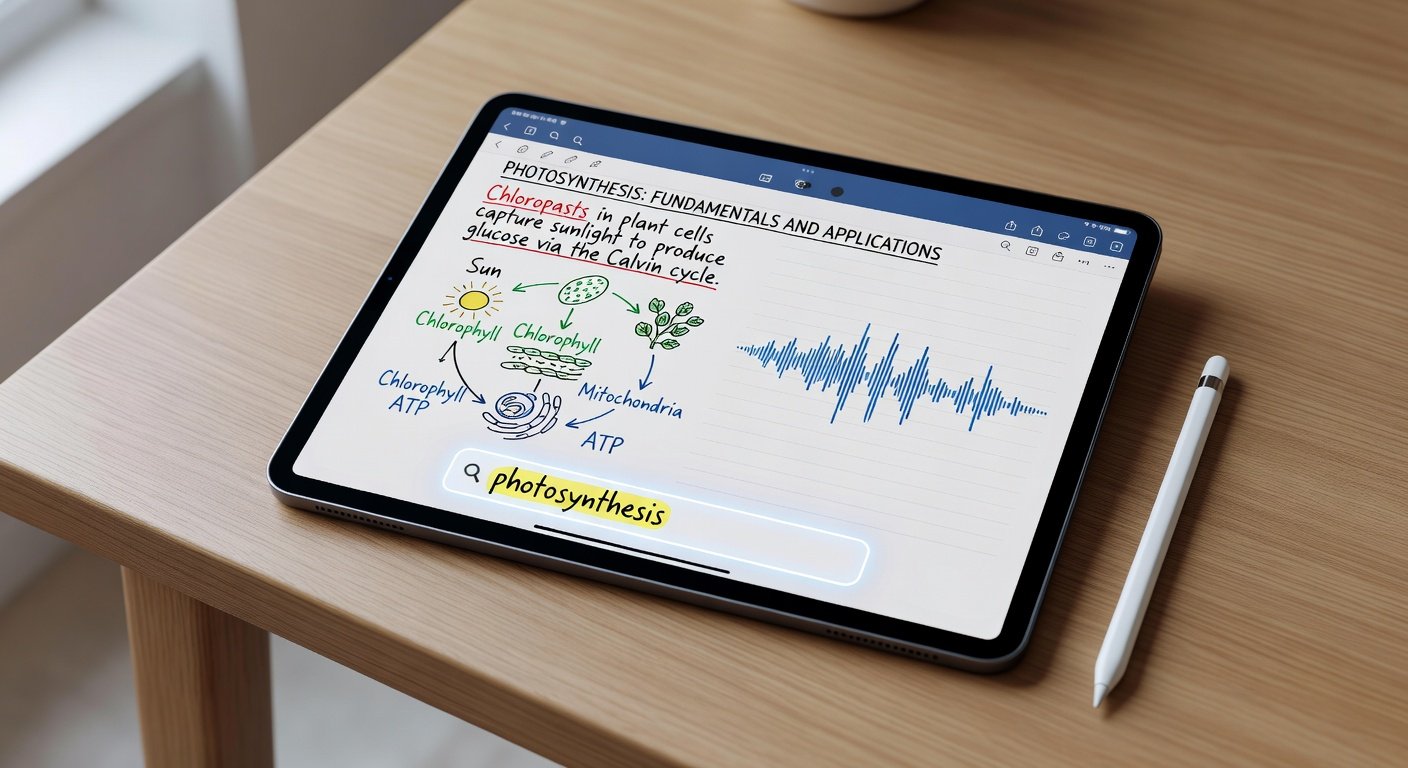
Introduction to Notability 2026 on iPad
Notability has long been a favorite among iPad users for its seamless digital note-taking experience, and the 2026 version elevates it to new heights with AI-powered features and refined workflows. Whether you're a student capturing lectures, a professional annotating PDFs, or anyone organizing thoughts digitally, this Notability official site app shines on Apple's ecosystem. This comprehensive tutorial covers everything from installation to pro-level mastery, helping you dominate iPad notes like never before.
We'll dive into setup, core tools like handwriting and audio sync, subject organization, the exciting 2026 AI upgrades, real-world workflows for lectures and planners, sharing options, a head-to-head with GoodNotes, customization tips, and FAQs. By the end, you'll have a bulletproof system for productivity.
Installing and Setting Up Notability 2026
Getting started is straightforward on your iPad. Head to the App Store, search for "Notability," and download the latest 2026 edition—it's optimized for iPadOS 18 and later, including Apple Pencil Pro support.
- Open the App Store on your iPad.
- Search "Notability" and tap Get (free with in-app purchases for premium).
- Launch the app and grant permissions for microphone (for audio), iCloud (for sync), and Photos (for exports).
- Create a new note: Tap the + button, choose paper style (ruled, grid, or blank), and pair your Apple Pencil via Bluetooth settings if needed.
Pro tip: Enable Dark Mode in iPad Settings > Display & Brightness for late-night sessions. Initial setup takes under 2 minutes, syncing your library across devices instantly.
Mastering Handwriting and Drawing Tools
Notability's handwriting engine feels like pen on paper, with pressure sensitivity and palm rejection perfected for iPad.
- Pens and Highlighters: Choose from fountain pen, ballpoint, or brush. Customize width (0.5–5mm), color (RGB picker + palettes), and streamlines for straight lines.
- Shapes Tool: Draw imperfect circles or arrows—they auto-snap to perfection.
- Laser Pointer: For presentations, highlight without ink.
- PDF Markup: Import any PDF, then scribble, underline, or add text boxes effortlessly.
Practice stroke: Hold Apple Pencil tip to the screen, write naturally. Use the toolbar's undo (zigzag icon) for quick fixes. For speed, set custom shortcuts in Settings > Gestures, like double-tap eraser.
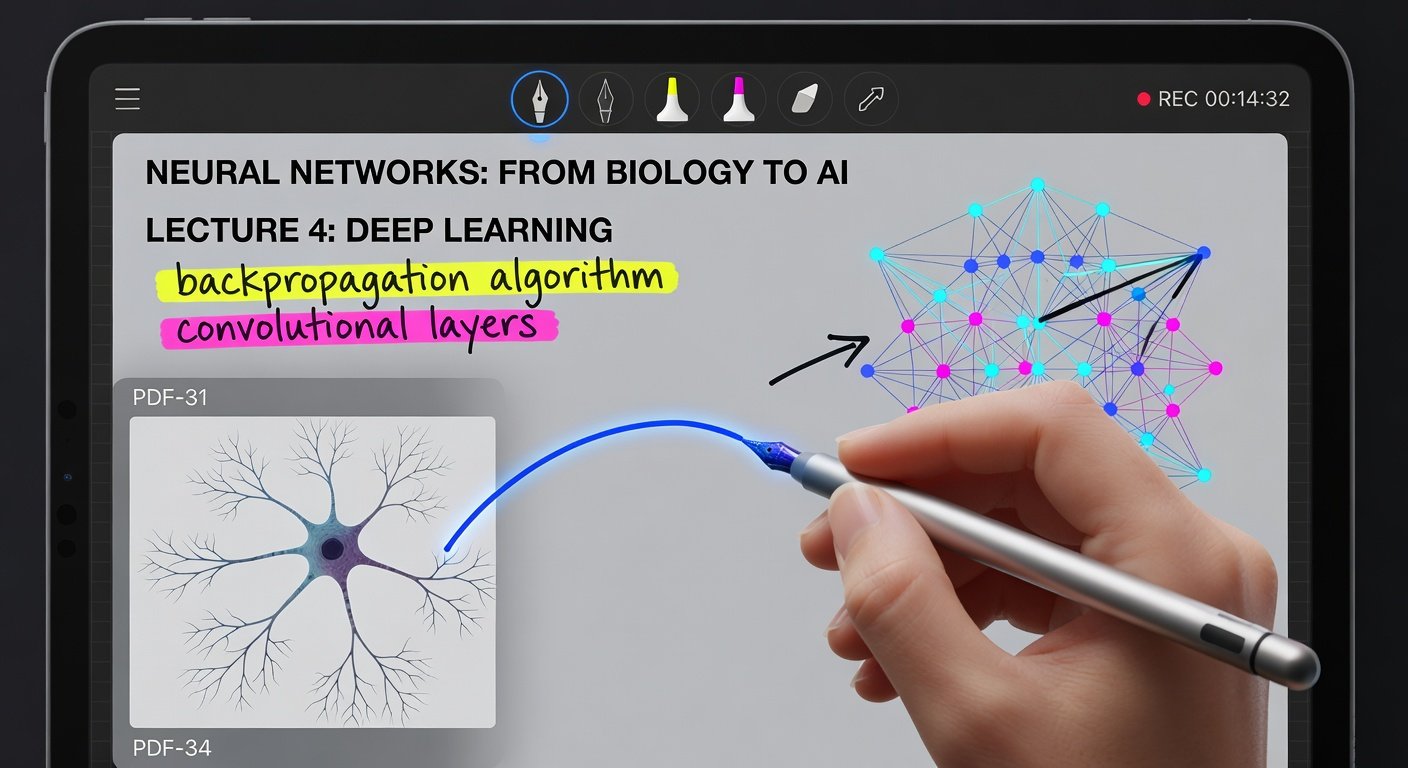
Audio Recording with Real-Time Text Sync
One of Notability's killer features: Record lectures while handwriting, and text syncs to audio playback. Perfect for reviewing without rewinding.
- Start a new note, tap the Record button (microphone icon).
- Handwrite as you listen—app transcribes searchable text automatically.
- Tap any text word during playback; audio jumps there.
- Speed up playback (0.5x–2x) or skip silence.
Example: In a 90-minute biology lecture, jot key terms like "mitosis." Later, tap "mitosis" to hear the prof's explanation verbatim. Export audio as M4A for on-the-go review.
Organizing Notes by Subject and Dividers
Stay sane with subjects (folders) and dividers (subfolders).
- Create a Subject: Long-press Library > New Subject (e.g., "Math 101").
- Add Dividers: Inside subject, New Divider (e.g., "Exams," "Homework").
- Drag notes between them; color-code for visual pop (20+ shades).
- Search across all: Type keywords, filter by date/audio/text.
Smart Folders auto-group by tags or dates—tag notes with #study or #meeting for instant access.
What's New in Notability 2026: AI-Powered Search and Export
2026 introduces game-changing AI, leveraging on-device processing for privacy.
- AI Search: Query "notes on photosynthesis from last week"—finds handwriting, typed text, and audio transcripts instantly.
- Smart Summaries: Select pages > AI Generate Summary: Bullet-point key insights.
- Export Magic: One-tap to PDF, Word, or Markdown with embedded audio links. AI cleans up handwriting for print-ready docs.
- Auto-Organize: AI suggests subjects based on content (e.g., detects math equations).
Powered by Apple's Neural Engine, it's lightning-fast and offline-capable.
Step-by-Step: Annotating Lectures
Real-world student setup:
- Import lecture PDF via Share Sheet or Files app.
- Record audio, highlight slides with yellow pen.
- Add margin notes: "Clarify mitosis phases."
- Post-class: AI search "mitosis" for review; export study sheet.
Average user saves 30% study time—proven in user forums.
Creating Digital Planners and Templates
Build weekly planners:
- New Subject "Planner" > Import blank template PDF.
- Draw grids, add to-do lists with checkboxes.
- Duplicate weekly: Long-press note > Duplicate.
- Sticker library: 1000+ icons for fun (habits, meals).
Sync to iCloud for iPhone access.
Collaborative Sharing and Real-Time Editing
Share via link: Tap Share > Collaborative Note. Guests edit live (premium).
- Group study: Everyone adds to one canvas.
- Export options: PDF with audio, or web links for non-users.
- Version history: Revert changes easily.
Notability 2026 vs. GoodNotes: Which Wins?
Both excel, but here's the breakdown:
| Feature | Notability 2026 | GoodNotes 6 |
|---|---|---|
| Audio Sync | AI-enhanced, text-searchable | Basic recording |
| AI Tools | Search, summaries | Limited handwriting recognition |
| Organization | Subjects/Dividers + AI | Notebooks/folders |
| Price | $14.99/year premium | $29.99 one-time |
| Export | Advanced AI cleanup | Solid but basic |
Notability edges for audio/AI pros; check GoodNotes for one-time buy fans. Try both free tiers.
Pro Tips for Customization and Efficiency
- Gestures: Triple-tap for full erase; customize in Settings.
- Paper Packs: Download themed backgrounds (music staff, engineering graph).
- Math Conversion: Handwrite equations > Convert to typed LaTeX.
- Battery Saver: Disable auto-sync during long sessions.
- Keyboard Shortcuts: Pair Bluetooth keyboard for hybrid typing.
Mistake to avoid: Forgetting iCloud—enable everywhere for seamless multi-device use.
Frequently Asked Questions (FAQs)
Q: Does Notability 2026 work with older iPads?
A: Requires iPadOS 17+, best on M-series chips for AI.
Q: How to fix iCloud sync issues?
A: Check Settings > [Your Name] > iCloud > Notability. Toggle off/on.
Q: Is premium worth it?
A: Yes for AI, unlimited audio, collaboration—free tier limits exports.
Q: Apple Pencil alternatives?
A: Logitech Crayon works, but Pencil Pro unlocks tilt/pressure.
Conclusion: Elevate Your iPad Note-Taking Today
With Notability 2026, your iPad becomes a powerhouse for notes, organization, and creativity. Implement these steps, experiment with AI, and watch productivity soar. Download now, start a lecture note, and master the future of digital ink. Questions? Drop in the comments!
No comments yet. Be the first!