 NeoBit Daily

Introduction to Obsidian as Your Second Brain in 2026
Obsidian has evolved into one of the most powerful free knowledge management tools available. In 2026 it continues to help users build a personal second brain by connecting ideas through bidirectional links and visual graphs. This guide walks beginners and intermediate users through initial setup, core features, and advanced workflows using plugins and templates. The concept of a second brain refers to an external system that stores, organizes, and retrieves your thoughts, research, and ideas, freeing mental space for deeper thinking and creativity. Obsidian excels here because it uses plain Markdown files stored locally on your device, ensuring full ownership and offline access.
Whether you are a student organizing research or a professional managing projects, Obsidian provides a flexible, local-first system that grows with your needs. Unlike cloud-heavy alternatives, your notes stay in plain Markdown files on your device. This approach supports long-term knowledge building without subscription risks or data lock-in. Many users report improved recall and idea generation after six months of consistent use because the linking system surfaces forgotten connections automatically.
Initial Setup and Vault Organization
Download Obsidian from the official site at obsidian.md. Create a new vault by selecting a folder on your computer. This folder becomes your knowledge base and can sync via services like Dropbox or iCloud if desired. Begin with a single vault for simplicity, then consider separate vaults for distinct life areas such as work and personal projects later on.
Organize your vault with top-level folders such as Projects, Areas, Resources, and Archives. Inside each folder use consistent naming conventions like YYYY-MM-DD for dated notes. This structure supports quick retrieval and prevents note sprawl as your second brain expands. For example, a student might create subfolders under Resources for each course, while a project manager adds client-specific folders under Projects. Add a README.md file in the root with vault guidelines to maintain consistency across months of use.
Core Features: Bidirectional Linking and Graph View
Bidirectional linking is the foundation of Obsidian. Type [[Note Name]] to create a link that automatically appears in the target note. This creates a web of knowledge rather than isolated documents. For instance, linking a meeting note to a project overview automatically updates both files, revealing how decisions connect over time. Use aliases like [[Project X|Client Meeting]] to keep links readable while maintaining clean file names.
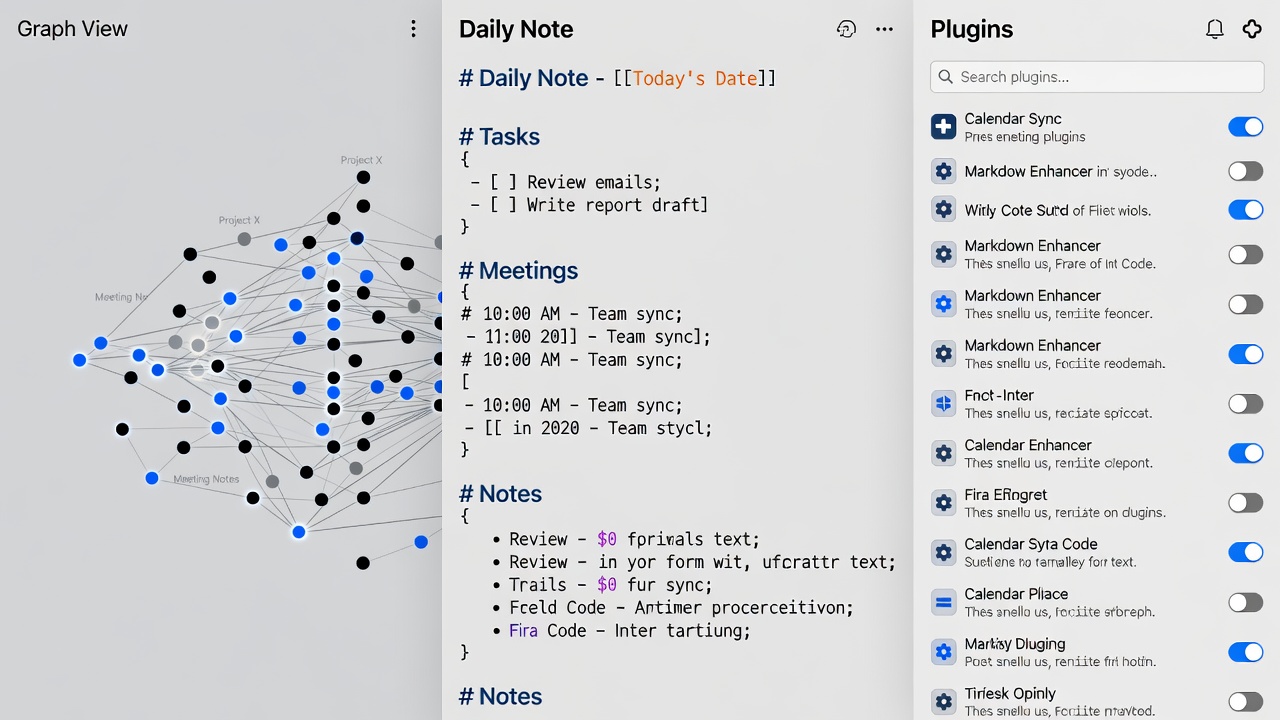
The graph view visualizes these connections as an interactive network. Zoom and filter to discover unexpected relationships between ideas. For deeper exploration, enable the Local Graph plugin to focus on notes directly connected to your current file. Color-code nodes by tags or folders to highlight priorities, and use the search filter to hide less relevant connections during reviews.
Essential Plugins for Automation and Visualization
Obsidian’s plugin ecosystem transforms the app into a productivity powerhouse. Start with community plugins such as Templater for dynamic templates, Dataview for querying notes like a database, and Calendar for visual daily navigation. The Templater plugin allows JavaScript-powered templates that insert current weather data or auto-generate task lists. Dataview lets you create live tables showing all notes tagged #meeting from the last 30 days.
Additional recommendations include Advanced URI for automation scripts, Excalidraw for embedded diagrams, and Style Settings for customizing the interface. Install plugins directly from the Obsidian settings panel and enable only those you need to maintain performance. A practical starter set for most users includes: Calendar, Dataview, Templater, Tasks, and Outliner. Test each plugin for a week before committing, and review the plugin marketplace regularly for updates that address 2026 productivity needs.
Creating Templates and Daily Note Systems
Templates save time and enforce consistency. Use the core Templates plugin or the more powerful Templater to insert variables like date, time, or tags automatically. Example daily note template fields include today’s priorities, three wins, and a quick reflection prompt. A sample template might contain headings for Morning Review, Key Tasks, and Evening Reflection, with checkboxes that carry over unfinished items.
Set up automatic daily notes through the Calendar plugin or a hotkey. Each day opens a pre-formatted note that links back to previous entries, building a continuous personal knowledge stream over time. Create weekly and monthly review templates that pull in Dataview queries to summarize progress. This habit compounds knowledge by forcing regular synthesis of scattered ideas into actionable insights.
Practical Workflows for Students and Professionals
Students can link lecture notes to source materials and research papers using Zotero integration plugins. A typical student workflow starts with capturing class notes in a quick inbox folder, then processing them each evening by adding links to relevant concepts and tagging with course codes. Over a semester, the graph view reveals connections between seemingly unrelated topics, improving exam preparation.
Professionals benefit from project dashboards created with Dataview queries that surface tasks and deadlines automatically. One effective approach involves a master projects index note that lists all active initiatives with status tags. Weekly reviews use the Tasks plugin to generate overdue item lists. Both groups should schedule monthly graph view sessions to prune outdated links and identify knowledge gaps before they become problems.
Obsidian Compared to Other Note-Taking Apps
Unlike Notion’s all-in-one database approach or Evernote’s folder hierarchy, Obsidian emphasizes local files and plugin extensibility. Roam Research offers similar linking but at a higher cost. Obsidian remains free for personal use while providing offline access and full data ownership. Users switching from OneNote appreciate the plain-text format that avoids vendor lock-in. For teams requiring real-time collaboration, consider pairing Obsidian with shared sync folders or tools like Obsidian Publish.
Common Mistakes and Advanced Tips
New users often over-link every mention, creating noisy graphs. Focus links on meaningful relationships only. Another frequent issue is neglecting regular reviews, which leads to stagnant knowledge. Set calendar reminders for weekly synthesis sessions. Advanced users integrate Obsidian with tools like Raycast or Keyboard Maestro for voice-to-note capture, further accelerating idea collection.
Conclusion
Obsidian in 2026 offers unmatched flexibility for building a second brain. By mastering setup, linking, plugins, and structured workflows, users gain a system that scales from simple notes to complex knowledge networks. Start small, iterate consistently, and let your connected ideas compound over time.
Frequently Asked Questions
How do I fix missing graph connections? Ensure notes use correct [[wiki links]] and rebuild the graph cache in settings.
Which plugins are essential for beginners? Begin with Calendar, Dataview, and Templater for immediate productivity gains.
Can Obsidian work offline? Yes, all core functions operate locally without an internet connection.
How do I back up my vault? Use any standard folder backup method or version control like Git for advanced users.
What hardware works best with large vaults? Solid-state drives and at least 16 GB of RAM handle vaults exceeding 10,000 notes smoothly.
No comments yet. Be the first!