 NeoBit Daily
Introduction to Microsoft To Do in 2026
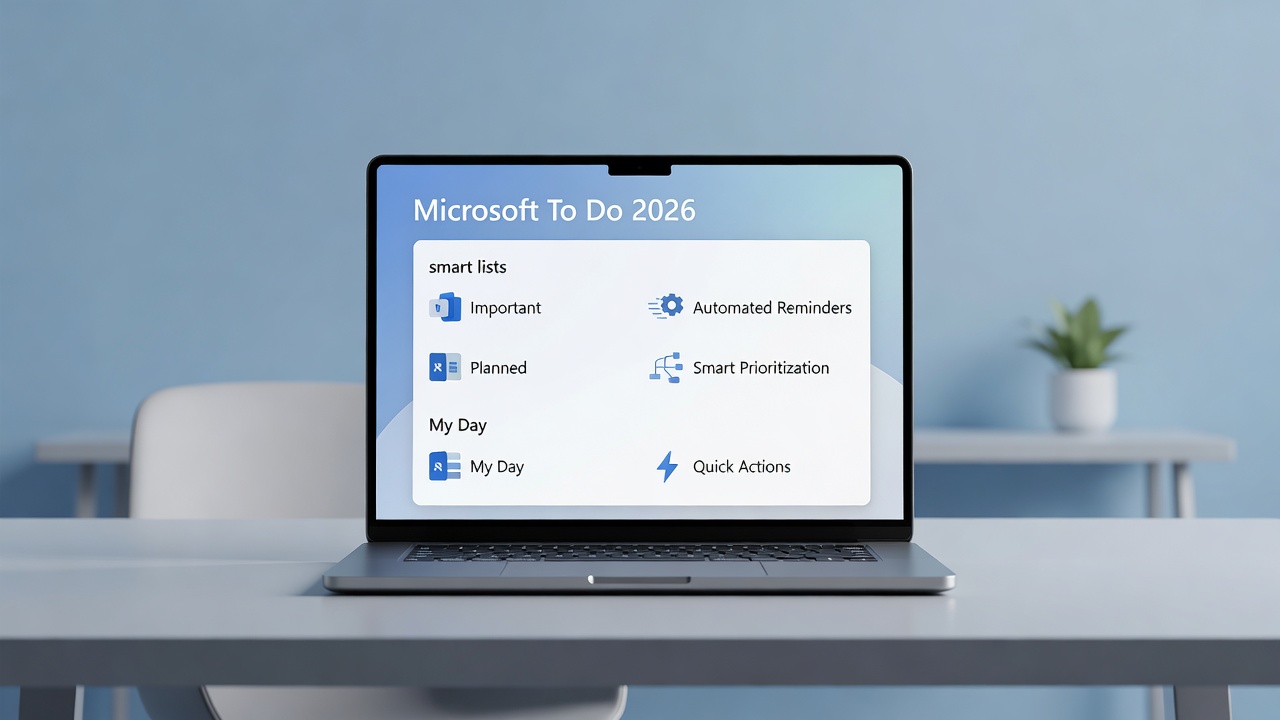
Microsoft To Do has evolved into a powerful yet beginner-friendly task management application that helps millions of users organize their daily workloads efficiently. The 2026 updates focus heavily on smart lists and task automation, making it easier than ever to stay on top of deadlines without feeling overwhelmed. This comprehensive guide provides actionable how-to instructions for creating smart lists, configuring reminders with due dates, and integrating the app seamlessly with Outlook and Teams. Whether you are a student managing assignments or a professional juggling multiple projects, the step-by-step tutorials here will help you build reliable productivity systems.
Users often search for practical tutorials rather than high-level overviews, so this article delivers concrete examples, troubleshooting advice, and best practices drawn from real-world use cases. By the end, you will understand how to leverage automation features to reduce manual effort while maintaining full control over your tasks.
Creating Smart Lists in Microsoft To Do
Smart lists are dynamic collections that automatically populate based on rules you define, such as priority level, due date range, or assigned tags. To get started, launch the Microsoft To Do app on any device and click or tap the plus icon next to Lists. Enter a descriptive name like "Urgent Client Deliverables" and immediately add filter criteria in the list settings panel.
For instance, a project manager might create a smart list that pulls every task tagged "Q3 Campaign" with a due date within the next seven days. The list refreshes automatically whenever new tasks match the criteria, eliminating the need to copy items manually between projects. You can combine multiple conditions, such as high priority AND assigned to a specific team member, to create highly targeted views that surface exactly what needs attention today.
Advanced users often maintain several overlapping smart lists for different contexts, including one for personal errands and another for work-only items. Experiment with color coding each list to improve visual scanning during busy mornings. This foundational feature alone can transform scattered notes into an organized dashboard that supports better decision making throughout the week.
Setting Reminders with Due Dates and Automation
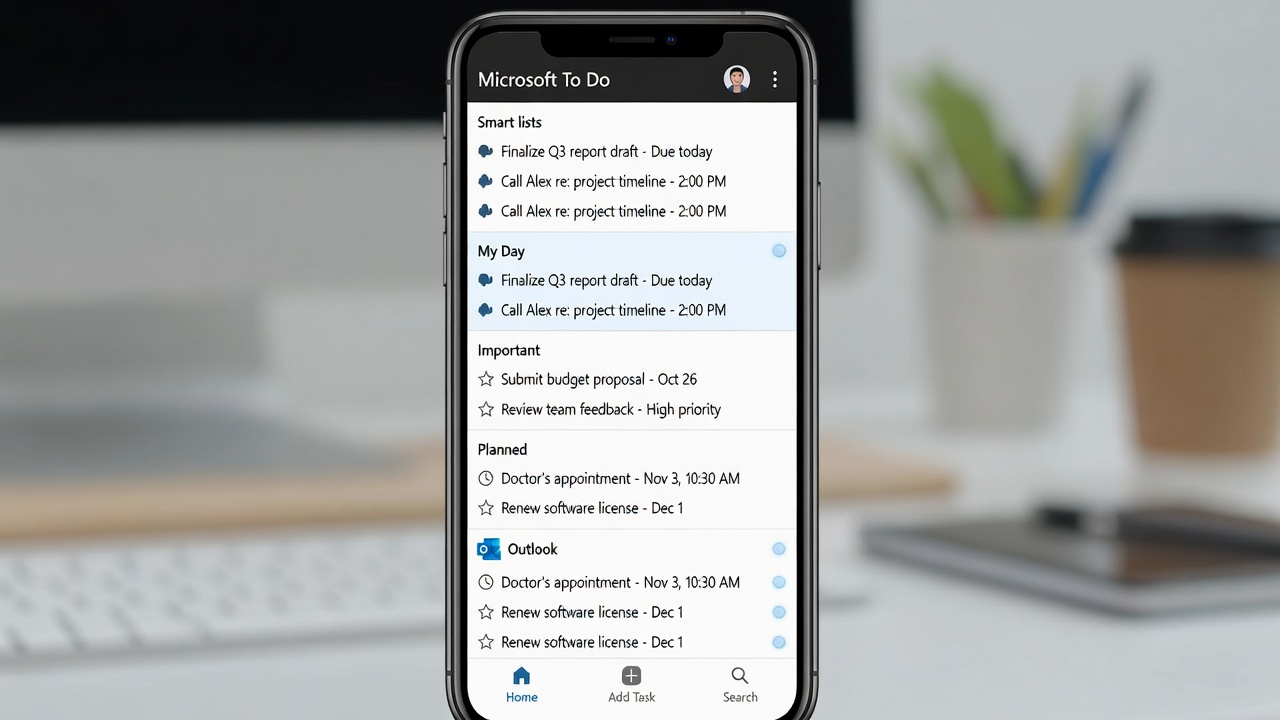
Reminders form the backbone of consistent task execution. In the 2026 version, you can attach time-based, recurring, or even location-aware alerts to any item. Select a task, open its details, and choose the reminder icon to set a specific date and time. For recurring work, enable the repeat option and select daily, weekly, or custom intervals that align with your schedule.
Consider a sales representative who creates a recurring task called "Update CRM notes" set for every Friday at 4 PM with a 30-minute advance reminder. The automation layer suggests follow-up subtasks based on previous completions, such as scheduling a client check-in the following Monday. This reduces cognitive load because the system handles pattern recognition while you focus on execution.
Best practice involves pairing reminders with due dates rather than relying on one alone. Due dates drive the smart list logic, while reminders ensure you actually start the work. Test different notification styles on mobile versus desktop to discover which combination keeps you accountable without causing alert fatigue.
Integrating with Outlook and Teams
One of Microsoft To Do's greatest strengths lies in its native connections to the broader Microsoft 365 ecosystem. Flagging an email in Outlook instantly creates a corresponding task that appears in your My Day list. Within Teams, the built-in Tasks by Planner and To Do app lets you assign items to colleagues, and those assignments sync back to each person's personal lists in real time.
To configure these connections, open Settings within To Do and ensure your Microsoft account is linked. Then visit Microsoft.com to review the latest integration options available in your subscription tier. Teams users benefit especially from shared lists that update across channels, reducing the risk of duplicated effort or missed handoffs during collaborative projects.
Mobile and Desktop Sync Tips
Reliable cross-device synchronization is essential for users who switch between phones, tablets, and computers throughout the day. After signing in with the same Microsoft account on every device, enable the sync toggle in the app settings. The web version at todo.microsoft.com serves as a reliable fallback when native apps encounter temporary network issues.
Practical advice includes granting notification permissions on mobile so reminders fire even when the app is closed. On desktop, keep the application running in the background or pinned to the taskbar for quick access. If sync delays occur, force a manual refresh by pulling down on the mobile list or restarting the desktop client. Most users report near-instant updates once these basic steps are followed consistently.
Automation Best Practices with Examples
Effective automation starts with restraint. Begin by automating only one recurring process, such as weekly report preparation, before expanding to more complex workflows. Use the built-in suggestions feature that analyzes your completed tasks and proposes logical next steps or smart list additions.
A concrete example involves a content creator who automates the following sequence: every Monday the smart list surfaces all articles due that week, reminders trigger research subtasks three days prior, and completed drafts automatically move to a review list shared with an editor via Teams. Review automated suggestions weekly to prune any that no longer match your priorities.
Another tip is to combine automation with manual checkpoints for high-stakes items. While the system can handle routine follow-ups, critical client deliverables benefit from an extra human review step. This hybrid approach maximizes time savings without sacrificing quality or oversight.
Comparison with Similar Tools
Microsoft To Do differentiates itself through deep Outlook and Teams connectivity that standalone competitors often lack. Tools like Todoist offer more granular priority matrices, while Google Tasks remains simpler but less feature-rich for power users. If your workflow already lives inside Microsoft 365, To Do provides the smoothest experience with minimal context switching.
Common Mistakes to Avoid
Many beginners overload smart lists with too many overlapping rules, which creates confusing duplicates. Start with one or two clear filters and expand gradually. Another frequent error is ignoring the My Day list, which serves as the daily planning hub. Make it a habit to review and adjust My Day each morning before diving into work.
FAQ and Troubleshooting
Q: Why are some tasks missing from my smart list? A: Verify that the tasks match all active filter criteria and that sync has completed. Q: How do I restore a deleted list? A: Access the recycle bin through the app settings menu. Q: Can I share smart lists with external users? A: Sharing is limited to Microsoft accounts within your organization for security reasons. For additional guidance, consult the official resources at support.microsoft.com.
Conclusion
Microsoft To Do 2026 empowers users to move beyond basic checklists into truly intelligent task management. By mastering smart lists, reminders, integrations, and automation, you can create a personalized system that scales with your responsibilities. Apply the tutorials and examples in this guide to start seeing measurable improvements in focus and completion rates today.

No comments yet. Be the first!