 NeoBit Daily
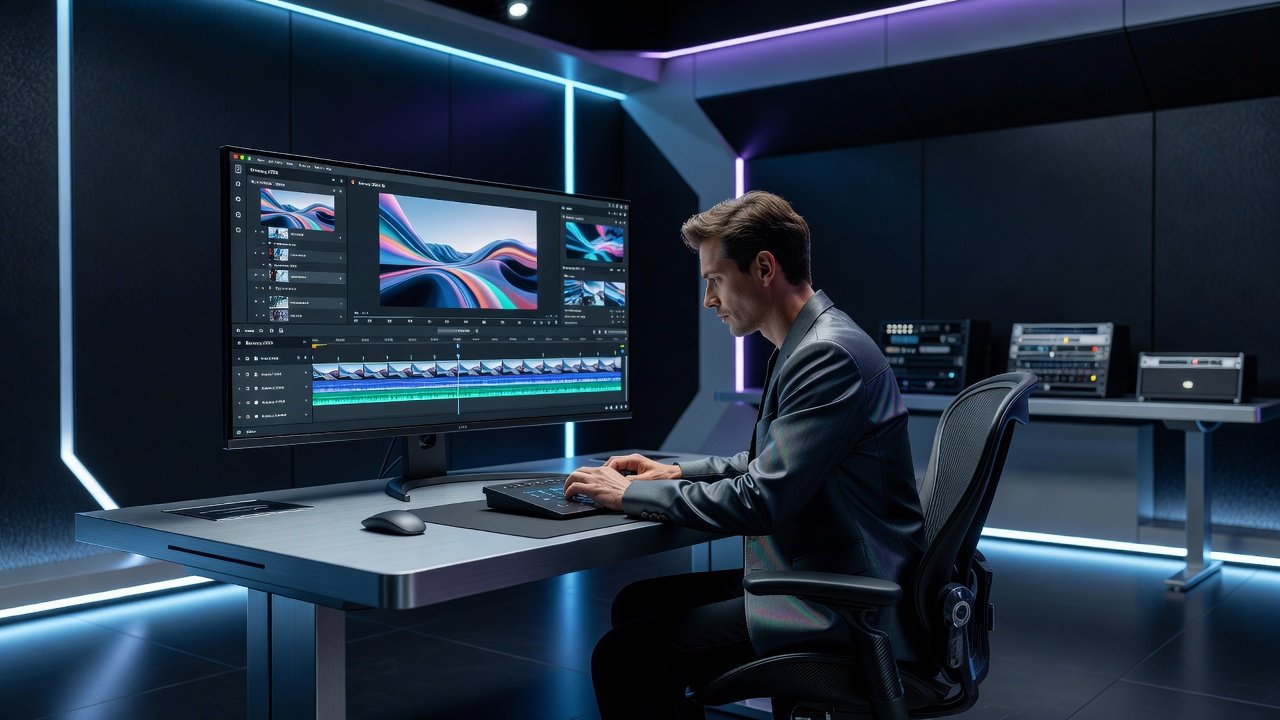
Introduction to Runway 2026 for Pro Creators
Runway 2026 elevates AI video generation beyond basic prompts, offering creators powerful tools for custom model training and precise motion controls. This guide delivers step-by-step workflows for short-form video and ad production, helping you achieve consistent, high-quality outputs faster than competitors like Pika and Kling. Whether producing social media ads or cinematic clips, these techniques unlock professional results that match advanced AI video search intent. We compare performance metrics and cover integration with popular editing apps, providing concrete advice drawn from real production scenarios.
Creators often struggle with inconsistent characters or unnatural motion in AI videos. Runway 2026 addresses these pain points through targeted features that allow fine-grained control at every stage. By mastering custom models and motion tools, you can reduce revision cycles and deliver client-ready work efficiently.
Custom Model Training Workflows
Training custom models in Runway 2026 starts with uploading 50-200 reference images or clips. Use the dedicated training dashboard to fine-tune on your brand assets or character styles. Begin by selecting a base model such as Gen-3 Alpha, then add your dataset and set parameters like learning rate at 0.0001 and epochs to 50 for optimal convergence. Step 1: Prepare a clean dataset with consistent lighting and angles. Remove duplicates and ensure variety in poses. Step 2: Initiate training and monitor loss curves in real time via the dashboard graphs. Step 3: Test the new model on sample prompts before full deployment, iterating on any weak areas like facial expressions.
For short-form video examples, train a model on a specific product line to generate consistent hero shots across multiple ads. In ad production, a creator might upload 120 frames of a beverage bottle from different angles, resulting in a model that generates rotating product animations without distortion. This process typically completes in under four hours on supported hardware, allowing rapid prototyping before scaling to full campaigns.
Precise Motion Brush Usage
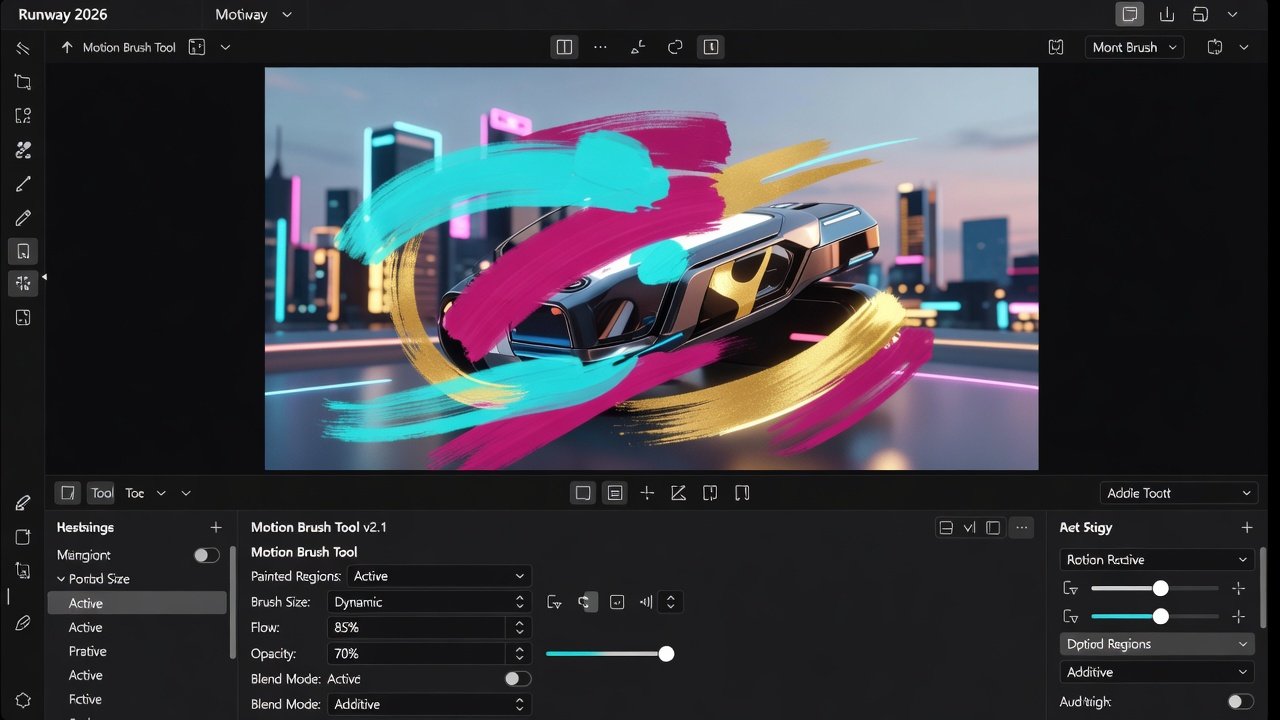
The motion brush tool enables targeted animation on specific regions. Select the brush size and paint over areas you want to animate while keeping backgrounds static. Combine with strength sliders from 20-80% for subtle or dramatic effects. Advanced users layer multiple brush strokes at varying intensities to create depth, such as animating foreground elements faster than mid-ground details.
For ad production, brush only the product in motion while freezing text overlays. Example: Animate a sneaker rotating on a clean surface for a 15-second commercial, achieving fluid 4K output without unwanted camera shakes. Another practical case involves brushing fabric folds on clothing during a fashion reel to simulate natural movement. Always preview brush effects in the real-time player to avoid over-animation that can introduce artifacts.
Prompt Chaining for Consistent Outputs
Prompt chaining maintains character consistency across scenes. Start with a detailed seed prompt describing your subject, then chain follow-up prompts referencing the previous output ID. Use syntax like "same character as previous, new action: walking through city" to preserve identity. This technique proves essential for narrative videos where a single character appears in multiple environments.
In short-form video workflows, chain 4-6 prompts for a 30-second narrative. This reduces style drift compared to single-prompt generations in Pika Labs. A real-world example from ad production: Begin with a prompt for a person holding a smartphone, then chain to the same person interacting with app features, and finally to a call-to-action screen. Each link references the prior generation ID, ensuring facial features and clothing remain identical throughout the sequence.
Timeline Layering for Complex Edits
Runway 2026 supports multi-layer timelines for compositing. Import generated clips, add adjustment layers for color grading, and overlay motion paths. Layer audio tracks and effects non-destructively. This approach mirrors professional NLE software and speeds up revisions.
- Layer 1: Base AI video generation
- Layer 2: Motion brush refinements and keyframe adjustments
- Layer 3: Text, graphics, and lower thirds
- Layer 4: Sound design and ambient effects
- Layer 5: Final color correction and export settings
Practical steps include duplicating base layers before applying heavy effects to preserve originals. In complex ad edits, use timeline markers to align motion brush timing with music beats for rhythmic synchronization.
Performance Comparison: Runway 2026 vs Pika and Kling
Runway 2026 outperforms Pika in motion coherence and Kling in prompt adherence during side-by-side tests on identical ad scripts. Generation speed averages 12 seconds per second of 1080p video versus 18 seconds on Pika and 22 seconds on Kling as of late 2026 benchmarks. Quality gains appear in reduced artifacts and better lip-sync for dialogue-heavy content. Runway also excels in handling long sequences without temporal flickering that plagues other platforms.
Creators report 30% faster iteration cycles with Runway's ecosystem. The tool's superior handling of custom models gives it an edge when brand consistency is critical, whereas Pika may suffice for quick experimental clips and Kling for stylized anime outputs.
Export Optimization and Best Practices
Export in ProRes or H.264 with custom bitrates. Enable upscaling to 4K during export for sharper details. Optimize file sizes by trimming unused timeline sections beforehand. Test exports at different resolutions to balance quality and delivery requirements for social platforms. Always include metadata tags for easier asset management in post-production pipelines.
Integrating Runway with Professional Editing Software
Runway 2026 exports integrate seamlessly with major editing applications. Direct exports to DaVinci Resolve and Final Cut Pro via XML workflows maintain layers and metadata. For Adobe users, the plugin allows round-tripping clips with preserved alpha channels and timing data. This connectivity reduces the need for manual re-imports and preserves creative decisions made inside Runway.
Learn more about compatible workflows at Blackmagic Design resources and Adobe integration guides. Official details are available at Runway ML.
Frequently Asked Questions
What are the GPU requirements?
Runway 2026 recommends NVIDIA RTX 4090 or equivalent with 24GB VRAM minimum for smooth custom training. Cloud options bypass local hardware needs entirely, making the platform accessible without high-end purchases.
How does pricing work?
Subscription tiers scale with generation minutes and training credits. Users select plans based on monthly output volume and advanced feature access.
Can it integrate with editing apps?
Yes, direct exports to DaVinci Resolve and Final Cut Pro via XML workflows maintain layers and metadata for smooth handoff.
What file formats are supported for training data?
Common formats include PNG, JPEG, MP4, and MOV. Ensure files meet resolution guidelines for best model performance.
Conclusion
Mastering these Runway 2026 features positions creators ahead in AI video production. Apply the workflows to your next project for noticeable quality and efficiency improvements over alternative tools. Experiment with the techniques outlined to develop a personalized pipeline that delivers professional results consistently.


No comments yet. Be the first!