 NeoBit Daily
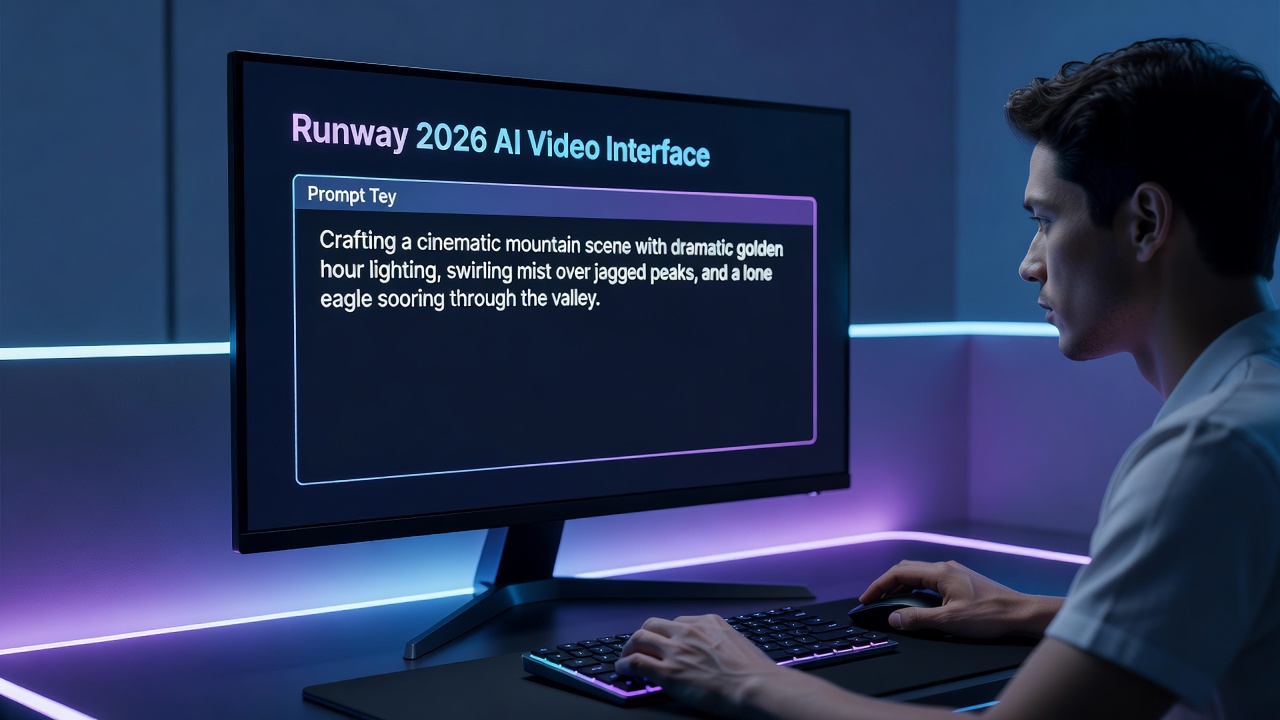
Introduction to Runway 2026 AI Video Generation
Runway 2026 represents the latest evolution in AI-powered video tools, making cinematic content creation accessible to complete beginners. This guide delivers actionable steps for text-to-video workflows, helping you produce polished short clips without prior editing experience. Whether you're crafting social media content or exploratory projects, the platform's intuitive features streamline the process from initial idea to final export.
By focusing on prompt engineering, timeline refinements, and export settings, users can achieve professional-grade output quickly. The 2026 updates emphasize mobile compatibility and enhanced motion tools, aligning with current trends in accessible creative technology. Beginners often find that starting with simple scenes builds foundational skills before advancing to complex narratives.
Getting Started with Runway 2026
Sign up at the official platform and explore the dashboard. New users receive guided onboarding that highlights core modules like text-to-video generation and asset libraries. Begin by selecting a project template optimized for beginners to familiarize yourself with the interface. Create your first workspace by naming it and choosing a default aspect ratio such as 16:9 for landscape videos or 9:16 for vertical mobile content.
Ensure your device meets basic requirements for smooth performance. Cloud-based processing handles most heavy lifting, reducing local hardware demands. Verify your internet connection since generations rely on server-side computation. Once inside, navigate to the generation panel and locate the prompt input field to begin experimenting immediately.
Crafting Effective Prompts for Text-to-Video
Strong prompts form the foundation of quality output. Start with descriptive language specifying scene, style, camera movement, and duration. For example, a prompt like "A serene mountain lake at sunrise with gentle mist rising, cinematic lighting, slow pan right, 8 seconds" yields focused results. Expand this by incorporating artistic references such as "in the style of Studio Ghibli" or technical details like "shot on Arri Alexa with anamorphic lenses."
Experiment iteratively: add details about mood, color grading, or specific objects to refine generations. Avoid vague terms; instead, reference film techniques such as "dolly zoom" or "tracking shot" for dynamic results. Test variations across multiple generations to identify patterns that work best. Advanced users layer negative prompts to exclude unwanted elements like text overlays or excessive blur. Practice with themed series, such as nature documentaries or abstract art pieces, to develop an intuitive sense for what the model responds to effectively.
Timeline Editing Fundamentals
Once a clip generates, import it into the timeline for adjustments. Trim unnecessary sections, rearrange shots, and layer additional elements like transitions or overlays. The 2026 interface supports drag-and-drop functionality with real-time previews. Split clips at precise moments using the razor tool and adjust opacity for smooth blends between scenes.
Key tools include clip splitting, speed ramping, and audio syncing. Practice on short clips first to build confidence before tackling longer sequences. Add text annotations directly on the timeline for subtitles or callouts. Experiment with multi-track layering to combine generated footage with imported sound effects or stock music. This stage transforms raw AI output into cohesive storytelling.
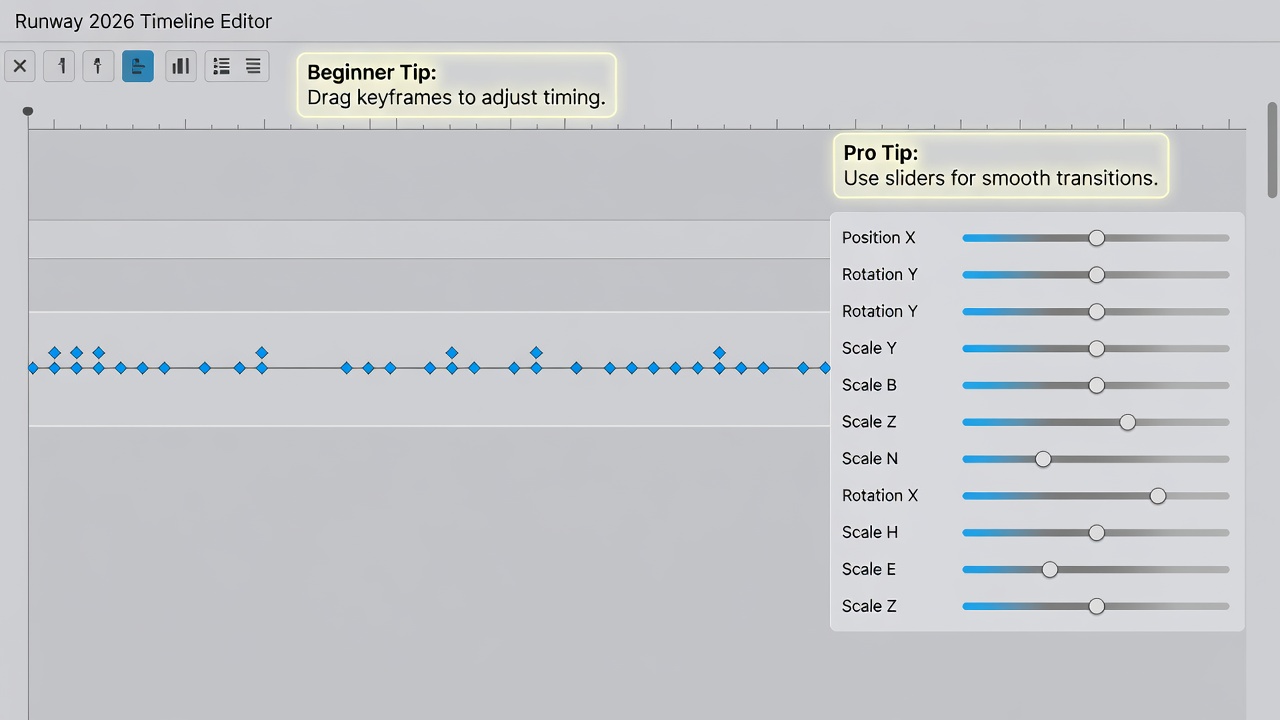
Mastering Motion Controls
Motion controls allow precise direction of on-screen movement. Adjust parameters for object paths, camera angles, and animation intensity using sliders or keyframe editors. Beginners should begin with preset motions before customizing further. Keyframe placement lets you define starting and ending positions for elements within a scene, creating natural arcs or sudden directional changes.
Real-world example: Generate a clip of a walking figure and use motion controls to alter stride speed or add subtle head turns, creating lifelike results without manual animation. Another application involves controlling environmental elements, such as directing wind-blown leaves or rippling water surfaces. Combine these with camera path tools to simulate professional dolly or crane shots. Review playback at varying speeds to ensure fluidity before committing changes.
Exporting Options and Best Practices
Finalize projects by choosing resolution, frame rate, and format options suited to your platform. High-quality exports support 4K delivery with optimized file sizes for web sharing. Review compression settings to balance quality and upload speed. Select codecs like H.264 for broad compatibility or ProRes for further post-production in other software.
Always preview exports at full resolution before finalizing to catch any artifacts. Batch export multiple variations if testing different aspect ratios. Consider adding metadata tags during export for easier organization in your media library. These steps ensure deliverables meet professional standards across social platforms and client presentations.
Real-World Examples of Short Clips
Consider a 15-second product showcase: prompt for "modern smartphone rotating on a minimalist desk, soft shadows, smooth 360 orbit." Edit the timeline to insert text overlays and export for Instagram Reels. Extend this example by adding particle effects for floating dust motes around the device.
Another case involves storytelling: craft a narrative scene of "urban street at night with neon reflections, rain effects, handheld camera feel." Refine motion for realistic droplet movement and layer ambient city sounds. A third example focuses on educational content, generating "close-up of a blooming flower in time-lapse with soft focus background" and editing it into a 30-second explainer segment complete with voiceover placeholders.
Comparisons to Similar AI Video Editors
Runway 2026 stands out for its balanced feature set compared to tools like OpenAI's Sora or Pika Labs. It offers superior timeline depth while maintaining ease of use. For mobile-focused creators, its optimization edges out desktop-heavy alternatives. Explore official resources at Runway's homepage for the latest feature breakdowns. In head-to-head tests, Runway excels in prompt adherence and motion consistency, though competitors may offer faster initial generations in some scenarios.
Optimizing Workflows for Mobile Devices
Mobile users benefit from the dedicated app with touch-friendly controls. Generate clips on the go, then refine via cloud sync on larger screens. Tips include using shorter prompts to speed processing and leveraging offline caching for previews. Common pitfalls like connectivity drops are mitigated by saving progress frequently. Step-by-step mobile workflow: 1) Open the app and select quick generate mode. 2) Input prompt and adjust basic sliders. 3) Download low-res preview for review. 4) Sync to desktop for detailed edits. 5) Export directly from mobile when satisfied.
Further optimization involves organizing projects into folders by theme and using the built-in prompt library for inspiration. This approach minimizes downtime and maximizes creative flow even when away from a workstation.
FAQ: Common Errors and Best Practices
- How do I fix blurry outputs? Strengthen prompt specificity and increase generation quality settings while ensuring adequate lighting descriptions in your text.
- What causes motion artifacts? Reduce complex movements in initial prompts and refine via timeline keyframes for smoother interpolation.
- Is mobile editing reliable in 2026? Yes, with recent app updates improving stability and performance as of early September 2026.
- Best practices for beginners? Start small, iterate often, and study community examples shared on official forums.
- How long should my initial clips be? Limit first generations to 5-10 seconds to maintain focus and reduce processing variability.
- Can I integrate external audio? Yes, import tracks directly into the timeline and align them using visual waveform displays.
Conclusion
Runway 2026 empowers beginners to create compelling AI videos through structured tutorials on prompts, editing, and exports. Apply these steps consistently to achieve professional results efficiently. For deeper dives, consult authoritative tech references such as Apple's developer resources on mobile optimization techniques and MDN Web Docs for related web integration ideas.
No comments yet. Be the first!