 NeoBit Daily
Introduction to Photoshop Express 2026
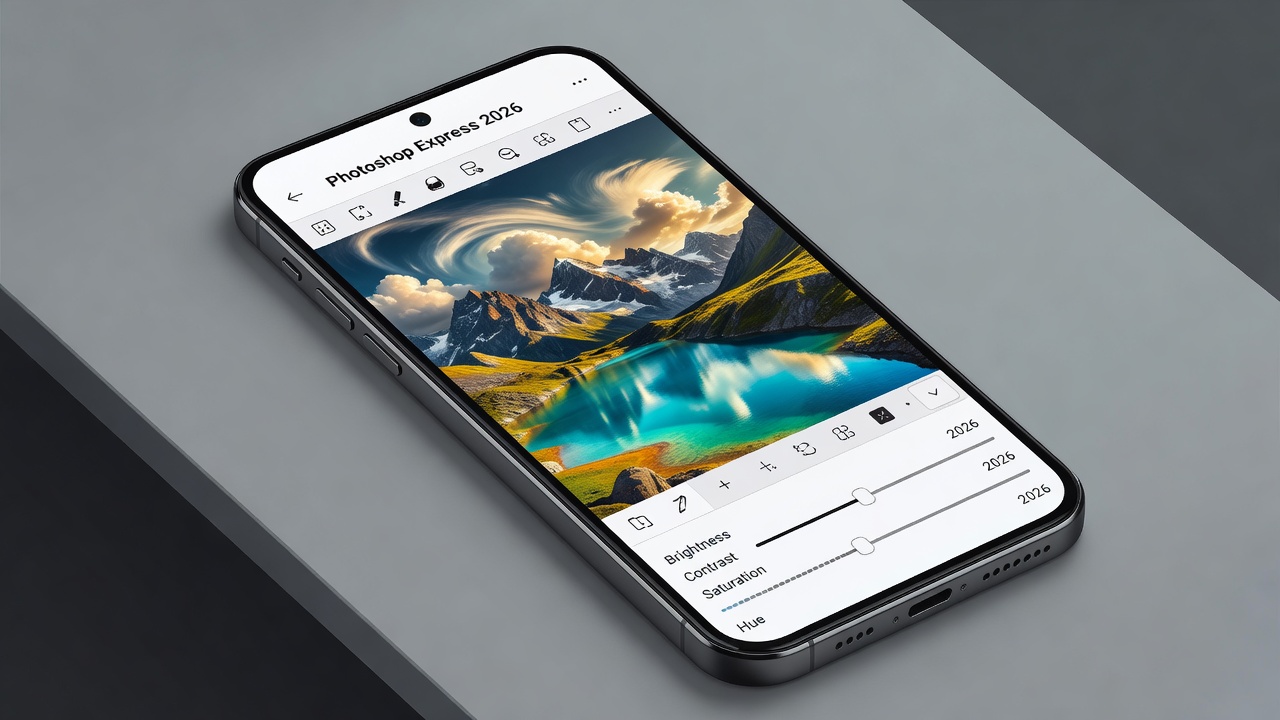
Photoshop Express 2026 brings powerful mobile photo editing to your fingertips, making professional results accessible for beginners and intermediates alike. This comprehensive guide dives deep into core features like layers, healing tools, and AI enhancements with clear step-by-step instructions for everyday edits on iOS and Android devices. Whether you are enhancing family portraits, refining landscape shots, or preparing social media graphics, the app offers a streamlined interface that balances simplicity with advanced controls. Users searching for app guides and software tips will find actionable advice here to elevate their mobile workflow without needing a desktop computer.
Getting Started with Core Features
Begin by downloading the latest version from the official Adobe site. The app interface has been refined for 2026 with intuitive navigation that supports both touch gestures and stylus input. Once installed, familiarize yourself with the home screen where recent projects appear alongside quick-start templates. The toolbar on the left provides access to all major tools, while the right side hosts adjustment sliders for real-time previews.
Mastering Layers in Photoshop Express
Layers allow non-destructive editing, which means you can experiment freely without risking your original file. To add a new layer, tap the Layers icon and select Duplicate or New Adjustment Layer. Adjust opacity and blending modes to create complex composites without altering the original image. For example, duplicate your base layer, apply a blur effect at 50% opacity, and use a mask to reveal sharp details only in focal areas. This technique works especially well for creating depth in product photography or isolating subjects in busy scenes.
Healing Tools for Flawless Retouching
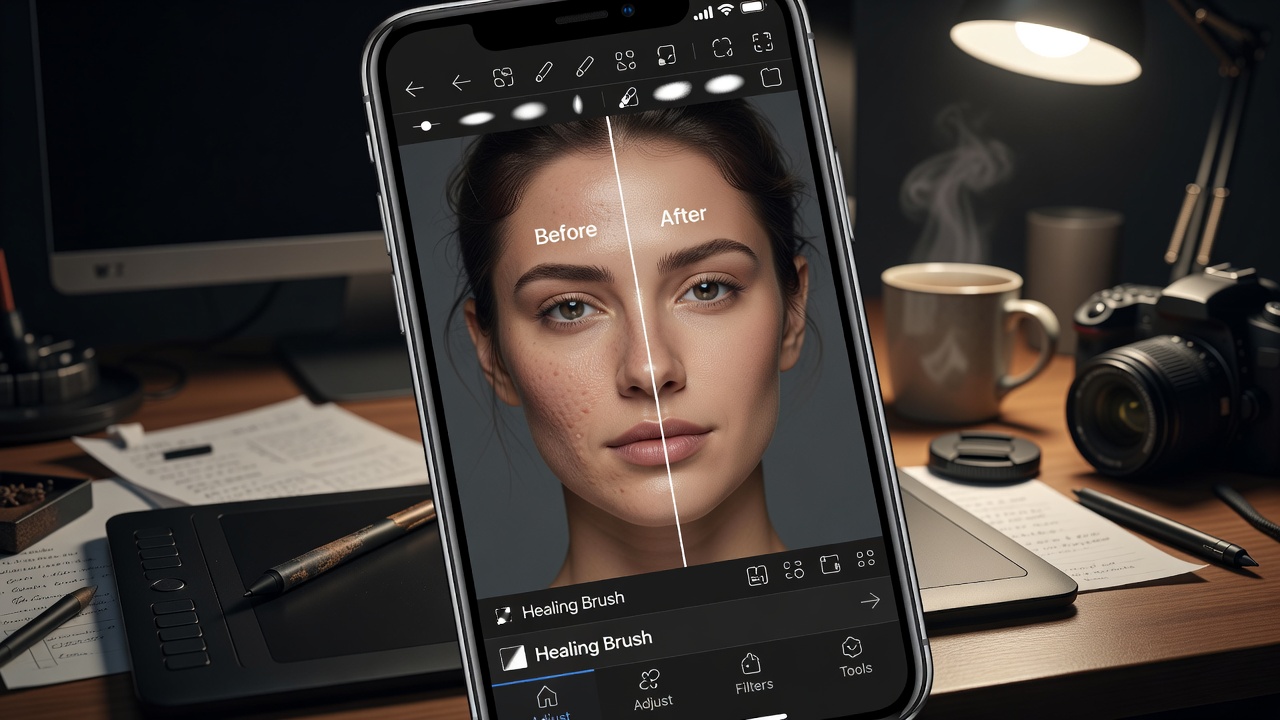
The Spot Healing Brush and Clone Stamp tools remove imperfections seamlessly. For a portrait, select the healing brush, adjust brush size to 20-30 pixels, and brush over blemishes. The AI-powered content-aware fill predicts surrounding textures accurately, making it faster than manual cloning. Practice on different skin tones to understand how the tool samples nearby pixels, and combine it with the Patch tool for larger areas like removing stray objects from backgrounds.
AI Enhancements for Quick Results
AI tools like Auto Fix and Sky Replacement analyze images in seconds. Apply the Generative Fill feature to extend backgrounds or remove objects by selecting an area and describing the replacement. In 2026, these features have improved accuracy for complex edges such as hair and foliage. Users can also leverage the AI-powered color match to harmonize elements from multiple photos in a single composite project.
Practical Editing Examples
Portrait Retouching Workflow
Start with skin smoothing using the smoothing slider at 40%. Then use the healing tool on under-eye circles followed by a subtle dodge and burn layer for dimension. Export at 1080x1080 for Instagram while preserving a high-resolution PSD version for future revisions. Add a curves adjustment layer to lift midtones and create a polished yet natural look that avoids the over-processed appearance common in mobile edits.
Landscape Photography Enhancements
Boost vibrance by +25 and use selective adjustments on skies. Apply the dehaze filter at 15% to cut through atmospheric haze, then add a graduated filter for balanced exposure. For dramatic sunsets, combine multiple exposure layers with luminosity masks to retain detail in both highlights and shadows. This method transforms flat phone captures into vibrant scenes ready for print or online sharing.
Creating Social Media Graphics
Combine text overlays with shape layers. Use the Liquify tool for custom shapes and apply preset filters optimized for platform dimensions. Design a carousel post by creating separate artboards within the same project file, ensuring consistent branding through reusable color palettes and fonts saved in the app library.
Comparisons with Similar Apps
Compared to Snapseed, Photoshop Express offers superior layer support and generative AI that handles complex selections more reliably. Adobe resources highlight these mobile advantages for creative professionals. Lightroom Mobile excels in cataloging and RAW processing but lacks the precise healing tools found here. Users often choose Express for quick creative edits on the go because its interface feels more immediate for one-off projects while still supporting batch capabilities.
Workflow Automation and Batch Processing
Batch processing lets you apply the same preset to multiple photos. Create an export preset with 300 DPI and sRGB color space, then run it on an entire album in under a minute. This saves significant time for social media managers who need consistent output across dozens of images daily. Set up automation by saving your favorite adjustment stacks as reusable presets and triggering them via the app's quick-action menu. Combine this with scheduled cloud sync to keep edited files accessible across devices without manual intervention.
Pro Shortcuts and Efficiency Tips
- Double-tap to zoom to 100% for precise edits.
- Use the history panel to compare versions quickly.
- Save custom workspaces for repeated tasks like portrait workflows.
- Long-press any tool icon to reveal hidden options such as brush hardness and flow controls.
- Pinch with two fingers on the canvas to rotate the view for easier access to tricky angles.
Common Mistakes to Avoid
One frequent error is overusing AI features without checking edges, which can leave unnatural halos around subjects. Always zoom in and refine selections manually. Another issue involves ignoring color profiles during export, leading to washed-out images on different screens. Stick to sRGB for web use and test prints on calibrated monitors. Finally, neglecting to back up original files before heavy editing can result in lost data if the app crashes.
Frequently Asked Questions
How do I fix lagging performance in 2026?
Clear the app cache and ensure your device has at least 6GB RAM. Update to the latest firmware for optimized GPU support and close background apps that compete for memory.
Can I use Photoshop Express offline?
Basic edits work offline, but AI features require an internet connection for cloud processing. Download any needed cloud assets in advance if you anticipate limited connectivity.
What file formats are supported for export?
Export as JPEG, PNG, TIFF, or PSD to preserve layers. PSD files maintain full editability when transferred to desktop Photoshop.
Are there keyboard shortcuts available on tablets?
Yes, Bluetooth keyboards work with many commands such as undo, save, and layer visibility toggles for faster editing sessions.
Conclusion
With these advanced techniques, Photoshop Express 2026 becomes an indispensable tool for mobile creators. Practice the workflows regularly to build speed and unlock its full potential across portraits, landscapes, and graphic projects.

No comments yet. Be the first!