 NeoBit Daily
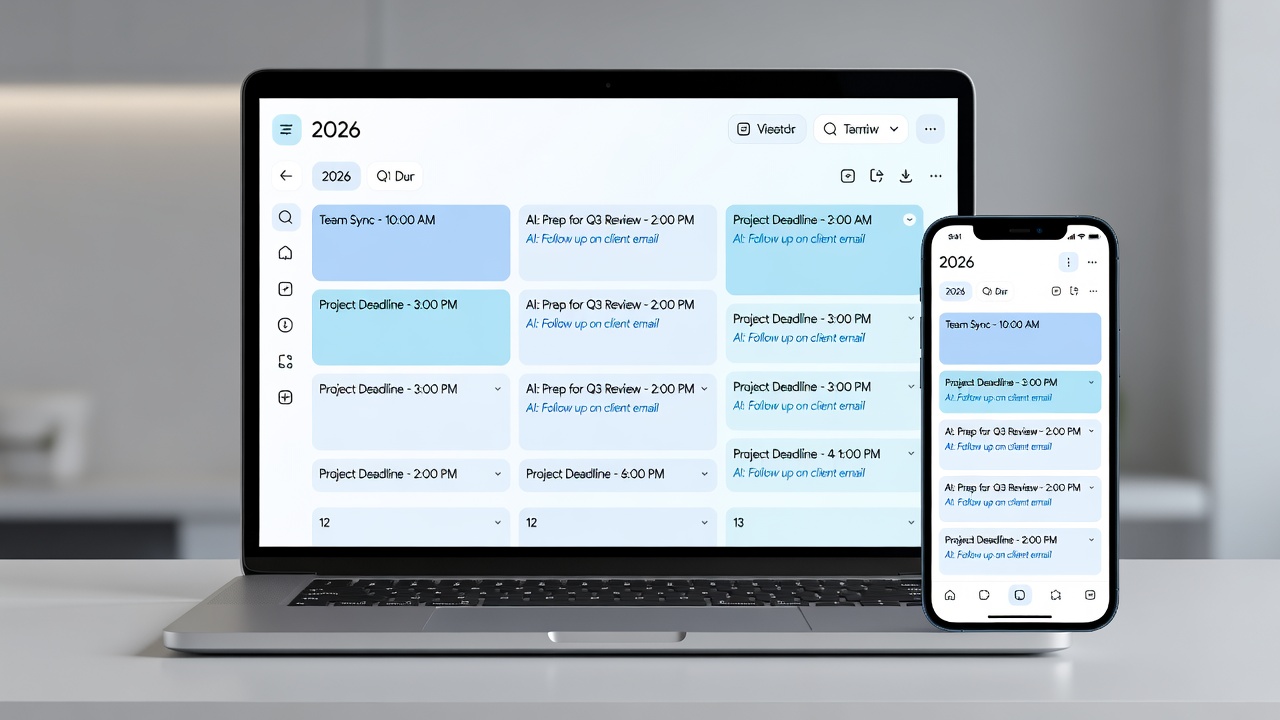
Introduction to Fantastical in 2026
Fantastical continues to stand out as a premier calendar application for productivity-focused users in 2026. Designed to simplify complex scheduling needs, it combines intuitive interfaces with powerful automation. This in-depth guide walks through every essential feature, from initial setup to sophisticated integrations and AI enhancements. Users ranging from freelancers juggling client deadlines to teams coordinating across time zones will find actionable strategies here to streamline their workflows and reduce scheduling friction.
The app's strength lies in its ability to handle natural language inputs, seamless cross-platform syncing, and intelligent suggestions that adapt to individual habits. By the end of this guide, you will have a complete understanding of how to leverage Fantastical for maximum efficiency throughout the year.
Getting Started with Fantastical Setup
Download Fantastical from the official app stores or website and sign up with an email address. The onboarding process prompts you to grant necessary permissions for calendars, contacts, and location services. Import existing calendars from other platforms during setup to maintain continuity. Once installed, explore the preferences panel to adjust default time zones, working hours, and notification styles that align with your daily routine.
Basic Configuration Steps
- Enable location services immediately for accurate travel time calculations in future events.
- Customize notification settings to balance reminders without overwhelming alerts.
- Connect primary email accounts to allow automatic detection of meetings and invitations.
- Set up backup options to protect your data across devices.
- Review privacy controls to determine what information remains local versus synced.
Take time during initial configuration to test a few sample events. This helps identify any immediate adjustments needed before diving into advanced usage.
Advanced Features: Natural Language Parsing and Custom Calendars
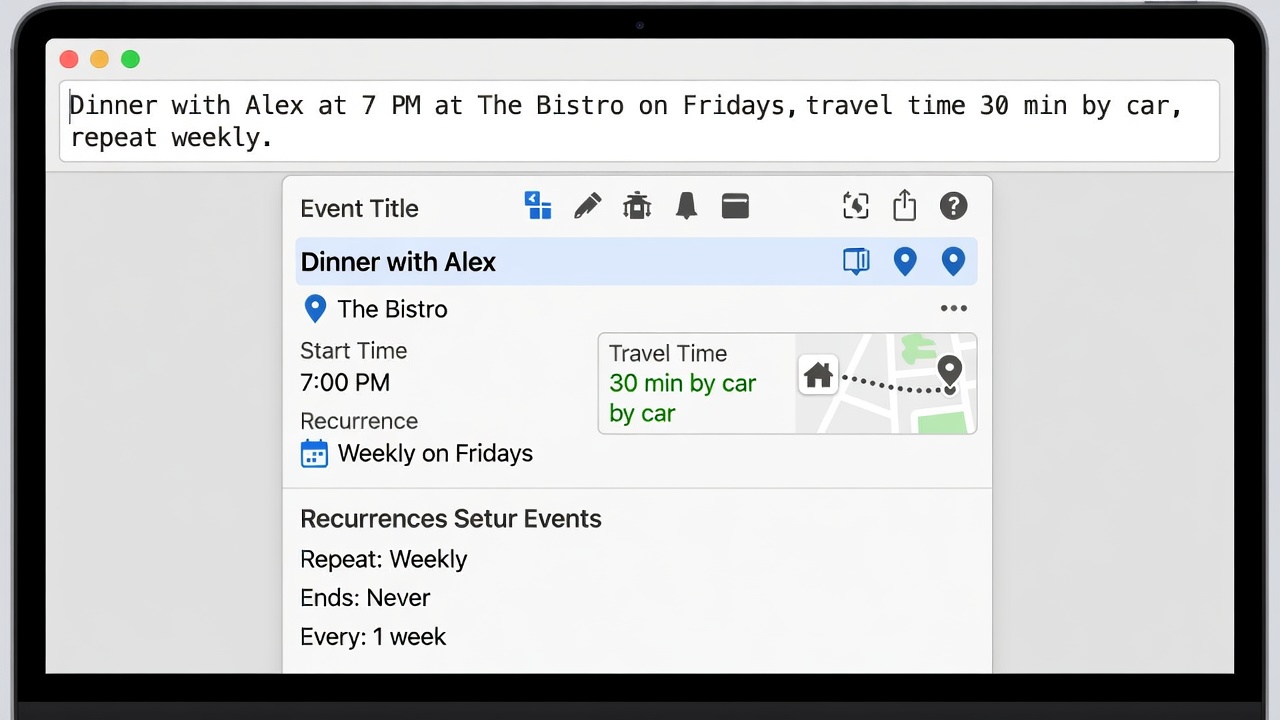
One of Fantastical's standout capabilities is its natural language parsing engine. Instead of filling out multiple fields, simply type sentences such as "Schedule team review every other Friday at 3pm starting next week" and the app intelligently creates the recurring event with correct dates and times. Experiment with variations like "Lunch with Sarah next Tuesday at noon for one hour" to see how context-aware suggestions appear.
Custom calendars allow users to segment their lives effectively. Create separate calendars for work projects, personal appointments, family obligations, and client-specific activities. Assign unique colors to each for instant visual recognition. Filters let you toggle visibility so you can focus only on relevant events during high-pressure periods.
Integrations with Apple Calendar, Google Workspace, and Task Apps
Integrations form the backbone of a productive scheduling system. Fantastical connects effortlessly with native Apple Calendar services for users embedded in the Apple ecosystem. For Google users, direct linkage to Google Workspace ensures events, contacts, and shared resources stay synchronized in real time. Extending this further, connect popular task management tools to convert calendar blocks into actionable tasks with deadlines.
Practical integration steps include navigating to the accounts section, selecting the desired service, and completing secure authentication. Always verify two-way syncing by creating a test event on one platform and confirming it appears elsewhere. Adjust sharing permissions carefully to maintain control over sensitive information.
Step-by-Step Integration Examples
- Open the settings menu and locate the Accounts tab.
- Select Apple Calendar and authenticate using your iCloud credentials.
- For Google Workspace, choose the option and log in via OAuth for secure access.
- Connect task apps by searching available integrations and granting necessary permissions.
- Test the connection by adding an event and confirming it propagates across platforms.
These connections reduce manual data entry and minimize errors from duplicate scheduling.
AI Reminders and Travel Time Estimates
AI-driven reminders analyze your past behavior to suggest optimal times for follow-ups or preparation alerts. Enable this feature in settings and let the system learn patterns such as preferring buffer time before important meetings. Travel time estimates use real-time data to automatically adjust event start times based on current traffic or transit conditions. For example, a meeting across town might trigger an earlier departure reminder when congestion is detected.
Team Sharing and Collaboration Options
Premium features unlock robust team sharing. Invite colleagues to view or edit specific calendars without exposing your entire schedule. Set granular permissions for viewing availability only or allowing full edits. This proves invaluable for freelancers coordinating with virtual assistants or project teams managing joint deadlines. Always review shared calendar settings periodically to ensure access remains appropriate.
Free vs Premium Plans Comparison
The free version delivers essential scheduling tools and core integrations suitable for individual users with light demands. Upgrading to premium unlocks unlimited custom calendars, advanced natural language features, team collaboration tools, and enhanced AI capabilities. Consider your collaboration needs and event complexity when deciding on a plan.
Practical Examples for Freelancers and Professionals
A freelancer might maintain separate calendars for each client, use natural language to set recurring invoice reminders, and activate travel estimates for in-person consultations. Professionals in corporate settings can integrate multiple accounts to manage both internal meetings and external networking events. Recurring events for weekly stand-ups or monthly reviews become effortless with templated setups that repeat reliably.
FAQ: Common Sync Issues and Mobile vs Desktop Differences
Sync Issues
Authentication failures or delayed updates often stem from network problems or expired credentials. Re-authenticate accounts, ensure stable internet, and restart the application as first steps. Persistent difficulties may require checking the Fantastical support resources for platform-specific guidance.
Mobile vs Desktop Differences
The mobile app prioritizes quick entry via natural language and push notifications for on-the-go adjustments. Desktop versions provide larger views for multi-calendar oversight and easier bulk editing. Switching between platforms may require adapting habits, such as using voice input more on mobile while leveraging keyboard shortcuts on desktop.
Best Practices and Advanced Tips
Establish consistent naming conventions for events to improve searchability. Combine filters with custom calendars to create focused daily views. Regularly audit shared access to protect privacy. For heavy users, experiment with AI suggestions to refine scheduling patterns over time. These habits compound to deliver noticeable productivity gains.
Conclusion
Fantastical equips users with everything needed for sophisticated calendar management in 2026. By mastering setup, integrations, AI tools, and sharing options, you can eliminate scheduling stress and focus on meaningful work. Apply the techniques described to customize the app to your unique workflow.

No comments yet. Be the first!