 NeoBit Daily
Introduction to Raycast in 2026
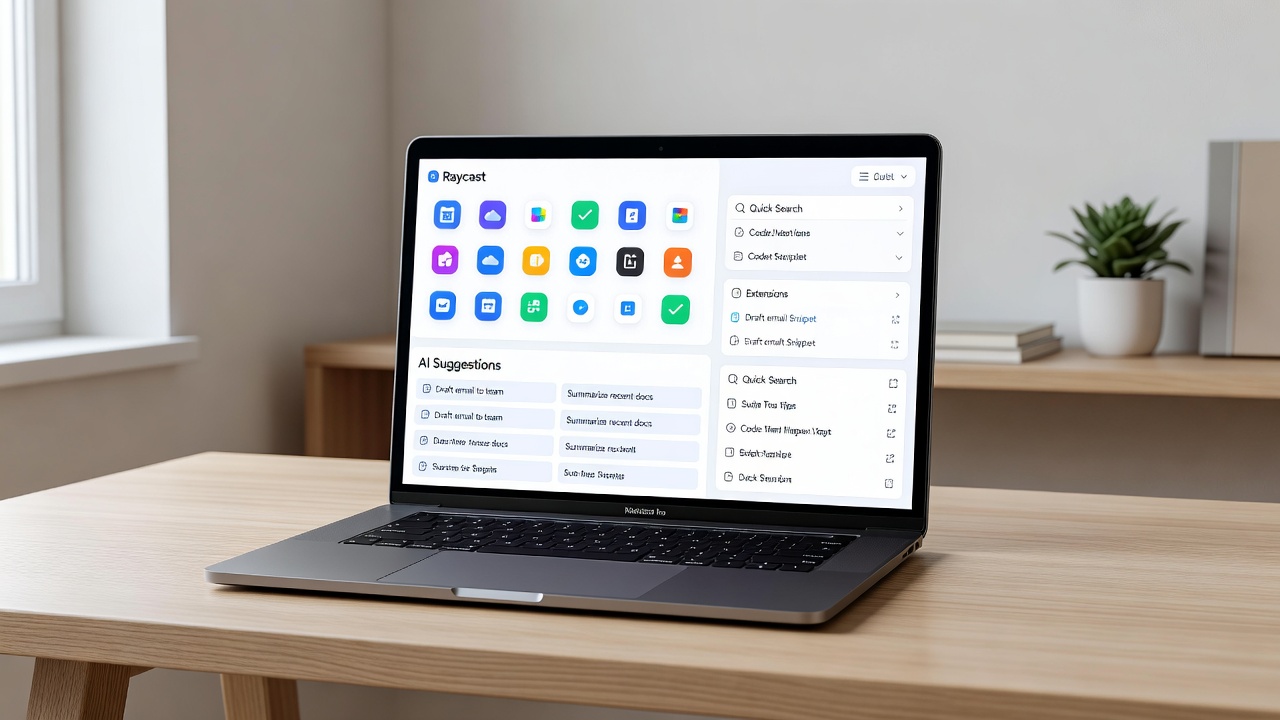
Raycast has evolved into an indispensable Mac launcher that transforms how users interact with their computers. In 2026, it combines lightning-fast search, powerful extensions, and seamless automation to boost daily workflows for beginners and advanced users alike. This comprehensive guide covers everything from initial setup to building custom commands without writing code, helping you unlock peak productivity through keyboard-driven interactions, AI assistance, and team collaboration features. Whether you are switching from Spotlight or seeking advanced automation, Raycast offers a modern solution that adapts to diverse professional needs.
Getting Started: Installing and Setting Up Raycast
Begin by downloading Raycast from the official site at Raycast. After installation, grant necessary permissions for accessibility and system control to enable full functionality. The app integrates deeply with macOS, allowing instant access via a customizable hotkey that you can set during the onboarding process. Configure your preferences in the settings menu to sync with iCloud for multi-device use, ensuring your snippets and extensions remain consistent across your MacBook and iMac. Take time to explore the initial tutorial that walks through basic commands and personalization options such as theme selection and notification preferences. Users often overlook the importance of enabling full disk access, which unlocks deeper file search capabilities essential for power users managing large project folders.
Essential Keyboard Shortcuts for Speed
Mastering shortcuts is key to productivity. The default hotkey opens the command bar instantly, but advanced users remap it to avoid conflicts with other apps. Use Command + K for quick actions, and customize others like Command + Shift + Space for window management or Option + Space for clipboard history. These reduce mouse dependency and speed up navigation across apps and files. Create a personal cheat sheet by listing your top ten shortcuts in a dedicated Raycast note, then practice them daily until they become second nature. Additional useful combinations include Command + 1 through 9 for quick extension access and Control + R for refreshing results in real time.
Exploring and Installing Extensions
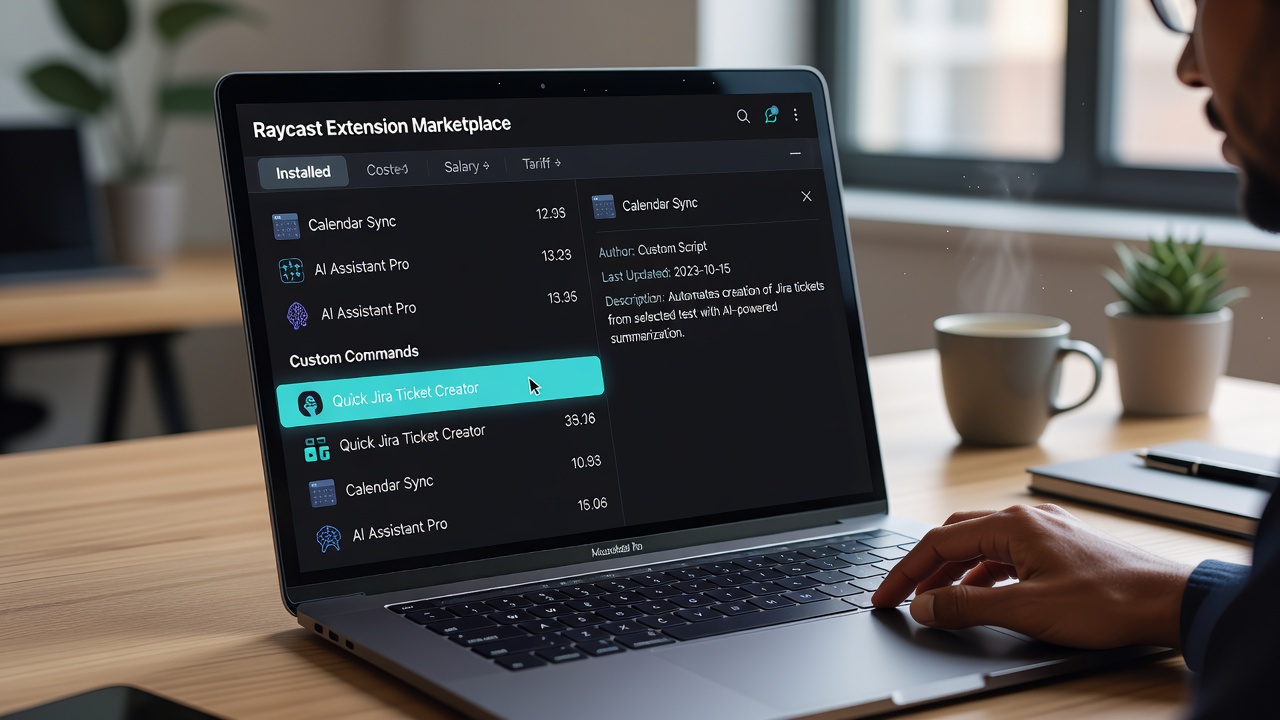
Raycast's extension ecosystem is its standout feature. Browse the built-in store for tools like calendar integration, GitHub commands, and weather checks. Install extensions with one click and manage them via the extensions tab. This extensibility turns Raycast into a central hub for all your tools. Popular choices include the Linear extension for issue tracking and the Notion connector for quick database queries. Always verify extension permissions before installation to maintain security, and periodically review your list to remove unused ones that could slow performance.
AI Integrations for Smarter Workflows
Raycast incorporates AI capabilities that allow natural language queries for tasks like summarizing notes or generating ideas. Connect with models through extensions to handle complex requests directly in the launcher. This feature saves time on repetitive research and content creation. For instance, type a prompt like "summarize my last meeting notes" and receive structured output you can copy or email instantly. Experiment with context-aware AI by linking your calendar events, enabling Raycast to suggest follow-up actions based on recent discussions without leaving the app interface.
Creating Snippets and Automations Without Code
Snippets let you store reusable text blocks for emails or code. Set up a snippet by defining a keyword trigger in the snippets section. For automation, use the built-in script commands or visual builders to chain actions like opening specific folders and running searches. Step-by-step example: 1. Open Raycast with your hotkey, 2. Search for 'Create Snippet', 3. Enter your trigger phrase and full content, 4. Add variables for dynamic fields like date, 5. Test with your hotkey and refine as needed. Another practical automation involves creating a command that opens your daily standup template in a note app, starts a timer, and posts a reminder to Slack. These no-code tools empower non-developers to build sophisticated workflows quickly.
Managing Tasks and Building Custom Commands
Organize tasks with extensions that connect to tools like Todoist or Apple Reminders. Create custom commands by recording sequences of actions. For example, build a 'Morning Routine' command that launches email, calendar, and a focus timer in sequence. Expand this by adding conditional logic such as checking weather before suggesting outfit-related apps. Track progress with built-in analytics that show how often each command is used, helping you optimize over time.
Raycast vs Spotlight and Alfred: A Comparison
- Spotlight offers basic search but lacks deep customization and extensions, making it suitable only for simple file lookups.
- Alfred provides powerful workflows yet requires more technical setup compared to Raycast's intuitive interface and visual editor.
- Raycast excels in 2026 with native AI and team features that competitors are still developing, plus better macOS integration for window management.
- Consider your needs: choose Spotlight for minimalism, Alfred if you prefer scripting, or Raycast for balanced power and ease.
Team Sharing and Collaboration Features
Share extension configurations and command sets with colleagues using Raycast's team workspaces. This enables consistent workflows across departments without individual reconfiguration. Administrators can control permissions, audit usage, and distribute updates centrally. In practice, marketing teams share brand-approved snippet libraries while engineering groups distribute Git shortcuts, reducing onboarding time for new hires significantly.
Real-User Case Studies
A freelance designer uses Raycast to launch design apps and generate color palettes via AI in seconds, reporting a 40 percent reduction in daily setup time. A software development team relies on shared commands for code reviews, cutting meeting times by half through automated pull request summaries and status checks. Another case involves a project manager who integrated Raycast with multiple apps to create a unified dashboard for tracking deadlines across tools, resulting in fewer missed milestones and improved team accountability.
Troubleshooting FAQs
Common issues include hotkey conflicts—resolve by reassigning in settings. Extension not loading? Restart the app or check permissions. For performance lags, ensure macOS is updated via Apple's Mac page. Additional questions: How do I reset Raycast completely? Use the advanced settings menu to clear cache. Can extensions be updated automatically? Yes, enable auto-update in preferences. What if search results are incomplete? Grant full disk access and rebuild the index. These solutions address most user-reported problems effectively.
Integrating Raycast with Other Apps
Connect Raycast to browsers, note-taking apps, and project tools for unified control. Use the API for advanced users or no-code bridges for broader compatibility. This creates a personalized productivity ecosystem. Examples include linking to Safari for quick tab management, combining with calendar apps for event creation, and syncing with communication platforms for instant message drafting. Always test integrations in a controlled environment before full deployment to avoid workflow disruptions.
Conclusion
Raycast in 2026 stands as a versatile Mac powerhouse. By following these steps for setup, extensions, and automations, users achieve unparalleled efficiency. Experiment with the features outlined to tailor it to your needs and elevate your workflow today.

No comments yet. Be the first!