 NeoBit Daily
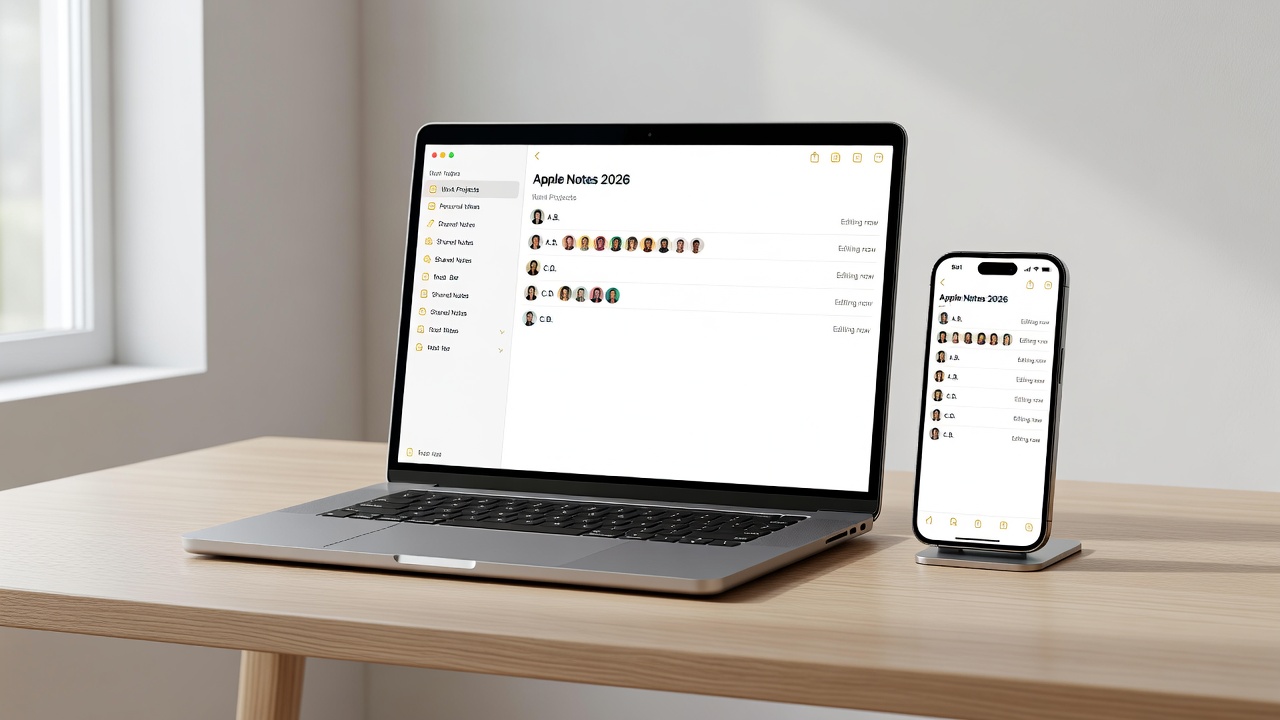
Introduction to Apple Notes in 2026
Apple Notes has evolved into a powerful productivity tool for both beginners and intermediate users. The 2026 updates emphasize smarter organization and real-time teamwork, making it ideal for research projects, team workflows, and personal task management. This guide walks through the latest features with step-by-step instructions, practical examples, and integration tips. Whether you are organizing personal research or collaborating on complex projects, understanding these tools can transform how you capture and share information across Apple devices.
Setting Up Smart Folders for Efficient Organization
Smart folders automatically group notes based on rules you define, such as tags, creation dates, or attachments. To create one on macOS, open the Notes app, click the New Folder button in the sidebar, and select the option to make it a Smart Folder. Define criteria like "contains tag: project" or "modified after: last week." On iOS, the process is similar through the Folders view by long-pressing to create a new smart collection. This feature saves time by dynamically updating content without manual sorting. Combine multiple rules for precision—for instance, notes tagged "research" and containing PDFs. Users report improved workflow efficiency when managing dozens of notes across devices. Experiment with date-based rules to surface recent activity or attachment-based rules to isolate media-heavy notes for quick review.
Mastering Tags and Search Operators
Tags provide flexible categorization beyond traditional folders. Apply them via the tag icon or by typing #tagname in a note. Effective search operators include "tag:meeting" or "folder:work AND created:2026." These help locate information quickly in large libraries. Additional operators like "has:image" or "title:report" allow even finer control. Use "OR" for broader results: tag:client OR tag:prospect. Combine with attachments: "has:pdf" to find documents. Filter by device: notes created on iPhone. Experiment with these in the search bar to refine results instantly. A practical list of operators includes:
- tag:keyword – narrows to specific labels
- created:YYYY – finds notes from a particular year
- modified:today – surfaces recent changes
- folder:name AND tag:priority – combines conditions
Mastering these turns Apple Notes into a searchable database rather than a simple list of pages.
Integrating Apple Notes with Calendar, Reminders, and iCloud Drive
Link notes directly to Calendar events for context. In a note, tap the share icon and select Add to Calendar to embed a reference. Reminders integration allows converting checklist items into tasks with due dates and priorities. iCloud Drive supports attaching large files while keeping everything synced across your ecosystem. For seamless access, enable iCloud syncing in Settings > [Your Name] > iCloud. This ensures notes appear across Mac, iPhone, and iPad without delays. You can also drag files from iCloud Drive into notes for centralized storage. Advanced users create recurring reminders from note checklists to maintain project momentum without switching apps constantly.
Step-by-Step Collaboration Features for Shared Notes
Collaboration is a standout 2026 enhancement. Share a note by tapping the collaboration button and inviting via Messages or email. Participants can edit in real time, with changes highlighted by user color. Manage permissions to control who can add tags or attachments. 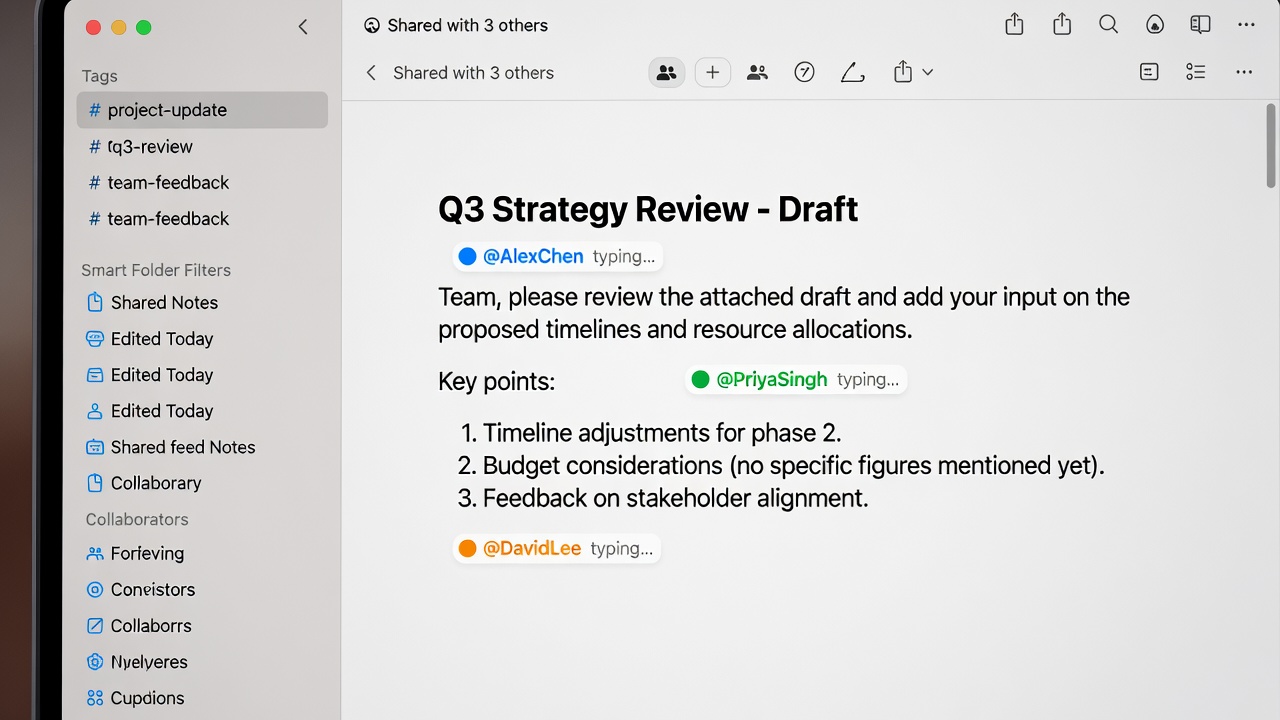
Real-World Examples of Research and Project Organization
Consider a market research project: Create a smart folder for "Q3 Research" filtered by tags like "data" and "analysis." Attach PDFs from iCloud Drive and link reminders for deadlines. Team members collaborate by adding comments directly in the note. Another example involves personal finance tracking—tag receipts and use search operators to generate monthly summaries shared with an accountant. A third scenario is academic work where students tag lecture notes by course and link them to Calendar study sessions. These examples demonstrate how smart organization scales from solo use to group projects.
Comparisons with Similar Note-Taking Tools
Unlike Evernote's more complex pricing tiers, Apple Notes remains free with iCloud storage. It offers tighter integration with Apple ecosystem apps than Notion, though Notion provides more customizable databases. Microsoft OneNote excels in freeform drawing but lacks Apple Notes' native smart folder automation. Choose based on your device ecosystem and need for simplicity. For users already invested in Apple hardware, the native app avoids the learning curve of third-party tools while delivering reliable cross-device performance.
Actionable Tips for Mobile and Desktop Use
On iPhone, use the Quick Note feature from the lock screen for fast capture. On Mac, leverage keyboard shortcuts like Command + Shift + N for new notes. Always enable two-factor authentication for shared content security. Test sync by making changes on one device and verifying on another. Additional mobile tips include using the drawing tools for annotations on the go and pinning frequently accessed notes to the top of the list. Desktop users benefit from split-view multitasking and exporting notes as PDFs for external sharing. Regularly review smart folder rules to keep them relevant as projects evolve.
Common Mistakes to Avoid
Many users overlook the importance of consistent tagging, leading to scattered results. Another pitfall is neglecting to check permission levels when sharing sensitive notes. Avoid over-relying on a single device without verifying iCloud sync status. Finally, failing to use version history can cause lost edits during group work.
FAQ: Common Sync and Formatting Questions
How do I fix sync issues? Check internet connection and restart the app. Ensure iCloud is enabled for Notes.
Can I format text with styles? Yes, use the formatting toolbar for headings, lists, and highlights that sync across devices.
Does collaboration work offline? Edits queue and apply when back online.
How do I recover a deleted note? Check the Recently Deleted folder within the app for up to 30 days.
Are there limits on note size? Notes support large attachments but performance may vary on older devices.
Conclusion
Apple Notes 2026 transforms note-taking into an organized, collaborative experience. By mastering smart folders, tags, and integrations, users unlock greater productivity. Explore these features today and customize them to your workflows for lasting results. For official support, visit Apple's website or Apple Support.

No comments yet. Be the first!