 NeoBit Daily
Introduction to Pocket Casts in 2026
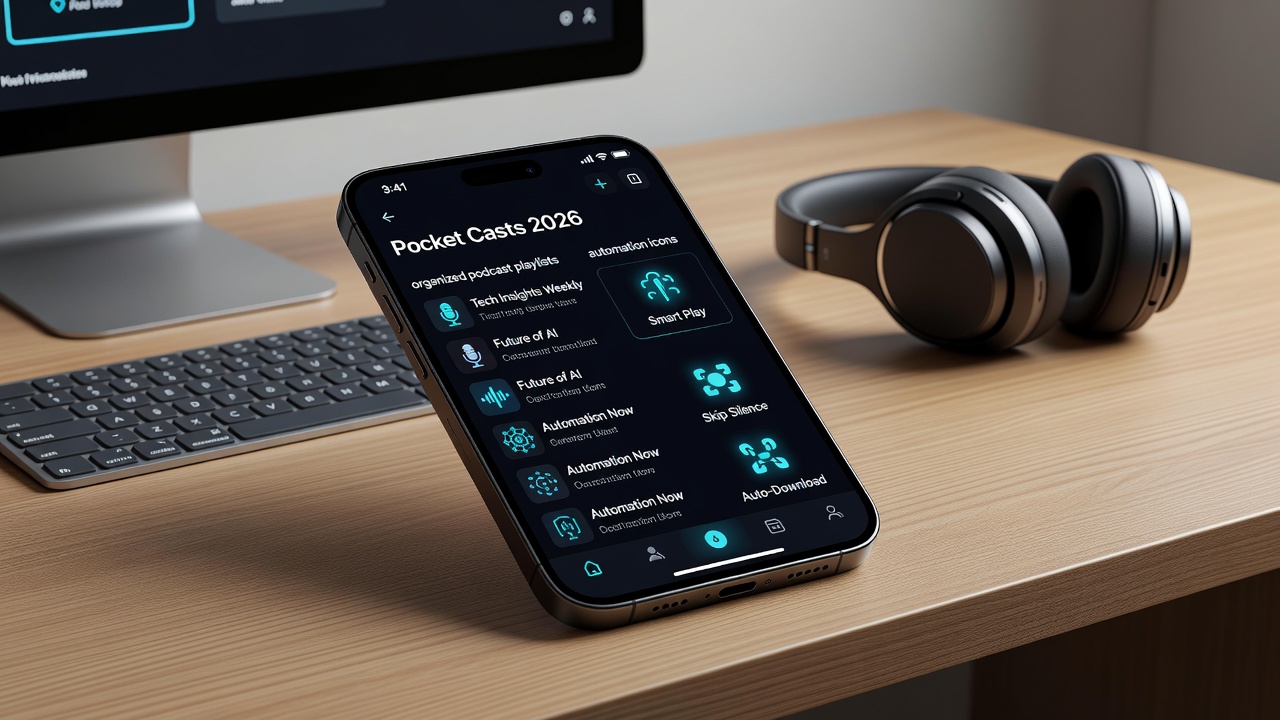
Pocket Casts continues to stand out as a premier podcast application for users who want more than basic playback. In 2026, the app emphasizes productivity through intelligent organization, automation, and seamless cross-device experiences. Whether you are a beginner managing your first subscriptions or an intermediate listener looking to streamline daily routines, this comprehensive guide delivers step-by-step instructions, real-world examples, and advanced techniques that help you reclaim time and enjoy podcasts more efficiently.
Getting Started: App Setup and Account Creation
Begin by downloading the latest version of Pocket Casts from the Apple App Store or Google Play Store. Once installed, launch the app and sign up using an email address or link an existing Google or Apple account. Creating an account immediately unlocks cloud syncing, which is essential for maintaining consistent playlists and filters across all your devices. During initial setup, grant permissions for notifications, background downloads, and storage access to enable offline features without interruptions. Take a moment to explore the main navigation tabs: Podcasts, Filters, Discover, and Profile. Customizing your profile preferences early, such as preferred playback speed defaults and theme selection, sets a strong foundation for long-term use.
Building Custom Playlists for Organized Listening
Custom playlists transform chaotic episode lists into focused listening queues. To create one, navigate to the Playlists section and tap the plus icon. Name your playlist descriptively, for example “Morning Commute” or “Deep Work Focus,” then add rules such as “episodes from specific shows” or “duration under 25 minutes.” Drag episodes manually or allow automatic population based on release dates. A practical example involves building a playlist that pulls the newest episode from three favorite business podcasts every Monday morning, ensuring fresh content is ready without daily manual checks. Users report saving up to 15 minutes each day by relying on these structured queues instead of scrolling through dozens of unplayed shows.
Smart Filters: Advanced Organization Techniques
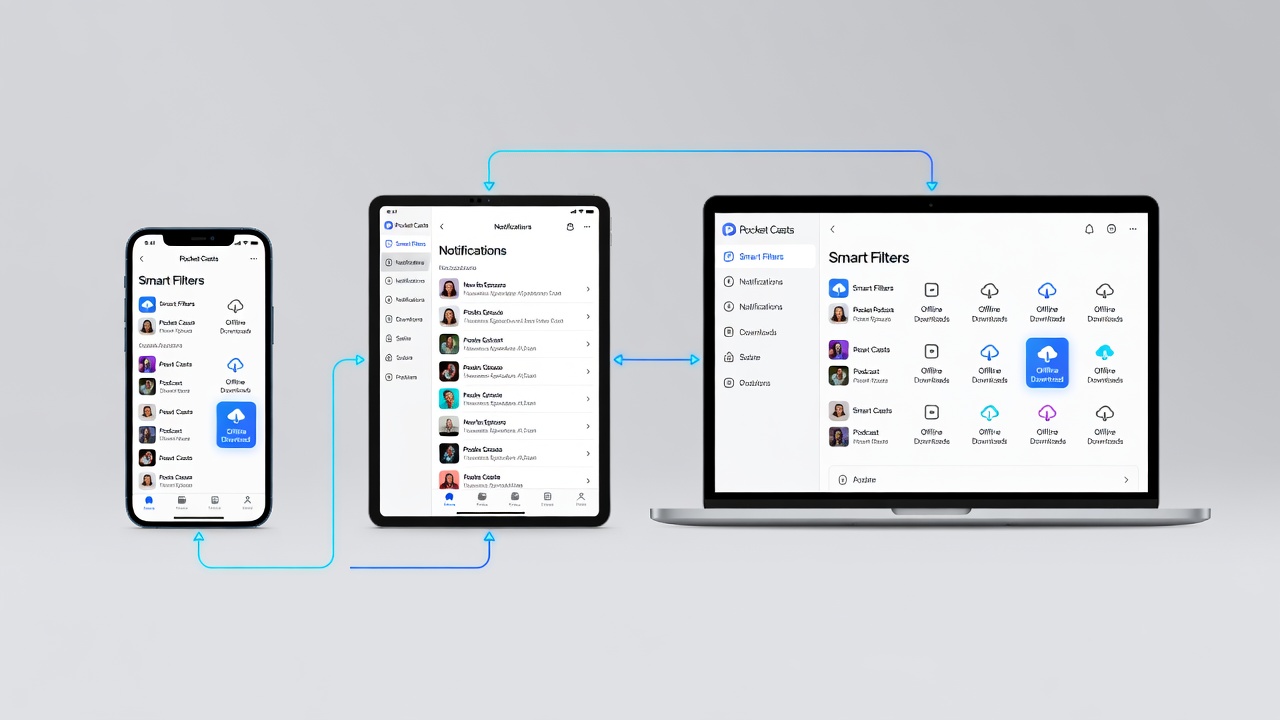
Smart filters go beyond static playlists by dynamically sorting content using multiple criteria. Access the Filters tab and create a new filter named “Quick Bites.” Configure it to show only unplayed episodes shorter than 20 minutes, sorted by newest first. Another useful filter might target episodes marked as “starred” or those released within the past week from educational categories. Combine filters with playback status to automatically hide completed shows, keeping your library clean. Intermediate users often layer three or four filters together, creating a personal dashboard that surfaces the most relevant content instantly. This approach eliminates decision fatigue and supports consistent listening habits even during busy weeks.
Cross-Device Syncing for Seamless Access
Syncing ensures your listening progress, bookmarks, and custom filters remain identical whether you switch from phone to tablet or desktop browser. Enable the feature in Profile settings and verify your account is connected to the cloud service. Test syncing by starting an episode on your phone, pausing it, then resuming on your laptop; the position should match within seconds. For users with multiple devices, set a primary device for downloads to avoid duplicate storage usage. In 2026, improved sync reliability means fewer conflicts, though occasional manual refresh via the pull-down gesture resolves rare delays.
Automation Workflows to Save Time
Automation is where Pocket Casts delivers the greatest productivity boost. Set up Wi-Fi-only downloads for new episodes in the settings menu, then create a rule that adds freshly downloaded shows directly to a designated playlist. Combine this with smart filters so that any episode matching your “under 30 minutes” criteria is automatically queued for offline access. A real-user workflow example: a project manager configures an automation that downloads all episodes from productivity podcasts on Sunday evening and places them into a Monday morning filter. This eliminates last-minute decisions and guarantees content is available during travel without using cellular data. Experiment with notification triggers that alert you only when automation completes a batch download.
Customizing Notifications for Better Control
Excessive alerts can disrupt focus, so tailor notifications carefully. In the Profile section, select Notification Preferences and choose specific playlists or shows that warrant immediate alerts. Disable global new-episode notifications and instead enable quiet hours between 10 PM and 7 AM. Users who follow many shows benefit from grouping notifications into a single daily digest sent at a convenient time. This customization reduces interruptions while ensuring you never miss priority content, directly supporting the productivity angle emphasized throughout this guide.
Offline Listening Strategies
Offline mode is critical for commuters and travelers. Before leaving Wi-Fi coverage, manually trigger downloads for your most important playlists or rely on the automation rules created earlier. Organize downloaded episodes into a separate offline-only playlist to avoid confusion with cloud-synced items. Adjust playback speed between 1.2x and 1.8x depending on content density, and use the sleep timer to prevent battery drain if you doze off. Advanced users bookmark key segments during offline playback so they can revisit highlights once reconnected. Always check available storage in the app settings and remove completed episodes promptly to free space.
Pocket Casts vs Spotify and Apple Podcasts
Comparing Pocket Casts with competitors highlights its strengths in user control. Spotify excels at algorithmic recommendations and social sharing but offers fewer granular filter options. Apple Podcasts provides tight integration with iOS devices yet lacks robust cross-platform syncing for Android users. Pocket Casts stands apart through its emphasis on custom automation, detailed filters, and consistent performance across operating systems. A side-by-side evaluation shows Pocket Casts winning for listeners who value organization over discovery algorithms. For those seeking balanced recommendations, consider testing all three apps for one week before committing.
Pro Tips for Podcast Discovery Features
- Browse the Discover tab by category and sort by popularity to find emerging shows quickly.
- Follow curated collections created by other Pocket Casts users for vetted recommendations.
- Enable listening-history-based suggestions to receive personalized show ideas without manual searching.
- Star interesting episodes from the Discover feed and let smart filters automatically add them to relevant playlists.
Real-User Examples and Productivity Gains
One commuter created a filter that surfaces only 15-minute episodes and reports completing an extra two shows per week without extending travel time. A student automated downloads of lecture-style podcasts every Friday, allowing offline review during weekend study sessions and improving retention. Another user combined starred episodes with variable speed settings to finish long-form interviews faster, reclaiming roughly 45 minutes weekly. These examples demonstrate how small configuration efforts compound into measurable time savings and more consistent listening across months.
Common Playback Issues and FAQ
Q: Episodes fail to download on Wi-Fi only. Confirm the setting is enabled and test your network connection. Restart the app if downloads stall.
Q: Sync does not update across devices. Log out and back in, then force a manual refresh. Check that all devices run the same app version.
Q: Playback skips or stutters offline. Verify file integrity by re-downloading the episode and ensure sufficient storage remains.
Q: How do I share a playlist publicly? Open the playlist menu and select the share option to generate a link.
Q: Can filters include multiple duration ranges? Yes, create separate filters or combine rules using the advanced editor.
Q: Notifications arrive too frequently. Adjust per-show settings or switch to digest mode in preferences.
Conclusion
Mastering Pocket Casts in 2026 turns passive podcast consumption into an organized, time-efficient habit. By implementing custom playlists, smart filters, automation rules, and thoughtful notification settings, users achieve noticeable productivity improvements. Apply these techniques gradually, starting with one playlist and one filter, then expand as comfort grows. For additional official guidance, visit the Pocket Casts website and review detailed instructions at support documentation. Start optimizing today and enjoy a more streamlined listening experience.
No comments yet. Be the first!