 NeoBit Daily
Introduction to 1Password in 2026
In today's digital landscape, managing dozens of unique passwords across accounts is essential for staying safe online. 1Password remains a leading password manager that simplifies this process while offering advanced security features. This comprehensive guide walks beginners through every step of using 1Password effectively in 2026, from initial account creation to advanced sharing and audits. Password managers like 1Password help users avoid common pitfalls such as reusing weak passwords, which often leads to credential stuffing attacks. By centralizing credentials in an encrypted vault, the tool reduces human error and streamlines access across devices. Users benefit from features that automatically detect login forms, generate robust credentials, and alert them to potential breaches before they become serious problems.
Whether you are new to password managers or upgrading from basic built-in tools, understanding the full capabilities of 1Password ensures maximum protection. The app supports families, teams, and individual users with tailored vaults that maintain end-to-end encryption at all times.
Getting Started: Account Setup
Begin by visiting the official 1Password website to create an account. Download the desktop app for your operating system and follow the guided onboarding process. During setup, you will generate a strong master password and a secret key that acts as an additional layer of protection. Store the secret key in a safe physical location, as losing it can prevent account recovery. Take time to verify your email address and enable two-factor authentication on the account itself for an extra security layer. Once the vault is initialized, install the browser extension for seamless integration with Chrome, Firefox, or Edge. This extension detects login forms and offers to save new credentials automatically. For existing users migrating from another manager, 1Password provides import wizards that handle CSV files or direct transfers from tools like LastPass or Bitwarden without data loss.
Creating Strong, Unique Passwords
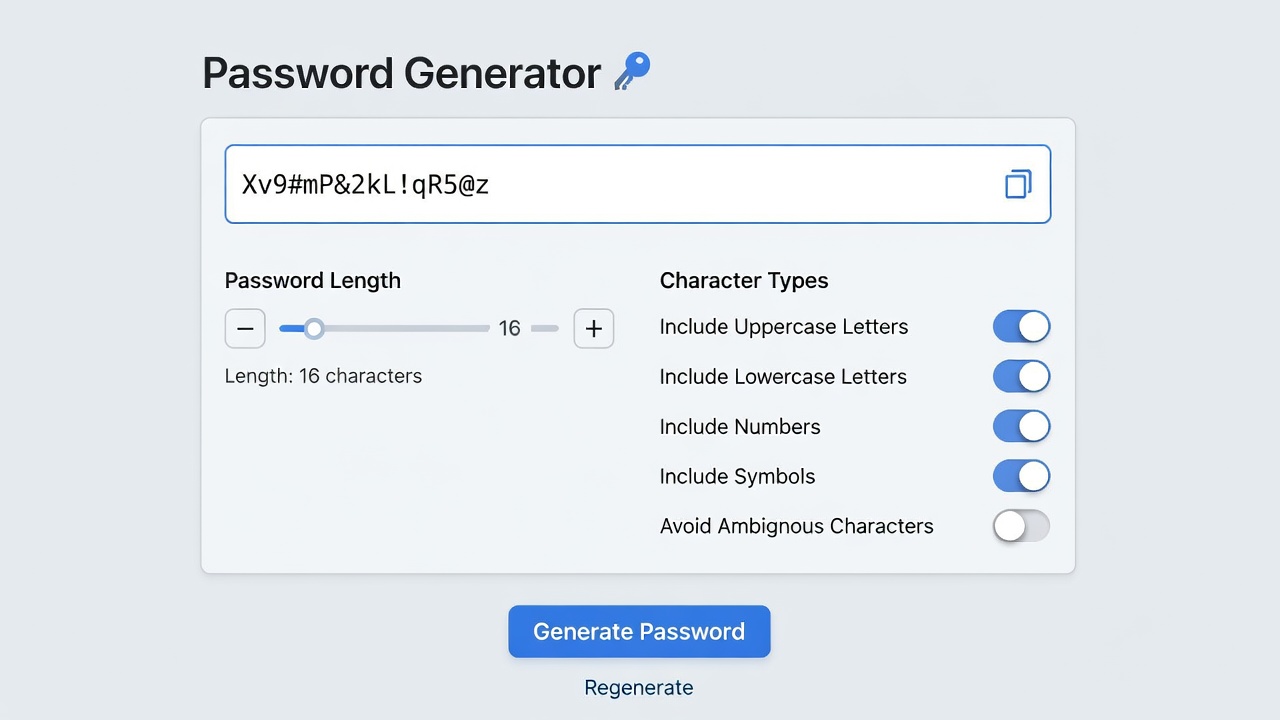
1Password excels at generating complex passwords that resist brute-force attacks. Navigate to the password generator tool within the app or extension. Customize parameters such as length, inclusion of symbols, and avoidance of ambiguous characters. For most accounts, a 16-character password with mixed case, numbers, and symbols provides robust protection. Real-world example: Instead of using "Summer2025!" across email and banking sites, generate unique strings like "K9p#vL2mX8qR4tY7" for each. This prevents one breach from compromising multiple accounts. Consider creating separate categories in your vault for work, personal, and financial logins so you can quickly locate items during audits or when sharing access with trusted family members.
Using the Password Generator Effectively
The generator supports passphrases for memorable yet secure options. Enable the passphrase mode to create combinations of random words separated by hyphens. Test generated passwords against the built-in strength meter before saving them to your vault. Advanced users can set default generator profiles for different account types, such as longer strings for banking versus shorter but still secure options for low-risk sites. Always review the entropy score displayed by the tool to ensure your choices meet modern security standards recommended by experts.
Browser Extensions and Autofill Features
Install the 1Password browser extension to enable one-click login. It supports context menus for quick access to saved items. On mobile devices, enable autofill in system settings to populate login fields in apps and Safari or Chrome browsers without copying and pasting. The extension also offers identity autofill for forms, allowing you to complete checkout processes or registration pages in seconds. Customize extension settings to require master password re-entry for sensitive actions, adding another safeguard against unauthorized use if your device is left unattended.
Secure Sharing with Family or Teams
1Password allows selective sharing of passwords, documents, or entire vaults. Create a shared family vault and invite members with customizable permissions. For teams, use role-based access to limit visibility of sensitive items. All shared data remains end-to-end encrypted, ensuring only intended recipients can view contents. Practical tip: When sharing a Wi-Fi password or streaming service login, use the one-time share link feature that expires after a set period, reducing long-term exposure risks. Families often share travel documents or emergency contacts this way while keeping financial credentials private.
Security Audits and Watchtower Alerts
Regularly run the security audit feature to identify reused, weak, or compromised passwords. Watchtower monitors for known data breaches and alerts users to change affected credentials promptly. This proactive approach mirrors recommendations from authoritative sources like NIST. Schedule monthly audits and address high-priority items first, such as those flagged as compromised. The audit report includes visual breakdowns of password health, helping users prioritize fixes efficiently.
Integrations with Email and Cloud Storage
Connect 1Password with email clients for secure storage of recovery codes. Integrate with cloud services such as Google Drive or Dropbox by storing encrypted file attachments directly in your vault. These connections maintain zero-knowledge encryption so providers never access your data. Additional integrations include productivity suites like Microsoft 365 and note-taking apps, allowing seamless retrieval of credentials while working on collaborative projects. Always verify that any third-party connection uses official plugins to preserve security guarantees.
Comparisons to Built-in Device Tools
While Apple's iCloud Keychain or Google's Password Manager offer basic autofill, they lack advanced sharing, detailed audits, and cross-platform flexibility. 1Password provides more granular control and works seamlessly across Windows, macOS, iOS, Android, and Linux without ecosystem lock-in. Built-in tools may suffice for casual users, but power users benefit from 1Password's reporting features and ability to handle large numbers of entries without performance issues. Test both options during a trial period to see which aligns better with your workflow.
Common Threats Avoided with 1Password
- Phishing attacks: Autofill only triggers on verified domains.
- Credential stuffing: Unique passwords limit damage from any single breach.
- Keyloggers: No manual typing of complex passwords needed.
- Shoulder surfing: Screen masking features hide passwords during entry on shared computers.
- Data leaks from weak storage: Encrypted vaults protect against device theft or loss.
Step-by-Step Mobile Autofill Setup
On iOS, go to Settings > Passwords > Password Options and select 1Password as the default autofill provider. On Android, enable the autofill service through system accessibility settings and grant necessary permissions. Test the feature on several apps to confirm it works reliably before relying on it daily.
Best Practices for Multi-Device Sync
Enable sync on all devices during initial setup and monitor the sync status icon in the app. Use Wi-Fi only for large vault updates to conserve mobile data. If sync issues arise, force a manual refresh or check your internet connection before contacting support.
Frequently Asked Questions
Does 1Password protect privacy across devices?
Yes, end-to-end encryption ensures data syncs securely without exposing plaintext to servers.
How does multi-device sync work?
Changes made on one device propagate instantly via encrypted channels to all authorized devices.
Is it safe to store sensitive notes?
Secure notes feature uses the same AES-256 encryption as passwords, suitable for storing recovery codes or Wi-Fi details.
Can I recover access if I forget my master password?
Account recovery relies on your secret key and emergency kit; without them, access cannot be restored for security reasons.
Conclusion
Adopting 1Password in 2026 equips users with professional-grade tools to manage digital identities confidently. Follow the steps outlined to build strong habits that significantly reduce exposure to cyber threats. For the latest updates, refer to the 1Password official site and resources from CISA.
No comments yet. Be the first!