 NeoBit Daily
Introduction to Microsoft Word 2026 for Power Users
Microsoft Word 2026 delivers powerful tools designed for professionals who need more than basic editing. This guide dives deep into advanced formatting techniques, seamless collaboration features, and workflow automation to help teams create polished documents efficiently. Whether you're preparing complex reports or managing shared projects, these features streamline every step of the process. Power users benefit from precise control over document structure, real-time teamwork, and automation that eliminates repetitive manual work. The result is higher productivity and fewer errors in professional environments where consistency matters most.
Mastering Custom Styles for Consistent Formatting
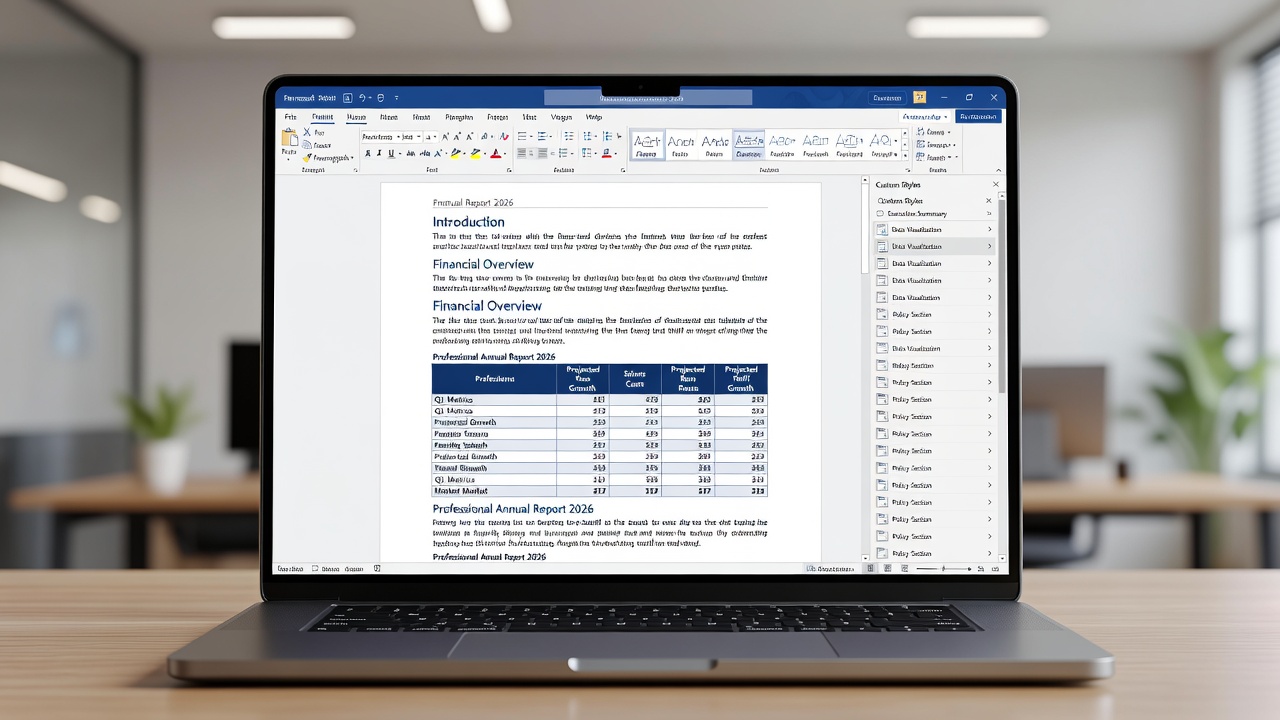
Custom styles in Word 2026 allow users to define reusable formatting rules across headings, paragraphs, and tables. Start by navigating to the Styles pane and selecting Modify. Create a new style named "Report Heading" with specific font, size, color, and spacing settings. Apply it throughout your document for instant consistency. This approach reduces manual adjustments and ensures brand compliance in professional reports. Users can further enhance styles by basing them on existing ones, creating hierarchical relationships that update automatically when the parent style changes.
For even greater control, link styles to Quick Styles galleries. Users can then switch entire document themes with one click while preserving custom overrides. Step-by-step example: Open a new document, define three nested heading styles, apply them to sample content, and save as a template for future use. Advanced practitioners also use the Style Inspector to diagnose formatting issues and the Manage Styles dialog to import or export style sets between documents. These techniques prove invaluable when standardizing outputs across large organizations.
Track Changes and Real-Time Co-Authoring
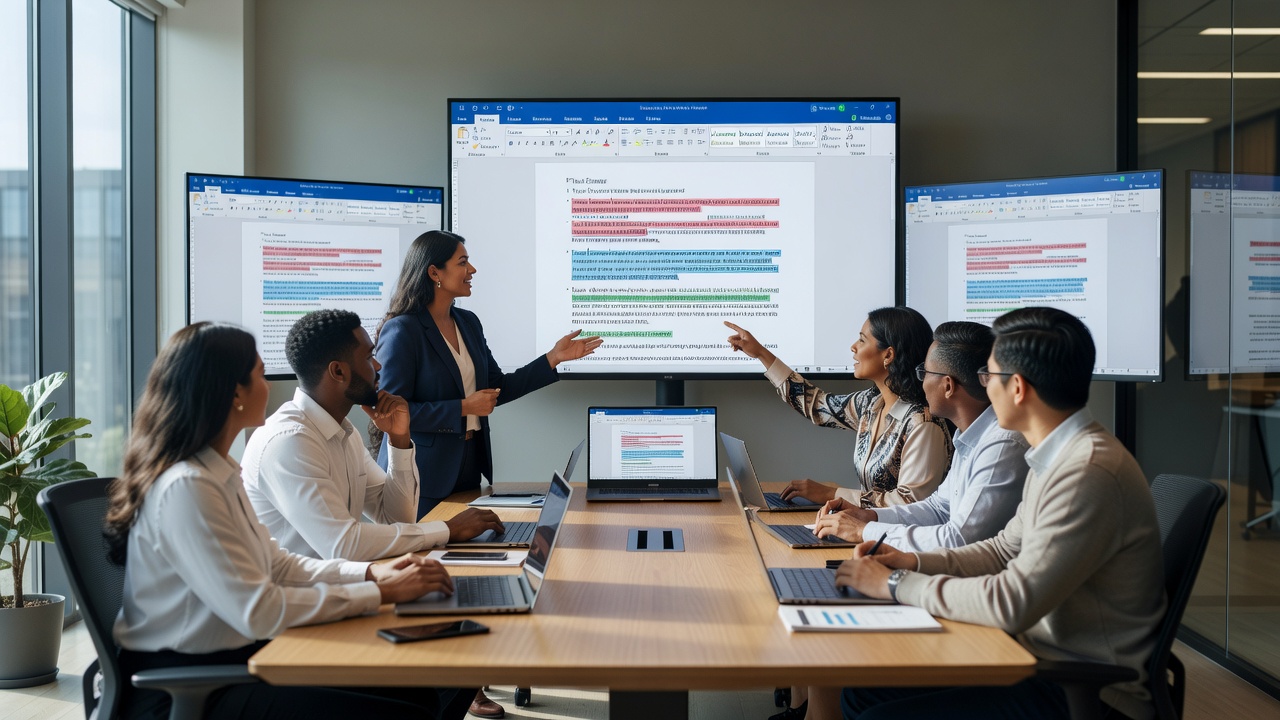
Word 2026 enhances collaboration with improved Track Changes that highlight edits in real time during co-authoring sessions. Enable the feature via the Review tab, then invite colleagues through OneDrive sharing. Multiple users can edit simultaneously with changes appearing instantly, complete with author attributions and comment threads. The system now supports granular permissions, allowing team leads to restrict certain sections while permitting edits elsewhere.
Practical tip: Use the Compare feature to merge versions from different contributors. Select two documents, review differences side-by-side, and accept or reject changes selectively. This prevents version conflicts in team environments. Additional depth comes from combining Track Changes with the Comments pane for threaded discussions and the ability to lock specific paragraphs during review cycles. Teams often create a dedicated review pass where all suggestions are collected before final acceptance.
OneDrive Integration for Robust Version Control
Seamless OneDrive integration provides automatic versioning and restore points. Every save creates a recoverable snapshot accessible via the Version History pane. This is essential for long-term projects where stakeholders need to revert to previous iterations without losing data. Users can view timestamps, compare previous versions inline, and restore with a single click. Enterprise accounts gain additional audit logs showing who accessed or modified files at any point.
Microsoft documentation highlights how cloud syncing reduces local storage needs while maintaining full edit histories. Combine this with SharePoint libraries for enterprise-level permissions and audit trails. Best practices include naming conventions for major versions and regular clean-up of minor autosaves to keep histories manageable.
Automating Repetitive Tasks with Macros
Macros in Word 2026 let power users record and replay complex sequences. Record a macro for inserting standardized tables or applying multi-step formatting. Assign keyboard shortcuts for quick access. Advanced users can edit VBA code directly to add conditional logic, such as checking document length before running a report generator. Security settings now include digital signatures for trusted macros, reducing the risk of malicious code.
- Record a macro for table creation and test it on varied document lengths
- Edit the code to include loops for dynamic content insertion based on user input
- Store macros in a central template for team sharing and version control
- Implement error handling to prevent crashes during automated runs
- Schedule macro execution through Windows Task Scheduler for nightly report generation
These steps transform time-consuming routines into reliable, repeatable processes that scale across teams.
Creating Interactive Templates
Build templates with content controls, dropdown lists, and date pickers for standardized yet flexible documents. Insert Developer tab controls, protect sections, and distribute the file. Recipients fill in only designated fields while the rest remains locked, ideal for client intake forms or internal proposals. Advanced templates can include calculated fields that update totals automatically and conditional formatting that highlights missing information. Testing templates across desktop and mobile ensures compatibility before widespread rollout.
Desktop Versus Mobile Editing Experiences
The desktop app offers full macro support and advanced layout tools, whereas the mobile version excels in quick reviews and on-the-go comments. For best results, start drafts on desktop, then finalize via mobile when traveling. Syncing ensures changes appear across devices instantly. Desktop provides precise ruler and grid controls for complex layouts, while mobile focuses on touch-friendly navigation and voice-to-text input. Teams should establish clear workflows: desktop for initial creation and heavy formatting, mobile for approvals and minor revisions. Understanding these differences prevents frustration when features behave differently across platforms.
Step-by-Step Example: Building a Professional Report
1. Create custom styles for headings and body text, then save them as a reusable style set. 2. Enable Track Changes and share the file via OneDrive with appropriate permissions. 3. Insert an interactive template section for data entry using content controls. 4. Record a macro to generate the table of contents and update it dynamically. 5. Review version history, resolve any conflicts, and export the final document to PDF with embedded fonts. This workflow ensures consistency and traceability from start to finish.
Frequently Asked Questions
How do I resolve conflicting edits during co-authoring?
Use the Review pane to accept or reject changes individually. Enable notifications for simultaneous edits to stay informed and consider locking sections temporarily during high-conflict periods.
Can macros run on mobile devices?
No, macros require the desktop application. Run them first on desktop, then view results on mobile after syncing completes.
What is the best way to share templates securely?
Upload to OneDrive with view-only permissions and password protection for sensitive fields. Consider adding digital signatures to verify template authenticity.
How can I import styles from another document?
Use the Manage Styles dialog to import styles from any open document, then apply them selectively to maintain formatting integrity.
Conclusion
By mastering these advanced features in Microsoft Word 2026, teams achieve higher productivity and document quality. Explore the tools gradually, starting with styles and collaboration, then progressing to automation. For official resources, visit Microsoft Support to stay updated on the latest enhancements. Consistent practice with these techniques will transform how your organization handles complex documents.
No comments yet. Be the first!