 NeoBit Daily
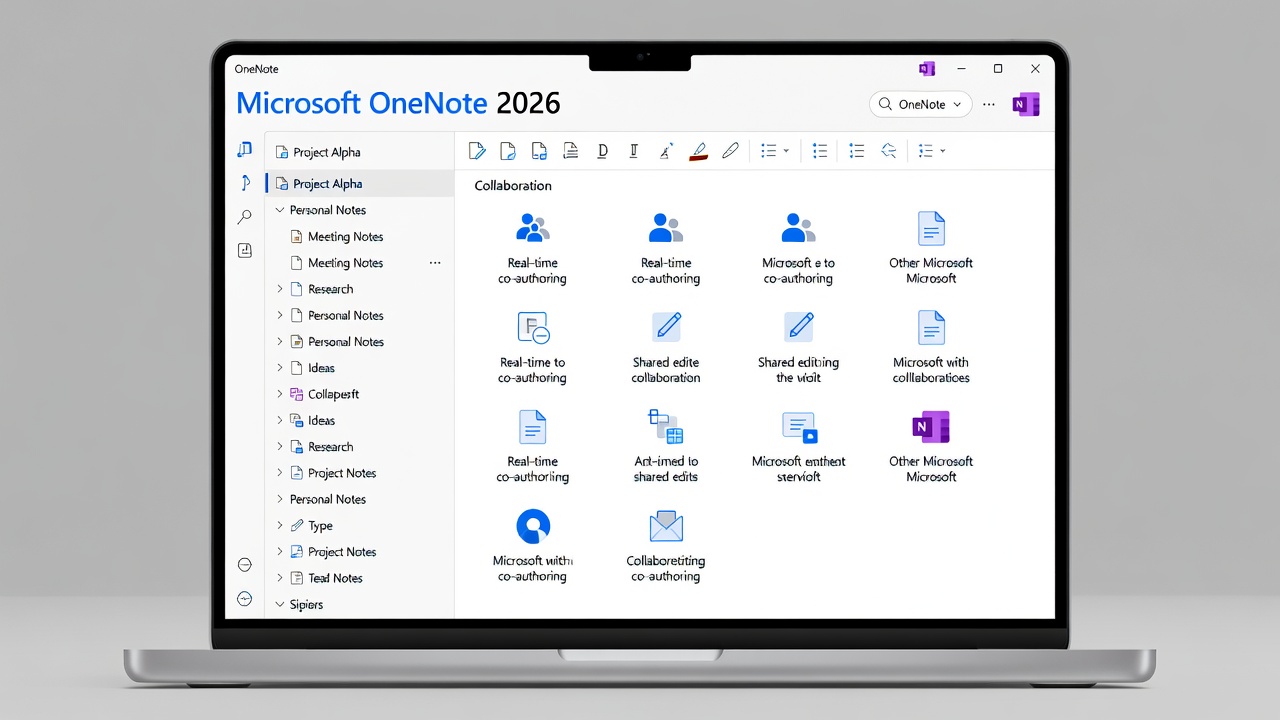
Introduction to OneNote 2026
Microsoft OneNote continues to stand out as a premier digital note-taking platform in 2026, empowering users to capture ideas, organize complex projects, and collaborate seamlessly across Windows, Mac, iOS, Android, and the web. Whether you are a student managing coursework, a professional handling meeting notes, or a team coordinating research, OneNote delivers flexible notebooks that sync in real time. This comprehensive tutorial walks through every essential feature with concrete step-by-step instructions, real-world workflow examples, and actionable tips that help both beginners and experienced users boost productivity immediately.
Setting Up Your First Notebook
Begin by signing in with your Microsoft account at office.com or installing the desktop and mobile apps from the Microsoft Store. Once inside OneNote, click File then New Notebook, give it a descriptive name such as “Q3 Marketing Campaign,” and select OneDrive as the storage location so changes sync across every device. The default structure includes a single section and blank page; immediately rename the section to “Overview” and add new sections like “Research,” “Tasks,” and “Assets” by right-clicking the section tabs. For teams, create the notebook directly inside a shared OneDrive folder so all members inherit the same permissions from the start.
Best Practices for Notebook Structure
- Limit each notebook to a single major theme or project to prevent overwhelming page lists.
- Use color-coded sections so you can instantly locate content visually during fast-paced work sessions.
- Group related pages under subpages by dragging them underneath a parent page, creating collapsible hierarchies.
- Enable version history in notebook properties so you can restore earlier drafts if needed.
A practical example is a freelance writer who maintains a notebook called “Client Projects” containing color-coded sections for each client and subpages for briefs, drafts, and feedback logs. This setup keeps everything searchable yet neatly compartmentalized.
Advanced Tagging and Search Features
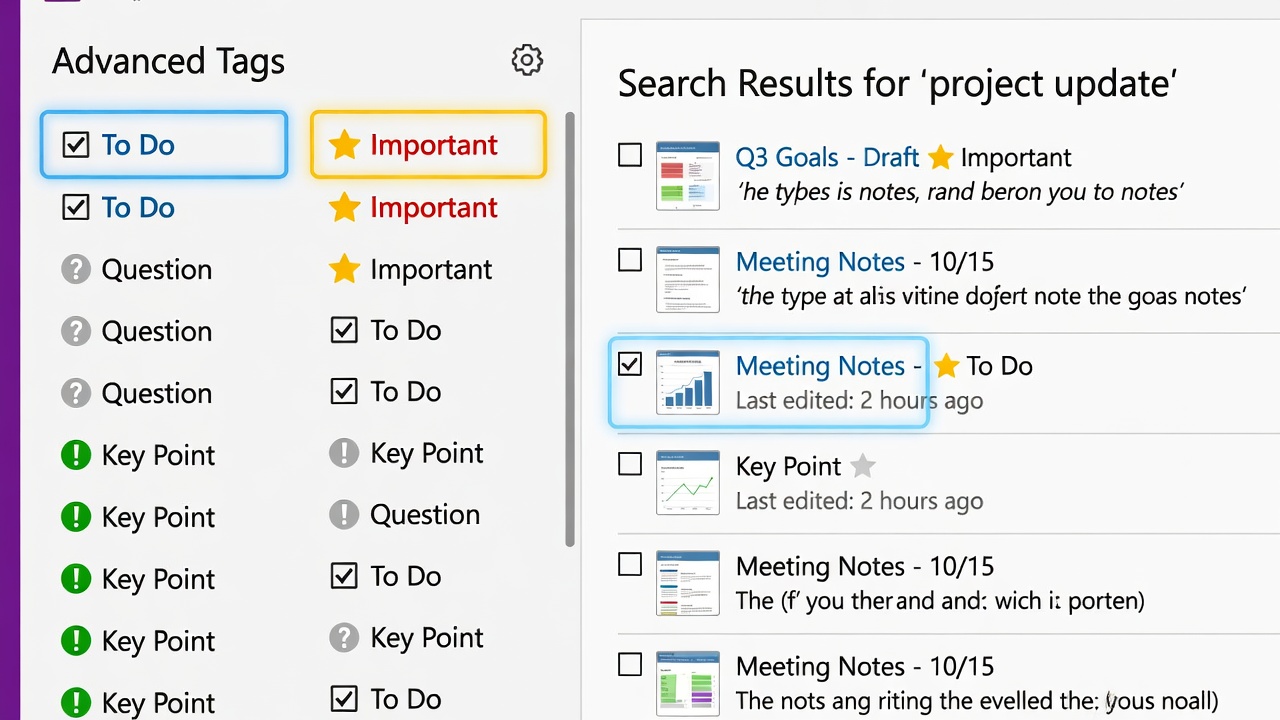
Tags transform scattered notes into an actionable database. Open any page, highlight text or a paragraph, then click the Tags dropdown on the Home ribbon to apply built-in labels such as To Do, Important, Question, or Idea. Create custom tags by selecting Customize Tags and assigning keyboard shortcuts or icons—for instance, a red flag tag named “Client Review Due.” The search box at the top of the app indexes every tag, keyword, and even handwritten ink when using a pen-enabled device. Combine filters by typing “tag:To Do” or “tag:Important” directly into search to surface only actionable items across all notebooks.
Workflow Example: Research Organization
Consider a product manager compiling competitive analysis. They tag every market report excerpt with “Reference,” competitor pricing tables with “Data Point,” and next-step items with “Action Item.” Later, typing “tag:Action Item” instantly generates a live list of follow-ups that can be exported to Outlook tasks. Users following this method typically report locating critical information 40 percent faster than relying on folder structures alone.
Microsoft 365 Integrations
OneNote sits at the center of the Microsoft productivity suite. From within a note, insert an Excel spreadsheet via Insert > Table > Excel Spreadsheet to perform live calculations that update when the source file changes. Link Outlook calendar events by dragging an appointment into a page so meeting details appear alongside discussion notes. In Microsoft Teams, pin a OneNote notebook to a channel for persistent team memory. Developers can also embed OneNote content into SharePoint pages or Power BI dashboards. For the most current integration instructions, consult the official documentation at Microsoft and the dedicated support portal at Microsoft Support.
Real-Time Collaboration Tools
Sharing a notebook is as simple as clicking Share and entering colleague email addresses or generating a link with view-only or edit permissions. Once opened by multiple users, each participant’s cursor appears in a unique color and changes appear instantly. Version history allows rollback to any previous save point, eliminating the risk of accidental overwrites. For larger teams, restrict editing rights to section level so contributors cannot alter the overall notebook architecture. A marketing team might use this feature to co-author campaign briefs while the project lead monitors progress through live page view indicators.
Mobile Optimization and Cross-Device Use
The mobile apps support full offline editing; notes queue for sync the moment connectivity returns. On tablets, enable the Draw tab to capture handwritten ideas that OneNote automatically converts to typed text using built-in OCR. Customize the quick access toolbar on phones to surface the most-used tags, and enable dark mode for comfortable late-night editing. Test your workflows on both iOS and Android devices to confirm formatting remains consistent when switching between phone and desktop.
Comparisons to Similar Tools
Compared with Evernote, OneNote provides unlimited notebooks on the free tier and deeper Microsoft ecosystem connectivity. Notion offers more database-style flexibility but weaker native handwriting conversion. Roam Research excels at bidirectional linking yet lacks OneNote’s polished mobile pen experience. Users deeply invested in Microsoft 365 typically choose OneNote for its frictionless file embedding and robust search, while those needing public wikis may prefer Notion.
Common Mistakes to Avoid
- Creating one massive notebook instead of splitting content into focused notebooks.
- Neglecting to customize tags, which leaves search limited to default options only.
- Storing large video files directly inside pages instead of linking externally, causing slow sync times.
- Forgetting to review shared permissions after team membership changes.
- Skipping regular export of critical notebooks as .onepkg backups for extra redundancy.
Using Templates and Customization
OneNote ships with ready-made templates for meeting notes, project planners, and student class notes. Access them via Insert > Page Templates and save your own customized pages as new templates for consistent formatting across recurring documents. Add page numbers, headers, or company logos once and reuse them instantly on future pages.
Security, Backup, and Best Practices
Enable two-factor authentication on your Microsoft account and use sensitivity labels available through Microsoft Purview to classify confidential pages. Although OneDrive provides automatic versioning, manually export important notebooks monthly to a local drive as an additional safeguard. Review the Office.com security center regularly for any policy updates affecting shared notebooks.
FAQ
How do I recover accidentally deleted notes?
Open the parent notebook, right-click its name, and select Notebook Recycle Bin; items remain available for 60 days before permanent removal.
Can OneNote handle large media files?
Yes, but performance improves when you insert links to external files stored in OneDrive rather than embedding the full media directly.
Is real-time collaboration available on mobile?
Viewing and basic edits work on phones and tablets, but full simultaneous co-authoring with live cursors requires the desktop or web client.
How do I password-protect a section?
Right-click any section tab, choose Password Protect This Section, and set a strong passphrase; the section locks automatically after inactivity.
Does OneNote support mathematical equations?
Yes, use Insert > Equation to type or ink complex formulas that render correctly and remain editable.
Can I export notebooks to PDF or Word?
Yes, choose File > Export and select the desired format; the resulting document preserves headings, tags, and embedded tables.
By following the detailed steps and examples above, you can transform OneNote 2026 into a powerful command center for personal knowledge management and team collaboration. Start with a single well-structured notebook today and gradually layer on advanced tagging and integrations as your needs evolve.
No comments yet. Be the first!