 NeoBit Daily
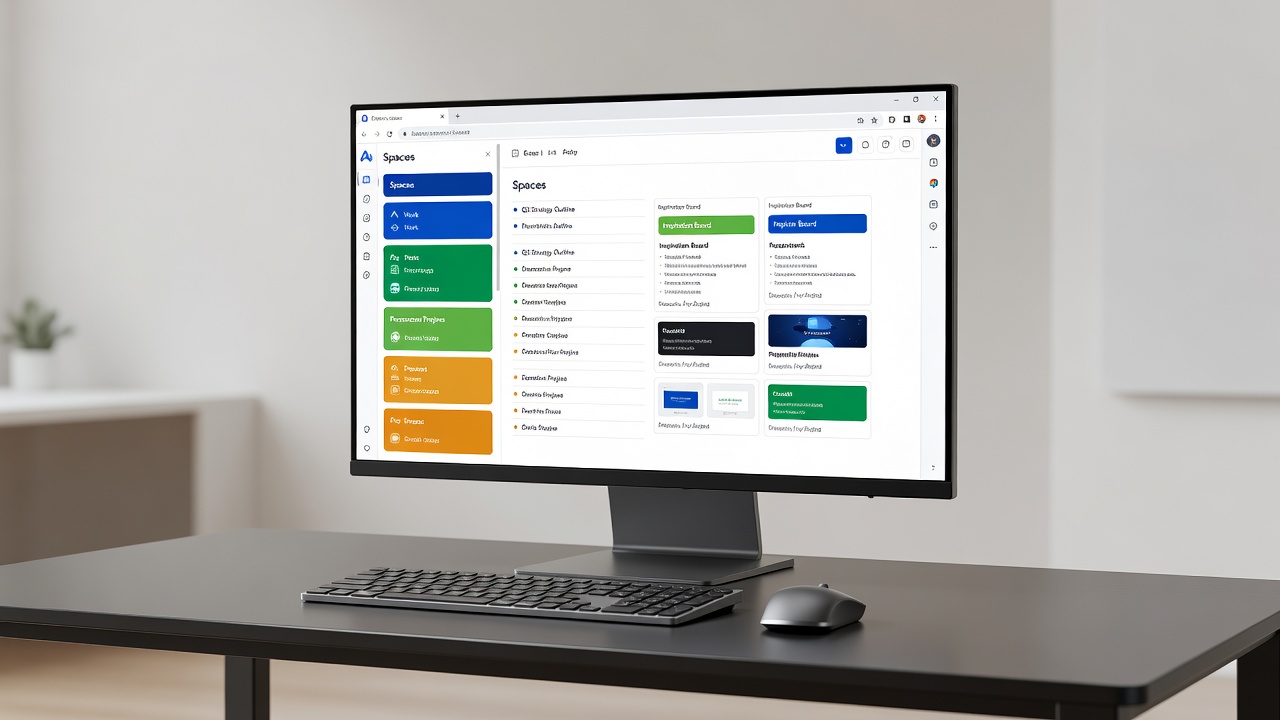
Introduction to Arc Browser 2026 Productivity Tools
Arc Browser has evolved significantly by 2026 into a powerful productivity platform designed for users who need more than basic web navigation. This guide walks beginners through intermediate users on leveraging its core features to streamline daily tasks, maintain focus, and organize digital workspaces efficiently. Whether you are switching from another browser or refining an existing setup, Arc emphasizes visual organization and intelligent automation that goes far beyond traditional tabbed interfaces.
The browser's interface prioritizes minimal distractions while supporting complex multitasking. Key elements include customizable Spaces for project separation and Easels for visual planning. AI-driven tab management reduces clutter automatically, and built-in note-taking tools allow seamless capture of ideas without leaving the browser window. By the end of this tutorial, you will have practical workflows that can transform how you handle research, project planning, and daily browsing routines.
Getting Started with Arc Browser Setup
Download Arc from the official site and create an account to sync preferences across devices. Upon first launch, the onboarding process prompts you to import bookmarks and extensions from Chrome or Safari. This migration typically completes in under five minutes and preserves folder structures where possible. Take time during setup to review privacy settings and enable sync for your preferred cloud service.
Next, explore the sidebar to access core tools. Enable keyboard shortcuts in settings for faster navigation, such as Cmd+Shift+S to switch Spaces. These foundational steps prepare the environment for advanced workflows covered below. Users new to Arc often benefit from spending the first session simply experimenting with the split-view options and theme customizations to match their desktop aesthetic.
Setting Up and Using Spaces Effectively
Spaces function as separate browser profiles that isolate tabs, bookmarks, and settings. Create a new Space by clicking the profile icon in the top-left corner and selecting "New Space." Name it according to context, such as "Work Projects" or "Personal Research." You can further customize each Space with unique icons, background colors, and default startup pages to reinforce mental context switching.
Practical example: A freelance designer might maintain one Space for client presentations with pinned design tools and another for personal finance tracking. This separation prevents context switching fatigue. Assign distinct colors to Spaces for quick visual identification during multitasking sessions. Advanced users often create temporary Spaces for one-off research projects that can be archived once complete, keeping the main workspace clean.
Leveraging Easels for Visual Organization
Easels provide a canvas-like area within the browser for pinning web content, screenshots, and notes side by side. To create an Easel, right-click any webpage and select "Add to Easel," then choose or make a new canvas. This feature turns passive browsing into active project boards that support drag-and-drop rearrangement and real-time collaboration when shared.
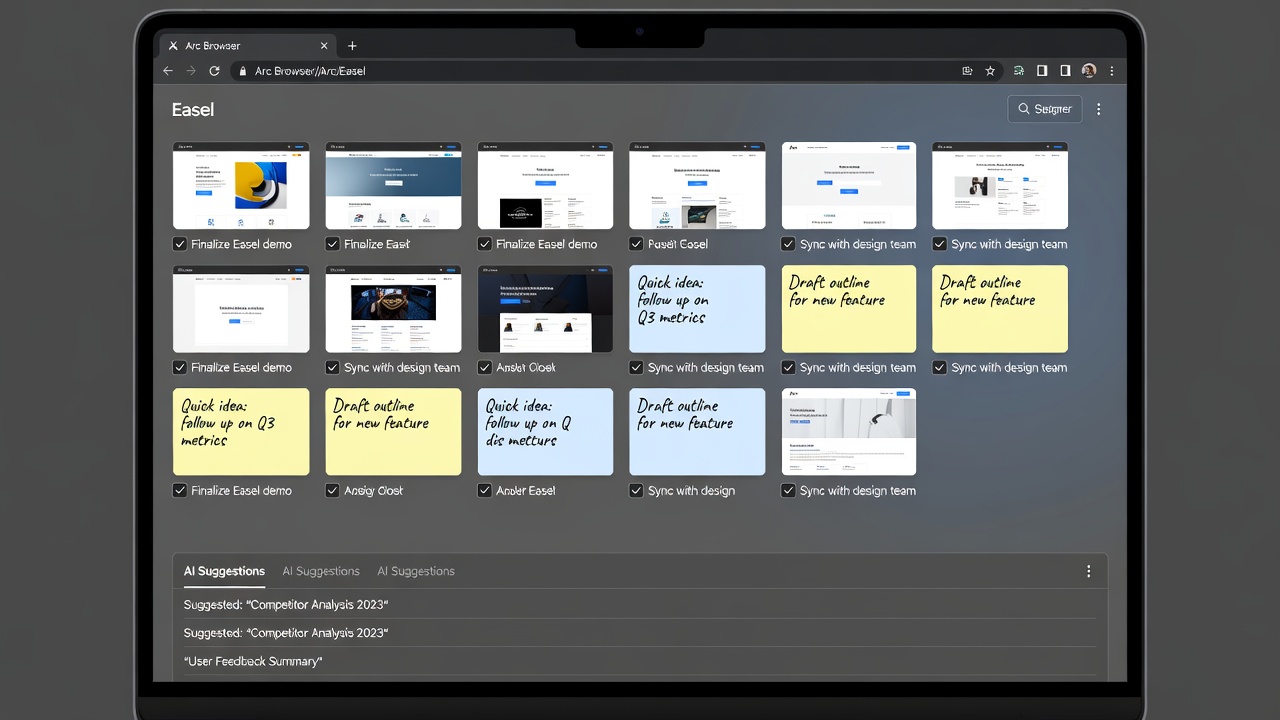
Step-by-step instructions: 1. Open the sidebar and click the Easels icon. 2. Drag tabs or images onto the canvas. 3. Resize elements freely to build mood boards or research summaries. 4. Add text annotations directly on the canvas for quick reminders. Real-world use includes planning a marketing campaign by combining competitor websites, internal notes, and task lists on one viewable surface. Easels also support exporting the entire board as an image or PDF for presentations.
AI Tab Management Features Explained
Arc's AI automatically groups related tabs and suggests closures for inactive ones after a set period. Access these controls via the AI sidebar button. Enable "Smart Tab Grouping" to cluster tabs by topic automatically, such as all research pages under one collapsible folder. The system learns from your habits over time, prioritizing tabs from frequently used domains.
This feature shines during long research sessions. For instance, while preparing a report, the AI can surface forgotten tabs from earlier in the day and prompt consolidation, helping maintain focus without manual cleanup. You can also set custom rules, such as never auto-close tabs from specific work domains. Compared to manual management in other browsers, this saves significant time and reduces cognitive load.
Integrating Notes and Tasks Directly in the Browser
Built-in note tools allow highlighting text on any page and instantly converting it to a note. Tasks integrate via a simple checkbox system that syncs with the calendar view. Access notes by selecting the pencil icon or pressing Cmd+Option+N. Notes can be tagged, searched, and even converted into full Easel elements for richer context.
Workflow tutorial: Highlight key points from an article, add due dates, and link them to an Easel. This keeps all project elements centralized. Users report improved organization when handling multiple ongoing projects without relying on external apps. For teams, shared notes within a Space allow real-time updates visible to all collaborators logged into the same account.
Advanced Keyboard Shortcuts and Customization Tips
Mastering shortcuts accelerates every workflow. Beyond basic navigation, learn commands like Cmd+Option+E to open a new Easel or Cmd+Shift+T to restore recently closed tabs intelligently. Customize these in the settings panel to align with muscle memory from previous browsers. Many power users create custom profiles that load specific shortcut sets based on the active Space.
Arc Browser vs Chrome and Safari: Side-by-Side Comparison
- Tab Management: Arc's AI grouping outperforms Chrome's basic grouping; Safari offers limited automation.
- Organization: Spaces and Easels provide visual depth absent in both competitors.
- Focus Tools: Arc includes distraction-free modes that rival or exceed Safari's Reader View.
- Customization: Chrome leads in extensions, but Arc balances this with native productivity features.
- Performance: All three browsers deliver comparable speed on modern hardware, though Arc's visual elements may use slightly more memory during heavy Easel use.
Choose Arc if your priority is integrated workflow tools rather than maximum extension variety. For more on web standards compatibility, visit MDN Web Docs.
Real-World Productivity Examples
Consider a student using Arc to manage coursework: one Space for lectures with pinned video tabs, an Easel for assignment outlines, and AI to archive completed research. A marketing professional might use task integration to track campaign deadlines while browsing analytics sites. In both cases, the centralized approach reduces the need to switch between multiple applications throughout the day.
Common Mistakes to Avoid
- Overloading a single Space with too many tabs instead of creating dedicated ones.
- Ignoring AI suggestions, which can lead to persistent clutter.
- Failing to customize keyboard shortcuts for personal speed.
- Not backing up Easels regularly, especially before major updates.
Troubleshooting Common Issues
If syncing fails between devices, verify your internet connection and restart the application. For slow performance with many Easels open, close unused canvases or reduce visual effects in settings. Extension conflicts are rare but can be resolved by disabling third-party add-ons one at a time.
Frequently Asked Questions
How do I troubleshoot tab syncing issues? Restart the app and check internet connectivity; ensure you're logged into the same account across devices.
Can I use Arc alongside Chrome? Yes, both browsers operate independently with no conflicts. Learn more about Chrome at Google Chrome.
Is there a learning curve for Easels? The interface is intuitive, with drag-and-drop mechanics similar to design software.
Does Arc support extensions from other browsers? Many Chrome extensions work natively, though some require manual installation via the Arc extension store.
Conclusion
Arc Browser 2026 delivers robust tools for enhanced productivity through thoughtful design and automation. By mastering Spaces, Easels, AI features, and integrated notes, users can transform their browsing into a structured workflow system. Experiment with the step-by-step processes outlined here to discover personalized efficiencies that outperform traditional browsers like Chrome and Safari. For official resources, check Arc's website.

No comments yet. Be the first!