 NeoBit Daily
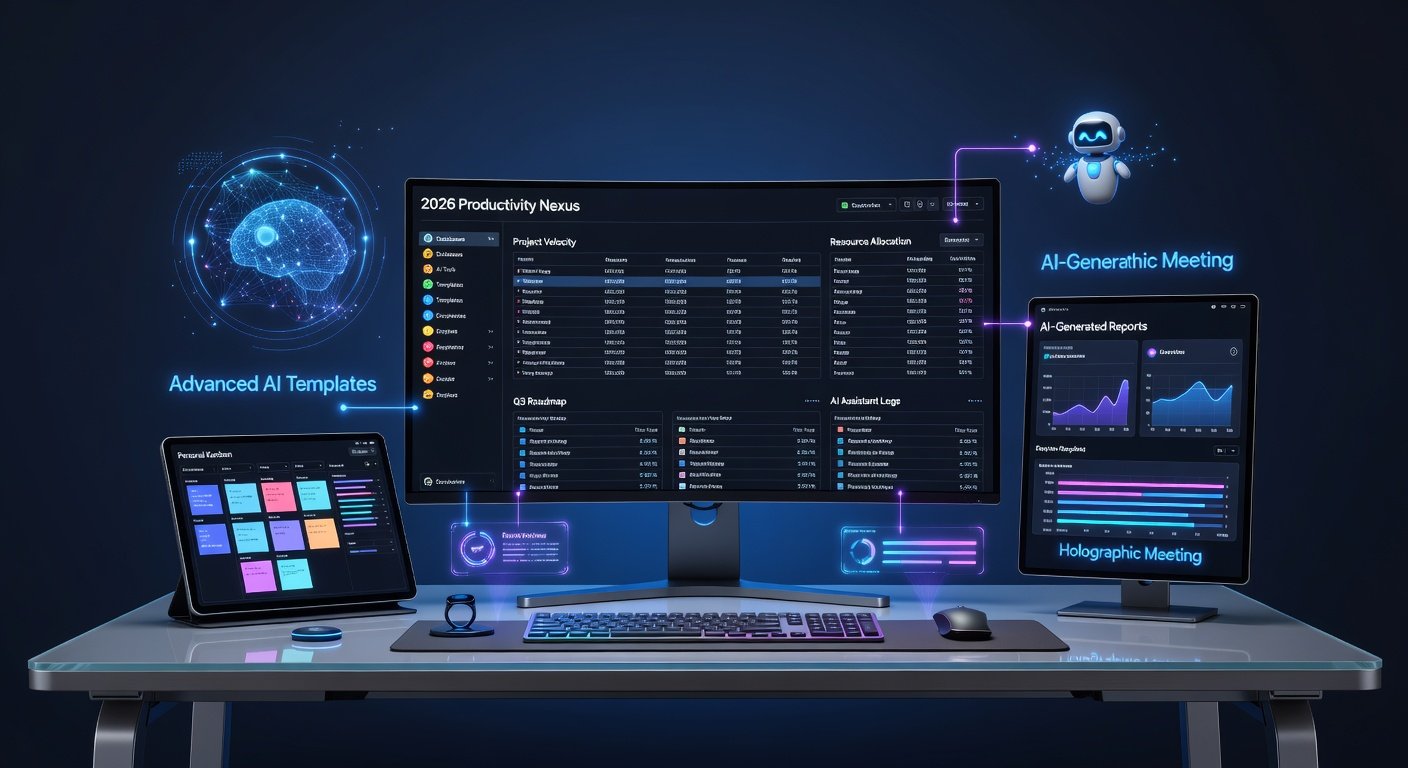
Introduction to Notion in 2026: Smarter Workspaces Await
Notion has evolved dramatically by 2026, becoming the ultimate all-in-one workspace with enhanced AI integrations, seamless automation, and intuitive tools for beginners. Whether you're managing personal projects or leading a team, this guide walks you through setting up databases, linked pages, and AI-powered templates. We'll cover project tracking, collaboration features, custom dashboards, and pro tips for formulas, embeds, and cross-device syncing. Dive in to supercharge your productivity.
Notion's 2026 updates introduce native AI agents for auto-generating content, predictive syncing, and formula enhancements that rival spreadsheets. No coding required—perfect for beginners. Start with a free account at Notion's official website.
Step-by-Step: Setting Up Notion Databases
Databases are Notion's powerhouse for organizing data. Here's how to create one from scratch:
- Create a New Page: Open Notion, click "New" > "Database" > choose Inline or Full Page.
- Select Database Type: Table view is beginner-friendly. Add properties like Text, Number, Date, Select, or Multi-Select.
- Add Entries: Click "+ New" to populate rows. Use drag-and-drop to reorder.
- Customize Views: Switch to Board (Kanban), List, Calendar, or Gallery for visual appeal.
Pro tip: Use the 2026 AI assistant by typing "/ai" to auto-fill database properties based on natural language prompts, like "Generate 10 project ideas with deadlines."
Mastering Linked Pages and Relations
Linked pages connect your workspace like a web. Follow these steps:
- Create a Relation Property: In Database A, add a "Relation" property linking to Database B.
- Sync Data: Enable "Sync blocks" to mirror changes across pages.
- Rollups for Aggregations: Add Rollup properties to sum, count, or average linked data (e.g., total tasks per project).
- Self-Referential Links: Link tasks to sub-tasks within the same database for hierarchical structures.
This setup shines for project tracking—link milestones to assignees and auto-update statuses.
AI-Powered Templates: 2026's Game-Changer
Notion's 2026 AI templates automate setup. Steps:
- Access Template Gallery: Search "AI Templates" in the gallery or type "/template".
- Choose and Customize: Pick "AI Project Tracker"—it auto-generates databases with formulas for progress bars.
- Enable AI Automation: Toggle "AI Autofill" in settings; input goals, and it populates databases with predictions.
- Regenerate with Prompts: Highlight text and hit "AI Rewrite" for smarter summaries or action items.
These templates integrate with external APIs via embeds, pulling real-time data.
Project Tracking Made Effortless
Build a project tracker:
- Core Database: Properties: Name, Status (select: To Do, In Progress, Done), Priority, Due Date, Assignee (Person).
- Timeline View: Visualize Gantt-style progress.
- Formulas for Insights: Add prop("Status") == "Done" ? "✅" : "⏳" for visual cues.
- Filters & Sorts: Auto-filter overdue tasks.
Share via public links for client updates.
Team Collaboration Features
Collaborate seamlessly:
- Invite Members: Click Share > Invite by email; set permissions (Full Access, Comment, View).
- @Mentions & Comments: Tag teammates for notifications.
- Real-Time Edits: 2026's low-latency syncing handles 100+ users.
- Version History: Restore past versions with AI-detected changes.
Check Notion's help center for advanced permissions.
Building Custom Dashboards
Dashboards centralize everything:
- Start with Synced Block: Create a master page, duplicate databases as linked views.
- Add Widgets: Embed calendars, charts via /chart, or AI summaries.
- Linked Filters: Dynamic views based on user logins.
- Mobile Optimization: Auto-adjusts for phones.
Embed third-party tools like Google Calendar using /embed.
Pro Tips: Formulas, Embeds, and Syncing
Advanced Formulas:
- Progress Bar: round(prop("Completed") / prop("Total") * 100) + "%"
- Conditional: if(prop("Due Date") < now(), "Overdue", "On Track")
- 2026 Nested Formulas: formatDate(dateAdd(prop("Start"), prop("Duration"), "days"), "MMM DD")
Embeds Mastery:
- Insert Figma, Airtable, or YouTube via /embed.
- Interactive Maps: Embed Google Maps for location-based projects.
Cross-Device Syncing:
- Enable offline mode in settings.
- Use Notion Web Clipper for browser sync.
- 2026 Predictive Sync pre-loads workspaces based on habits.
For developers, explore the Notion API for custom integrations.
Conclusion: Transform Your Workflow Today
With these steps, you're ready to leverage Notion 2026 for unparalleled efficiency. Experiment, iterate, and watch your productivity soar. Start building now!
No comments yet. Be the first!