 NeoBit Daily
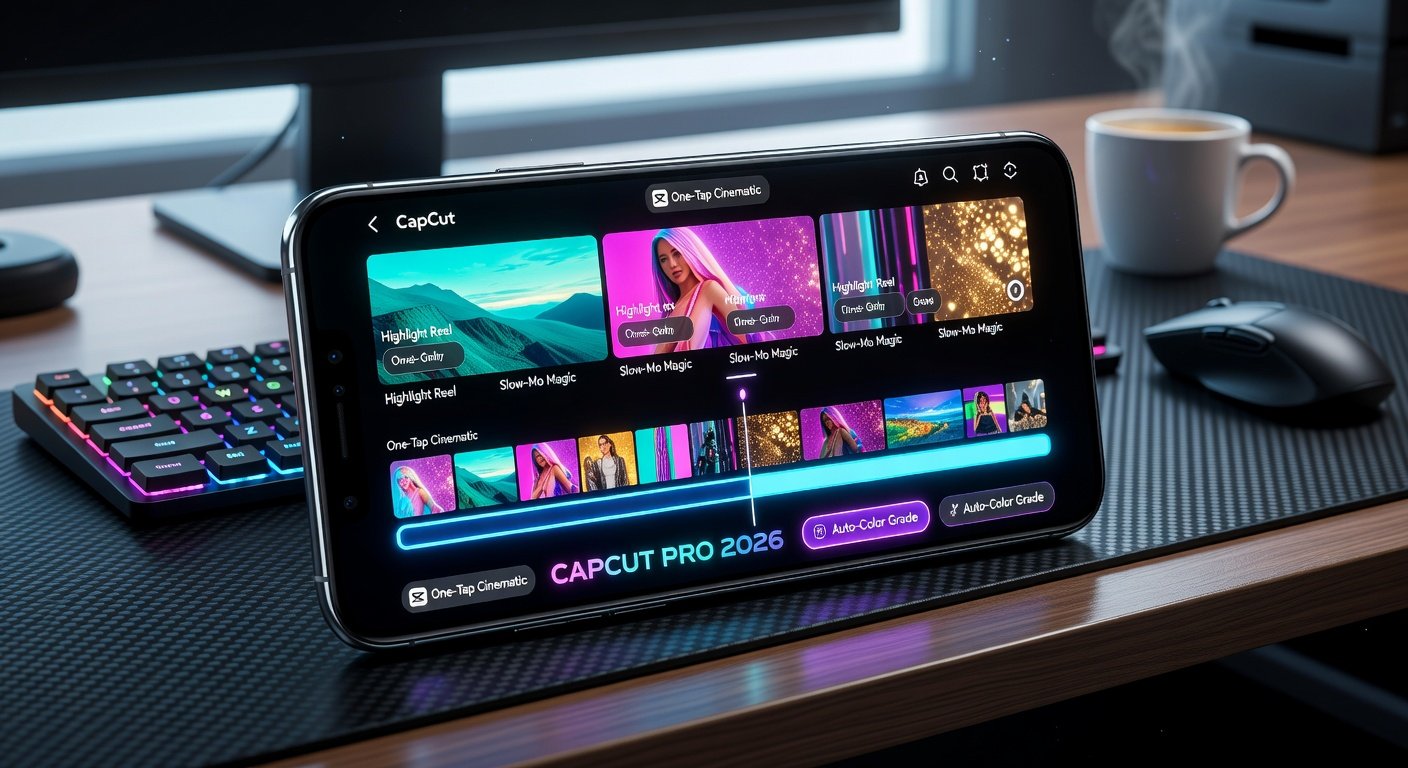
Introduction to CapCut: The Ultimate Video Editor for 2026
CapCut has evolved into a powerhouse mobile video editing app, perfect for creators on TikTok, Instagram, and beyond. Developed by ByteDance, the team behind TikTok, CapCut offers intuitive tools for beginners and cutting-edge AI features for pros. Whether you're crafting quick Reels or cinematic stories, this comprehensive guide covers everything from basics like trimming clips and adding text overlays to 2026's advanced capabilities like AI auto-edits and multi-layer effects.
Download the latest version from the official CapCut website for iOS or Android. With seamless integration to device storage and cloud syncing, your projects stay accessible across devices. Let's dive in!
Getting Started: Beginner Basics
Launch CapCut and tap the '+' icon to start a new project. Import media from your gallery or camera roll—CapCut pulls directly from device storage for speed.
Trimming Clips Step-by-Step
- Select a clip on the timeline at the bottom.
- Drag the white handles on either end to trim start/end points visually.
- For precision, tap the clip and use the 'Split' tool to cut, then delete unwanted segments.
- Preview by playing the timeline—zoom in for frame-accurate edits.
Pro tip: Hold the timeline and pinch to zoom for smoother trimming on longer videos.
Adding Text Overlays
- Tap 'Text' in the bottom menu.
- Choose a style (animated, neon, or glitch for 2026 vibes).
- Drag to position, resize with pinch gestures, and edit font/color via the toolbar.
- Set duration by dragging text handles on the timeline to match clip length.
- Animate with 'Animation' options like fade-in or typewriter effects.
Text overlays boost engagement—keep them short and punchy for social media.
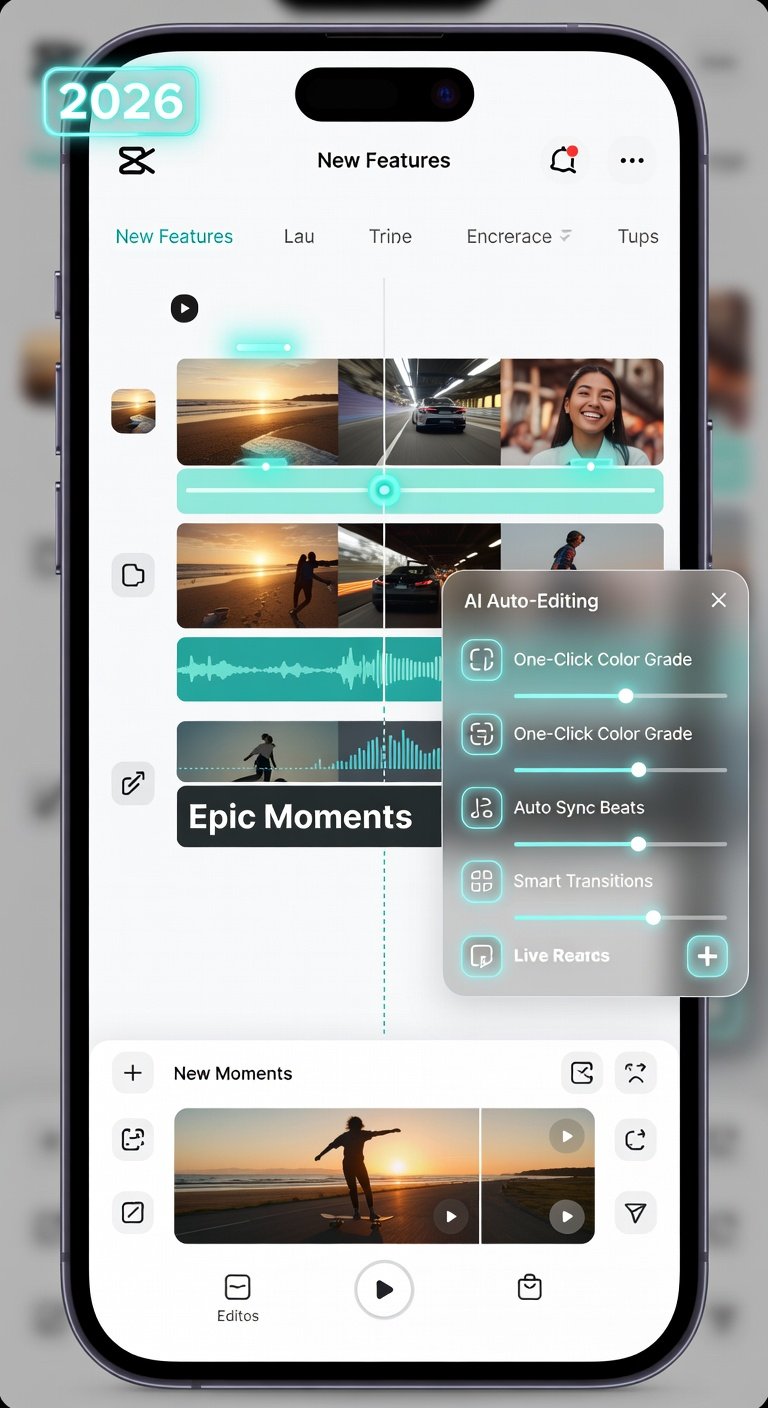
Intermediate Techniques: Transitions and Effects
Smooth transitions elevate your edits. Tap between clips on the timeline, select 'Transitions,' and choose from 100+ options like zoom, dissolve, or 2026's morphing warps.
- Pro Tip 1: Match transition speed to music beats for rhythmic flow.
- Pro Tip 2: Layer subtle effects like vignette or color grading post-transition for polish.
- Pro Tip 3: Use keyframes (tap diamond icon) to animate transition properties over time.
Effects library includes stickers, filters, and body effects—search by trend for TikTok virality.
Advanced 2026 Features: AI Auto-Edits and Multi-Layer Effects
CapCut's 2026 updates bring AI smarts to the forefront. Tap 'AutoCut' for intelligent edits.
AI Auto-Edits
- Import clips and music.
- Select 'AI Auto-Edit'—choose style (e.g., vlog, cinematic, or dance).
- AI analyzes beats, faces, and motion to trim, add cuts, effects, and captions automatically.
- Customize outputs: tweak B-roll suggestions or voiceover generation.
- One-tap export preview.
This feature saves hours, ideal for batch content creation. For reference, explore TikTok's creative tools at TikTok.com.
Multi-Layer Effects
CapCut now supports 10+ layers for complex compositing.
- Add a base video layer.
- Tap '+' to stack overlays, masks, or green-screen elements.
- Adjust opacity, blend modes (multiply, screen), and masks via layer controls.
- Sync layers with audio waveforms for reactive effects.
- Group layers for organized workflows.
Pro tip: Use multi-layer for picture-in-picture (PIP) reactions or holographic 2026 AR effects.
Pro Tips for Seamless Transitions and Polish
Achieve Hollywood-level flow:
- Enable 'Beat Detection' under music settings to auto-sync cuts.
- Curve speed ramps: Tap clip > Speed > Curve for natural slow-mo builds.
- Color match clips with 'Auto Color' AI for consistent looks.
- Avoid over-editing—aim for 3-5 transitions per 15-second video.
- Test on device preview at target resolution (1080p or 4K).
Exporting High-Quality Videos for TikTok and Instagram
Best practices ensure crisp uploads.
- Tap 'Export' (top-right arrow).
- Select resolution: 1080p for TikTok/Instagram, 4K for YouTube.
- Frame rate: 30-60fps; bitrate high for quality.
- Format: MP4 H.264.
- Watermark: Toggle off for pro exports.
Direct share to TikTok or Instagram from the export screen. For Instagram specifics, check Instagram Help Center. Compress if files exceed platform limits, but prioritize quality.
Seamless Workflows: Device Storage and Cloud Syncing
CapCut integrates natively with your phone's storage—projects auto-save to local folders. Enable cloud sync via TikTok account:
- Go to Profile > Settings > Cloud Sync.
- Upload projects to CapCut Cloud (up to 100GB free).
- Access across devices or collaborate with teams.
- Offline mode for travel edits; sync on Wi-Fi.
This setup prevents data loss and enables multi-device editing—game-changer for pros.
Conclusion: Level Up Your Editing Game
From trimming basics to AI-powered mastery, CapCut in 2026 democratizes pro editing. Practice daily, experiment with trends, and watch your content soar on social platforms. Share your creations and tag #CapCutPro!
No comments yet. Be the first!