 NeoBit Daily
Introduction to Evernote in 2026
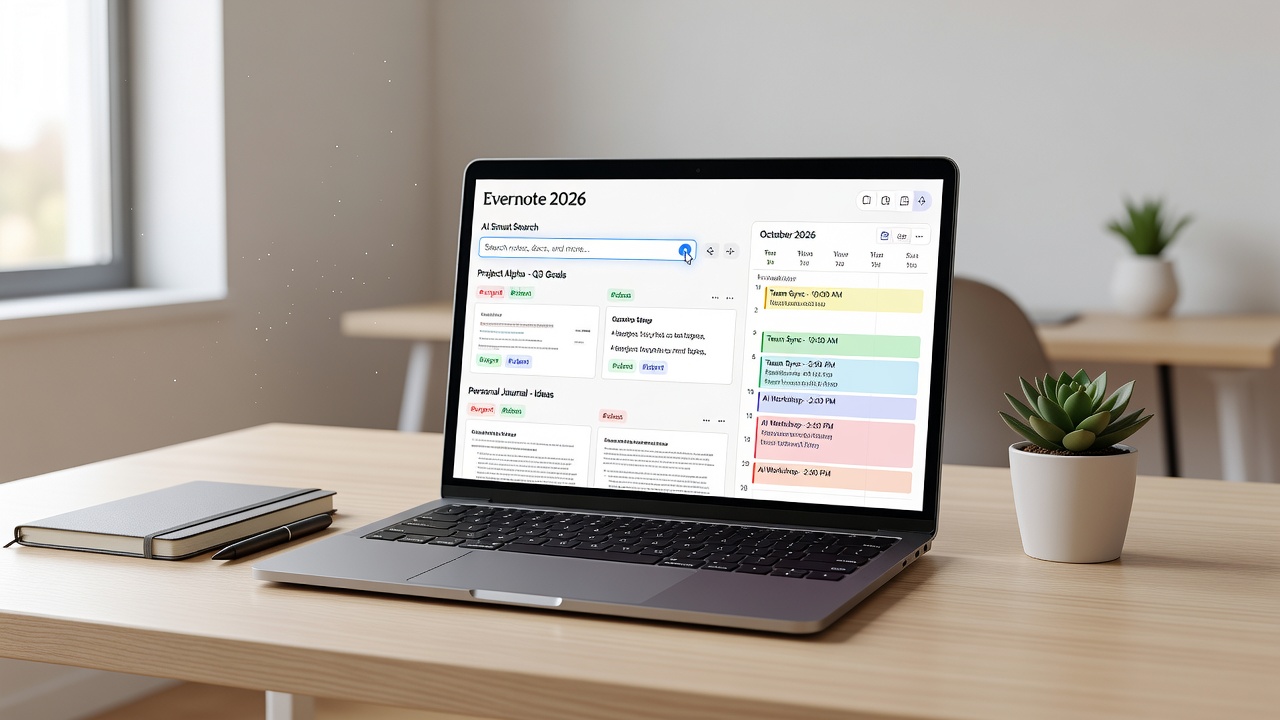
Evernote continues to evolve as a premier note-taking platform in 2026, blending robust organization tools with advanced artificial intelligence. This in-depth beginner's guide is designed for users exploring app tutorials and how-to resources, providing everything needed to master its AI-powered capabilities. Whether you are a student managing coursework, a professional tracking projects, or someone organizing personal life details, Evernote's 2026 updates make note-taking faster and more intuitive than ever before.
The core strength of the app lies in its ability to handle large volumes of information while automating repetitive tasks. Users searching for modern note-taking solutions will find practical value in features like context-aware search and intelligent suggestions that adapt to individual habits over time.
Getting Started with Evernote 2026
Begin by visiting the official Evernote website to download the latest desktop or mobile version. Account creation is straightforward, requiring only an email address and password. Once logged in, take advantage of the import wizard to bring notes from services like Google Docs or Microsoft OneNote. This initial setup typically takes under ten minutes and sets the foundation for AI enhancements.
After installation, customize your profile by selecting preferred themes and notification preferences. The home screen now features a personalized dashboard that highlights recent activity and suggested templates based on your usage patterns.
Key AI Features Explained
Evernote's AI suite in 2026 emphasizes automation without sacrificing user control. Smart search interprets natural language queries, understanding intent such as "notes about budget planning from March" rather than requiring precise keywords. This reduces time spent digging through archives and improves retrieval accuracy significantly.
Auto-tagging scans note content upon saving and proposes relevant labels like "urgent," "research," or "client follow-up." Users can review and approve suggestions or let the system apply them automatically. Template suggestions appear when creating new notes, offering structures for weekly reviews, habit trackers, or brainstorming sessions. To activate these tools, go to Settings, select the AI tab, and enable each feature individually while reviewing privacy options.
Practical testing shows these features shine in real scenarios. For example, a freelance writer can dictate meeting notes on their phone, and the AI will tag them with "interview" and suggest a content calendar template upon sync. 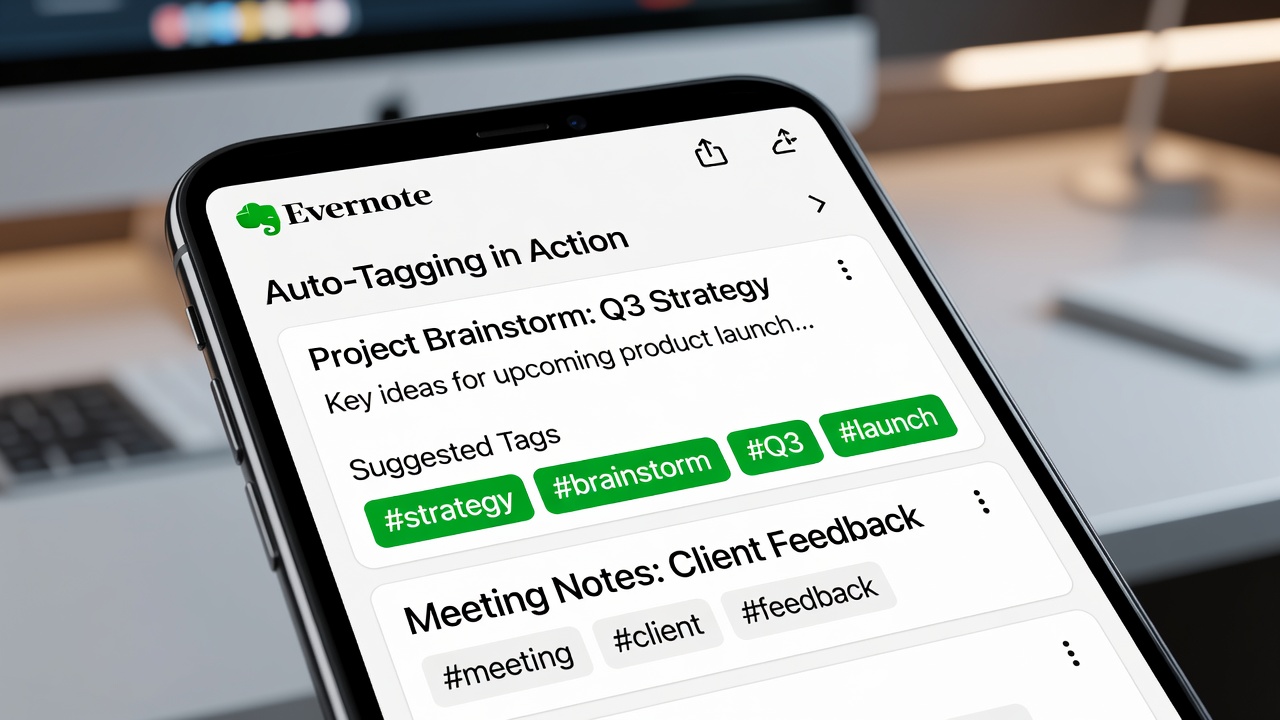
Creating Efficient Workspaces
Effective organization starts with notebooks for broad categories and stacks for grouping related ones. Tags provide flexible cross-referencing that notebooks alone cannot achieve. Consider a graduate student example: create notebooks titled "Courses," "Thesis," and "Resources," then apply tags such as "Fall2026," "LiteratureReview," or "DataAnalysis" to individual notes. This dual system allows quick filtering across the entire account.
Advanced users often combine saved searches with AI tags to build dynamic views. Experiment by creating a workspace for recurring tasks like invoice tracking, where notes auto-tag with payment status and link to calendar reminders.
Integrating with Calendars and Email
Seamless connections to external tools multiply Evernote's utility. Link your Google Calendar by authorizing access through the app's integration menu, enabling automatic note creation for upcoming events. Similarly, forward emails from Gmail or Outlook directly into designated notebooks, preserving formatting, attachments, and sender details.
Step-by-step for calendar setup: open the integrations panel, select your provider, grant permissions, and choose default notebooks for event-linked notes. Email forwarding works by generating a unique Evernote address visible in account settings. These connections support daily workflows where information flows automatically from inbox or schedule into organized notes.
Free vs Premium Plans Comparison
The free tier provides solid entry-level access including basic smart search and limited device syncing. Premium unlocks fuller AI functionality such as unlimited auto-tagging, advanced template libraries, and priority support. Evaluate your needs based on note volume and reliance on automation. Many beginners start free and upgrade only after identifying specific workflow bottlenecks.
Practical Daily Workflow Examples
Consider these expanded routines for different user types. A project manager might begin the day by reviewing calendar-synced notes for client meetings, using smart search to pull related action items from the prior week. During calls, notes are captured with auto-tagging enabled, followed by evening review where AI suggests follow-up templates.
Another example involves personal finance tracking: forward receipts via email, let auto-tagging categorize them, and use saved searches to generate monthly summaries. Students benefit from template suggestions for lecture notes combined with mobile capture during classes.
Quick-Start Checklist
- Download and install the app from evernote.com.
- Create an account and complete profile setup.
- Enable AI features including smart search and auto-tagging.
- Build initial notebooks and stacks with relevant tags.
- Connect calendar and email accounts for automation.
- Test search functionality with sample queries.
- Explore and save three template suggestions.
- Perform a full sync across devices.
FAQ: Common Issues and Solutions
How do I resolve sync issues?
Sync problems often stem from network instability or account limits. Verify internet connectivity, confirm login status on all devices, and force a manual sync from the menu. If issues persist, check for app updates or temporarily disable VPN connections.
What about mobile optimization?
Mobile apps support offline editing with automatic sync upon reconnection. Enable gesture controls for quick note creation and customize widget placements on the home screen. Battery optimization settings on Android or iOS should whitelist Evernote to prevent background sync interruptions.
Common Mistakes to Avoid
New users frequently over-tag notes, creating confusion instead of clarity. Start with five core tags and expand gradually. Another pitfall is neglecting regular reviews of AI suggestions, which can lead to inaccurate auto-tags over time. Always audit suggestions weekly during the first month of use.
Conclusion
By following these detailed steps and examples, you will fully leverage Evernote's 2026 AI capabilities for superior note-taking and organization. Begin with foundational setup, incorporate integrations thoughtfully, and refine workflows based on daily use. Consistent application transforms the app from a simple notebook into a powerful personal knowledge system.

No comments yet. Be the first!