 NeoBit Daily
Asana 2026 Tutorial: Project Management Mastery for Teams
Asana continues to evolve as a top-tier project management solution in 2026, empowering teams to manage complex workflows with greater efficiency. This in-depth tutorial covers the latest interface enhancements and provides practical, step-by-step guidance for users ranging from beginners to intermediate project managers. Whether you are coordinating a small startup team or a mid-sized department, mastering Asana can transform how your group plans, executes, and reviews work.
Understanding the 2026 Interface Updates
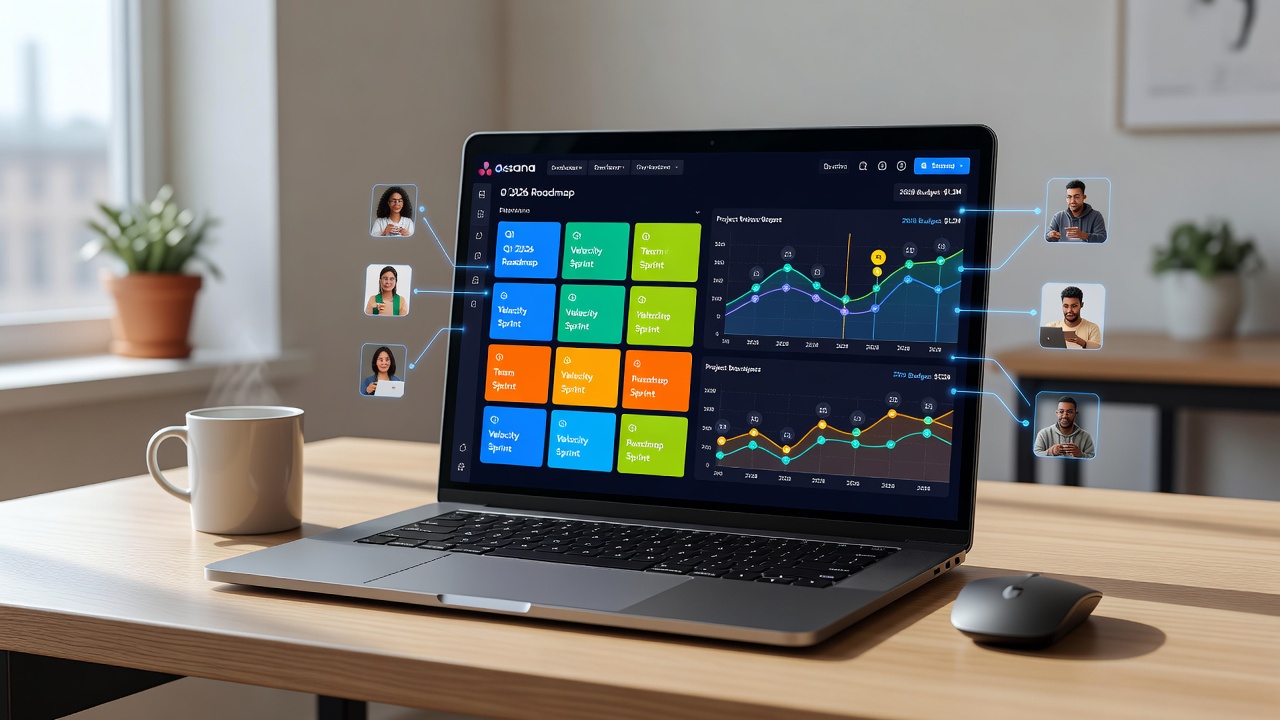
The 2026 release brings a refined navigation experience with a collapsible sidebar, faster global search that supports natural language queries, and improved accessibility features including high-contrast modes. The updated home screen now features customizable widgets that display real-time metrics such as overdue tasks, goal progress, and team capacity. Users benefit from a more intuitive drag-and-drop experience across all views, reducing the learning curve for new adopters.
Begin by logging into your account. The interface highlights priority projects at the top, while a new quick-add button allows instant creation of tasks or projects without leaving the current screen.
Setting Up Your Workspace for Long-Term Success
A well-structured workspace prevents future disorganization. Follow these detailed steps to establish a solid foundation:
- Access the Admin Console from your profile icon and select Create Workspace. Name it after your organization or primary initiative.
- Invite members by entering email addresses and choosing permission levels: Admins control settings, Editors manage content, and Viewers can only observe.
- Organize teams into separate sections or sub-projects. For instance, create a Marketing department project and a Product Development project to keep work streams distinct yet connected.
- Define custom fields early, such as Priority (High/Medium/Low), Department tags, or Budget estimates, so they appear consistently across all tasks.
Consistency in naming conventions, such as prefixing project names with the year and quarter, helps maintain clarity as your library of projects grows. Test the setup by assigning a sample task to each new member and verifying visibility settings.
Implementing Task Automation Rules Effectively
Automation is where Asana 2026 truly excels at saving time. The Rules builder supports multi-step sequences that trigger based on due dates, status changes, or custom field updates. Consider these practical applications:
- Automatically reassign a task to a reviewer when its status moves to "Ready for Approval."
- Send a Slack message summary every Friday listing all completed items from the previous week.
- Escalate overdue high-priority tasks to the project lead after 48 hours.
A concrete workflow example involves a content creation team: when a writer marks a draft complete, the rule instantly adds the task to the editor's queue and notifies the creative director via email. Experiment with the rule preview feature before activating to avoid unintended triggers.
Seamless Integrations with Slack, Google Drive, and Beyond
Connecting external tools keeps information flowing without duplication. The native Slack integration enables turning any message into an Asana task with one click and syncing status updates back to channels. Pair this with Google Drive to attach files directly to tasks, ensuring version control and easy access for collaborators. Additional options include linking to calendar apps so deadlines appear automatically in team schedules.
These connections reduce email volume and centralize context, allowing teams to spend more time executing rather than searching for information.
Building and Customizing Dashboards
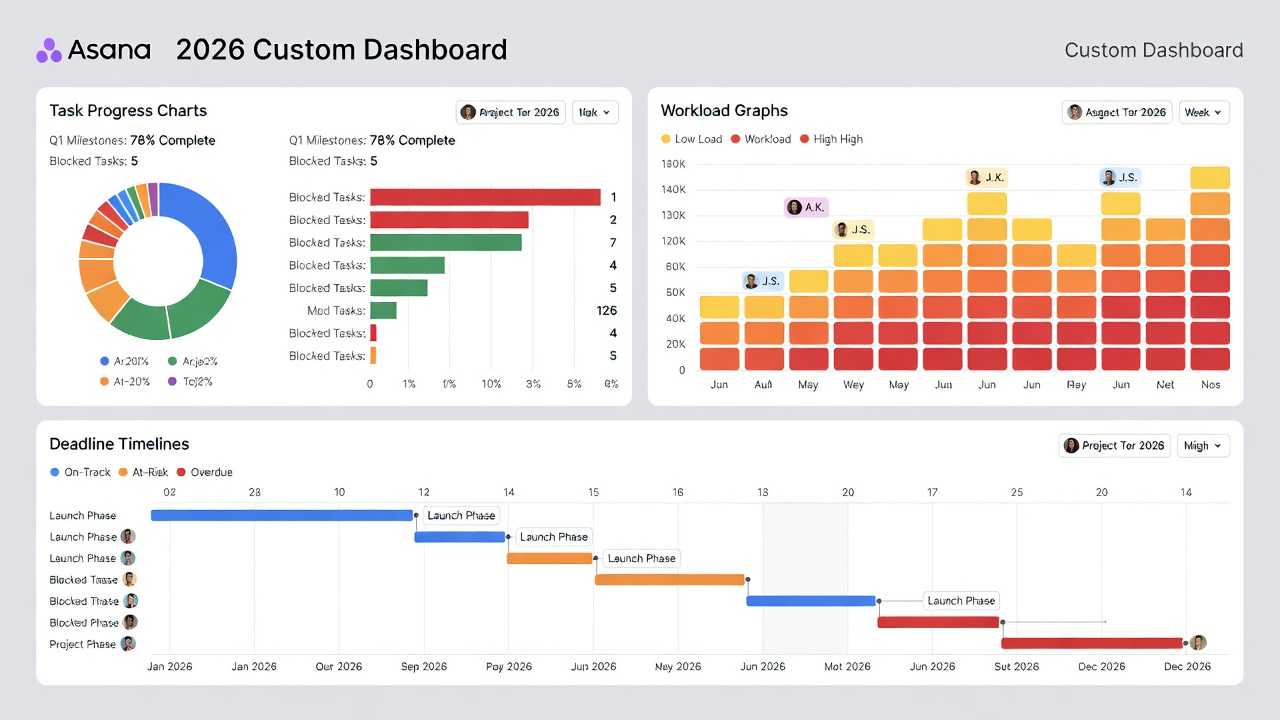
Custom dashboards turn raw data into actionable insights. Start by clicking the Dashboards tab and selecting Create New. Add widgets such as:
- Bar charts showing task completion rates by assignee.
- Pie graphs illustrating workload distribution across the team.
- Lists of upcoming milestones filtered by project or custom fields.
Share dashboards with stakeholders who lack full Asana access. Update frequency can be set to real-time or daily summaries, supporting both daily stand-ups and executive reviews.
Mastering Timeline Views for Deadline Management
The Timeline view functions like a dynamic Gantt chart. Tasks appear as bars that can be dragged to shift dates, with dependencies automatically adjusting subsequent items. This proves invaluable for projects involving sequential phases, such as software releases where design must finish before development begins.
To optimize, set milestones as diamond-shaped markers and enable critical path highlighting. Teams handling product launches often use this view to spot bottlenecks weeks in advance, adjusting resources proactively.
Team Collaboration Best Practices with Real Workflow Examples
Successful collaboration relies on transparent communication and standardized processes. Use @mentions to draw attention to specific comments, leverage task approvals for sign-off workflows, and attach supporting documents directly within tasks.
Consider a software development example: the team creates a sprint project, populates it with user stories tagged by story points, and employs timeline views to align release dates with marketing campaigns. Another scenario involves a nonprofit coordinating volunteer events, where forms capture sign-ups that automatically populate task lists and trigger reminder rules.
Compared with tools like Trello or Monday.com, Asana stands out for its robust rule engine and reporting granularity while preserving an approachable interface that scales with team growth.
Productivity Comparisons and Measurable Gains
Organizations adopting Asana 2026 frequently observe measurable improvements in delivery consistency. By combining automation with visual timeline planning, teams reduce missed deadlines and minimize redundant status meetings. The platform's structured approach also cuts down on scattered email threads, fostering a single source of truth for project status.
Common Mistakes to Avoid
New users often overcomplicate workspaces by creating too many projects without clear ownership. Another frequent pitfall is neglecting to train team members on rule triggers, leading to notification fatigue. Always pilot automations on a small project first and review usage analytics monthly to refine configurations.
Frequently Asked Questions
How do I resolve missing notifications in Asana 2026?
Verify notification preferences under your profile settings and confirm that connected apps like Slack have proper permissions. Logging out and back in or clearing the app cache resolves most sync problems.
Can data be exported for external reporting?
Yes, the export option supports CSV downloads, and integrations with business intelligence platforms allow deeper analysis of historical trends.
What advanced capabilities should power users explore?
Focus on custom forms for standardized task intake, workload balancing features to prevent burnout, and goal-tracking modules that link daily tasks to broader organizational objectives.
By following the strategies outlined above, your team can fully leverage Asana 2026 to achieve project management excellence and sustained productivity gains.

No comments yet. Be the first!