 NeoBit Daily
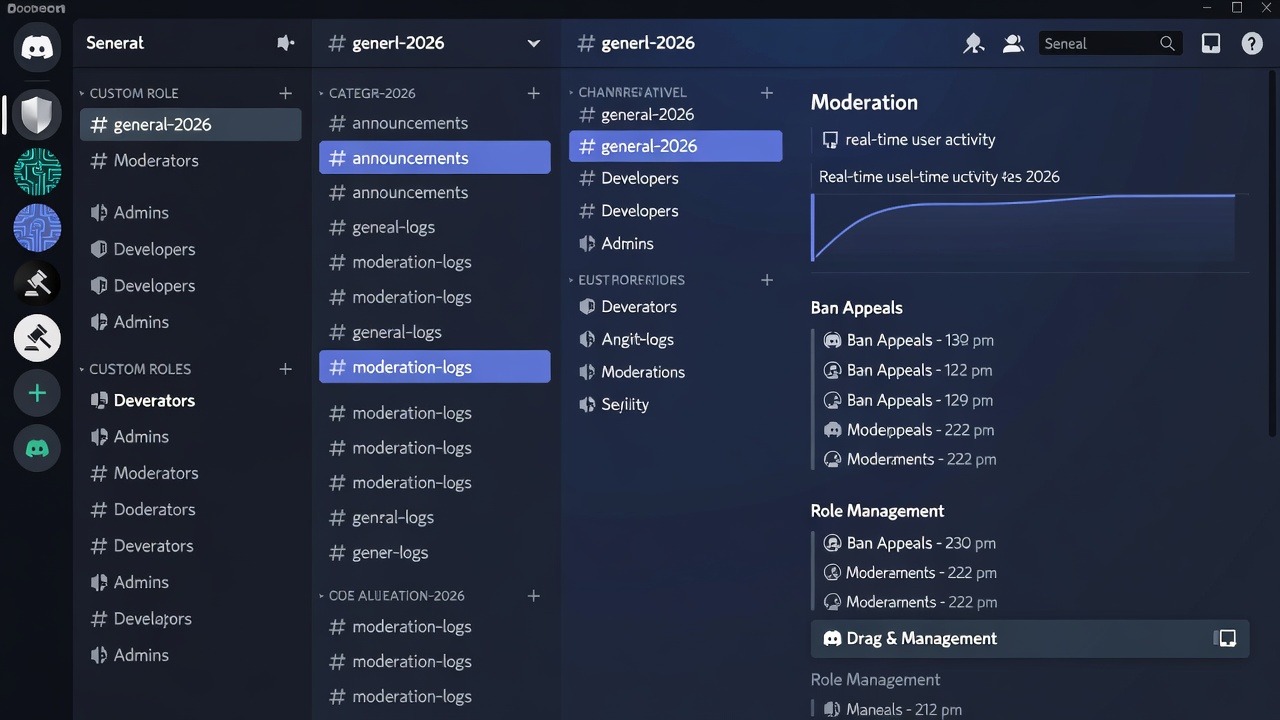
In 2026, Discord continues to serve as the premier platform for building vibrant online communities, professional teams, and gaming groups. Whether you are managing a large gaming clan, a remote work team, or an educational hub, mastering advanced server setup and moderation is essential for creating secure, organized, and engaging environments. This comprehensive guide provides actionable steps, detailed examples, and best practices to elevate your Discord server management skills.
Creating Roles and Permission Hierarchies
Roles form the backbone of any well-structured Discord server. Begin by planning a permission hierarchy that reflects your community's needs. The server owner automatically holds the highest authority, followed by custom administrator roles, moderators, and standard members. To create roles, navigate to Server Settings, select Roles, and add new entries with descriptive names such as Admin, Mod, VIP Member, and Guest.
Assign permissions carefully to avoid overreach. For instance, grant the Admin role access to manage channels and roles but limit the Mod role to kicking members, managing messages, and viewing the audit log. Always place higher roles above lower ones in the list, as Discord processes permissions from top to bottom. A practical example involves a 500-member gaming server where the owner creates a "Raid Leader" role with temporary voice channel creation rights during events. Test this setup by creating a secondary account and verifying that permissions cascade correctly without allowing unauthorized actions.
Common pitfalls include granting too many permissions early on, which can lead to security breaches. Regularly audit roles every few weeks using the audit log feature. Use color coding for visual clarity and consider role icons available in 2026 for better identification during chats.
Optimizing Channel Structures
Effective channel organization prevents chaos in active servers. Divide your server into logical categories such as Welcome & Rules, Announcements, General Chat, Voice & Events, Support, and Private Clubs. Text channels handle discussions while voice channels support real-time interaction, and stage channels suit larger presentations or AMAs.
Implement permission overrides at the category or channel level. For example, make the #rules channel read-only for members while allowing admins to edit. Create private text channels visible only to specific roles, such as a staff-only lounge. 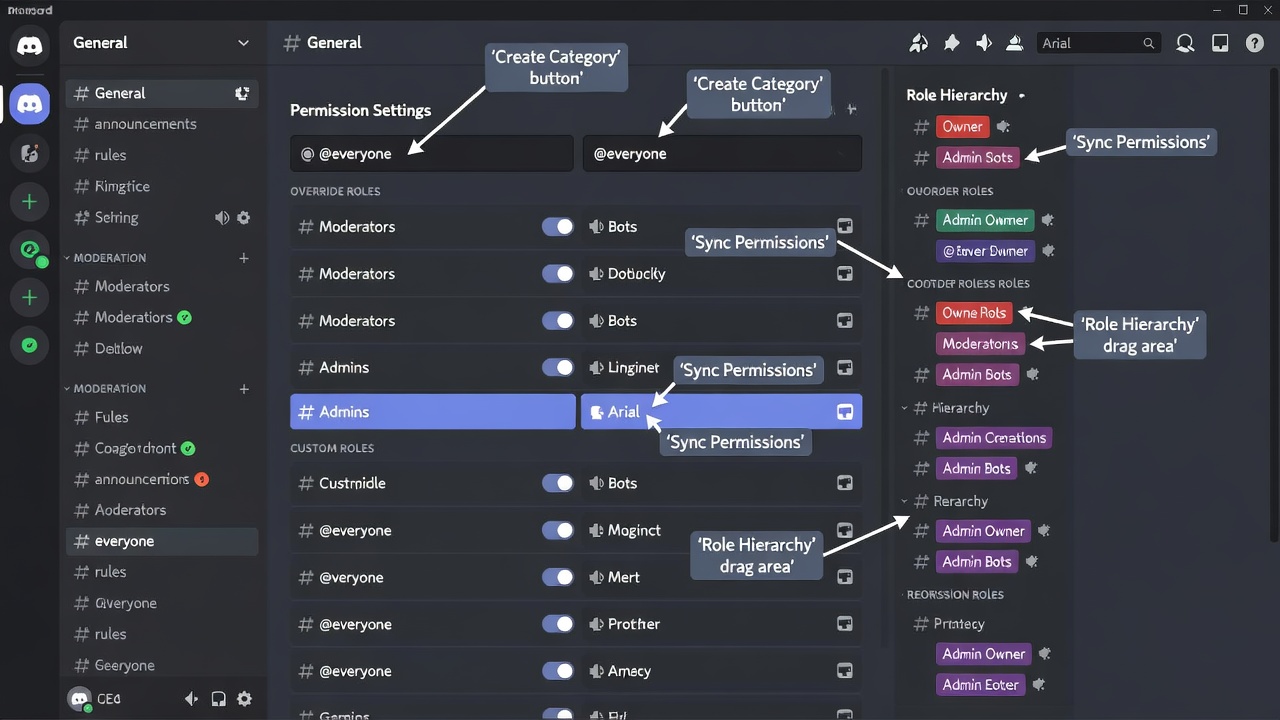
Consider mobile-friendly naming conventions with emojis as prefixes, like 📢announcements, to improve navigation on all devices. Review channel limits and archive inactive ones to maintain performance.
Automation via Bots and Moderation Tools
Bots automate repetitive tasks and enforce rules consistently. Popular options in 2026 include Carl-bot for reaction roles and logging, Dyno for custom commands, and MEE6 for leveling systems. Install bots via the official Discord app directory and configure them through web dashboards.
For spam prevention, enable auto-moderation rules that delete repeated messages, filter links from new accounts, and require verification for new joins. Set verification levels to medium or high for public servers. Combine these with explicit content filters and two-factor authentication prompts for all staff roles.
Advanced setups involve custom bot scripts using Discord's API for tailored responses. For safety, integrate reporting channels where members flag issues directly to moderators. Document all bot configurations in a dedicated server channel for transparency.
Integrations with Other Apps
Expand functionality through seamless integrations. Connect to productivity tools using platforms like Zapier to trigger actions such as posting new forum threads to external project management boards. Link streaming services for live notifications and embed calendars for event planning.
Official documentation at Discord covers webhook setups for custom alerts. A remote team might integrate with document sharing apps to notify members when files update. Always review permission scopes before authorizing third-party services to protect user data.
Free vs Nitro Features Comparison
Free servers provide robust moderation foundations including unlimited roles, basic bot support, and standard upload limits. Nitro subscriptions enhance the experience with larger file uploads, custom emojis across servers, and server boosting for improved audio quality, yet core moderation tools remain accessible without upgrades. Focus on free features first and add Nitro selectively for visual customization when community growth justifies it.
Real-World Case Studies
A large esports community implemented layered roles and bot-driven welcome sequences, resulting in faster onboarding and fewer rule violations. Moderators reported spending 60 percent less time on manual interventions after six months.
In an educational server for language learners, private voice channels and automated translation bots fostered inclusive discussions. The setup included weekly moderation reviews that maintained high engagement without toxicity.
A professional networking group used Zapier integrations to sync events with external calendars, increasing attendance rates and creating a more professional atmosphere overall.
Common Pitfalls and FAQ
Many new administrators overlook regular permission audits, leading to role creep over time. Another frequent issue is insufficient bot logging, which makes it hard to trace moderation actions.
- How often should I review roles? Conduct audits monthly or after major events.
- Which bots offer the best anti-spam in 2026? Prioritize actively updated options with community feedback.
- Can I moderate without bots? Yes, but automation scales better for servers above 100 members.
- What verification level works best for public servers? Start with medium and adjust based on spam volume.
- How do I handle appeals from banned users? Create a dedicated appeal form channel visible only to moderators.
Following these guidelines ensures your Discord server remains efficient, safe, and adaptable as your community grows. Start with core role and channel setups, layer in automation, and iterate based on member feedback for long-term success.

No comments yet. Be the first!