 NeoBit Daily
Introduction to Team Collaboration in Craft 2026
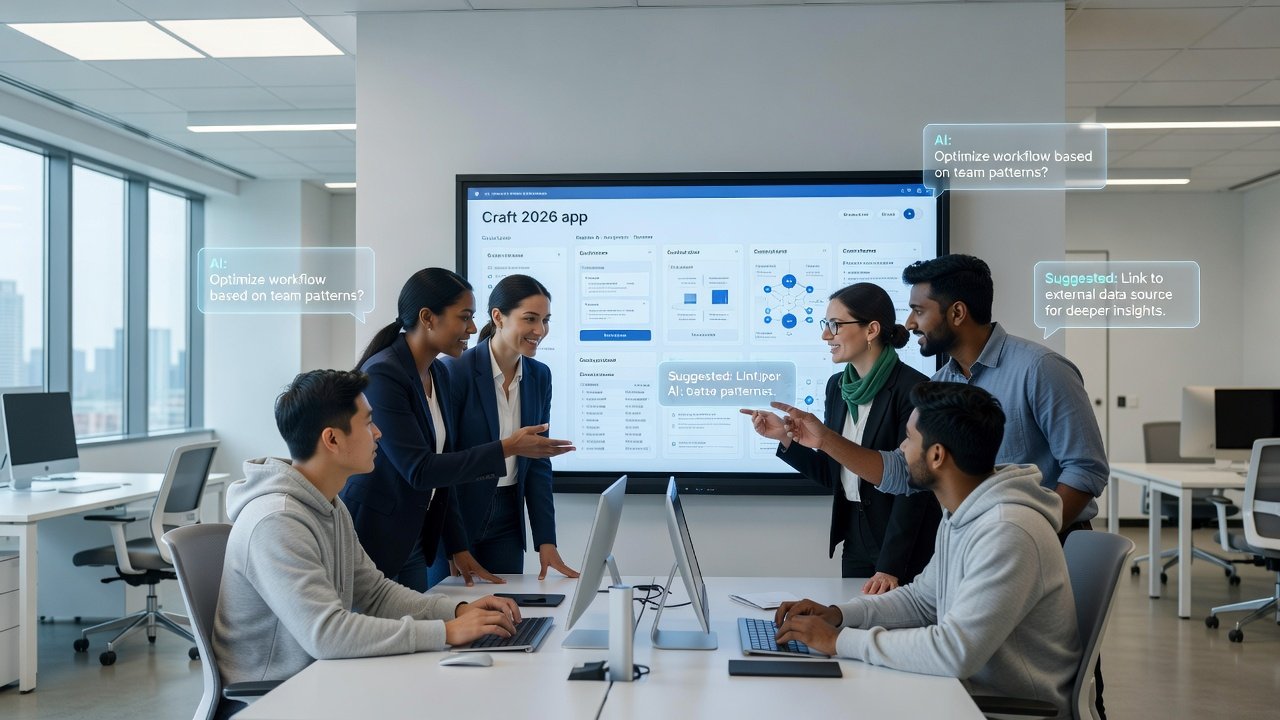
Craft 2026 builds on its powerful second-brain capabilities by introducing robust tools for team collaboration. Productivity teams can now leverage shared AI workflows to streamline projects, maintain consistent knowledge bases, and automate repetitive tasks. This guide explores setup processes, advanced features, and practical applications for groups seeking scalable note-taking systems that grow with organizational needs.
Whether you're managing remote teams or hybrid environments, Craft's shared workspaces enable seamless handoffs and real-time editing. By integrating AI suggestions with permission controls, teams reduce errors and accelerate decision-making across departments. The platform emphasizes privacy-first design while delivering enterprise-grade collaboration features that feel intuitive for daily use.
Setting Up Collaborative Documents and Shared Workspaces
Begin by creating a team workspace in Craft 2026. Invite members via email and assign roles such as editor, viewer, or admin. Shared documents support simultaneous editing, with version history tracking every change for accountability. For project kickoffs, start with a master document that outlines goals, timelines, and responsibilities, then branch into sub-documents as the project evolves.
Step-by-step setup includes: 1. Navigate to the Workspaces tab and select 'Create Team Space'. 2. Customize settings for notifications, default templates, and data retention policies. 3. Import existing notes or start fresh with AI-generated outlines based on your project brief. 4. Configure sync preferences across desktop, mobile, and web clients to ensure offline access remains reliable. 5. Test permissions by simulating a new member joining and verifying access levels before full rollout.
Teams should also establish naming conventions early, such as prefixing documents with project codes, to keep the shared library organized as content grows exponentially.
Real-Time AI Suggestions and Automation Features
Craft 2026's AI engine provides contextual suggestions during live collaboration. As team members type, the system recommends relevant sections from the shared knowledge base or generates summaries for long threads. This feature shines in feedback loops, where AI flags inconsistencies or suggests improvements based on patterns from previous projects. Users can customize AI behavior by training it on approved documents, ensuring suggestions align with company tone and terminology.
For meeting notes automation, enable the AI recorder integration. It transcribes discussions and populates notes automatically, tagging action items for follow-up while linking them to related workspace documents. Advanced users can set triggers so that when certain keywords appear, the AI creates tasks in connected project management tools. 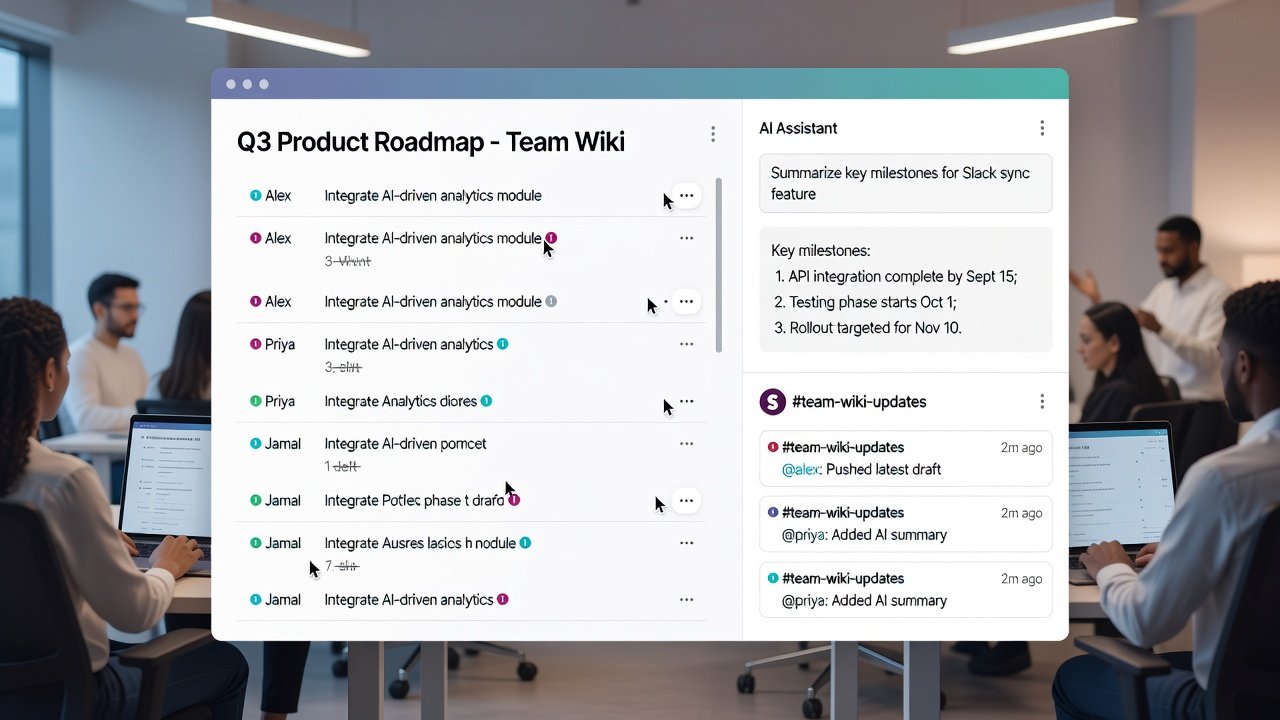
Additional automation covers content tagging, duplicate detection, and proactive alerts when related information updates elsewhere in the workspace, helping teams stay aligned without constant manual checks.
Permission Controls and Template Sharing
Granular permissions ensure sensitive information stays protected. Admins can set view-only access for external stakeholders while allowing full edit rights internally. Role-based access includes options for comment-only contributors and temporary guest access with expiration dates. Template sharing accelerates onboarding—create reusable structures for wikis, reports, or retrospectives and distribute them across the team with one-click application.
Examples include a team wiki template with pre-built sections for company policies, searchable indexes, and AI prompts for updating outdated entries. A project kickoff template might include risk assessment prompts powered by AI, budget placeholders, and stakeholder mapping tools. Sharing templates also preserves formatting consistency, reducing time spent on styling across multiple contributors.
Integrations with Slack and Notion
Connect Craft 2026 to Slack for instant notifications on document updates, new comments, or AI-generated insights. Similarly, sync with Notion to pull in databases or export structured data bidirectionally. These integrations create unified workflows, such as pushing AI-generated meeting summaries directly into Slack channels or mirroring key pages from Notion into Craft for deeper annotation.
Setup for Slack involves authorizing the Craft app, selecting channels for notifications, and mapping specific document folders to threads. Notion integration supports importing tables as Craft blocks and exporting outlines back as databases. Teams report smoother handoffs when using these bridges, especially during cross-tool projects.
Practical Workflows: Project Kickoffs to Knowledge Handoff
Project Kickoff Workflow: Create a shared document, apply a template, and invite the team. Use AI to brainstorm initial tasks, then assign owners with due dates. Members add comments for real-time feedback while the AI suggests related resources from the knowledge base, such as past project learnings or relevant policies.
Feedback Loops: Enable inline suggestions and schedule weekly AI-assisted reviews to consolidate input. This includes sentiment analysis on comments to surface potential conflicts early and automated summaries sent to all participants after each cycle.
Knowledge Handoff: Export finalized documents as PDFs, Markdown, or structured archives for archiving, ensuring continuity when team members transition. Include metadata like contributor history and decision logs to provide full context for incoming staff.
Real-World Examples: Team Wikis, Meeting Notes, and Export Options
Marketing teams use Craft wikis to centralize campaign briefs with AI-enhanced search that surfaces past performance data instantly. Engineering groups automate sprint notes by linking code repositories, exporting to tools like GitHub for traceability and compliance audits. Sales teams maintain client wikis that update dynamically with AI pulling in CRM data via integrations.
Export options range from individual documents to entire workspace archives, with customizable templates for branding and formatting. One practical case involves a product team exporting quarterly reviews as interactive web pages for executive presentations, complete with embedded AI summaries of key metrics.
Individual vs Team Plans Comparison
Individual plans focus on personal second-brain features with basic AI tools and limited sharing. Team plans unlock shared workspaces, advanced permissions, unlimited integrations, collaborative AI workflows, and centralized billing. Additional benefits include priority support, custom branding options, and analytics dashboards showing team activity and content growth trends. The team tier scales better for organizations with five or more active collaborators, offering features that prevent bottlenecks common in individual setups.
Best Practices and Mistakes to Avoid
Establish clear guidelines for document ownership to avoid diffusion of responsibility. Regularly audit permissions, especially after role changes. Over-reliance on AI without human review can introduce subtle inaccuracies, so implement a two-person sign-off for critical content. Avoid creating too many nested folders; instead, use tags and search for navigation. Finally, schedule periodic workspace cleanups to archive completed projects and maintain performance.
FAQ: Common Collaboration Pitfalls in Craft 2026
How do I prevent version conflicts? Always enable real-time sync and use comments instead of direct overwrites during peak editing periods.
What if AI suggestions feel off-topic? Train the model by pinning relevant documents to the workspace context and periodically retrain with team-approved examples.
Can external users access shared spaces securely? Yes, with time-limited links, restricted permissions, and optional two-factor authentication prompts.
How to handle large file exports? Use Craft's batch export feature for organized handoffs, selecting compression options when needed.
What happens during internet outages? Offline mode allows continued editing with automatic conflict resolution upon reconnection.
Is there a limit to workspace size? Team plans support extensive scaling with options for storage add-ons as content libraries expand.
Conclusion
Craft 2026 transforms individual productivity into team synergy through thoughtful AI integration and collaboration tools. By following these workflows and best practices, teams can build resilient knowledge systems that adapt to evolving projects while minimizing common collaboration friction points. Start small with one shared workspace, iterate based on feedback, and expand features as your team grows comfortable with the platform.

No comments yet. Be the first!