 NeoBit Daily
Bear 2026: Master Note-Taking with Tags, Backlinks & Exports
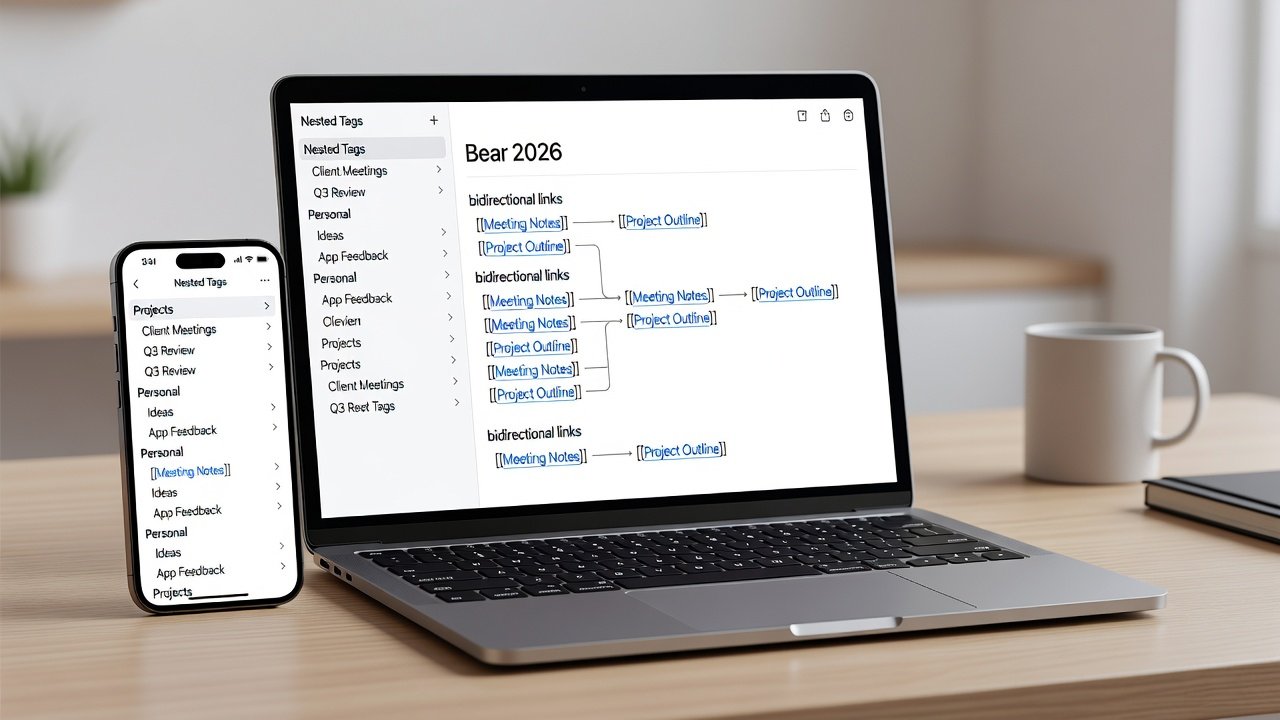
Building a reliable personal knowledge system requires more than simple note storage. Bear 2026 delivers a focused Markdown environment optimized for Apple users who want clean organization through nested tags and powerful bidirectional links. This guide walks writers, researchers, and productivity enthusiasts through setup, advanced workflows, and export options to create a true second brain that grows with your ideas over time.
Getting Started with Bear 2026 on Apple Devices
Begin by downloading Bear 2026 from the Mac App Store or iOS App Store. The app syncs seamlessly across iPhone, iPad, and Mac using iCloud. After installation, enable iCloud sync in settings to keep notes consistent across devices. On Mac, open System Settings and confirm iCloud Drive access for Bear. On iPhone or iPad, go to Settings > Apple ID > iCloud and toggle Bear on. Create your first note by tapping the compose button and start typing in Markdown format. Headings use # symbols, while lists and bold text follow standard Markdown rules. Learn Markdown syntax to accelerate your workflow. Test sync by creating a note on one device and verifying it appears on another within seconds.
Mastering Markdown for Clear, Structured Notes
Markdown in Bear 2026 supports tables, code blocks, task lists, and inline images. For writers, use ## for section headings and - [ ] for checklists. Researchers benefit from fenced code blocks when documenting scripts or data snippets. Practice converting plain text notes into rich Markdown by adding links with [text](url) syntax. Tables are created with pipes and dashes for alignment, making them ideal for comparing data points in research notes. Code blocks use triple backticks with optional language identifiers for syntax highlighting. This foundation supports everything from daily journals to complex research papers and ensures notes remain portable across tools.
Organizing with Nested Tags
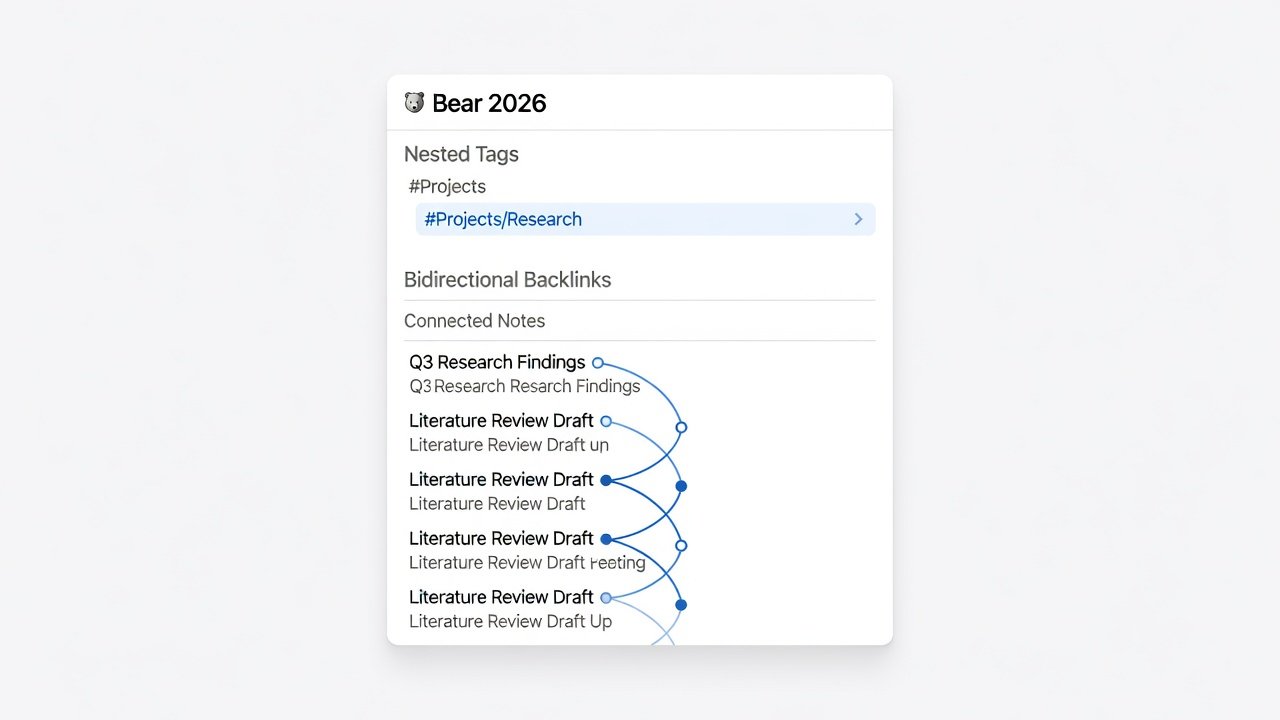
Nested tags transform flat note collections into hierarchical systems. Create tags like #Projects/Research/2026 or #Writing/Articles/SEO. Bear displays these in a sidebar tree view, allowing quick drilling into subcategories. Start with broad tags and refine them over time. For example, tag meeting notes as #Meetings/Client while keeping client-specific details under #Clients/AcmeCorp. Rename tags globally by right-clicking in the sidebar and choosing the rename option. This approach scales as your library grows without requiring folders and prevents the common problem of scattered notes that plague less structured apps.
Bidirectional Linking for a Second-Brain Workflow
Bidirectional links turn isolated notes into an interconnected web. Type [[Note Title]] to create a link; Bear automatically generates backlinks at the bottom of the target note. Use this for research by linking concepts across documents. A note on "Productivity Systems" can link to daily journals, book summaries, and project plans. Writers can connect character notes to plot outlines and theme analyses. Over weeks, this creates emergent insights as connections surface naturally. Review backlinks weekly to discover forgotten relationships between ideas and strengthen your overall knowledge graph.
Advanced Search and Note Organization Techniques
Bear 2026 search supports tag filters, date ranges, and full-text queries. Combine operators like #Writing -#Draft to find published articles. Save frequent searches as smart folders for ongoing projects. Organize by combining tags with backlinks: review all notes tagged #Research that link to a central "Literature Review" note. Add date-based searches such as created:2026-09-01..2026-09-13 for recent captures. This hybrid method outperforms simple folder structures for knowledge workers and helps surface relevant information quickly during deadline-driven work.
Seamless Export Options: PDF, HTML, and More
Export individual notes or entire tag collections. Choose PDF for polished reports with custom styling, or HTML for web publishing. Bear preserves formatting and embedded images during export. For batch needs, select multiple notes and export as a single document. HTML exports include clean CSS classes that integrate easily with static site generators. PDF exports allow page size and margin adjustments for academic submissions. These options integrate well with publishing pipelines for bloggers and academics who need to move content into other formats without losing structure.
Integrations with Shortcuts and Calendar
Connect Bear to Apple Shortcuts for automation. Build a shortcut that creates a daily note template with the current date and predefined tags. Link notes to Calendar events by adding event URLs. On iOS, use the share sheet to send web content directly into tagged notes. Apple Support provides detailed guidance on building advanced Shortcuts that pull data from Reminders or Weather and insert it into Bear. These integrations reduce friction in daily capture routines and allow you to trigger complex actions from Siri or the home screen.
Practical Tips for Daily Note Capture, Templates, and Mobile Optimization
Implement these proven habits to maintain momentum: Begin each morning with a quick capture note tagged #Daily/2026-09-13. Build reusable templates for meeting notes, reading summaries, and project kickoffs by saving a master note and duplicating it. On mobile, enable the Bear widget for lock-screen quick entry and use the iPad split-view mode to reference source material while writing. Review weekly by searching for untagged notes and assigning appropriate categories. For mobile optimization, keep frequently used tags in the favorites bar and use keyboard shortcuts on iPadOS for faster formatting. These practices ensure notes stay current and accessible whether you are at a desk or on the go.
Comparing Bear 2026 to Obsidian and OneNote on Privacy and Simplicity
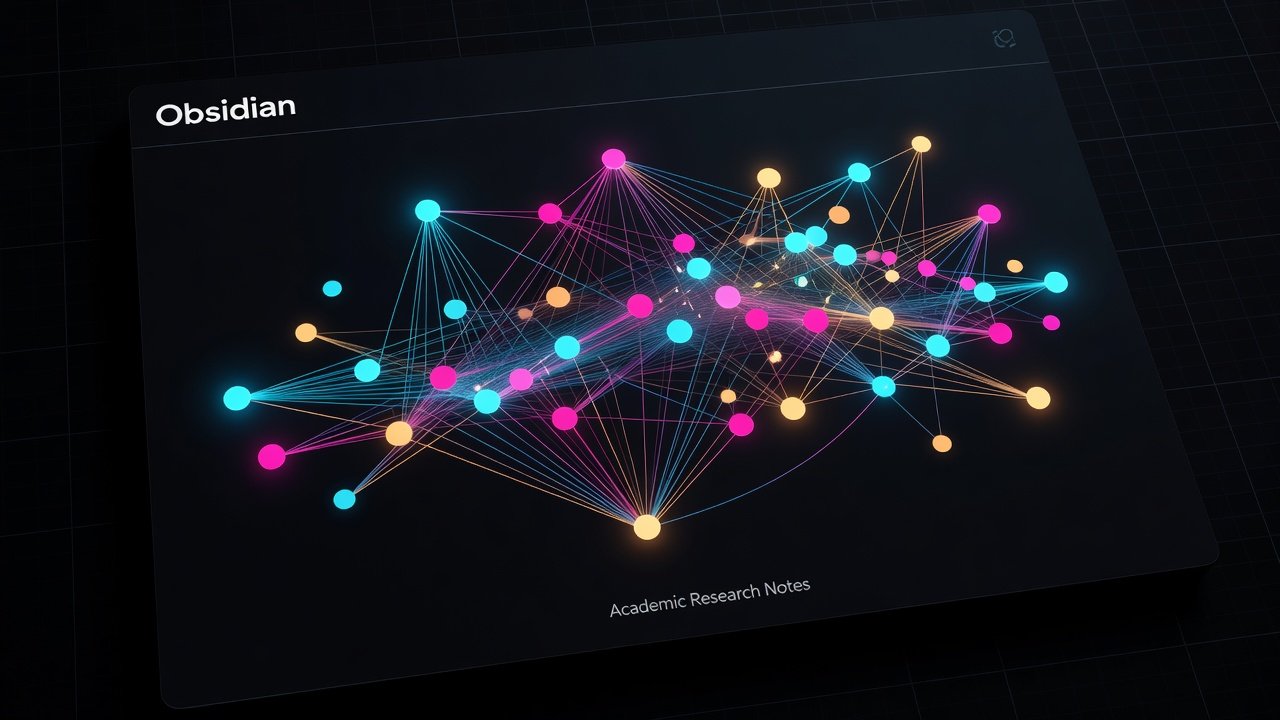
Obsidian offers similar linking but requires more setup for mobile sync and lacks Bear's native Apple polish. Obsidian excels in graph visualizations yet demands manual plugin management that can overwhelm beginners. OneNote provides strong collaboration yet sacrifices privacy and Markdown simplicity. OneNote stores data in Microsoft cloud services, raising concerns for users prioritizing local control. Bear 2026 prioritizes local storage and end-to-end encryption, appealing to users who value data control over cloud-heavy alternatives. Choose Bear when simplicity and privacy matter most; consider Obsidian for heavy graph visualization needs or OneNote when team editing is required. The decision ultimately depends on whether your workflow values elegance and encryption or extensive plugin ecosystems.
Common Mistakes to Avoid When Building Your System
- Over-tagging every note instead of letting backlinks handle relationships.
- Ignoring weekly reviews, which leads to orphan notes that never connect.
- Exporting without checking image quality, resulting in low-resolution PDFs.
- Using overly deep tag nests that become difficult to navigate on mobile.
FAQ: Sync Issues and Performance Tweaks for 2026 Users
How do I fix iCloud sync delays? Restart the app and check your internet connection. Force a manual sync in settings if notes fail to appear on other devices. Ensure sufficient iCloud storage remains available.
Why is search slow with large libraries? Reduce the number of active tags and archive older notes into a separate Bear library. Performance remains responsive for most users with under 5,000 notes.
Can I export to Word or other formats? Use HTML export followed by conversion tools, or copy Markdown directly into compatible editors.
Is Bear 2026 suitable for team collaboration? The app focuses on individual use. For teams, export notes or combine with shared Apple Notes folders.
What performance tweaks help on older iPads? Disable live preview in settings and limit simultaneous open notes to maintain smooth scrolling.
Conclusion
Bear 2026 equips users with precise tools for building lasting knowledge systems. By mastering Markdown, nested tags, and bidirectional links, you create searchable, interconnected notes that grow with your projects. Combine these features with Apple integrations and thoughtful exports to maintain a streamlined, private workflow that serves writers and researchers for years ahead. Start small, iterate on your tagging system, and let the connections reveal new insights naturally.
No comments yet. Be the first!