 NeoBit Daily
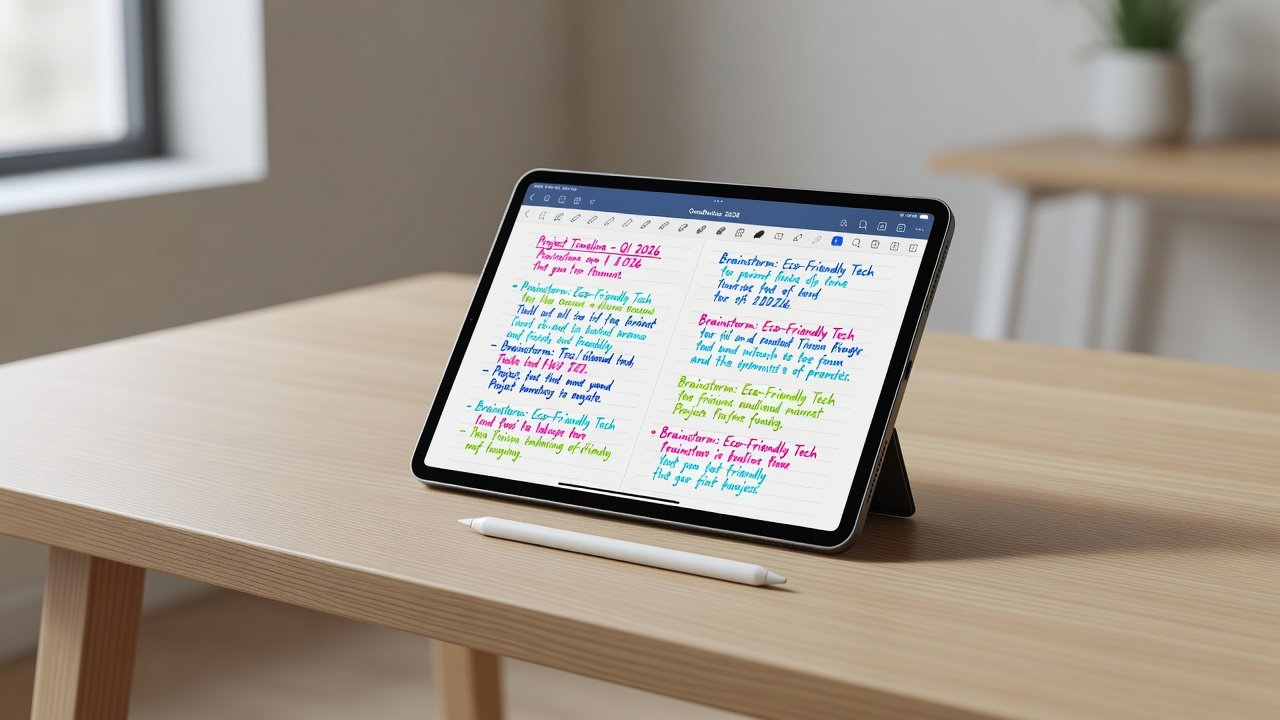
Introduction to GoodNotes 2026
GoodNotes 2026 transforms the iPad into a powerful digital notebook, ideal for students and professionals seeking efficient note-taking. This comprehensive guide walks through core features with step-by-step instructions, practical examples, and solutions to common challenges like organization and exports. The app combines natural handwriting with powerful digital tools, allowing users to create, search, and share notes seamlessly. Whether you are transitioning from paper notebooks or already using digital tools, mastering GoodNotes 2026 can significantly boost your productivity and organization.
Digital note-taking offers advantages over traditional methods, including instant searchability, easy editing, and cloud backup. GoodNotes 2026 builds on these strengths with improved AI features for 2026, making it a top choice for iPad users who value flexibility and precision.
Getting Started with GoodNotes 2026 on iPad
Begin by downloading GoodNotes 2026 from the App Store. Pair your device with an Apple Pencil for optimal performance, as the stylus enables pressure sensitivity, tilt support, and palm rejection. Once installed, open the app and explore the main interface, which includes a library view for all your notebooks and a customizable toolbar.
Step-by-Step Setup Process
- Sign in with your Apple ID to activate iCloud features for syncing across devices.
- Select or create a new notebook from the library, choosing from lined, graph, or blank pages.
- Adjust settings for pen thickness, colors, and highlighter tools to match your writing style.
- Enable handwriting recognition in the app preferences to unlock search capabilities from the start.
Take time during setup to organize your initial folders by subject or project. This foundational step prevents later disorganization and sets the stage for efficient workflows.
Mastering Handwriting Recognition
Handwriting recognition in GoodNotes 2026 converts your handwritten notes into editable and searchable text using advanced machine learning. Write naturally on the page, and the app processes your input in real time. Users can switch between handwriting and typed text within the same notebook, providing flexibility during lectures or meetings.
For example, a student attending a biology class can jot down diagrams and terms by hand, then search later for specific vocabulary like "photosynthesis" to review quickly. Professionals benefit when converting meeting scribbles into polished summaries for reports. The feature supports multiple languages and improves accuracy with repeated use, though clear writing yields the best results. If recognition falters, users can edit text directly or retrain the model through practice sessions in the settings menu.
Creating and Using Custom Templates
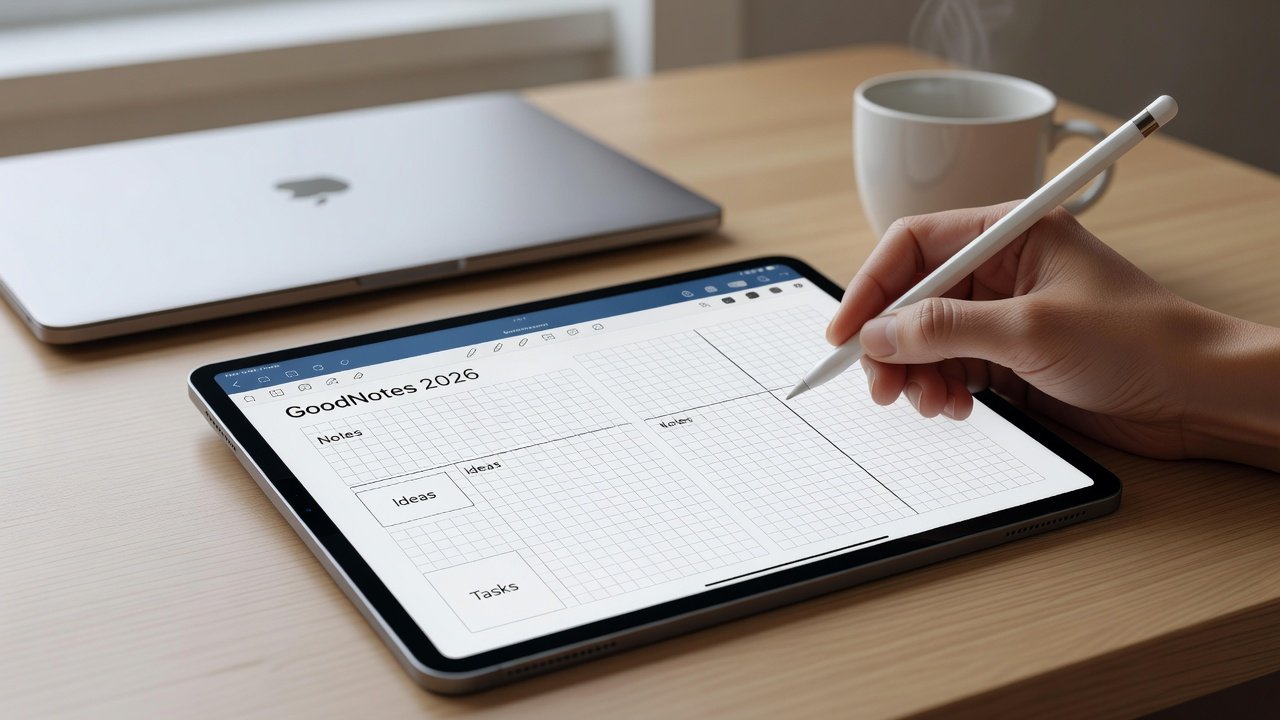
Custom templates allow personalization beyond default options. Access the template editor to import PDFs or design layouts using built-in shapes, lines, and text fields. This feature saves time for repetitive note formats.
Consider a student creating a weekly planner template with dedicated sections for assignments, deadlines, and reflections. A project manager might build a meeting agenda template including attendee lists, action items, and follow-up reminders. Once saved, apply these templates to new notebooks instantly. Experiment with color-coded elements to enhance visual organization, and share custom templates with colleagues via the app's export options for collaborative consistency.
Advanced Search Tools and Organization Strategies
The search function scans both handwritten and typed content across all notebooks, delivering results in seconds. Combine this with robust organization tools like folders, tags, and internal hyperlinks to maintain clarity as your note collection grows.
- Structure folders hierarchically, such as Semester 1 under Academics, with subfolders for each course.
- Apply descriptive tags like "urgent," "research," or "client notes" for filtered views.
- Insert hyperlinks between related pages to create a personal knowledge base.
- Utilize the sidebar for quick navigation and star important notebooks for priority access.
These methods address common pain points around locating information quickly, especially during high-pressure study sessions or tight project timelines.
PDF Annotation Workflows
Import PDFs from email, cloud storage, or the web, then annotate with highlights, arrows, stamps, and freehand drawings. This workflow excels for textbook reviews, contract analysis, or research papers. Users can add typed comments alongside handwriting for clarity when sharing files.
In practice, a lawyer might highlight key clauses in a contract PDF and attach voice notes for team review. Export options preserve annotations in the final PDF, ensuring collaborators see all markup. Compared to basic PDF viewers, GoodNotes 2026 provides more natural annotation tools tailored for stylus input.
Integrating Apple Pencil and Cloud Sync
Apple Pencil integration brings precision to every stroke, with settings to customize sensitivity and button shortcuts. Enable automatic iCloud sync in the app settings to back up notebooks and access them on other Apple devices without manual intervention. This ensures your work remains available even if switching between iPad and Mac during a workday.
For best results, update to the latest iPadOS version and test sync on a small notebook first. If issues arise, verify storage quotas and Wi-Fi stability before contacting support.
Export Options and Troubleshooting Common Issues
Export notebooks in PDF, image sequences, Word documents, or PowerPoint formats depending on the recipient's needs. Batch exports handle multiple files efficiently for archiving or presentations.
Troubleshooting tips include restarting the app for lag, checking permissions for cloud access, and clearing cache if performance slows. Addressing these proactively keeps your note-taking uninterrupted.
Practical Examples for Students and Professionals
Students can annotate lecture slides with color-coded highlights, convert notes into study quizzes using search results, and build flashcard-style pages from key concepts. Professionals often use the app for client presentations by importing slides and adding real-time annotations during discussions, then syncing everything to shared cloud folders for team visibility.
Comparison to Similar Apps
GoodNotes 2026 differentiates itself through superior template customization and handwriting search compared to alternatives. While some apps emphasize audio recording, this one prioritizes visual and textual precision. Explore iPad hardware details on Apple's official site. For cross-platform options, review Microsoft's productivity tools. Additional resources are available at the official GoodNotes website.
Conclusion
GoodNotes 2026 equips iPad users with everything needed for advanced digital note-taking. Apply the techniques outlined here to streamline your daily routines and unlock greater efficiency.
FAQ: Productivity Hacks and Troubleshooting
How do I improve handwriting recognition accuracy?
Practice with consistent letter formation, enable language-specific settings, and review suggested corrections regularly to train the AI model effectively.
What if notes fail to sync across devices?
Confirm iCloud is enabled, ensure you have adequate storage, and restart both the app and device. Check for software updates if problems persist.
Can I password-protect individual notebooks?
Yes, access notebook settings to activate passcode or biometric protection for sensitive content.
Are there shortcuts for faster note creation?
Use the quick-create button on the home screen and customize toolbar gestures for common actions like inserting templates or switching pens.
How should I handle large PDF files?
Split lengthy documents into smaller sections before import, and use the app's compression options during export to maintain performance.
No comments yet. Be the first!