 NeoBit Daily
Introduction to 2026 Smart Device Troubleshooting
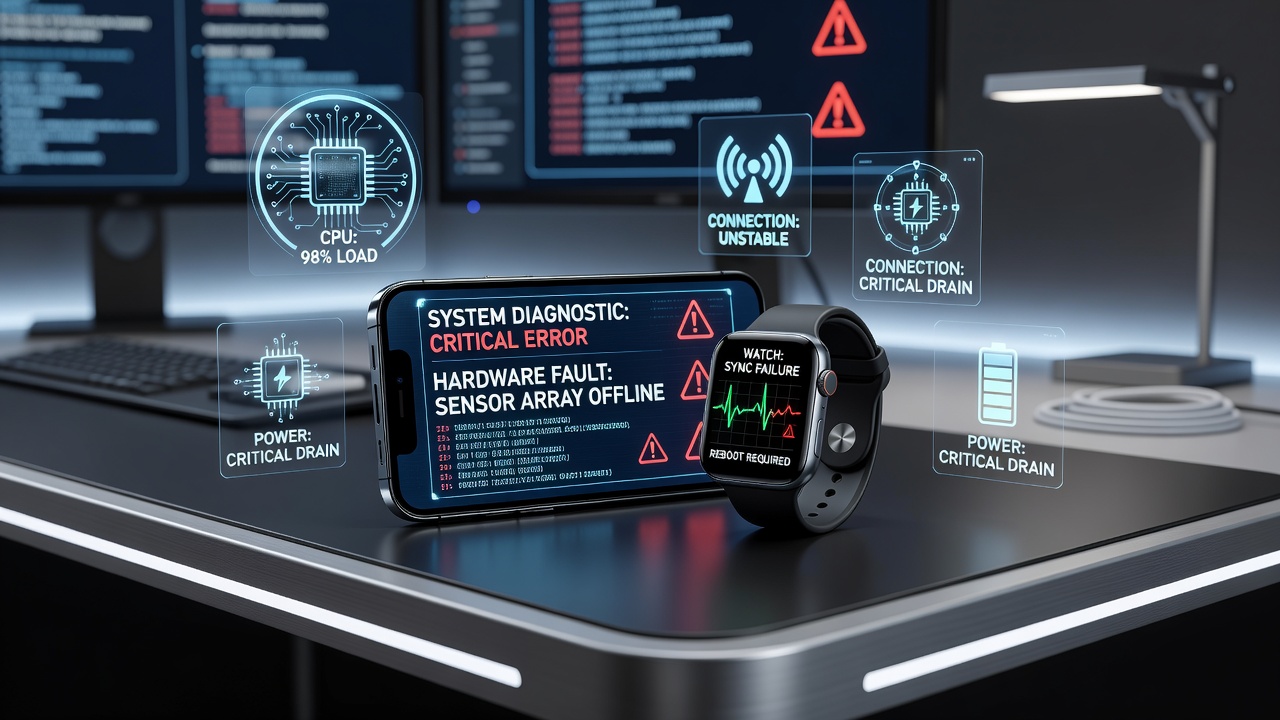
In 2026, smart devices form the backbone of personal and professional routines, powering everything from seamless communication to health monitoring. Smartphones, wearables, and connected gadgets deliver impressive capabilities, yet they frequently encounter issues such as rapid battery drain, persistent connectivity failures, and disruptive software glitches. These problems can stem from evolving hardware integrations, complex operating systems, and the demands of always-on features. This comprehensive guide draws from extensive smartphone reviews and wearable reviews conducted on leading 2026 models, providing diagnostic steps, real-world examples, and proven solutions. Whether you own a flagship Android device, an iOS powerhouse, or the latest fitness tracker, the actionable advice here helps restore optimal performance while minimizing downtime. By following systematic approaches, users can extend device longevity and enhance daily reliability.
Diagnosing Battery Drain in Smartphones and Wearables
Battery drain tops the list of frustrations reported in 2026 device testing. Modern batteries support intensive multitasking but suffer when background processes, high-refresh displays, or inefficient apps run unchecked. Start diagnosis by accessing the native battery health dashboard, which breaks down consumption by app and system component. On 2026 smartphones, location services and always-on displays often consume 25 to 35 percent of power during idle periods. Begin troubleshooting by force-closing non-essential applications, lowering screen brightness to 50 percent, and enabling dark mode where available. Monitor results over a full day of typical use before advancing to firmware updates or cache clearing. Wearables present unique challenges due to continuous sensor activity; recalibrating heart-rate monitors or disabling unnecessary notifications frequently resolves unexpected depletion.
Here is a comparison of built-in tools versus third-party apps for battery management:
| Aspect | Built-in Tools | Third-Party Apps |
|---|---|---|
| Accuracy | Direct system access for precise readings | Additional predictive analytics and custom alerts |
| Ease of Use | Seamless integration without extra setup | Advanced scheduling and cross-device syncing |
| Privacy | Minimal data sharing with manufacturers | Potential for deeper insights but requires careful permission review |
Resolving Connectivity Failures Across Networks
Connectivity issues in 2026 span Wi-Fi instability, Bluetooth pairing drops, and cellular signal inconsistencies. Begin with basic resets: toggle airplane mode for 60 seconds, forget and rejoin networks, or restart routers. For Wi-Fi problems, switch between 2.4 GHz and 5 GHz bands while checking for interference from neighboring devices. Bluetooth failures on wearables often trace to outdated pairing profiles; clearing the cache through device settings and re-pairing restores stable links. Cellular drops may require checking carrier settings or toggling VoLTE options. A practical example from recent smartphone reviews involves a 2026 flagship losing 5G connectivity during travel—resolved by updating the modem firmware and resetting network preferences, achieving consistent speeds afterward.
Fixing Software Glitches with an Expanded Troubleshooting Flowchart
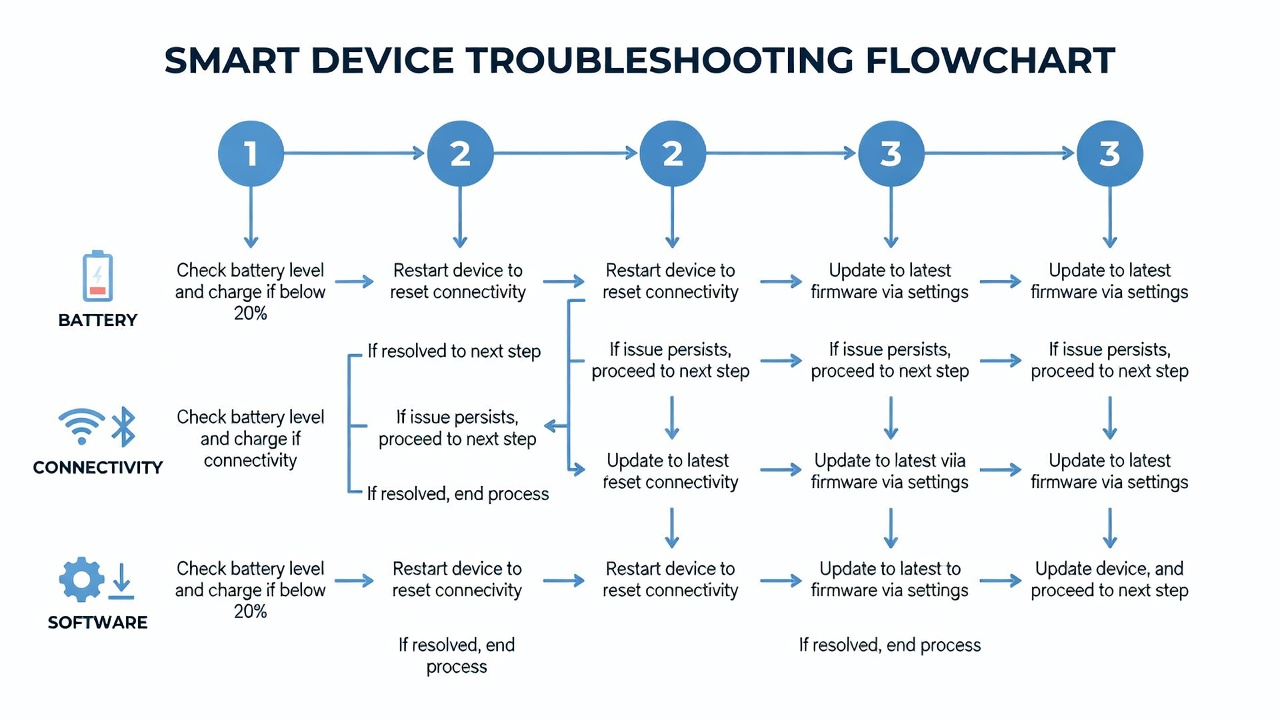
Software glitches manifest as freezing interfaces, app crashes, or sluggish responses. Follow this detailed numbered process:
- Document the exact symptom, noting frequency, affected apps, and recent changes like new installations.
- Perform a soft restart and observe behavior for 30 minutes to rule out temporary memory overload.
- Navigate to system update menus and install all pending patches, as 2026 models receive monthly security refinements that address known bugs.
- Enter safe mode to isolate third-party interference; uninstall recently added applications if issues cease.
- Clear app caches individually or via storage optimization tools before considering a full factory reset with prior cloud backup verification.
- Test ecosystem compatibility if devices span multiple platforms, ensuring firmware versions align across smartphones and wearables.
Built-in Tools Versus Third-Party Solutions: Deeper Analysis
Choosing between native diagnostics and external applications depends on user needs. Built-in utilities offer immediate access and strong security, while third-party options provide granular controls and reporting. In wearable reviews, native health apps excel at basic tracking, yet specialized software adds sleep-stage predictions and recovery scores. Always verify app store ratings and developer reputation before installation to avoid introducing new vulnerabilities.
Prevention Tips Grounded in Expert Testing Insights
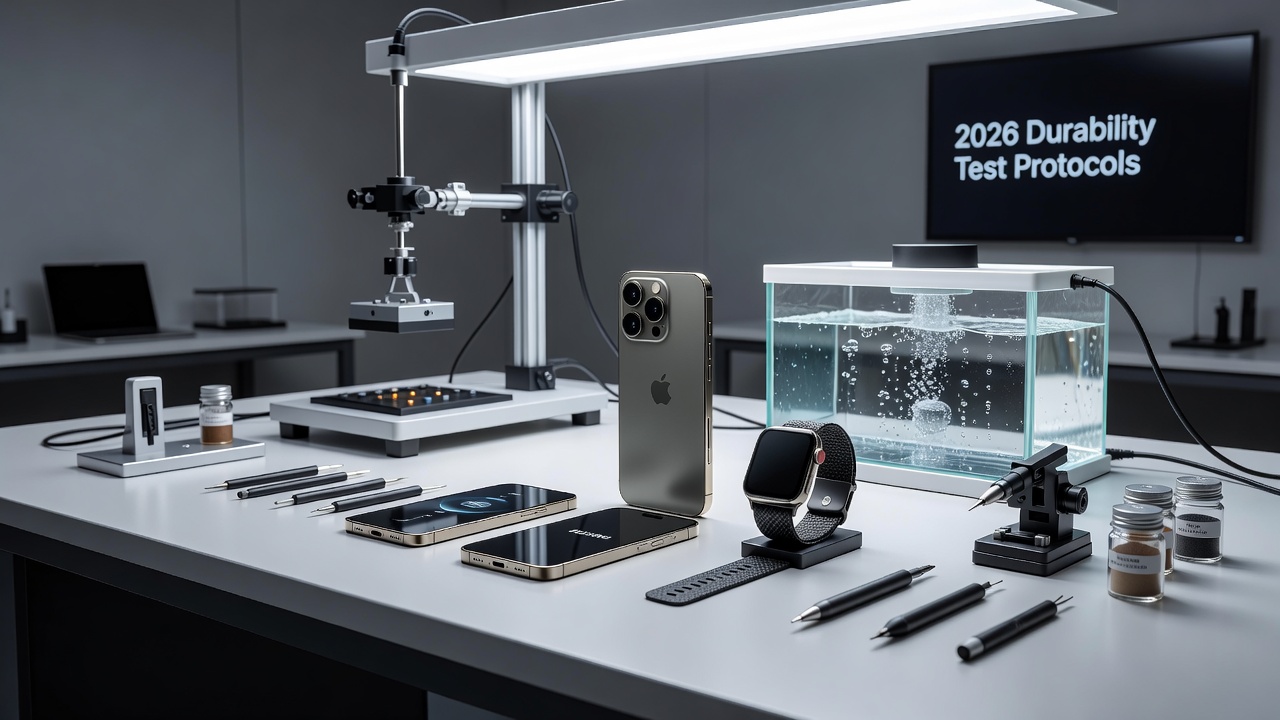
Proactive habits dramatically reduce issue occurrence. Enable automatic updates for both operating systems and applications. Limit background refresh for non-critical services and maintain devices within recommended temperature ranges of 0 to 35 degrees Celsius. Conduct monthly storage audits to remove unused files, and review privacy permissions quarterly. Expert testing from 2026 cycles highlights the value of ecosystem alignment—pairing devices from the same manufacturer often yields superior stability compared to mixed setups.
User Case Studies Demonstrating Real Fixes
Case Study 1: A marketing executive faced severe battery drain on a 2026 smartphone after installing productivity apps. By disabling location access for non-essential tools and optimizing refresh rates, daily battery life extended from 12 hours to over 18 hours. Case Study 2: A runner encountered repeated Bluetooth disconnections with a new wearable during outdoor sessions. Re-pairing after a firmware match and clearing nearby interference sources restored uninterrupted data sync. Case Study 3: An office worker experienced recurring software freezes across an Android tablet and paired smartwatch. Following the flowchart steps, including safe mode testing and selective app removal, eliminated crashes entirely within two days.
FAQ Section: Handling Edge Cases and Cross-Ecosystem Compatibility
- How should users address compatibility between iOS and Android ecosystems? Verify firmware releases on official support sites and test core features incrementally after updates.
- What steps follow when built-in tools prove insufficient? Consult detailed resources at Apple Support or Google Support for model-specific guidance.
- Are third-party troubleshooting apps reliable for 2026 devices? Select highly rated options from verified stores and monitor permissions to maintain security standards.
- How can users prevent glitches during major software upgrades? Back up all data beforehand and install updates during periods of low device usage.
- What if wearables fail to sync after smartphone updates? Restart both devices, confirm Bluetooth versions match, and re-establish connections through manufacturer apps.
Conclusion
Thorough 2026 smart device troubleshooting empowers users to tackle battery, connectivity, and software challenges with confidence. Implementing the outlined steps, comparisons, and prevention strategies leads to smoother device operation and greater satisfaction. For ongoing support, reference authoritative portals including Samsung Support and Android Help. Regular application of these practices ensures devices remain reliable companions throughout the year.
No comments yet. Be the first!