 NeoBit Daily
Introduction to GTD Mastery with Things 3 in 2026
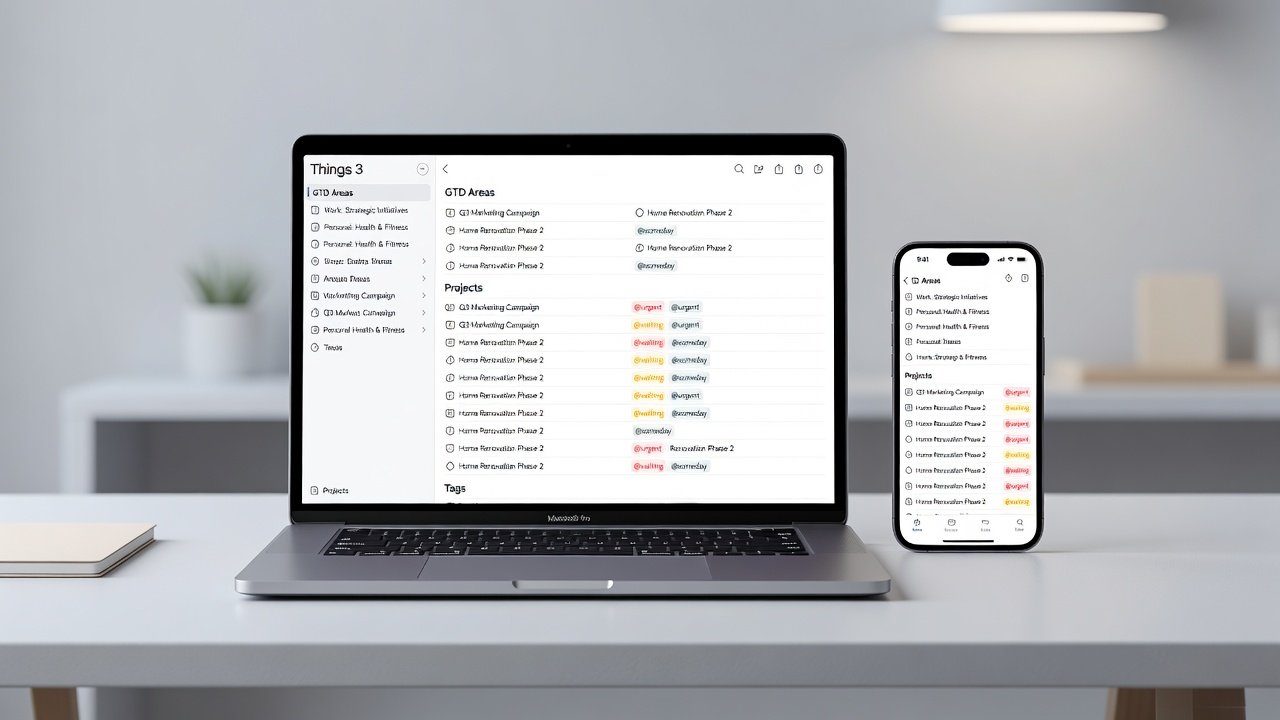
David Allen's Getting Things Done (GTD) methodology remains one of the most effective productivity frameworks available. When paired with the powerful features of Things 3 on Apple devices, users can create a seamless system for managing tasks, projects, and reviews. This guide walks through implementation from beginner to advanced levels, focusing on Areas, Projects, tags, deadlines, and custom Shortcuts for automation. Things 3 excels in its clean interface and deep Apple ecosystem integration, making it ideal for Mac, iPhone, iPad, and Apple Watch users seeking reliable task management without overwhelming complexity. Whether you are new to GTD or refining an existing setup, this comprehensive approach ensures your system scales with your life in 2026.
Setting Up Your GTD Foundation in Things 3
Begin by creating a dedicated GTD structure. Start with Areas of Responsibility to organize major life domains such as Work, Health, and Finance. Within each Area, build Projects that represent specific outcomes. For instance, under a Health Area you might create Projects like "Train for 10K Run" or "Schedule Annual Physical." This hierarchical approach mirrors GTD principles by separating higher-level responsibilities from actionable items. Navigate to the sidebar and add new Areas. For example, establish an Area called "Professional Development" and populate it with Projects like "Complete Advanced Certification." Use the Inbox for quick capture, then process items into appropriate Projects or Areas during daily reviews. Assign deadlines sparingly to maintain flexibility while using the Today view for time-sensitive items. Tags enhance filtering—create custom tags such as @errands, @calls, and @focus for context-based sorting. A practical example involves tagging a task like "Call accountant" with both @calls and @finance so it appears in multiple filtered views during weekly planning.
Creating Areas and Projects with Real-World Examples
Users often struggle with over-creating Projects, leading to decision fatigue. Limit each Area to five to seven active Projects initially. Break down a Project like "Launch New Website" into sequential tasks: research competitors, draft content outline, and select hosting provider. This natural planning model helps clarify next actions and reduces mental load. Review your Areas monthly to archive completed Projects and adjust priorities based on life changes.
Effective Use of Tags, Deadlines, and Reviews
Tags in Things 3 allow powerful queries that surface the right work at the right time. Combine them with deadlines for recurring tasks such as monthly reports or bill payments. Schedule weekly reviews by creating a recurring Project called "Weekly Review" and link it to custom Shortcuts. Deadlines should highlight only true due dates rather than artificial ones to avoid constant urgency. In practice, tag a recurring task like "Review budget spreadsheet" with @finance and set a monthly deadline, then let the app surface it automatically in the Upcoming view.
Building Custom Shortcuts for Recurring Reviews
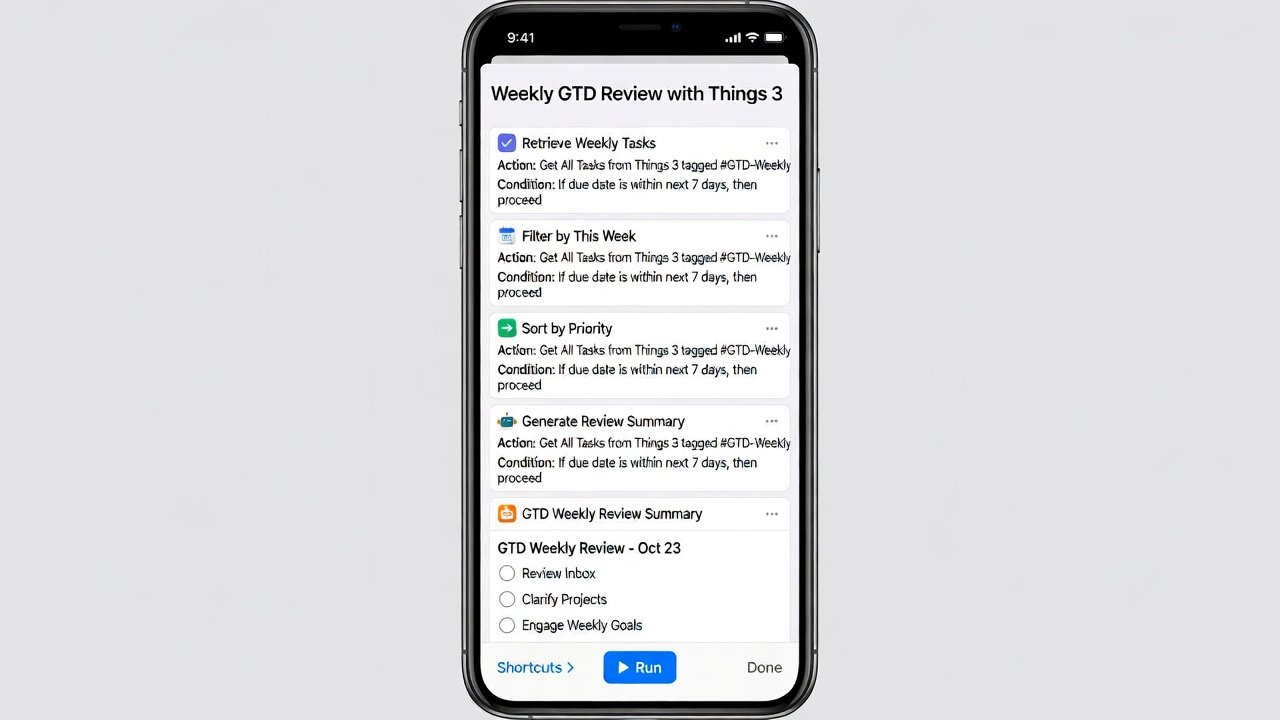
Use the Shortcuts app to automate inbox processing. A basic workflow might include: capturing new items, assigning tags based on context, and moving completed tasks to Someday. Integrate with Apple Calendar by linking due dates so events appear automatically in both apps. For project planning, break down large initiatives into sequential tasks with checklists. This approach mirrors GTD's natural planning model. Advanced users can chain multiple Shortcuts together—for example, one that gathers all tasks tagged @errands and generates a shopping list for the Reminders app. Test these automations after each Things 3 update to maintain reliability.
Step-by-Step Workflows for Inbox Processing and Project Planning
A robust daily workflow prevents backlog. Follow these steps consistently: first, capture everything in the Inbox without judgment during the day. Second, process each item by clarifying what it means and deciding the next action. Third, organize tasks into the correct Project or Area using drag-and-drop. Fourth, engage with your work by selecting context-specific lists. Fifth, conduct a weekly review to update statuses and reflect on progress. An example workflow for a new email arriving in your Inbox might involve turning it into a Project called "Client Proposal Revision" with subtasks for gathering data and scheduling a meeting. Use checklists within Projects to track multi-step outcomes and avoid missing dependencies.
Calendar Integration and Focus Modes
Sync Things 3 with Apple Calendar for seamless visibility across your schedule. Enable Focus modes on iOS and macOS to block distractions during deep work sessions tied to specific tags like @deepwork. Customize Focus filters so only relevant Areas appear when you activate a "Work" mode. This integration reduces context switching and supports GTD's emphasis on doing the right work at the right time. On Mac, link calendar events directly to Things 3 tasks so deadlines automatically populate both systems.
Apple Watch and Mobile Productivity
The Apple Watch app provides quick task entry and completion checks. Use complications to view Today items directly from the watch face, enhancing on-the-go GTD adherence. For example, glance at your watch during a commute to mark a task complete or add a quick voice note to the Inbox. iOS widgets on the home screen further extend this mobile workflow by displaying high-priority lists without opening the app.
Comparisons: Things 3 vs Todoist and Reminders
Compared to Todoist, Things 3 offers superior native Apple integration and a more intuitive interface for visual thinkers. Reminders provides basic functionality but lacks advanced project hierarchies and automation depth found in Things 3. Users prioritizing ecosystem simplicity often prefer Things 3 for long-term GTD implementation. Todoist excels in cross-platform sharing and labels, yet Things 3 wins for users already invested in Apple hardware due to faster performance and fewer sync issues. Evaluate your needs by testing free trials of each app before committing.
Common Mistakes to Avoid in GTD with Things 3
- Overusing deadlines, which creates unnecessary stress instead of clarity.
- Neglecting the weekly review, leading to forgotten tasks and system breakdown.
- Creating too many tags without consistent naming conventions.
- Failing to archive completed Projects, cluttering your sidebar.
Export Options, Backup Strategies, and Syncing
Export projects as CSV or Markdown for archiving. Enable iCloud sync for real-time updates across devices. Regular backups via Time Machine or third-party tools protect your data. For automation questions, test Shortcuts thoroughly after each Things 3 update. If you experience sync problems, verify iCloud settings on all devices and restart the app. Advanced users can export entire Areas periodically to maintain an external record of completed work.
Frequently Asked Questions
How do I handle syncing issues across devices?
Ensure iCloud is enabled and restart the app. Check Apple's system status page for outages. Reinstalling the app often resolves persistent sync conflicts without data loss.
Can I automate weekly reviews fully?
Yes, build a Shortcut that pulls open tasks and prompts for reflection before marking the review complete. Add steps to generate a summary report sent to your email for later reference.
What about data export for migration?
Things 3 supports CSV exports, allowing easy transfer to other apps if needed. Always keep a recent backup before attempting large migrations.
How should beginners start with tags?
Begin with only four to six core tags and expand gradually as your system matures. Avoid creating tags for one-off contexts that you will rarely reuse.
Mastering GTD in Things 3 transforms how you handle daily responsibilities. Start small, iterate your system, and leverage Apple automation to maintain momentum throughout 2026 and beyond. For official GTD resources visit the official GTD website. Learn more about Apple automation at Apple's support resources. Additional guidance on building reliable workflows is available through Apple Support.


No comments yet. Be the first!