 NeoBit Daily
Introduction to Runway 2026 and the AI Motion Brush
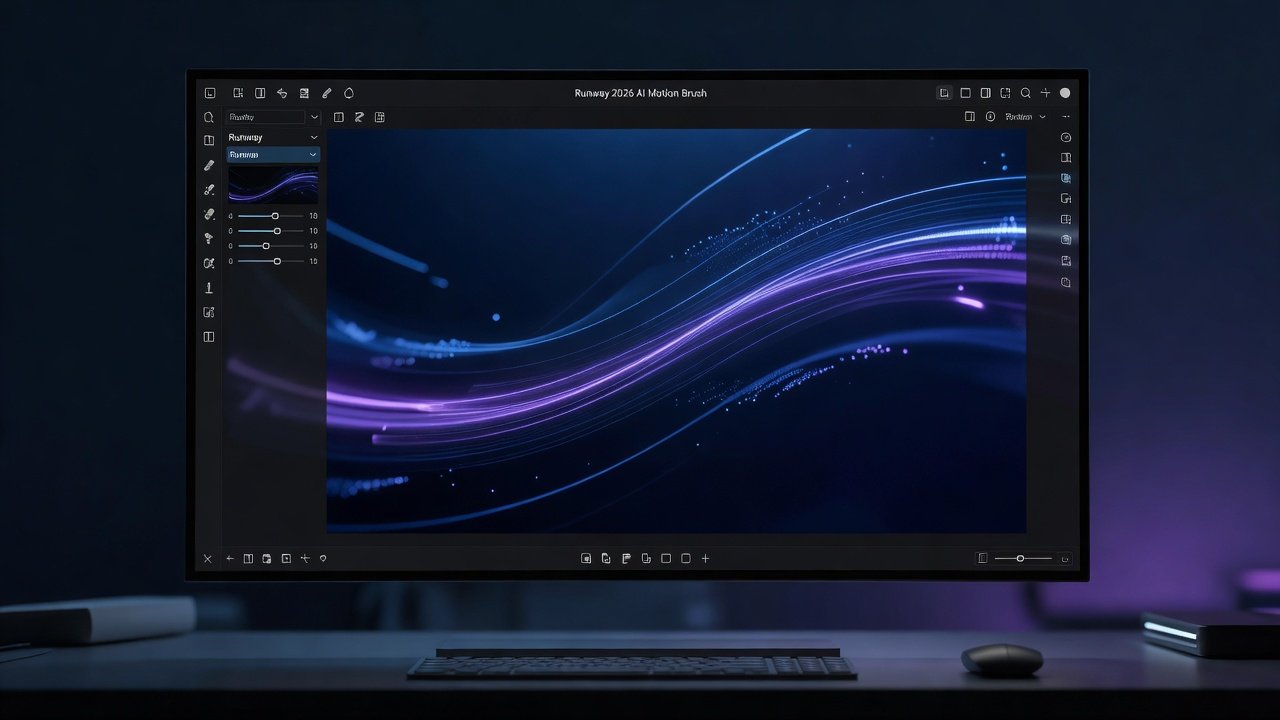
Runway 2026 introduces powerful updates to its AI-driven video tools, with the Motion Brush standing out as a game-changer for creators seeking granular control. This feature allows users to paint motion directly onto video frames, guiding AI-generated movements with precision that traditional keyframing cannot match. Intermediate editors can achieve faster iterations and higher-quality outputs by combining prompt engineering with layer masking and timeline refinements. The tool excels in professional projects where subtle animations or complex object tracking are required. By focusing on real-world applications, this guide provides actionable workflows drawn from creator experiences in advertising, short films, and social media content. Whether you are refining product animations or enhancing narrative sequences, the Motion Brush reduces repetitive manual work while preserving creative intent.
Getting Started with AI Motion Brush Setup
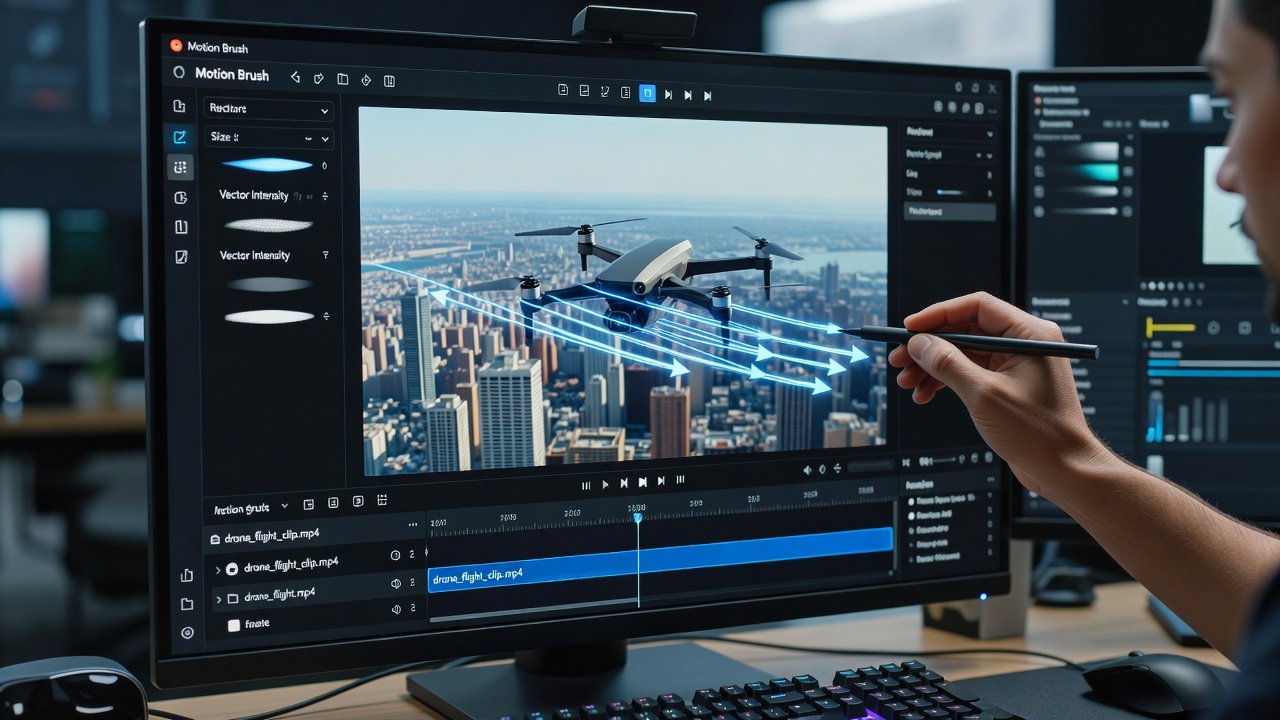
Begin by importing your footage into Runway 2026. Select the Motion Brush tool from the effects panel. The interface highlights brush size, opacity, and motion intensity sliders. Adjust these based on your clip's resolution for optimal performance. Performance optimizations include enabling GPU acceleration in settings and reducing preview resolution during initial passes. This approach minimizes lag on longer sequences while maintaining accuracy in final renders. Users should also calibrate their hardware by checking system requirements, as the AI processes motion vectors in real time. Experiment with sample projects included in the software to familiarize yourself with brush sensitivity before tackling client deliverables.
Prompt Engineering Fundamentals
Effective prompts start with clear descriptors of desired motion. For example, "gentle breeze moving leaves left to right at moderate speed" produces natural results. Combine these with layer masks to isolate elements like foreground objects from backgrounds. Test variations systematically: start broad, then refine with specifics such as direction, velocity, and interaction with other elements. This method reduces revision cycles compared to manual editing. Advanced users often incorporate secondary descriptors like "organic sway with slight acceleration on gusts" to achieve cinematic depth. Always iterate prompts in small batches to observe how the AI interprets nuances in phrasing and context.
Step-by-Step Workflow for Precise Edits
- Load clip and apply initial mask to target area using the selection tools.
- Paint motion strokes using the brush tool, varying pressure for intensity gradients across the frame.
- Enter prompt in the AI field and generate a low-res preview to evaluate directionality.
- Refine timeline by trimming or blending frames where motion artifacts appear, paying attention to frame rate consistency.
- Export test renders and iterate based on output quality, adjusting brush opacity for smoother transitions.
Practical examples include animating product reveals in e-commerce videos or creating dynamic transitions in music visuals. One creator project used the tool to simulate crowd movements in a 30-second ad spot, cutting production time significantly versus traditional methods. Another example involved animating water ripples in a nature documentary clip by painting directional flow across multiple layers, resulting in fluid motion that aligned perfectly with voiceover pacing.
Layer Masking and Timeline Refinements
Advanced masking supports feathered edges and multiple overlapping layers. Use the timeline to keyframe mask opacity or motion strength for evolving effects across shots. This integration allows seamless blends between AI-generated and original footage. Refinements often involve duplicating layers to apply different motion intensities to the same element, creating depth without additional renders. In practice, this technique shines when editing complex scenes such as vehicle tracking shots, where foreground and background require independent motion vectors. The combination of masking and timeline adjustments provides control comparable to node-based compositing systems while remaining intuitive for video editors transitioning from simpler software.
Integrations with CapCut and Premiere Pro
Export Motion Brush sequences from Runway and import directly into CapCut for mobile-friendly polishing or Adobe Premiere Pro for broadcast-level color grading. Sync timelines via XML or EDL files to maintain frame accuracy. These workflows enhance productivity by leveraging each platform's strengths: Runway for AI motion, CapCut for quick effects, and Premiere for complex audio mixing. For deeper platform knowledge, refer to Runway's official documentation when setting up automated export pipelines. Intermediate users report that chaining these tools together allows them to complete revisions in hours rather than days.
Comparisons to Manual Editing Methods
Traditional manual editing in programs like After Effects requires extensive keyframing and rotoscoping for similar motion effects. The AI Motion Brush automates much of the path creation while still allowing human oversight through prompts and masks. This hybrid approach yields higher consistency across frames and reduces eye strain from prolonged manual adjustments. In side-by-side tests on identical clips, creators noted smoother motion curves and fewer artifacts when using the AI-assisted method, particularly in scenes with organic elements like foliage or fabric movement.
Troubleshooting Common Issues
- Artifacting: Increase brush feathering or lower motion intensity and regenerate the affected segment.
- Inconsistent speed: Add directional prompts and review frame-by-frame, then apply easing curves on the timeline.
- Performance slowdowns: Clear cache and limit concurrent layers to two or three during preview stages.
- Mask bleed: Refine edges with the eraser tool before generation and test on isolated clips first.
- Color shifts post-export: Apply a correction layer in Premiere or CapCut to match source footage.
Always test on short clips first to validate settings before full-project application. Documenting successful prompt templates in a personal library speeds up future projects.
Advanced Techniques and Best Practices
Combine Motion Brush with audio-reactive features by importing waveform data to drive motion intensity. Use multiple brush passes with varying opacity to build cumulative effects, such as layered wind on different foliage depths. Best practices include working at 24 or 30 fps for cinematic output and maintaining consistent lighting references across source clips to help the AI predict realistic shadows during motion generation.
FAQ
How does Motion Brush differ from basic AI motion tools?
It offers direct painting control, enabling localized edits without affecting the entire frame and supporting per-layer customization.
Can it handle 4K footage effectively?
Yes, with optimized settings and sufficient hardware resources for smooth playback during preview and export phases.
What file formats are supported for export?
Common formats include MP4, MOV, and ProRes for high-quality delivery to downstream editing applications.
Is training data required for custom motion styles?
No additional training is needed; the model responds directly to text prompts and brush inputs for immediate results.
How many layers can be processed simultaneously?
Up to five active motion layers are recommended for stable performance on mid-range GPUs as of late 2026.
Conclusion
Runway 2026's AI Motion Brush empowers intermediate creators to deliver professional video edits with greater speed and precision. By mastering prompt engineering, masking, and integrations, users unlock workflows that outperform manual techniques in efficiency and creative flexibility. Apply these techniques to your next project for measurable gains in output quality and iteration speed.
No comments yet. Be the first!