 NeoBit Daily
Introduction to Advanced Apple Pages 2026 Workflows
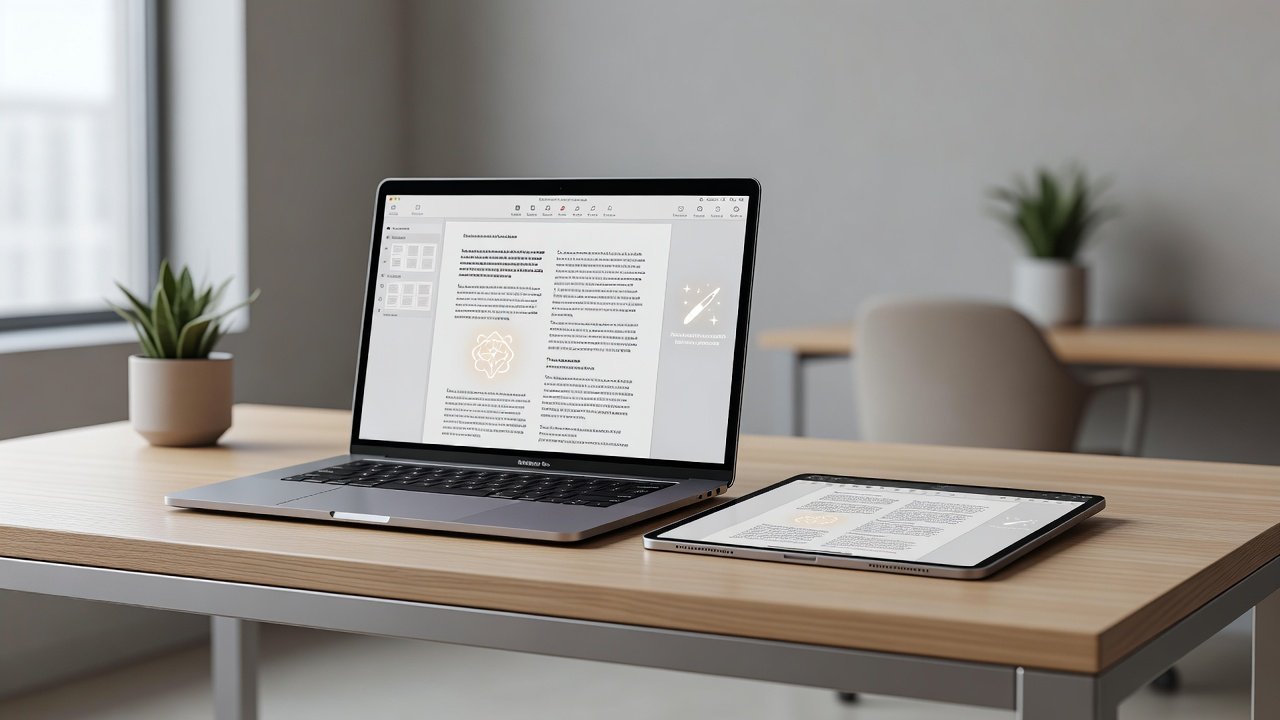
Apple Pages 2026 delivers powerful tools for professionals creating complex documents in business, academia, and publishing. This guide explores power-user techniques for custom styles, template creation, real-time collaboration via iCloud, Apple Intelligence writing assistance, and Shortcuts automation. You will also learn mobile editing on iPad, PDF export best practices, and integrations with Numbers and Keynote.
Pages stands out for its seamless Apple ecosystem integration and focus on clean, professional output. Whether you are formatting a multi-section report or collaborating on a research paper, these features streamline your process.
Creating and Managing Custom Styles
Custom paragraph, character, and list styles form the foundation of consistent document design. Open the Format sidebar and select the Style tab to create new styles. For example, define a "Chapter Title" style with specific font, size, color, and spacing settings that apply instantly across sections.
Step-by-step: Select text, adjust formatting, then click the style name at the top of the Format pane and choose "Create New Paragraph Style." Name it descriptively and decide whether to include it in new documents. This approach prevents formatting drift in long documents like theses or proposals.
Building Professional Templates from Scratch
Start with a blank document and save it as a template via File > Save as Template. Include master pages for headers, footers, and page numbers. Add placeholders for images and text using the Media placeholder and Text placeholder tools.
For business reports, embed dynamic fields such as date and author using Insert > Field. Academic users benefit from built-in citation styles that update automatically when linked to sources. Test your template by creating a sample document and verifying that all elements scale correctly on different devices.
Real-Time Collaboration with iCloud
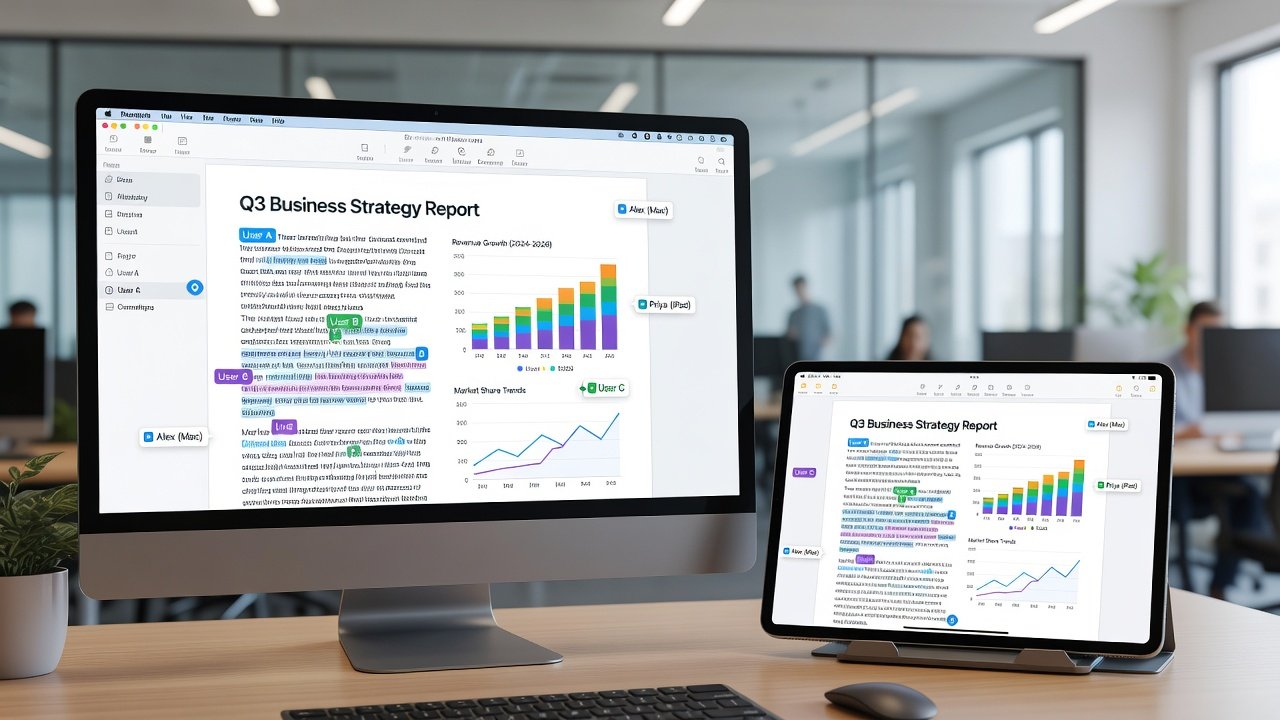
Share documents via iCloud Drive or direct link to enable simultaneous editing. Participants see cursor positions and changes in real time. Control permissions by setting view-only or edit access for each collaborator.
Advanced tip: Use the Activity view to track revisions and resolve conflicts. For large teams, combine collaboration with version history to restore previous states without losing work. This feature shines in academic group projects where multiple contributors edit simultaneously.
Leveraging Apple Intelligence Writing Tools
Apple Intelligence in Pages 2026 offers inline writing suggestions, summarization, and tone adjustment. Select text and tap the Writing Tools icon to rewrite for clarity, professionalism, or brevity. The system respects user privacy by processing requests on-device when possible.
Practical example: Paste rough meeting notes, then use the "Make Professional" option to generate polished minutes ready for distribution. Combine with the proofreading tool to catch inconsistencies before final export.
Automating Tasks with Shortcuts
Integrate Pages with the Shortcuts app to create automated workflows. Build a shortcut that opens a specific template, populates fields with data from Numbers, and exports to PDF. Use actions such as "Create Document from Template" and "Export to PDF."
For repetitive academic tasks, create a shortcut that applies a standard citation style and adds page numbers before saving to a shared folder. These automations save hours on monthly reporting cycles.
Complex Layouts and iPad Mobile Editing
Master floating text boxes, linked text frames, and object styles for newsletters and brochures. On iPad, use Apple Pencil for precise annotations and the split-view mode to reference source material while editing.
Workflow example: Design a business proposal on Mac, then refine layout and add handwritten signatures on iPad. Pages automatically syncs changes across devices via iCloud.
PDF Export Best Practices
Choose File > Export To > PDF and select quality settings based on use case. For print, enable high-resolution images and embed fonts. For digital distribution, optimize file size while preserving hyperlinks and bookmarks.
Advanced option: Create interactive PDFs with form fields for client feedback forms. Always preview the exported file to confirm that complex layouts remain intact.
Comparison: Apple Pages 2026 vs Microsoft Word 2026
Pages excels in real-time collaboration speed and native Apple device optimization. Word offers deeper cross-platform compatibility and more extensive macro support. Pages provides superior template sharing within the Apple ecosystem and tighter integration with iCloud Drive.
Unique Pages advantages include Apple Intelligence features that feel more integrated and lower resource usage on Mac and iPad hardware. Choose Pages when your workflow stays primarily within Apple devices; opt for Word for mixed Windows environments.
Integrations with Numbers and Keynote
Link live charts from Numbers directly into Pages documents. Changes in the spreadsheet update automatically. Similarly, embed Keynote slides as interactive objects for presentations that evolve alongside your report.
This interoperability creates a unified Apple productivity suite ideal for quarterly business reviews or research portfolios.
Performance Tips and Common Pitfalls
- Keep documents under 500 MB by compressing images before import.
- Use master pages instead of copying elements to avoid bloated files.
- Regularly clear the Undo history when working on very large projects.
- Avoid mixing too many custom fonts to prevent export issues.
FAQ: Advanced Formatting Questions Answered
How do I fix inconsistent heading styles across collaborators? Standardize styles in the template before sharing and lock the style definitions.
Can I automate PDF naming with Shortcuts? Yes, use the Rename File action with date variables before the export step.
What happens to Apple Intelligence suggestions when offline? On-device models continue functioning; cloud-based suggestions pause until reconnection.
Is there a limit to linked text frames? Pages supports up to 50 linked frames per document for complex magazine layouts.
Conclusion
Apple Pages 2026 empowers users to produce polished, collaborative documents efficiently. By mastering custom styles, templates, Apple Intelligence tools, and Shortcuts, you gain a competitive edge in professional and academic settings. Explore these techniques on apple.com and review official guidance at support.apple.com. Start with one workflow today and build toward full mastery.

No comments yet. Be the first!