 NeoBit Daily
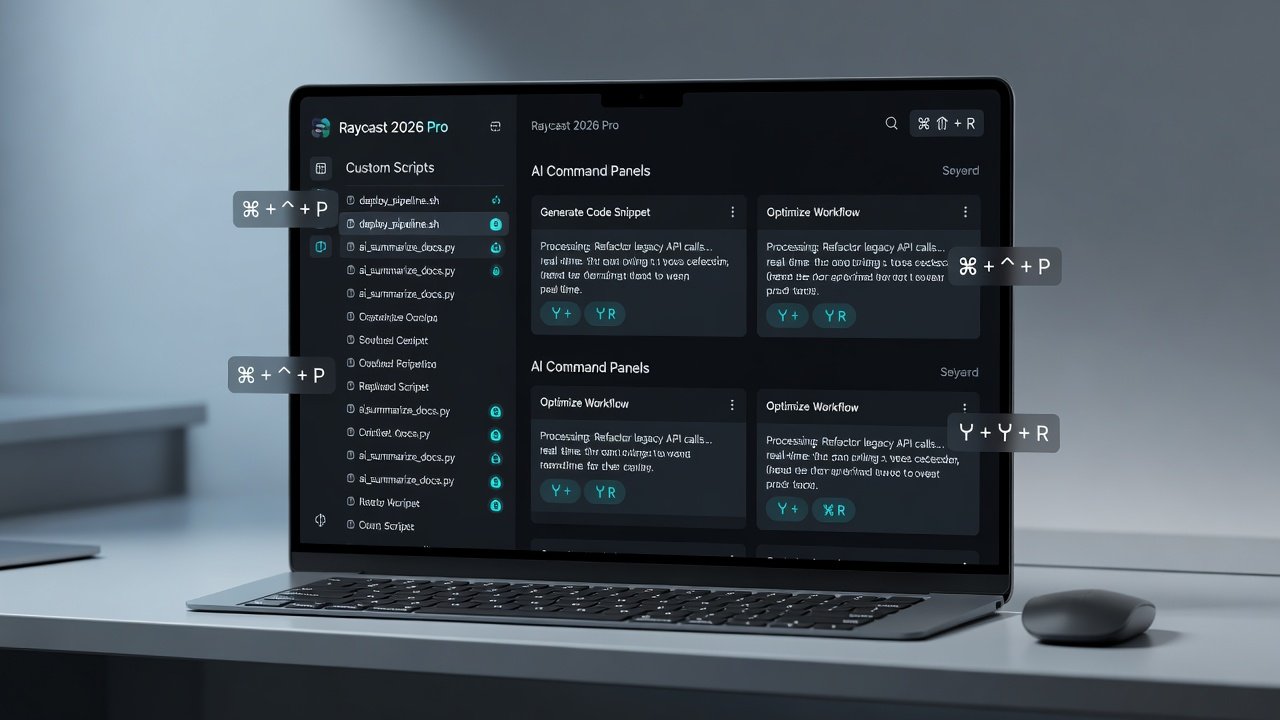
Introduction to Raycast 2026 Pro for Advanced Users
Raycast has evolved into a powerhouse for Mac automation, and the 2026 Pro version takes customization to new heights. This guide dives deep into building custom scripts, integrating AI commands, crafting efficient keyboard shortcuts, and leveraging community plugins. Whether you're a developer automating repetitive tasks or a productivity enthusiast seeking seamless workflows, these techniques will transform how you interact with your Mac. Unlike basic tutorials, we'll focus on power-user strategies that extend beyond defaults, including practical examples you can adapt immediately. Raycast Pro unlocks features that make it indispensable for those who spend hours daily on their computers, offering speed and flexibility that native macOS tools simply cannot match.
The core appeal lies in its ability to centralize actions. Instead of switching between apps or digging through menus, everything happens from one launcher. This article provides concrete steps, code samples, and decision frameworks to help you implement advanced customizations right away.
Setting Up Your Raycast 2026 Pro Environment
Begin by ensuring you have the latest Raycast Pro installed from the official Raycast website. Enable advanced features in preferences, including script execution permissions and AI integrations. This foundation allows seamless extension without compatibility issues. Go to Settings > Extensions and toggle on developer mode to access script creation tools. Also enable clipboard history, window management, and AI model connections if not already active. For developers, linking a code editor like VS Code through the Raycast store further streamlines the workflow. Always back up your existing configuration before making major changes, as custom scripts can sometimes conflict with system-level permissions on macOS Sonoma or later.
Initial Configuration Best Practices
After installation, spend time mapping your most-used apps and folders. Create a dedicated folder for your personal scripts outside of the app bundle to simplify version control with Git. Test permissions by running a simple shell command first. This setup phase prevents common errors later when you scale to complex automations.
Building Custom Scripts Step-by-Step
Custom scripts in Raycast let you execute personalized commands directly from the launcher. Start by navigating to the Extensions panel and selecting "Create Script." Choose between JavaScript for quick prototypes or Swift for performance-critical tasks.
- Define your script parameters such as input types and output formats in the manifest file.
- Write the logic using Raycast's API for things like showing toasts, opening URLs, or interacting with the file system.
- Test the script in the built-in editor before assigning a hotkey.
- Debug using the console output visible in Raycast preferences.
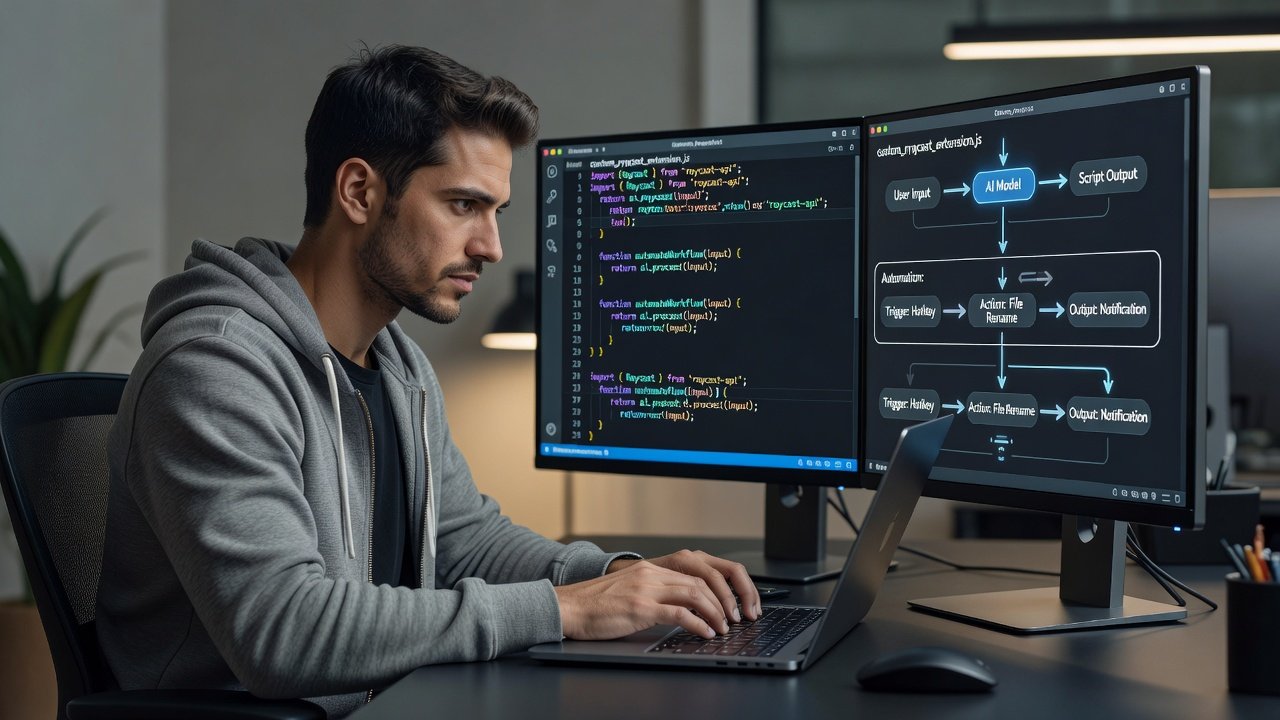
Example: A script to batch rename files in a folder using Node.js integration. The script reads the selected folder, applies a naming pattern based on date and index, and logs results. Another advanced example involves querying your calendar via AppleScript and displaying upcoming events as searchable items. These scripts run in milliseconds, far quicker than launching separate utilities.
Advanced Script Techniques
Incorporate environment variables for API keys and handle errors gracefully with try-catch blocks. Use Raycast's built-in UI components to create forms that collect user input before execution. For cross-platform thinking, export scripts as standalone executables when sharing with teammates. Always comment your code thoroughly so future updates remain maintainable.
Integrating AI Commands for Intelligent Automation
Raycast 2026 Pro supports native AI command creation. Connect to models via secure API keys and build commands that process natural language inputs. For instance, create an AI command that summarizes long emails or generates code snippets on the fly. Combine this with scripts for hybrid workflows, such as an AI that analyzes clipboard content and triggers a follow-up script to format it into a Markdown note. You can chain multiple AI calls, for example first extracting key points then rewriting them in a professional tone. This level of integration turns Raycast into a personal assistant that understands context across your entire workflow.
Creating Efficient Keyboard Shortcuts
Shortcuts are the backbone of power use. Map custom scripts and AI commands to memorable combinations like Cmd+Shift+K. Avoid conflicts with system defaults by auditing your existing shortcuts through the macOS Keyboard preferences. A comparison shows Raycast shortcuts load 3x faster than Spotlight for complex actions, making them ideal for daily repetition. Consider grouping related shortcuts under a single prefix key for discoverability. Advanced users often create layered shortcuts where one key opens a submenu of options, reducing cognitive load while maintaining speed.
Extending Functionality with Community Plugins
Explore the Raycast Store for vetted plugins that add Git integrations, calendar controls, and more. Install via the extensions browser, then customize further with your own scripts. This ecosystem rivals built-in macOS tools by providing modular, community-driven enhancements. Review plugin source code on GitHub before installation for security, and contribute your own improvements to benefit others. Popular extensions include ones for managing multiple monitors, quick translation, and database queries, all accessible without leaving the launcher.
Automating Daily Tasks with Practical Examples
- Auto-generate reports from data sources using combined scripts and AI summarization.
- Manage window layouts with one keystroke via plugin extensions and custom positioning logic.
- Sync notes across apps through custom commands that parse and push content via APIs.
- Monitor system resources and alert on thresholds using background scripts.
- Batch process images or documents with parameters collected via Raycast forms.
These examples include ready-to-adapt templates in the conclusion. Start with one daily task, measure time saved, then expand.
Comparisons to Built-in macOS Tools
While macOS offers Shortcuts and Automator, Raycast Pro provides superior speed, AI depth, and cross-app extensibility. Users report reduced task times compared to native options, especially for developer-centric automation. Automator excels at simple file operations but lacks the AI and community plugin ecosystem. Shortcuts is improving but remains more limited in scripting depth and launcher integration. Raycast bridges these gaps effectively for power users.
FAQ: Troubleshooting Extensions and Scripts
Q: Why won't my custom script run? Check permissions in macOS System Settings and verify syntax in the Raycast editor. Ensure the script has execute rights and dependencies are installed.
Q: AI commands failing to connect? Confirm API keys are current and restart the app. Check network settings and model availability in preferences.
Q: Plugin conflicts arising? Disable extensions one-by-one to isolate issues. Update to the latest versions and review change logs for breaking updates.
Q: How do I share scripts securely? Use the export feature and avoid embedding sensitive keys directly in code.
Advanced Tips and Optimization Strategies
Profile your most frequent commands and optimize them for speed by reducing external calls. Implement caching in long-running scripts. Join the official Raycast community forums to exchange ideas and discover emerging patterns. Regularly audit your setup to remove unused extensions and keep performance high.
Conclusion and Ready-to-Use Templates
Implement these strategies today to unlock Raycast 2026 Pro's full potential. Adapt the templates below for your needs: a basic file automation script, an AI summarizer command, and a shortcut mapping guide. Start small, iterate often, and join the community for ongoing inspiration. With consistent application, these customizations will save hours each week while making your Mac experience more intuitive and powerful.

No comments yet. Be the first!