 NeoBit Daily

Introduction to Advanced Logseq Techniques in 2026
Researchers in 2026 face overwhelming volumes of notes, papers, and data. Logseq stands out as a powerful open-source tool for building structured knowledge graphs. This guide dives deep into custom queries, graph optimization, and academic integrations to transform your workflow. By mastering these features, you can automate data handling, create bidirectional links effectively, and export polished outputs for publications. The emphasis on productivity through automation and structured data helps researchers save hours each week on organization tasks.
Whether you are managing a thesis, systematic literature review, or collaborative project, these techniques scale from small personal graphs to institutional-sized knowledge bases. We will cover everything from foundational query syntax to advanced performance tuning and real academic case studies.
Understanding Logseq Query Syntax Basics
Logseq queries use a simple yet flexible syntax based on Clojure. Start with basic blocks and properties to filter research notes efficiently. The core structure relies on predicates that match page properties, block content, and tags. For example, the query {{query (property :type "paper")}} pulls every block marked with the paper property. You can chain conditions using logical operators such as and, or, and not to refine results further.
Advanced users leverage regex patterns and built-in functions for precise control. A typical pattern for date-based filtering looks like {{query (and (property :type paper) (property :published-date [:between "2025-01-01" "2026-10-07"]))}}. This syntax allows researchers to isolate recent publications without manual scanning. Understanding these building blocks forms the foundation for more complex academic queries.
Combining Multiple Properties in Queries
When handling interdisciplinary research, combine author, topic, and methodology properties. An example query might read {{query (and (property :author "Smith") (property :topic "machine-learning") (property :method "qualitative"))}}. This returns only the most relevant blocks while ignoring unrelated notes. Test queries incrementally to verify each condition works before adding complexity.
Step-by-Step Query Examples for Academic Workflows
Build queries progressively. First, query all citations with {{query (property :citation true)}}. Next, nest queries to pull related PDFs and annotations using page references. For literature reviews, create a master query that surfaces blocks containing both keywords and specific tags. Researchers often maintain a dedicated queries page where they store and iterate on these expressions.
Performance tip: Limit results with :limit 50 to avoid slowdowns on graphs exceeding 10,000 blocks. Add sorting with :sort-by :created-at desc to surface newest entries first. These small adjustments keep the interface responsive during intensive research sessions.
Performance Optimization for Large Research Graphs
Large graphs can lag when queries scan every block. Index frequently used properties by marking them in your graph settings and use page-level queries instead of block-level where possible. Regularly prune unused namespaces and archive completed projects into separate graphs. Another effective technique involves converting repetitive data into structured properties rather than free-text blocks, which speeds up filtering dramatically.
Monitor graph size weekly and run maintenance queries that identify orphaned pages. Users report noticeable speed gains after implementing these habits, especially when graphs grow beyond 50,000 blocks.
Building Knowledge Graphs Tailored for Researchers
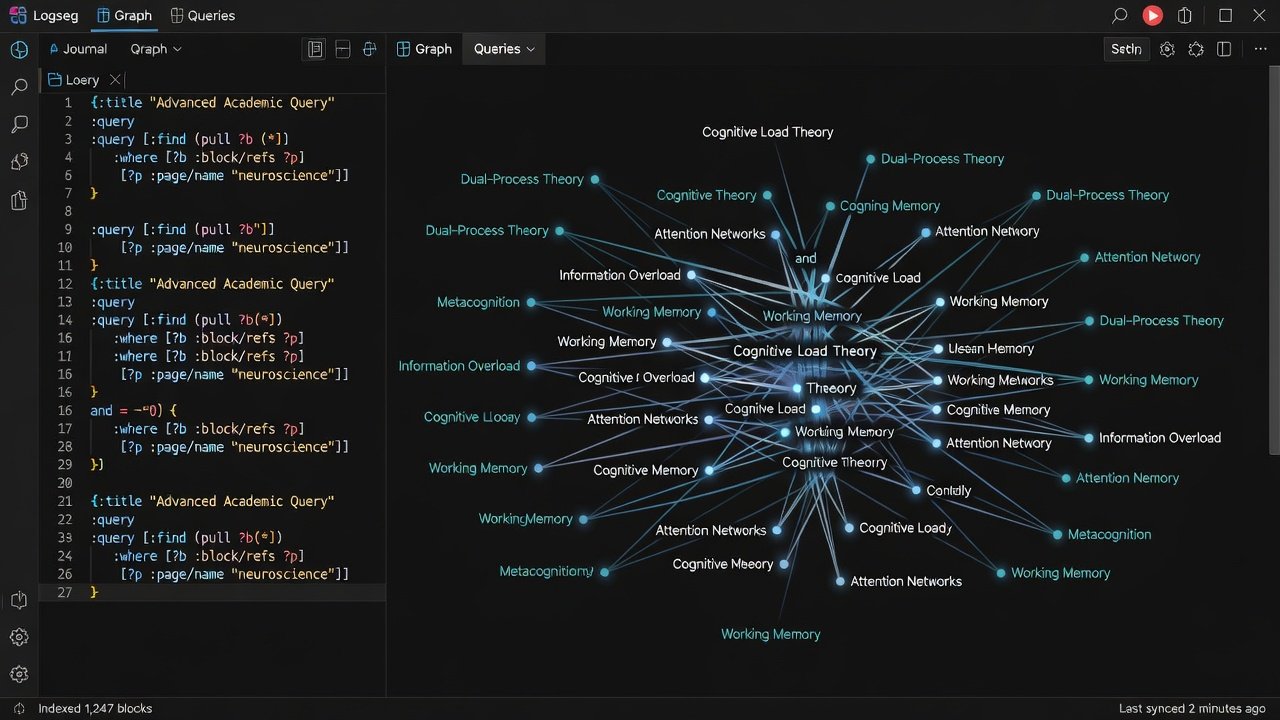
Structure notes with consistent properties like :author, :topic, :related, and :status. Visualize connections using the built-in graph view to spot research gaps quickly. Color-code nodes by property values to distinguish papers, experiments, and ideas at a glance. Hierarchical page structures combined with tags create multiple navigation paths through the same material.
Integration with Academic Plugins: Citations and PDF Tools
Install plugins for Zotero sync and PDF annotation. These enable seamless citation management and inline referencing, boosting academic output. The citations plugin automatically extracts metadata and creates bidirectional links between notes and source PDFs. PDF tools allow highlighting and commenting directly inside Logseq, with annotations saved as queryable blocks.
Learn more at the official Logseq website. For citation management details, visit Zotero.
Real-World Case Studies from Academic Users
A PhD candidate in biology used custom queries to link 500+ experimental notes, reducing literature review time by half. Queries surfaced related protocols and results automatically, allowing rapid synthesis across datasets. Another researcher integrated PDF tools to auto-generate bibliographies for journal submissions, cutting formatting time from days to hours. A third case involved a sociology team that built a shared graph for collaborative coding of interview transcripts, using advanced queries to track theme emergence across hundreds of documents.
Logseq vs Obsidian Graph Views: Key Comparisons
While Obsidian offers polished graph visuals, Logseq excels in query power and open data formats. Logseq stores everything in plain Markdown and EDN files, giving researchers full control and version-control compatibility. Obsidian’s canvas and graph features shine for visual thinkers, yet lack the structured querying depth needed for systematic reviews. Choose Logseq for structured academic data; see details on Obsidian.
Bidirectional Linking Best Practices
Always use consistent page titles and aliases. Link notes bidirectionally to create robust networks that surface hidden connections automatically. For example, link every mention of a theory back to its dedicated page while also referencing supporting studies from that page. This practice turns isolated notes into an interconnected knowledge base that grows more valuable over time.
Export Options for Research Papers and Publications
Export to Markdown, LaTeX, or PDF with plugins. Maintain formatting for citations and graphs to streamline journal submissions. Advanced users script exports that pull query results directly into formatted sections, preserving headings and property data. This automation supports reproducible research workflows.
Practical Exercises to Organize Research Notes
- Create a sample graph with 20 notes on a single topic and assign consistent properties.
- Write three advanced queries combining multiple conditions and test performance on your dataset.
- Build bidirectional links between notes and visualize the resulting graph.
- Install one academic plugin and configure automatic citation extraction.
- Export a section as a draft paper section and review formatting quality.
- Optimize one slow query by adding limits and property indexes, then measure the improvement.
FAQs on Common Query Errors
Q: Why is my query returning no results? A: Check property spelling, ensure blocks are properly tagged, and verify date formats match your system settings.
Q: How to fix slow graph loads? A: Optimize by archiving old pages, converting text to properties, and using targeted rather than global queries.
Q: Can queries reference other queries? A: Yes, embed query results as blocks and reference those pages in new queries for layered analysis.
Q: What causes syntax errors in complex queries? A: Missing parentheses or incorrect operator placement are common; test each clause separately before combining them.
Conclusion: Boosting Research Productivity
Advanced Logseq techniques empower researchers to automate workflows and uncover insights faster. Implement these strategies to elevate your knowledge management in 2026 and beyond, turning scattered notes into a living, queryable research asset.


No comments yet. Be the first!