 NeoBit Daily

Introduction to Cursor 2026
Cursor 2026 represents the next evolution in AI-powered code editors, building on its VS Code foundation with advanced large language models tailored for developers. This comprehensive guide walks you through everything from initial setup to sophisticated workflows that deliver faster iteration and reduced context-switching. Whether you are a beginner exploring AI assistance for the first time or an advanced developer seeking to optimize large-scale projects, Cursor 2026 offers tools that transform daily coding habits into highly efficient processes. The 2026 model updates introduce improved context awareness, better multi-file reasoning, and enhanced support for modern frameworks, making it a standout choice compared to traditional editors.
Getting Started with Cursor 2026 Setup
Begin by downloading the latest version from the official site. Install the editor and sign in with your preferred account to unlock AI features powered by 2026 model updates. Configure your workspace by linking existing VS Code extensions and enabling real-time AI suggestions. For optimal performance, allocate sufficient system resources, such as enabling GPU acceleration if your machine supports it. Customize the theme and keybindings early to match your existing habits from other IDEs. Import settings from VS Code directly during the first launch to minimize disruption. Once set up, explore the command palette to discover AI-specific commands like "Generate Code" or "Explain Selection." This foundational step ensures you can immediately start leveraging the editor's strengths without friction.
Custom Prompts for Refactoring and Debugging
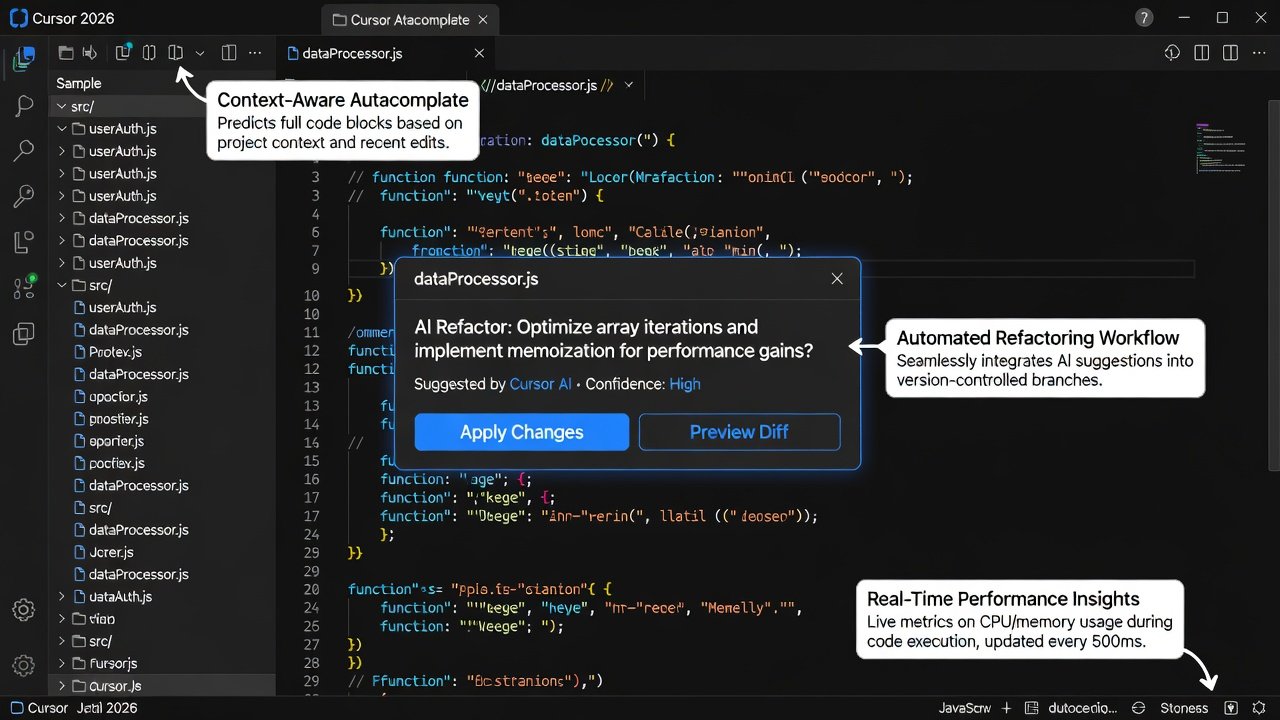
Effective prompting transforms how you refactor code. Use templates like: "Refactor this function for better performance while maintaining readability and adding inline comments." For debugging, try: "Identify potential edge cases in this loop and suggest fixes with unit test examples." These prompts leverage Cursor's updated models for context-aware results. Advanced users can chain prompts across multiple files, asking the AI to maintain consistency in naming conventions or error handling patterns. Step-by-step example: Open a Python file, highlight a complex class, and apply a custom prompt to extract methods automatically. Then follow up with another prompt to generate corresponding tests. Experiment with temperature settings in the prompt interface to balance creativity and precision in outputs. Over time, building a personal library of reusable prompts accelerates repetitive tasks significantly.
Integration with Git and VS Code Extensions
Cursor 2026 seamlessly integrates with Git workflows. Enable inline diff suggestions and AI-generated commit messages. Popular extensions like ESLint and Prettier work natively, while new 2026 AI extensions enhance autocomplete accuracy. Connect your repositories and let the AI suggest branch names or resolve merge conflicts intelligently. For extension management, browse the integrated marketplace and prioritize tools that complement AI features, such as those for linting or database visualization. This integration reduces the need to switch between terminal windows and the editor, keeping your focus on coding. Learn more about compatible tools at Visual Studio Code marketplace.
Real-Time Collaboration Features
Share workspaces with teammates for simultaneous editing powered by AI conflict resolution. This reduces merge issues and accelerates team velocity compared to traditional IDEs. Features include live cursors, shared AI chat sessions, and automatic synchronization of project context. In distributed teams, these capabilities cut down on lengthy video calls for code reviews. Set permissions carefully to control who can trigger AI generations, ensuring quality control in collaborative environments.
Performance Optimization Tips
To maximize efficiency, follow these practical strategies: Enable model caching for repetitive tasks so the editor learns your coding style quickly. Use keyboard shortcuts to minimize mouse usage and maintain flow state. Monitor token usage to avoid unnecessary API calls by refining prompts upfront. Regularly update to incorporate the latest 2026 AI improvements that often include speed enhancements. Additionally, break large projects into modular workspaces and disable non-essential extensions during intensive coding sessions. These adjustments lead to noticeable reductions in latency and improved responsiveness during long work periods.
Building a Full Feature: Step-by-Step Example
Let's build a user authentication module in a React app. Start with project scaffolding using the built-in terminal and AI-assisted folder structure generation. Next, prompt the AI to create secure login forms with validation logic. Proceed to API integration by describing your backend endpoints in natural language, allowing Cursor to generate fetch calls and error handling. Add unit tests through targeted prompts that cover edge cases like invalid credentials. Finally, optimize for performance by asking for memoization suggestions. Each iteration shows measurable time savings versus manual coding, often cutting development time by half for similar features.
Comparisons to Traditional IDEs
Unlike standard VS Code or IntelliJ, Cursor 2026 reduces context-switching by embedding AI directly in the flow. Developers report completing features in half the time based on recent benchmarks from authoritative developer resources. Traditional IDEs require manual research and separate tools for suggestions, while Cursor unifies these into one interface. The AI's ability to understand entire codebases provides deeper insights than basic autocomplete functions available elsewhere. Explore foundational web standards at MDN Web Docs to complement your Cursor workflows.
Measurable Productivity Gains
Users commonly experience faster iteration cycles because AI handles boilerplate and suggests optimizations instantly. Reduced context-switching comes from keeping documentation, explanations, and code generation within the same window. Track your own gains by timing tasks before and after adopting Cursor 2026. Many teams note improved code quality with fewer bugs reaching production due to proactive debugging assistance.
FAQ on Common Pitfalls
How do I handle overly generic AI suggestions? Refine prompts with project-specific context such as file paths or existing function names.
Is Git integration reliable? Yes, but always review AI commits before pushing to maintain repository integrity.
What about large codebases? Break tasks into smaller chunks for best results and leverage multi-file context features.
Can beginners use advanced prompts effectively? Start with simple templates and gradually add complexity as you gain familiarity.
How do 2026 model updates affect older projects? They generally improve compatibility but test thoroughly on legacy code to avoid unexpected refactors.
Conclusion
Cursor 2026 empowers developers at every level to achieve new productivity heights through intelligent assistance. Apply these workflows today for immediate gains in speed and code quality. Continued exploration of its features will reveal even more opportunities to streamline your daily development routine.


No comments yet. Be the first!