 NeoBit Daily
Introduction to Craft 2026 as Your Second Brain
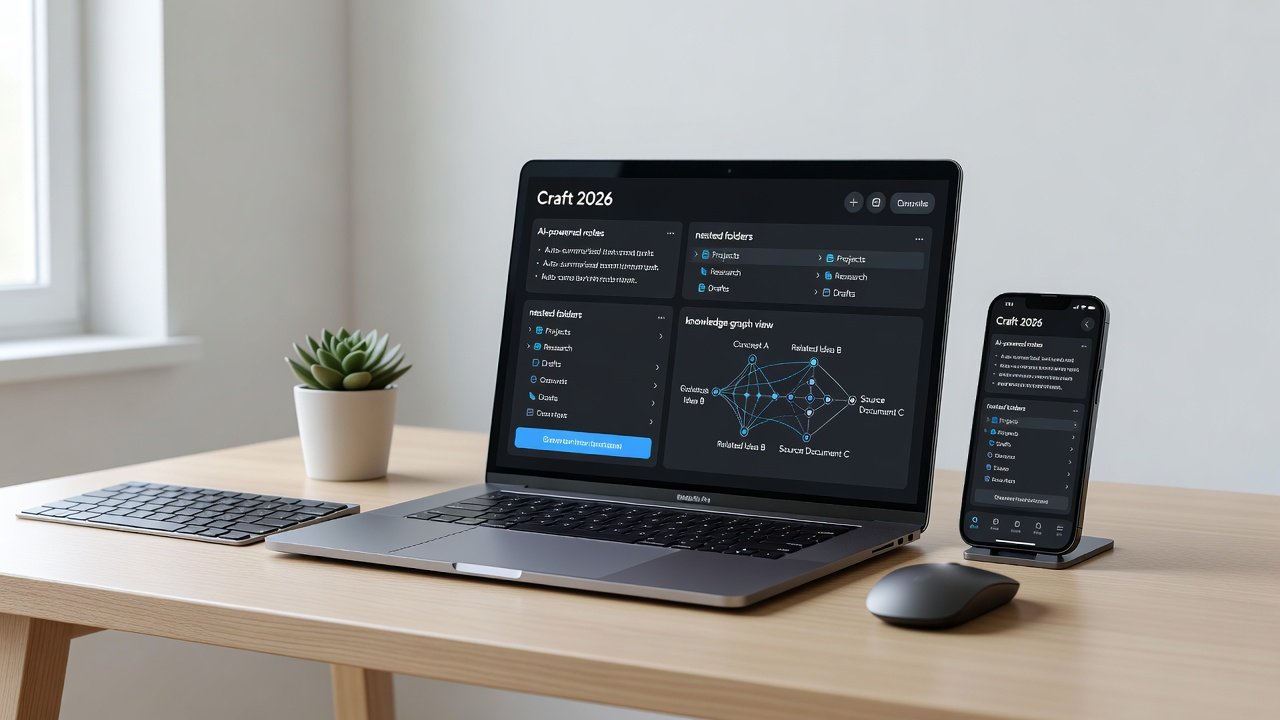
Craft 2026 transforms how you capture, organize, and retrieve knowledge by combining elegant note-taking with powerful AI features. This comprehensive guide walks beginners through intermediate users on building a robust second-brain system that works seamlessly across iOS and Mac devices. A second brain acts as an external extension of your memory, allowing you to store ideas, research, tasks, and insights in a searchable, interconnected format that grows over time.
Whether you are a researcher managing multiple studies, a student juggling coursework, or a professional tracking projects and meetings, Craft helps centralize everything. Its clean interface, native iCloud sync, and built-in AI tools make it especially ideal for mobile-first users who need quick access while commuting or traveling. Unlike generic note apps, Craft emphasizes bidirectional linking and visual exploration, turning scattered thoughts into actionable knowledge networks.
Getting Started: Account Setup and Core Features
Begin by downloading Craft from the Apple App Store on both iOS and Mac. Create an account using your email or Apple ID for instant sync via iCloud. Enable end-to-end encryption in settings for secure knowledge storage, which is essential when handling sensitive research or personal data. Once logged in, explore the sidebar navigation to understand spaces, which serve as top-level containers for different projects or life areas such as Work, Personal Development, and Health.
Core features include real-time collaboration, rich media embeds, and the new AI assistant panel introduced in the 2026 update. Spend time customizing the quick-capture shortcut on iOS so you can jot ideas without opening the full app. Test sync by creating a simple note on your phone and verifying it appears on your Mac within seconds.
Designing Daily Notes Templates
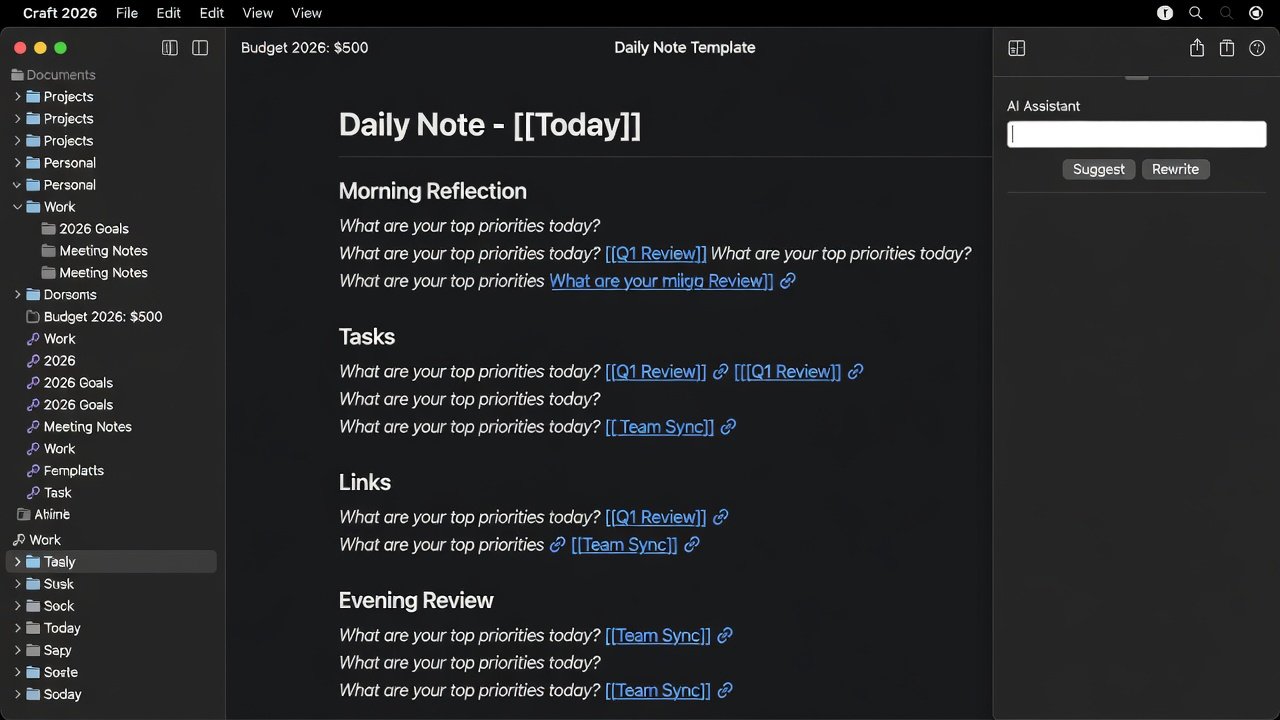
Daily notes form the backbone of any second brain. In Craft, create a dedicated template folder and design reusable structures that include morning reflections, three key priorities, AI-generated summaries, and evening reviews. A strong template might contain these elements: automatic date stamp, mood or energy level tracker, weather note for context, prioritized task list linked to Apple Reminders, and a prompt field for the AI to generate three insights from the day.
Duplicate this template each morning for consistency. Over weeks, these daily entries become a rich timeline that reveals patterns in productivity and learning. Customize further by adding recurring questions like “What surprised me today?” to encourage deeper reflection.
Leveraging AI Writing Tools in Craft 2026
Craft's built-in AI assists with summarization, idea expansion, and rewriting. Highlight any text and prompt the AI to expand a concept, create action items, or connect it to existing notes. This accelerates research capture by turning raw meeting transcripts into structured knowledge quickly. For example, after pasting lecture notes, ask the AI to “generate five discussion questions and link them to my Projects folder.” Experiment with custom prompts tailored to your domain, such as generating literature review outlines for academic work or competitive analysis points for business planning.
The AI also supports voice-to-text refinement, making it useful during walks when you dictate ideas that later get polished automatically.
Organizing with Nested Folders and Backlinking Strategies
Nested folders allow hierarchical organization. Create parent folders like “Projects” and child folders for specific initiatives. Backlinks enhance discoverability—link related notes bidirectionally to form a web of knowledge. A practical strategy is to always add at least two backlinks when creating a new note: one to the parent project and one to a related concept note. Real example: After a client meeting, link the note both to the “Client X” folder and to a separate “Sales Techniques” note created earlier. This creates natural retrieval paths and surfaces forgotten connections during later reviews.
Practical Workflows: Research Capture and Task Integration
For research, clip web content directly into Craft and let AI suggest relevant tags and keywords. Integrate tasks by embedding reminders that sync with Apple Reminders. Step-by-step research workflow: 1. Capture the source with a web clipper. 2. Run an AI summary prompt. 3. Add two to three backlinks to related notes. 4. Schedule a review date in your daily note. 5. Export key excerpts to a master “Insights” document quarterly. Task integration works similarly—flag any action item with a simple checkbox that appears in your daily overview, keeping your second brain both a knowledge base and a lightweight project manager.
Using Graph View for Knowledge Discovery
The graph view visualizes connections between notes, revealing clusters and isolated ideas. Zoom into dense clusters during quarterly reviews to spot patterns across months of entries. For instance, you might discover that notes tagged “Productivity” frequently link to health-related entries, prompting new experiments in time-blocking around exercise. Use filters to highlight only notes from the past 90 days, making the graph less overwhelming and more actionable for ongoing knowledge discovery.
Mobile-First Organization Techniques
On iOS, leverage quick-capture widgets and Siri shortcuts to reduce friction. Organize primarily by priority tags rather than deep folders for faster mobile access. Keep a “Today” smart folder that pulls recent daily notes and flagged tasks. Sync changes instantly to your Mac for deeper editing sessions when at a desk. This mobile-first approach ensures your second brain remains useful even when you only have your phone available.
Comparison: Craft 2026 vs Obsidian and Notion
Compared to Obsidian, Craft offers a superior native iOS experience and polished AI tools without requiring community plugins. Versus Notion, Craft provides faster performance and better offline reliability, though Notion still leads in complex relational databases. Choose Craft if seamless Apple ecosystem integration and elegant writing matter most to your workflow. Users who need heavy data visualization may prefer supplementing Craft with other tools.
Exporting Your Knowledge Base
Craft supports exporting to Markdown, PDF, and Word formats. Use these for sharing with collaborators or archiving in other apps like Obsidian or Notion. A recommended monthly practice is exporting your top ten most-linked notes as a backup archive stored in a secure cloud folder.
Best Practices and Common Mistakes to Avoid
Best practices include reviewing your graph view weekly, keeping folder depth under four levels, and using consistent naming conventions for daily notes. Avoid the mistake of over-tagging everything, which creates noise. Another pitfall is neglecting backlinks—notes without connections become invisible in graph view. Start small with five core folders and expand only when you feel the structure is limiting retrieval speed.
FAQ on Common Setup Hurdles
- How do I fix sync issues? Restart the app, verify iCloud is enabled, and check your internet connection.
- Can I use Craft offline? Yes, all edits sync automatically when reconnected.
- Is AI available on mobile? Full AI features work identically on both iOS and Mac.
- How many backlinks should each note have? Aim for two to four relevant connections to maintain a healthy knowledge graph.
- What happens if I delete a note? Deleted notes move to trash and can be recovered for 30 days.
- Can I import from other apps? Yes, Markdown import is supported directly from the file menu.
Conclusion
Craft 2026 empowers users to build an intelligent second brain that grows with their needs. Start simple with daily templates, iterate on your folder structure, and leverage AI to unlock deeper insights from your accumulated notes. With consistent use, the system becomes an indispensable thinking partner across all areas of life and work.


No comments yet. Be the first!