 NeoBit Daily
GoodNotes 2026: iPad Templates & Handwriting for Students
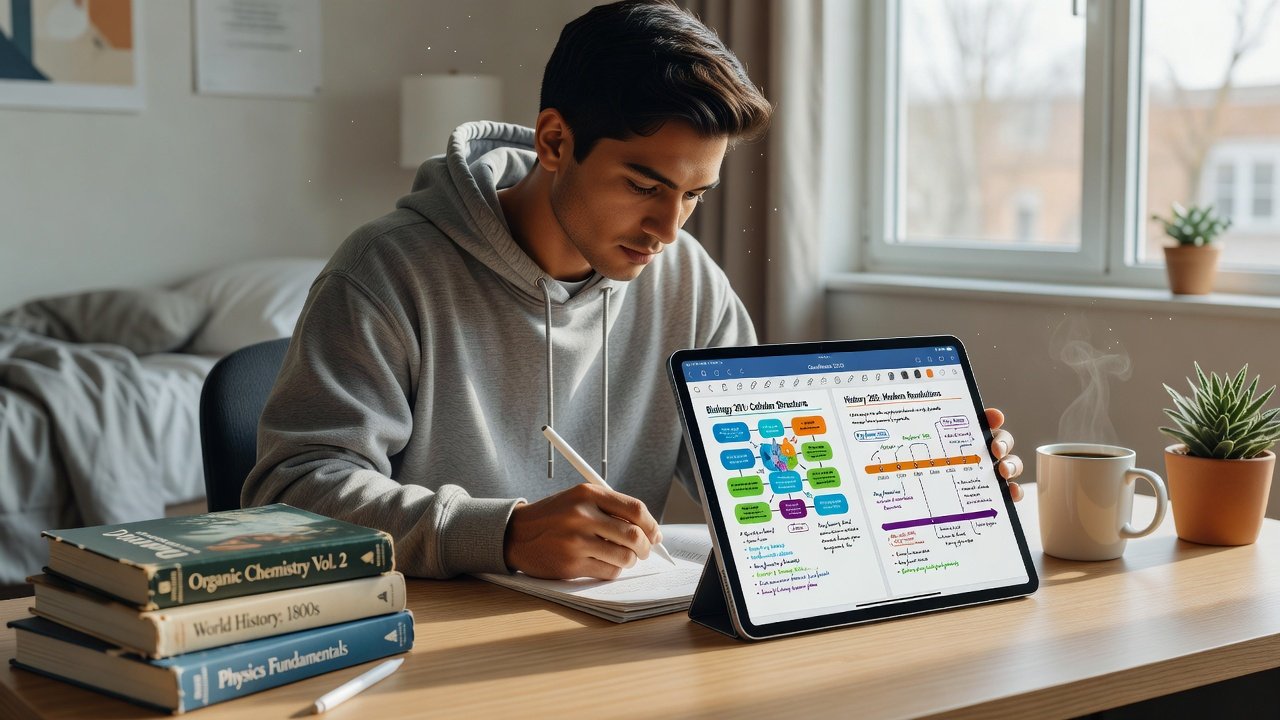
GoodNotes 2026 transforms how students take notes, annotate PDFs, and organize academic materials on the iPad. With powerful template tools, refined handwriting recognition, and seamless Apple Pencil integration, the app supports efficient workflows from lecture halls to late-night study sessions. This guide explores practical setups, advanced features, and organization strategies that help students stay productive throughout the semester, turning the tablet into a versatile digital notebook that replaces stacks of paper while adding searchability and easy sharing.
Getting Started with GoodNotes 2026 Setup
Begin by downloading GoodNotes from the App Store and signing in with your Apple ID for iCloud sync. Create a new notebook by tapping the plus icon and selecting a template category. Students often start with lined or grid paper for math and science classes. Customize page size to match standard US Letter or A4 formats used in most assignments. Enable automatic backup so that every change is saved across devices. Spend time exploring the toolbar to familiarize yourself with pen, highlighter, and eraser options before diving into complex note-taking sessions. Adjusting the app's interface brightness and color themes can reduce eye strain during extended evening study periods.
Creating Custom Templates for Class Notes
GoodNotes allows users to design reusable templates that match specific course needs. Open an existing notebook, add blank pages, then use the shape tool to draw headers, date fields, and subject dividers. Save the page as a template by selecting it and choosing the export option for personal library use. For example, a history student might create a template with timeline sections and citation boxes. A biology major could design pages with labeled diagrams and key term lists. Test templates across multiple devices to confirm they scale correctly on different iPad models. Consider adding color-coded sections for different topics within one course to improve visual scanning during review. Advanced users duplicate successful templates and modify them slightly for related classes, saving hours of repetitive setup work each semester.
Handwriting Recognition Tweaks and Apple Pencil Techniques
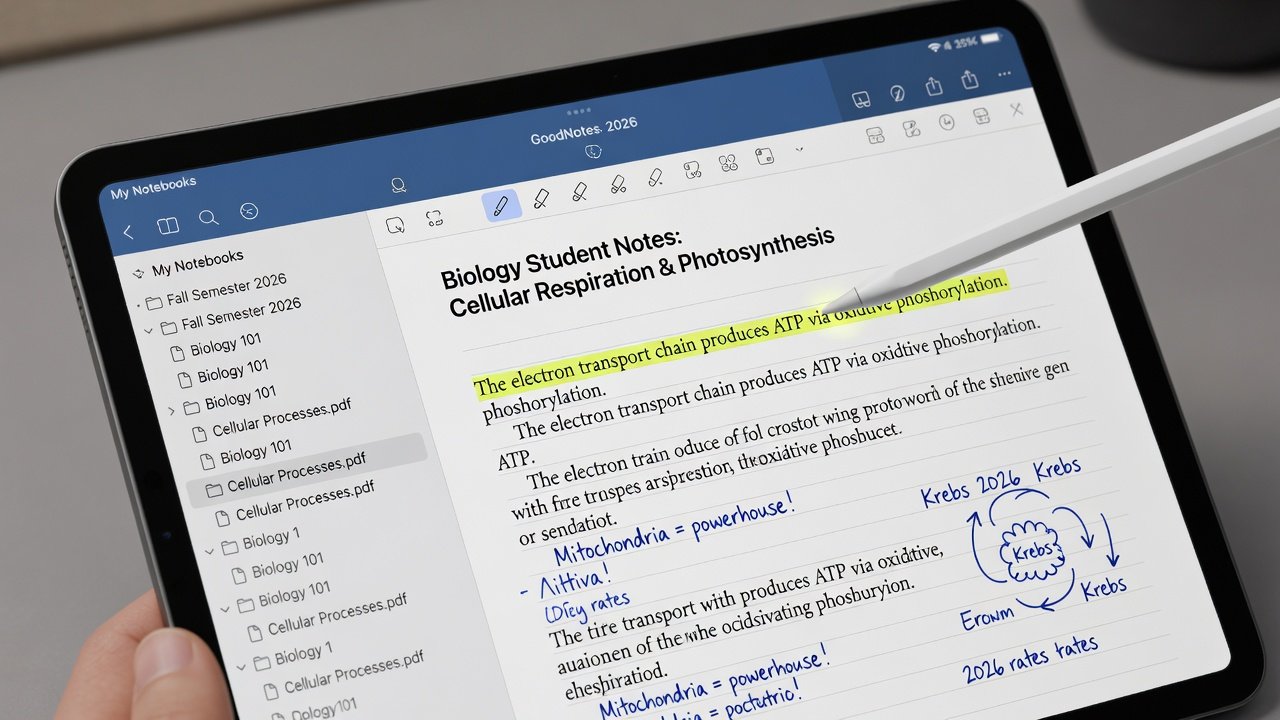
Handwriting recognition in GoodNotes 2026 improves accuracy when you train the engine with sample writing. Practice common academic terms in the recognition settings panel. Enable auto-correction for technical vocabulary used in engineering or medical courses. The engine learns your unique style over time, so consistent daily use leads to fewer corrections. Apple Pencil techniques include using the eraser tip for precise corrections and the double-tap gesture to switch between pen and highlighter modes. Adjust line thickness dynamically by varying pressure for emphasis in diagrams. Combine these with lasso selection to move or resize handwritten sections without losing formatting. Experiment with tilt sensitivity for shading effects in sketches, which proves useful in art history or architecture classes. Many students report that pairing the Pencil with a matte screen protector enhances the paper-like feel and improves control during long writing sessions.
PDF Annotation Steps for Assignments
Import PDFs directly into GoodNotes by tapping the import button or sharing files from email and cloud services. Use the annotation toolbar to highlight key passages, add sticky notes for questions, and draw arrows to connect related ideas. Layer multiple annotations without cluttering the original document by grouping elements. Students can fill forms within PDFs and sign documents using the signature tool. Export annotated versions with or without comments visible for professor submissions. A practical workflow involves first reading the full PDF, then returning to add layered comments in different colors for questions versus summaries. This method keeps feedback organized and easy to reference later when preparing for exams.
Organization Tips Using Folders and Search
Structure your library with subject-specific folders created via the sidebar menu. Nest subfolders for weekly lectures or project phases. Use the global search bar to locate keywords across all notebooks, including text converted from handwriting. Tag notes with course codes for quick filtering. Pin frequently used notebooks to the top of your library. Archive completed semesters to reduce visual clutter. Create a master index notebook that links to important pages in other folders using internal hyperlinks. This extra step pays off when preparing comprehensive study guides before finals. Regularly review folder structures at the start of each month to keep everything aligned with changing course requirements.
- Tag notes with course codes for quick filtering
- Pin frequently used notebooks to the top of your library
- Archive completed semesters to reduce visual clutter
- Use custom icons on folders for instant visual recognition
Export Options for Sharing Assignments
GoodNotes supports exporting notebooks as PDF, image sequences, or editable GoodNotes files. Choose PDF with annotations included when submitting homework. For group projects, export individual pages as high-resolution images to insert into shared slides. Connect to cloud services like iCloud for automatic backups. Share links directly from the app to classmates or instructors. Advanced export settings let you password-protect sensitive documents or optimize file size for email attachments. When collaborating, export in the native GoodNotes format so recipients can continue editing with full feature support.
Comparisons to Similar Apps
While Notability excels at audio recording alongside notes, GoodNotes offers superior template customization and search capabilities. Noteshelf provides strong organization but lacks the depth of PDF markup tools found in GoodNotes 2026. CollaNote focuses on real-time collaboration, making GoodNotes preferable for solo academic workflows that emphasize personal templates and precise handwriting conversion. Compared to free alternatives like Apple Notes, GoodNotes delivers more robust handwriting search and template libraries that justify the investment for serious students. Users who need cross-platform support often pair GoodNotes with Apple ecosystem devices for the smoothest experience.
FAQ: Common Student Pain Points
How do I sync notes across multiple devices?
Enable iCloud sync in GoodNotes settings and ensure all devices use the same Apple ID. Notes appear almost instantly when connected to Wi-Fi. Check the sync status icon if changes do not appear immediately.
Why does handwriting recognition miss certain words?
Improve results by adding custom words in the recognition dictionary and practicing consistent letter formation with the Apple Pencil. Restarting the app after adding new vocabulary often boosts accuracy right away.
Can I recover accidentally deleted pages?
Check the trash folder within the app or restore from iCloud backups created in the last 30 days. Enable version history features to roll back individual notebooks easily.
What export format works best for professors?
PDF with embedded annotations maintains formatting across devices and preserves all markup details. Always verify the recipient's preferred format before final submission.
How can I optimize battery life during long classes?
Lower screen brightness, close unused apps, and disable unnecessary background sync until after the lecture ends.
GoodNotes 2026 equips students with tools that streamline note-taking and assignment management, turning the iPad into a complete academic workstation when used with thoughtful templates and organized workflows. Experiment with the features described to discover the combination that best fits your personal study habits.

No comments yet. Be the first!