 NeoBit Daily
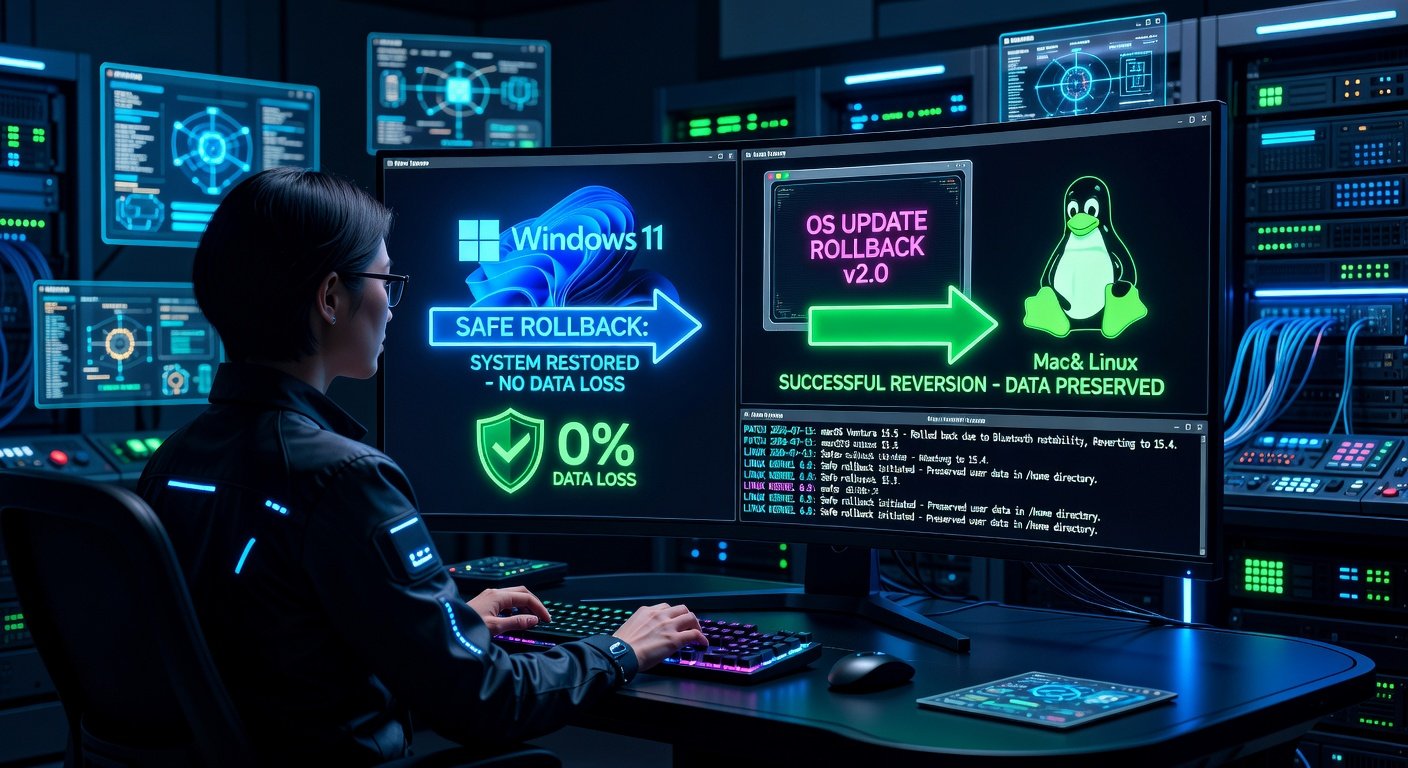
Why Rollback 2026 OS Updates? The Critical Need
In 2026, operating systems like Windows, macOS, and Linux distributions push frequent, complex updates packed with AI integrations, security patches, and performance tweaks. While these enhancements boost functionality, they can introduce bugs, compatibility issues, or performance regressions. For IT professionals managing fleets of devices, a faulty update can mean downtime, lost productivity, and frustrated users.
This guide provides a step-by-step process to identify problematic updates via patch and release notes, then rollback safely without data loss. We'll cover best practices, tools, and scripts tailored for Windows, macOS, and Linux, ensuring minimal disruption.
Step 1: Analyze Patch Notes and Release Notes
Before any rollback, pinpoint the culprit update. Patch notes detail specific fixes and changes; release notes offer broader context.
- Locate Notes: Check official changelogs. For Windows, visit Microsoft Learn; macOS via System Settings > General > Software Update history; Linux via package manager logs (e.g.,
apt history.logordnf history). - Identify Issues: Look for keywords like 'known issues,' 'regressions,' or user-reported bugs matching your symptoms (e.g., crashes, network failures). Cross-reference with forums but prioritize official sources.
- Safe Rollback Point: Target the previous stable version. Note KB numbers (Windows), build numbers (macOS), or package versions (Linux).
Pro Tip: Automate note parsing with scripts. For example, use Python's BeautifulSoup to scrape changelogs and grep for issues.
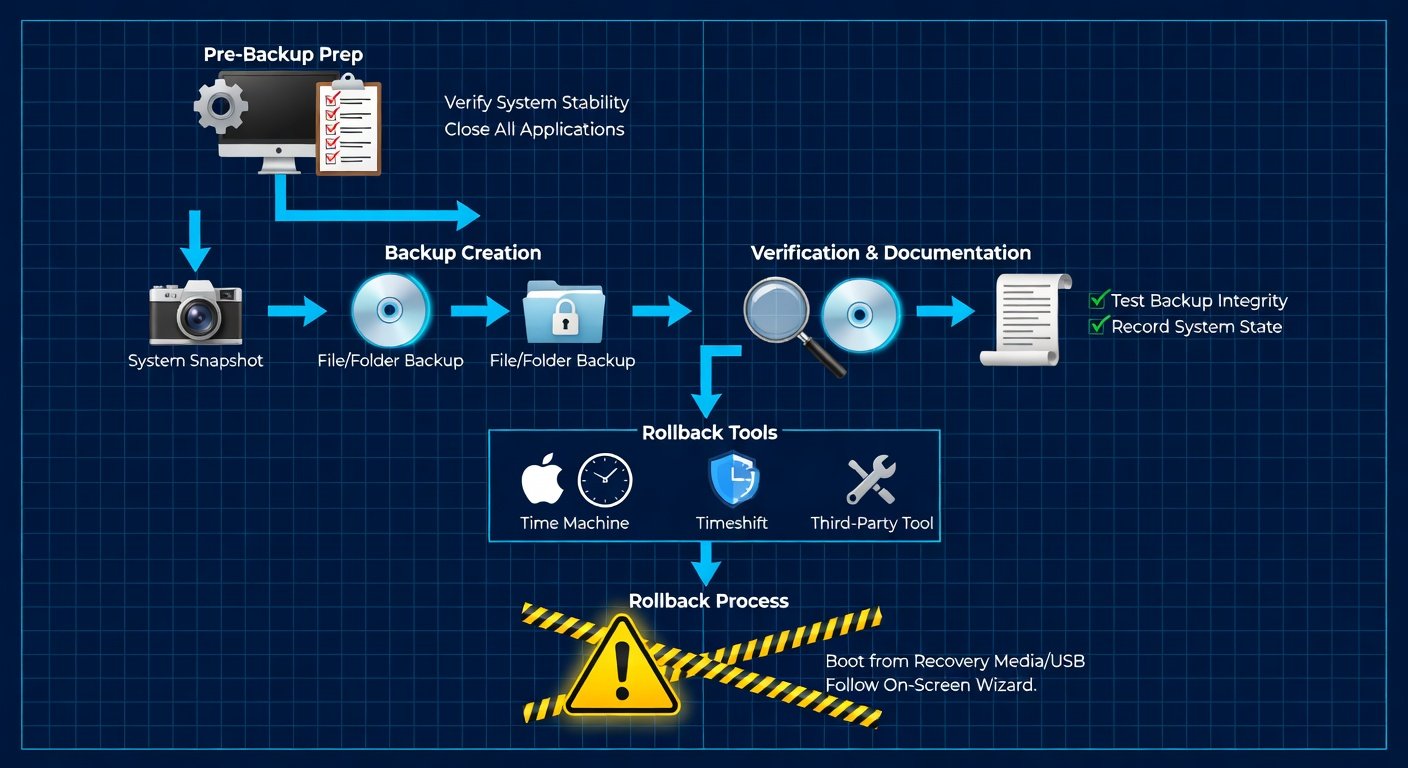
Step 2: Preparation Best Practices
Avoid data loss with these essentials:
- Backup Everything: Full system images via tools like Macrium Reflect (Windows), Time Machine (macOS), or Timeshift (Linux).
- Snapshot VMs: If virtualized, snapshot before changes.
- Test Environment: Replicate issues in a staging setup.
- Document: Log current state, update versions, and symptoms.
Step 3: Windows Rollback Without Data Loss
Windows 2026 (likely Windows 12 or evolved 11) offers built-in rollback for feature updates (10 days grace) and cumulative patches.
Quality Updates (Patches):
- Search 'View update history' in Settings.
- Uninstall specific KB via 'Uninstall updates.'
- Use DISM for deeper rollback:
DISM /Online /Get-Packages /Format:TablethenDISM /Online /Remove-Package /PackageName:PackageName. - Reboot and verify.
Feature Updates:
- Settings > Windows Update > Update history > Recovery options.
- Or boot to Recovery Environment (WinRE): Shift+Restart, Troubleshoot > Advanced > Uninstall Updates.
Script Example (PowerShell):
$KB = 'KB1234567'For enterprises, WSUS or Intune policies allow staged rollbacks. Reference Microsoft Support for latest tools.
Step 4: macOS Rollback Guide
macOS 2026 (Sonoma successor) emphasizes SIP (System Integrity Protection), but rollbacks are feasible.
Recent Updates:
- System Settings > General > Software Update > Update History.
- For minor patches, no direct uninstall; use Time Machine restore to pre-update snapshot.
Major Version Rollback:
- Time Machine: Boot to Recovery (Cmd+R), Restore from Time Machine.
- Full Reinstall: Download previous IPSW from Apple Support, use OpenCore Legacy Patcher for non-standard downgrades (advanced).
Script: Use softwareupdate --history to list, then spctl --master-disable temporarily for custom installs. Best practice: Maintain bootable installer USBs of prior versions.
Step 5: Linux Rollback Strategies
Linux's modular nature shines here, with distro-agnostic and specific methods.
Debian/Ubuntu:
apt list --upgradableandgrep -i '2026' /var/log/apt/history.log.- Downgrade:
apt install package=versionorapt-mark hold package.
RHEL/Fedora:
dnf history list, thendnf history undo ID.- Tool: dnf-plugin-versionlock.
Arch:
pacman -S package<version> or use downgrade tool.
Universal: Timeshift for snapshots, BTRFS rollbacks (btrfs subvolume snapshot).
Script Example (Bash):
#!/bin/bash
PACKAGES=($(apt list --installed | grep 2026))
for pkg in ${PACKAGES[@]}; do apt install $pkg=1.2.3-1; done
Kernel rollbacks: grub-customizer or edit /boot/grub/grub.cfg. See Kernel.org for stable branches.
Advanced Tools and Scripts for IT Pros
- Cross-Platform: Ansible playbooks for fleet rollbacks; Puppet for config drift prevention.
- Monitoring: Prometheus + Grafana to detect issues pre-rollback.
- Automation: GitHub Actions for CI/CD pipelines testing updates in staging.
Custom Python Script for Unified Analysis:
import subprocess
import json

def check_updates(os_type):
    if os_type == 'windows':
        subprocess.run(['powershell', 'Get-HotFix'])
    # Add macOS/Linux equivalents
Best Practices to Minimize Downtime and Risks
- Staged Rollouts: Canary deployments (10% fleet first).
- Zero-Downtime: Dual-boot setups or live migration.
- Post-Rollback: Monitor with
top, Event Viewer; block future bad updates via policies. - Compliance: Audit trails for SOC2/HIPAA.
By following these steps, IT pros can rollback 2026 updates swiftly, preserving data and stability. Stay proactive with vendor alerts for smoother futures.

No comments yet. Be the first!