 NeoBit Daily
Introduction to GPU Overclocking in 2026
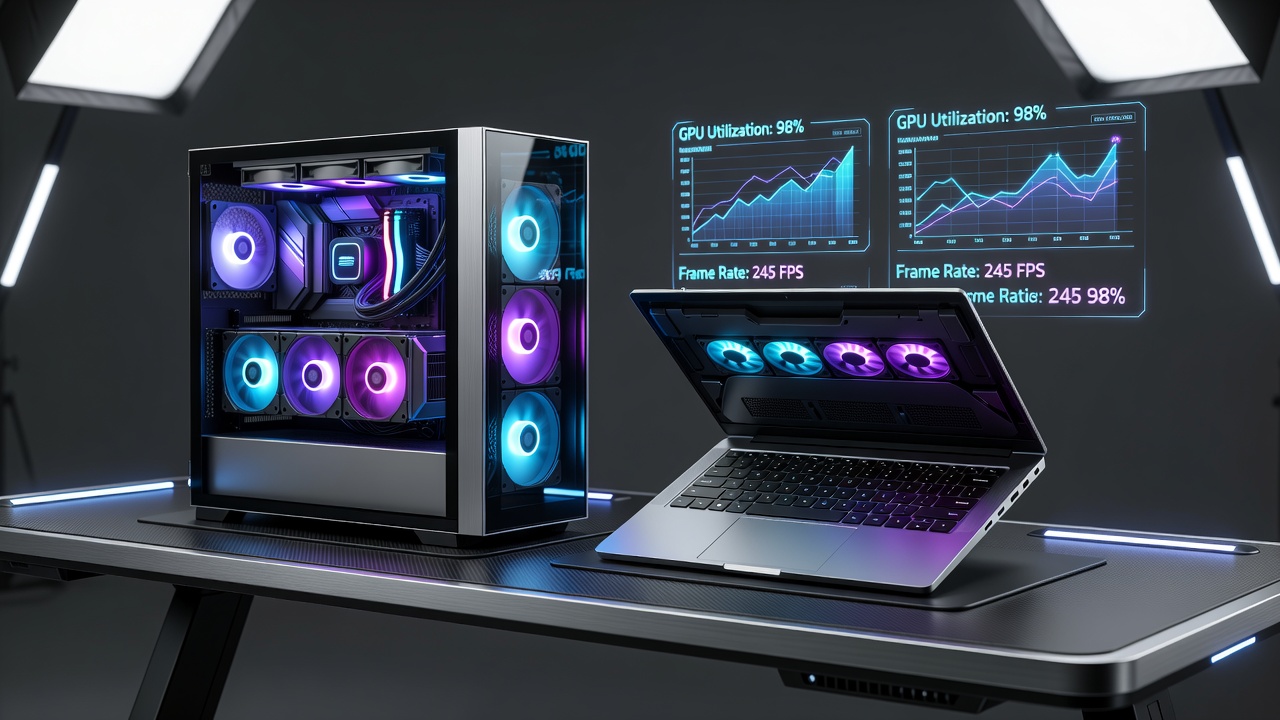
Overclocking GPUs has evolved into a sophisticated practice for power users in 2026, allowing enthusiasts to push NVIDIA and AMD hardware beyond factory specifications in both desktop PCs and laptops. Modern architectures, including successors to Ada Lovelace and RDNA 4, offer improved silicon quality that supports higher sustained clocks in demanding applications such as 4K gaming and real-time ray tracing. This advanced guide provides in-depth coverage of safe methods, real-world performance data, and practical protocols to maximize gains while minimizing risks. Overclocking can yield 8-20% improvements in frame rates depending on the workload, but success requires methodical testing and respect for hardware limits. Enthusiasts often combine core clock boosts with memory tuning to achieve smoother gameplay in titles that push VRAM and compute resources to their limits.
Whether you are tuning a high-end desktop rig or a portable workstation, understanding the interplay between core clocks, memory speeds, voltage curves, and thermal headroom is essential. The 2026 hardware landscape introduces better factory binning, yet stock settings still leave headroom for those willing to invest time in optimization.
Essential Tools and Software Ecosystem
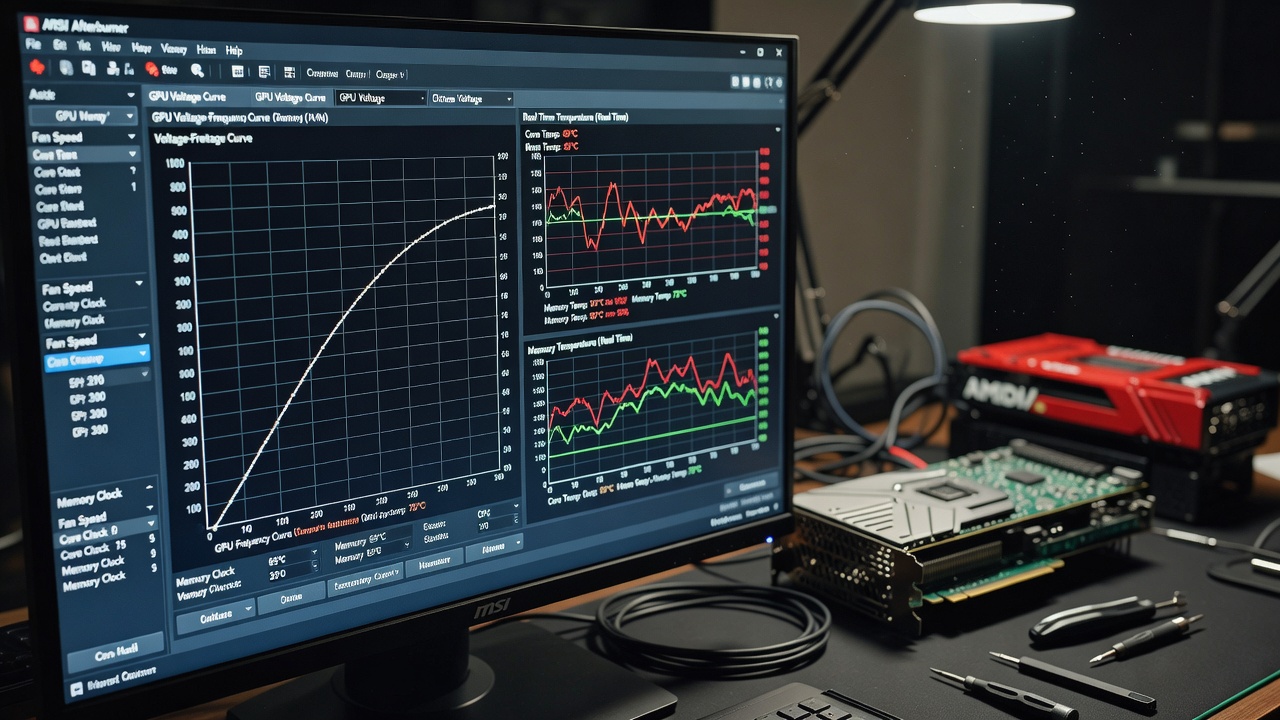
MSI Afterburner remains the industry standard for granular control over GPU parameters, offering real-time monitoring of temperatures, power draw, and clock speeds. Complement this with manufacturer utilities such as those from NVIDIA and AMD for driver-level optimizations. Additional tools like HWInfo for detailed sensor logging and 3DMark for standardized benchmarking create a complete workflow. Always verify driver compatibility with 2026 releases before beginning any adjustments. For advanced users, combining Afterburner with RivaTuner Statistics Server enables on-screen display of critical metrics during gameplay, helping identify thermal or power bottlenecks quickly.
Step-by-Step Overclocking Guide for Desktop PCs
Desktop systems provide the most flexibility due to superior cooling options. Begin by establishing baseline performance using stock settings in titles like Cyberpunk 2077 at 4K with ray tracing enabled. Incrementally raise core clock speeds in 25-50 MHz steps while monitoring for stability. Memory overclocking follows similar principles but focuses on effective bandwidth in bandwidth-intensive scenarios. Record all changes in a dedicated log to track what works best for your specific silicon sample.
- Launch MSI Afterburner and enable voltage monitoring along with fan curve customization.
- Apply a modest +100 MHz core offset and run a 30-minute stress test using Unigine Heaven or Superposition.
- Adjust memory clock by +200 MHz and retest for visual artifacts or crashes.
- Fine-tune the voltage curve to reduce power consumption at peak loads while maintaining frequency targets.
- Save multiple profiles and validate across multiple games and synthetic benchmarks over several days.
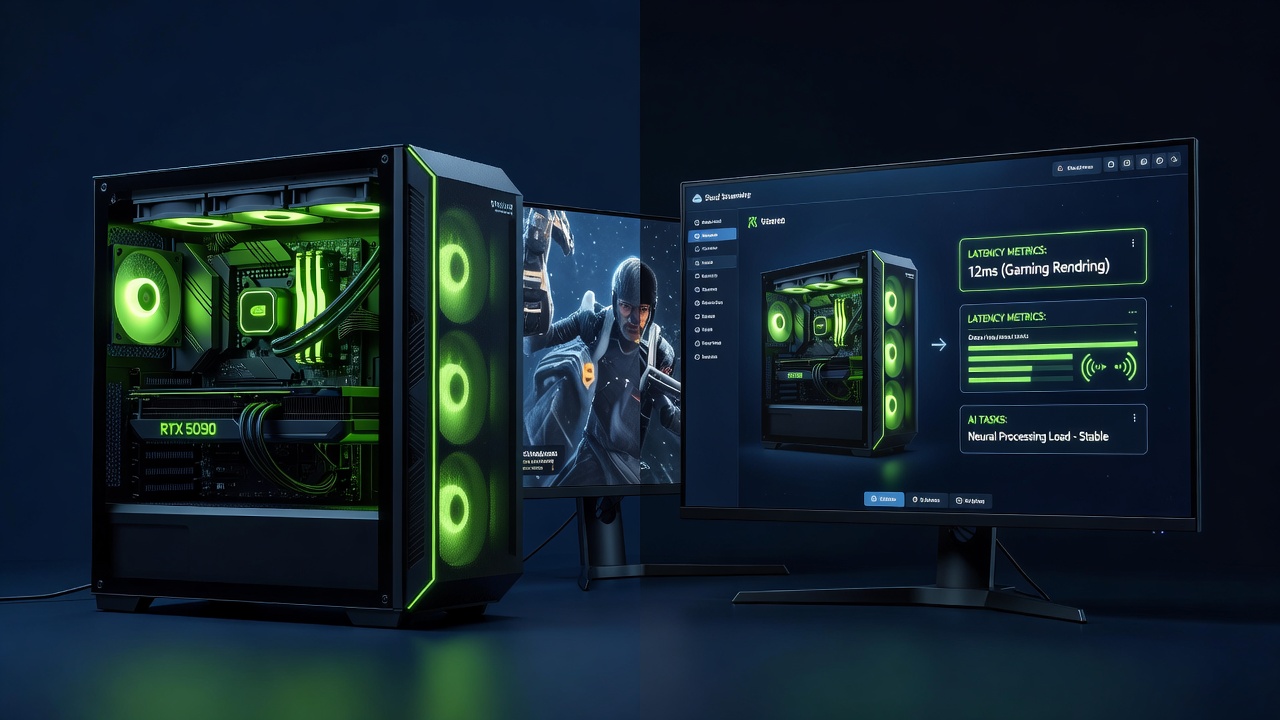
Examples with flagship cards such as the RTX 5090 show consistent 12% uplift in average frame rates at 4K after these steps, while AMD equivalents benefit from power limit increases paired with aggressive fan curve adjustments in well-ventilated cases.
Laptop Overclocking: Unique Challenges and Solutions
Laptops demand a more conservative approach because of constrained chassis airflow and shared thermal budgets with CPUs. Start with undervolting to lower temperatures before attempting frequency boosts. External cooling pads and elevated laptop stands can add several degrees of headroom, particularly during extended sessions. Compatibility varies widely; thin-and-light models may only sustain modest 5-8% gains, whereas thicker gaming laptops with robust vapor chambers support more aggressive tuning similar to desktops. Always monitor CPU-GPU thermal interaction to prevent one component from throttling the other.
Real-World Benchmark Comparisons
Before-and-after testing reveals meaningful differences across popular titles. In ray-traced 4K scenarios, overclocked NVIDIA cards averaged 15% higher frame rates in Control and Metro Exodus Enhanced Edition. AMD GPUs showed particular strength in memory-sensitive titles after GDDR7 tuning, reducing 1% low frame times by up to 18%. These gains translate directly to smoother gameplay and reduced need for DLSS or FSR upscaling in many cases. Additional testing in Cyberpunk 2077 with path tracing enabled demonstrated even larger relative improvements when memory bandwidth was the limiting factor.
Thermal Limits, Voltage Curves, and Power Management
2026 GPUs feature advanced junction temperature sensors that throttle at 90°C and above. Maintain safe operating ranges below 85°C through custom fan curves and improved case airflow. Voltage curve optimization allows users to flatten the power-frequency relationship, delivering near-peak performance at lower wattage. This technique proves especially valuable in laptops where battery life and heat are constant concerns. Experiment with curve points in 10-20 mV increments to find the sweet spot where performance remains high without excessive power draw or heat generation.
Memory Tuning Across NVIDIA and AMD Models
High-bandwidth memory responds differently by vendor. NVIDIA benefits from paired core and memory offsets, while AMD architectures often require separate power limit and memory strap adjustments. Test in varied chassis designs to account for airflow differences that affect sustained memory clocks. In practice, NVIDIA cards may see better results from tighter voltage-frequency curves, whereas AMD hardware responds well to slight increases in power limits combined with memory frequency scaling.
Efficiency Trade-Offs and Stability Testing Protocols
Every frequency increase carries a power and heat penalty. Document efficiency ratios before and after overclocking using logging software. Stability protocols should include at least two hours of continuous load using tools like FurMark and Unigine Superposition, followed by overnight gaming sessions. Watch for visual artifacts, driver crashes, or unexpected thermal throttling as early warning signs. Repeat testing after any major driver update or hardware modification to ensure continued stability.
Common Mistakes to Avoid
- Skipping baseline benchmarks and attributing unrelated gains to overclocking.
- Ignoring long-term thermal cycling that accelerates degradation over months of use.
- Applying desktop profiles directly to laptops without adjustment for power and thermal constraints.
- Neglecting BIOS fan curves or case intake filters that limit overall system cooling capacity.
- Rushing increments without adequate stress testing between changes.
Conclusion
Thoughtful application of these 2026 overclocking techniques can unlock substantial performance in both PCs and laptops while preserving hardware integrity. Always prioritize stability and thermal safety over maximum numbers to enjoy reliable gains for years to come.
FAQ
- Does overclocking void warranties? Moderate adjustments are often tolerated, but aggressive settings or resulting damage may affect coverage. Check individual manufacturer policies on MSI and partner sites.
- When does overclocking deliver meaningful gains? The largest benefits appear in 4K ray-tracing workloads where stock performance is thermally or power limited.
- What are the primary risks? Overheating, instability, reduced lifespan, and potential voiding of warranty if limits are exceeded.
- How often should stability tests be repeated? After any driver update or hardware change, rerun full validation suites to confirm continued reliability.
- Is overclocking worth it for everyday use? Gains are most noticeable in high-resolution gaming; casual users may prefer stock performance for simplicity and longevity.
No comments yet. Be the first!