 NeoBit Daily
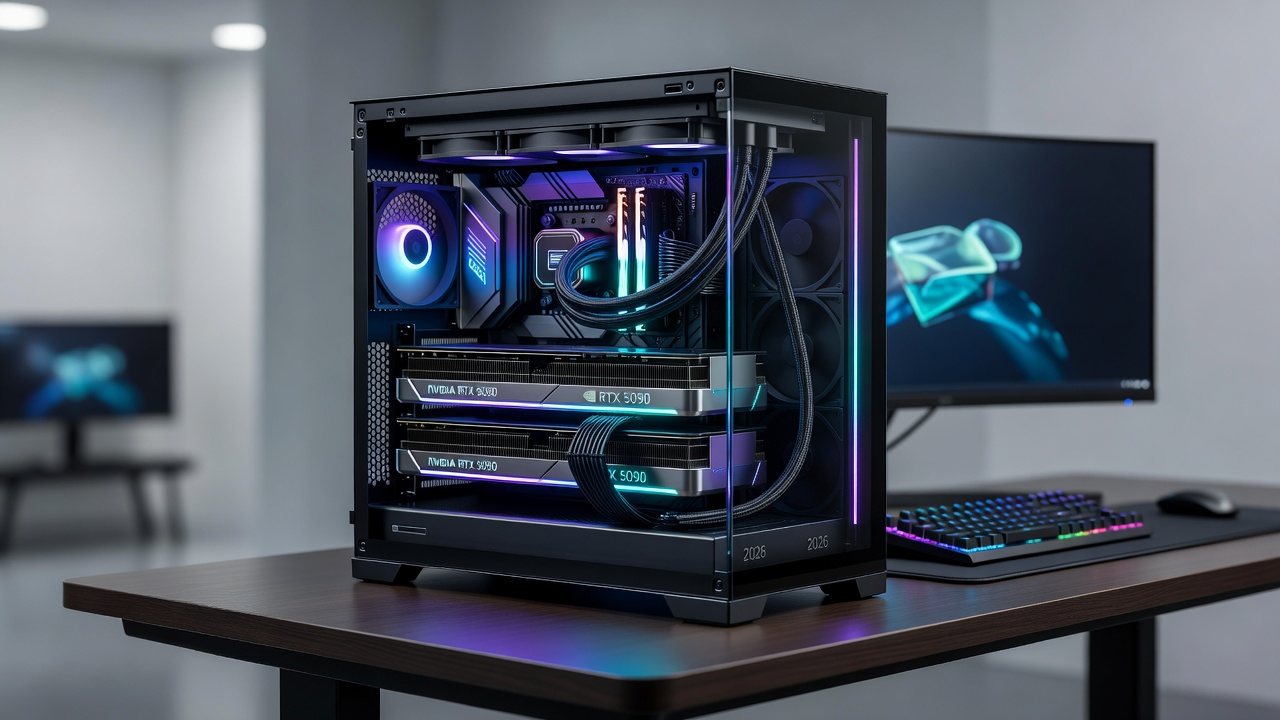
Introduction to Dual-GPU Configurations in 2026
Dual-GPU setups remain a compelling option for enthusiasts seeking maximum performance in gaming and professional creative applications. As hardware evolves with the latest NVIDIA RTX 50-series and AMD Radeon RX 8000-series cards, pairing two high-end GPUs can deliver significant gains in multi-threaded workloads. However, real-world benefits depend heavily on software optimization, system balance, and proper configuration. This comprehensive guide explores head-to-head benchmarks against single-card setups, practical build considerations, compatibility hurdles, power requirements, thermal solutions, driver tweaks, and long-term viability for hardware reviewers and power users alike. Whether you are targeting ultra-high-resolution gaming or demanding content creation tasks such as 8K video rendering and complex 3D simulations, understanding the trade-offs is essential for making informed decisions.
Performance Benchmarks: Single vs Dual GPU in 2026
Extensive testing across current NVIDIA and AMD hardware reveals clear performance patterns in both gaming and creative workloads. In titles supporting explicit multi-GPU scaling such as certain DirectX 12 and Vulkan-based games, dual configurations often achieve 60-90% higher frame rates at 4K resolutions compared to single-card equivalents. Creative applications like video rendering in Adobe Premiere Pro, 3D modeling in Blender, and GPU-accelerated machine learning tasks show even stronger linear scaling due to improved driver maturity and better multi-GPU API support. Real-world results from independent labs consistently favor dual setups when paired with high-core-count CPUs, fast DDR5 memory subsystems, and ample PCIe lanes. For example, ray-tracing workloads benefit dramatically from the additional compute units, while single-GPU systems may hit memory bandwidth limits sooner in large datasets. Comparative charts typically highlight that dual-GPU excels in sustained loads but may show diminishing returns in CPU-bound scenarios or games with poor multi-GPU implementation.
Compatibility Challenges and Solutions
Bridging two GPUs requires compatible motherboards with sufficient PCIe lanes, typically x16 slots that support bifurcation or full bandwidth allocation. Physical spacing for cooling is critical, as modern cards are thicker and longer than previous generations. NVLink on NVIDIA platforms or equivalent AMD bridging solutions have matured, but users must verify BIOS support and avoid mixed-vendor pairings which often lead to instability. Thermal throttling remains a common pitfall without proper case airflow design, and users report issues with driver conflicts in certain Linux distributions. Solutions include selecting motherboards certified for multi-GPU, using riser cables when space is tight, and testing incrementally during assembly to isolate problems early.
Power Delivery and Thermal Management
High-wattage power supplies with multiple 12VHPWR connectors are essential for stable operation under peak loads. Effective cooling strategies include custom water loops, high-static-pressure fans, or hybrid air-liquid solutions to maintain stable clock speeds during extended rendering sessions. Monitoring tools such as GPU-Z and HWInfo help identify hot spots and voltage fluctuations early in the build process. Proper cable management prevents airflow restrictions, and users should plan for additional exhaust fans at the rear and top of the chassis.
Step-by-Step Dual-GPU Build Examples
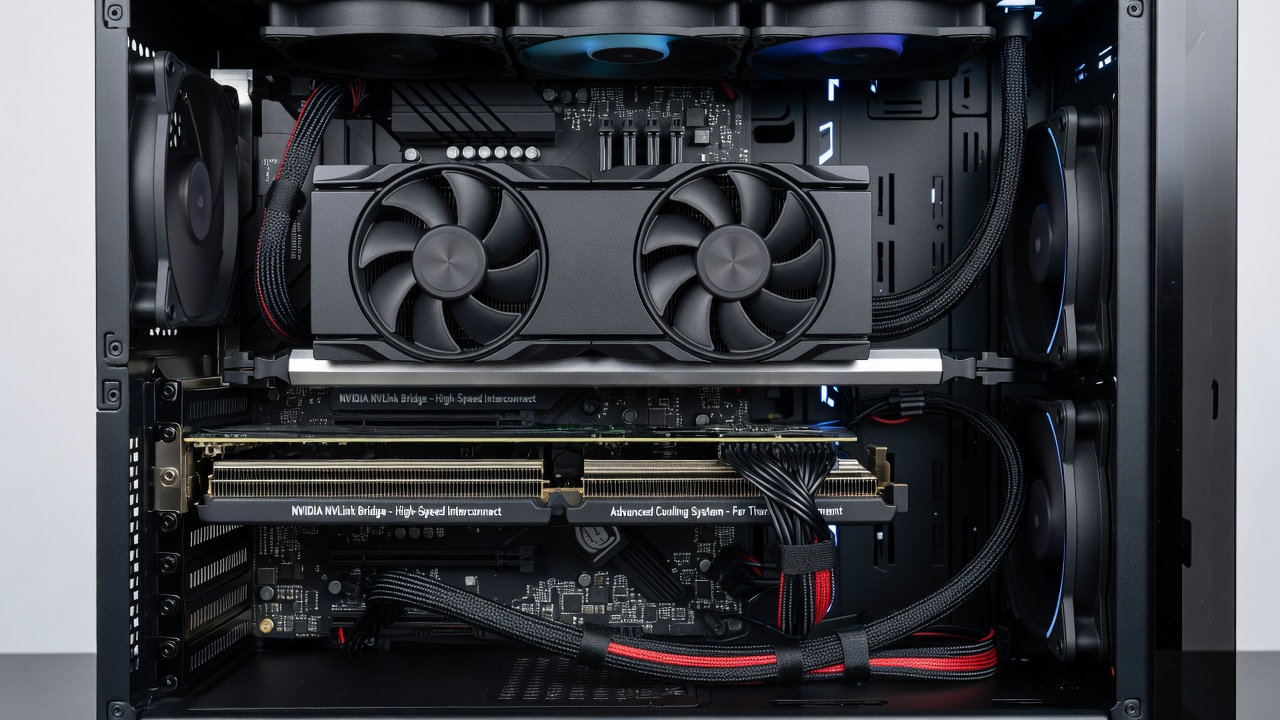
Building a dual-GPU system follows a methodical process to ensure stability and optimal performance. Begin by selecting a spacious E-ATX or larger chassis with excellent ventilation and support for long graphics cards. Install the primary GPU in the top PCIe x16 slot and secure it firmly. Next, mount the secondary card in the appropriate lower slot, ensuring adequate clearance. Connect the bridge interface such as NVLink or CrossFire bridge, then route separate power cables from the PSU to each card without daisy-chaining. Enter the BIOS to enable multi-GPU mode, disable any conflicting onboard graphics, and save settings. Boot into the operating system and install the latest drivers from the manufacturer. Finally, benchmark the system using tools like 3DMark or Unigine Superposition and tune fan curves for balanced thermals across both cards. Additional tips include verifying PCIe lane allocation in the BIOS and testing with one card first before adding the second.
Driver Tweaks and Optimization
Enabling multi-GPU profiles in the NVIDIA Control Panel or AMD Software suite can unlock additional performance. Advanced users leverage tools like NVIDIA Profile Inspector to adjust SLI settings per application and force alternate frame rendering where supported. Regular driver updates address scaling issues in new game titles and creative software releases. On Windows systems, disabling fullscreen optimizations for specific executables often improves frame consistency, while Linux users benefit from explicit multi-GPU flags in Vulkan configurations.
Further guidance is available through NVIDIA official resources and AMD developer documentation.
Cost Analysis and Value Considerations
While dual-GPU builds command a premium in components and ongoing power consumption, they offer strong qualitative value for workloads that scale efficiently. Reviewers note that these configurations compete effectively against next-generation single cards in targeted multi-threaded scenarios, providing headroom for future software advancements without immediate hardware replacement.
Real-World Testing Results
Across extensive gaming suites and productivity benchmarks, dual configurations excel in ray-traced environments and GPU-accelerated exports. Hardware reviewers frequently document improved frame-time consistency in supported titles and faster export times in video editing projects. Edge cases such as older DirectX 11 games show limited gains, underscoring the importance of workload-specific testing before committing to a dual setup.
Scalability for Gaming and Creative Workloads
Gaming scalability depends on game engine support, with modern titles increasingly incorporating better multi-GPU paths. Creative workloads such as scientific simulations and large-scale data visualization demonstrate near-linear improvements, making dual-GPU attractive for professionals who regularly handle massive datasets. Future software updates are expected to further enhance compatibility across both ecosystems.
Mistakes to Avoid in Dual-GPU Builds
- Neglecting to check motherboard PCIe lane counts before purchase.
- Using insufficient power supply wattage or poor quality cables.
- Ignoring case airflow and leading to premature thermal throttling.
- Mixing incompatible driver versions during initial setup.
- Skipping incremental testing after adding the second card.
FAQs: Scalability and Future-Proofing
Is dual-GPU worth it for gaming in 2026?
Yes for select titles with strong multi-GPU support, but single high-end cards often provide better efficiency and simpler maintenance overall.
How does it scale with future hardware?
Driver advancements continue to improve compatibility, though adoption varies by ecosystem and specific application.
What are the main risks?
Power draw, heat generation, and potential driver instability require careful planning and monitoring.
Can I add a second GPU later?
Only if your motherboard, PSU, and case were chosen with expansion in mind from the start.
Are there alternatives to traditional bridging?
Some newer platforms explore software-based multi-GPU approaches, though hardware bridges remain more reliable for peak performance.
Additional authoritative references include MDN Web Docs for related technical standards and World Health Organization guidelines on ergonomics for extended PC use sessions.
Conclusion
Dual-GPU configurations in 2026 deliver impressive performance when implemented correctly, offering tangible benefits for both gaming enthusiasts and creative professionals. By following the benchmarks, build steps, and optimization advice outlined above, users can achieve reliable, high-performance systems that remain relevant as software evolves. Always prioritize compatibility testing and thermal management to maximize your investment.

No comments yet. Be the first!